If your Motorola Edge 40 is running out of juice way too quickly, it can feel like you're constantly hunting for a charger. The good news is that a few simple tweaks can often get you back to a full day of use. Let's start with the most common culprit and work our way through the fixes.
Check What's Draining Your Battery
Before you change anything, it's smart to see where your power is actually going. Android 15 on the Edge 40 has detailed battery tracking built right in. Head to Settings > Battery > Battery usage.
This screen shows you exactly which apps and services have been using power over the last 24 hours. If you see a social media app, game, or messaging service at the top with a surprisingly high percentage, you've likely found your problem. I'd start investigating there first.
Update Your Software
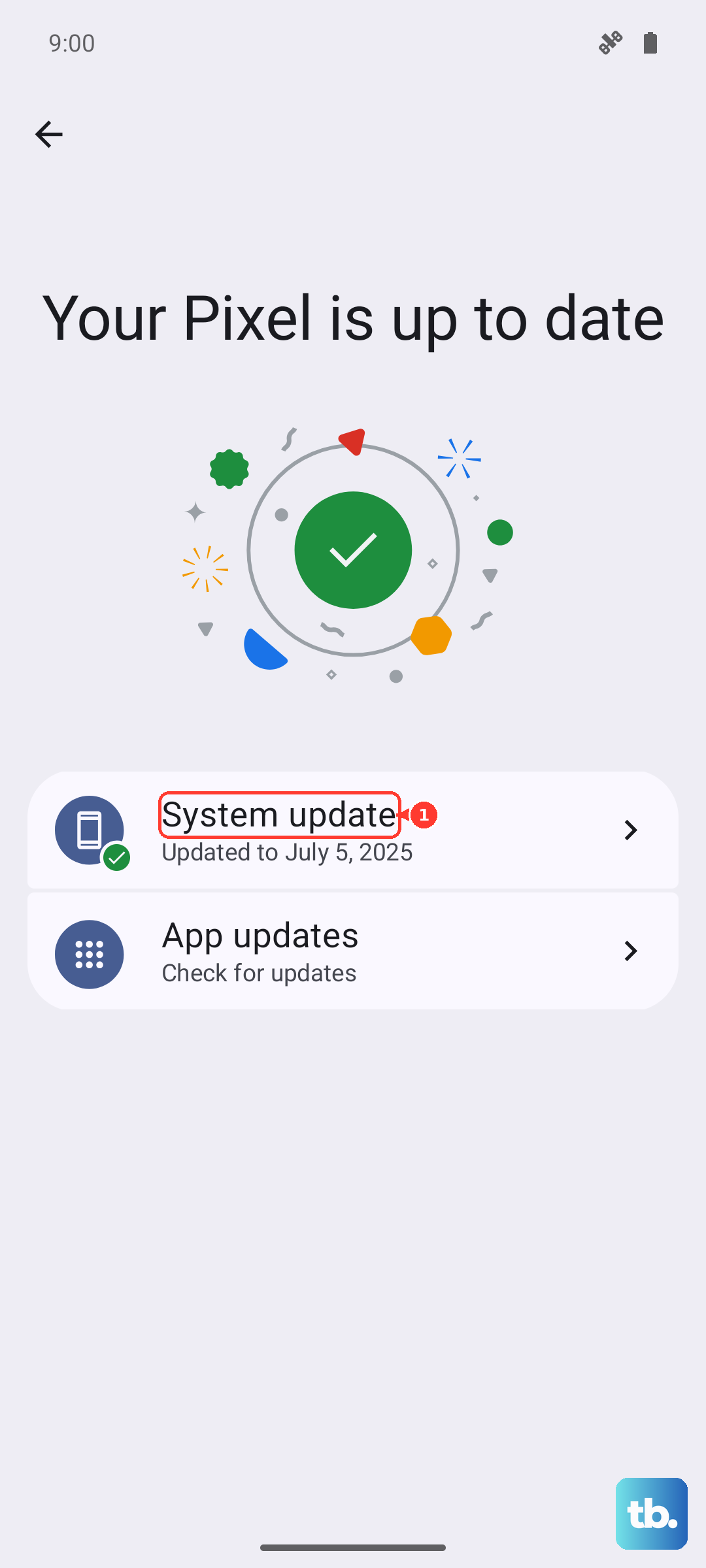
This is one of the easiest and most effective fixes. Motorola frequently releases updates that include optimizations for battery life and performance. An outdated system can sometimes cause the processor or modem to work less efficiently, draining the battery faster.
Go to Settings > System > System updates and tap "Check for update." If one is available, install it while your phone is plugged into its 68W charger. A simple reboot after the update can also help clear out any glitches that might be causing extra drain.
Manage Your Screen Settings
The display is almost always the biggest battery user on any smartphone. The Edge 40's bright, high-refresh-rate screen is fantastic, but it can be a power hog if left unchecked. First, try lowering the brightness manually from the quick settings panel.
Next, consider the refresh rate. A 144Hz screen is smooth, but 60Hz is much more efficient. You can change this in Settings > Display > Refresh rate. Using the "Auto" setting lets the phone switch between rates based on content, which is a good balance.
Also, shorten the screen timeout. Go to Settings > Display > Screen timeout and set it to 30 seconds or one minute. This ensures your display isn't staying on unnecessarily when you put the phone down.
Review App Permissions and Background Activity
Apps running in the background are a major source of drain. Start with location services. Go to Settings > Location. You can turn it off entirely here, or better yet, tap "App location permissions" to review each app individually.
Change apps you don't need tracking you constantly to "Allow only while using." For apps like weather or navigation that need location, this setting prevents them from draining battery when they're closed.
Next, check background data. Go to Settings > Apps > [select an app] > Mobile data & Wi-Fi. For apps that don't need constant updates, toggle off "Background data." Also, visit Settings > Battery > Background usage limits to put non-essential apps to sleep automatically.
Optimize Connectivity Features
Wireless radios searching for a signal use a lot of power. If you're in an area with poor cellular service, your phone will work harder to maintain a connection. In those cases, switching to Airplane mode or Wi-Fi calling can help.
Turn off Bluetooth and NFC if you aren't using them. While modern Bluetooth is fairly efficient, having it constantly on and searching for devices does add up. You can find these toggles quickly in the notification shade.
For Wi-Fi, consider turning off "Wi-Fi scanning" and "Bluetooth scanning" in Settings > Location > Location services > Scanning. These features help with location accuracy but make your radios work overtime.
Use Adaptive Battery and Battery Saver
Your Edge 40 has smart features designed to extend battery life. Make sure Adaptive Battery is turned on. You'll find it at Settings > Battery > Adaptive preferences.
This feature learns your usage patterns over time and restricts battery for apps you rarely use. It takes a few days to learn, but it's worth enabling. For a more immediate boost, use Battery Saver from the same menu or the quick settings.
Battery Saver limits background activity, reduces performance, and curtails some visual effects. It's perfect for when you know you'll be away from a charger for a long time.
Check for Rogue Apps and Widgets
Sometimes, a single misbehaving app is the problem. Go back to your battery usage screen. If an app is using a disproportionate amount of power, try force-stopping it. Go to Settings > Apps, select the app, and tap "Force stop."
Then, check for updates for that app in the Google Play Store. Developers often release fixes for battery drain bugs. Live widgets on your home screen, especially ones that update frequently like news or weather, can also be a drain. Consider removing any you don't absolutely need.
Examine Your Charging Habits and Hardware
While not a direct fix for daily drain, your charging routine affects long-term battery health. For the fastest 68W charging, always use the original Motorola charger and cable. Generic chargers may not communicate properly with the phone's charging system.
If you use Qi2 wireless charging, ensure the phone is properly centered on the pad. A misalignment can cause inefficient charging and excess heat, which is bad for the battery. Also, periodically inspect the USB-C port for lint buildup, which can prevent a solid connection and slow charging.
Perform a Network Settings Reset
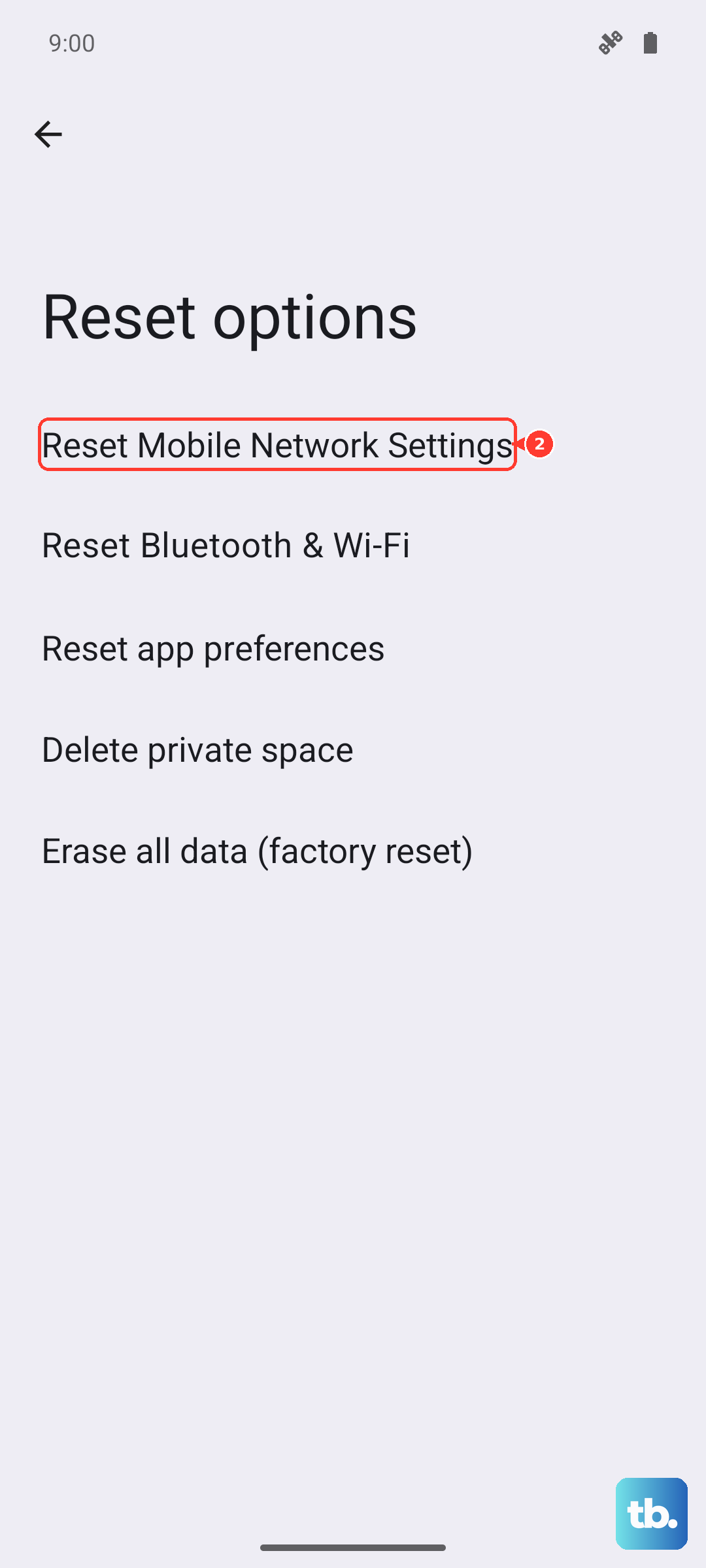
If you're experiencing severe drain alongside poor cellular or Wi-Fi connectivity, a network settings reset can help. This clears all your saved networks and Bluetooth pairings, which can resolve conflicts causing the radios to behave erratically.
Go to Settings > System > Reset options > Reset mobile network settings, then Reset Bluetooth & Wi-Fi. You'll need to re-enter Wi-Fi passwords and re-pair Bluetooth devices afterward, but it often solves mysterious drain issues.
Try Safe Mode
Booting into Safe Mode temporarily disables all third-party apps. If your battery life suddenly improves in Safe Mode, you know a downloaded app is causing the problem. To enter Safe Mode, open the power menu by pressing the Power and Volume up buttons together (on Samsung phones, the Side and Volume down buttons) or by tapping the power icon in the quick settings panel, then touch and hold Power off and tap Safe Mode or OK.
Then, press and hold the "Power off" option on your screen. You'll get a prompt to reboot to Safe Mode. Tap "OK." Use the phone normally for a few hours. If the drain stops, start uninstalling recently downloaded apps one by one until the issue is resolved.
As a Last Resort, Reset All Settings
If you've tried everything else and the drain persists, a settings reset can be a nuclear option that works. This will revert all your system settings (like Wi-Fi, Bluetooth, display, and sound) back to factory defaults without deleting your personal data, photos, or apps.
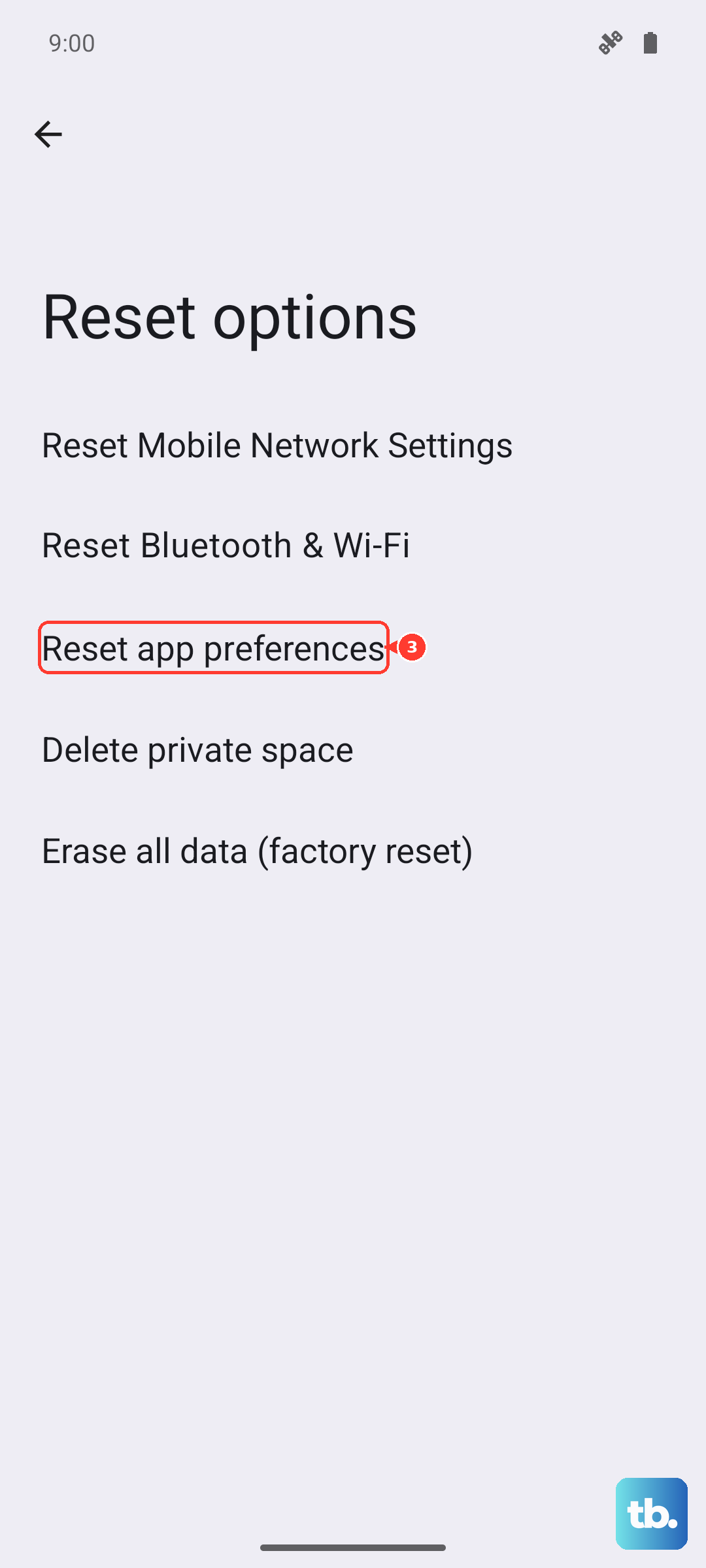
On OnePlus, go to Settings > Additional settings > Back up and reset > Reset phone > Reset all settings; Pixel, Motorola, Nothing, and ASUS phones have no Reset all settings option, so go to Settings > System > Reset options and use Reset app preferences or Reset Bluetooth & Wi-Fi instead. Confirm your choice. After the phone reboots, you'll need to reconfigure your preferences, but any hidden software glitch causing battery drain should be cleared out.