
When your Motorola Edge 40 won't install apps, it can bring your new phone to a standstill. You're staring at a download that won't start or an error message that doesn't make sense. The good news is this is almost always a temporary glitch you can fix yourself.
Let's get your Play Store working again.
Check Your Connection and Restart
First, make sure your phone is actually online. Swipe down from the top of the screen to open the Quick Settings panel. Look for the Wi-Fi or mobile data icon. If you're on Wi-Fi, try turning it off and using your cellular data instead, or vice versa.
Some public Wi-Fi networks can block the ports the Play Store needs. A quick network switch often solves it.
If that doesn't do it, give your phone a fresh start. Press and hold the Volume Down button and the Power button together for about 10 seconds until you see the Motorola logo. This force restart clears out any minor software hiccups that might be stopping your downloads.
Verify Your Date and Time
This one catches a lot of people off guard. If your phone's clock is wrong, it can confuse Google's servers and prevent app downloads. You'll want to make sure it's set automatically.
Go to Settings > System > Date & time. Make sure the "Use network-provided time" switch is turned on. If it's already on and you're still having trouble, try turning it off, manually setting the correct date and time, and then turning the automatic setting back on.
Clear the Google Play Store's Cache
The Play Store stores temporary data to run faster. Sometimes this cache gets corrupted and needs to be cleared out. It's a simple fix that doesn't delete any of your apps or personal info.
Open Settings > Apps > See all apps. Find and tap on "Google Play Store." Tap Storage & cache, then tap "Clear Cache." Go back and try your download again.
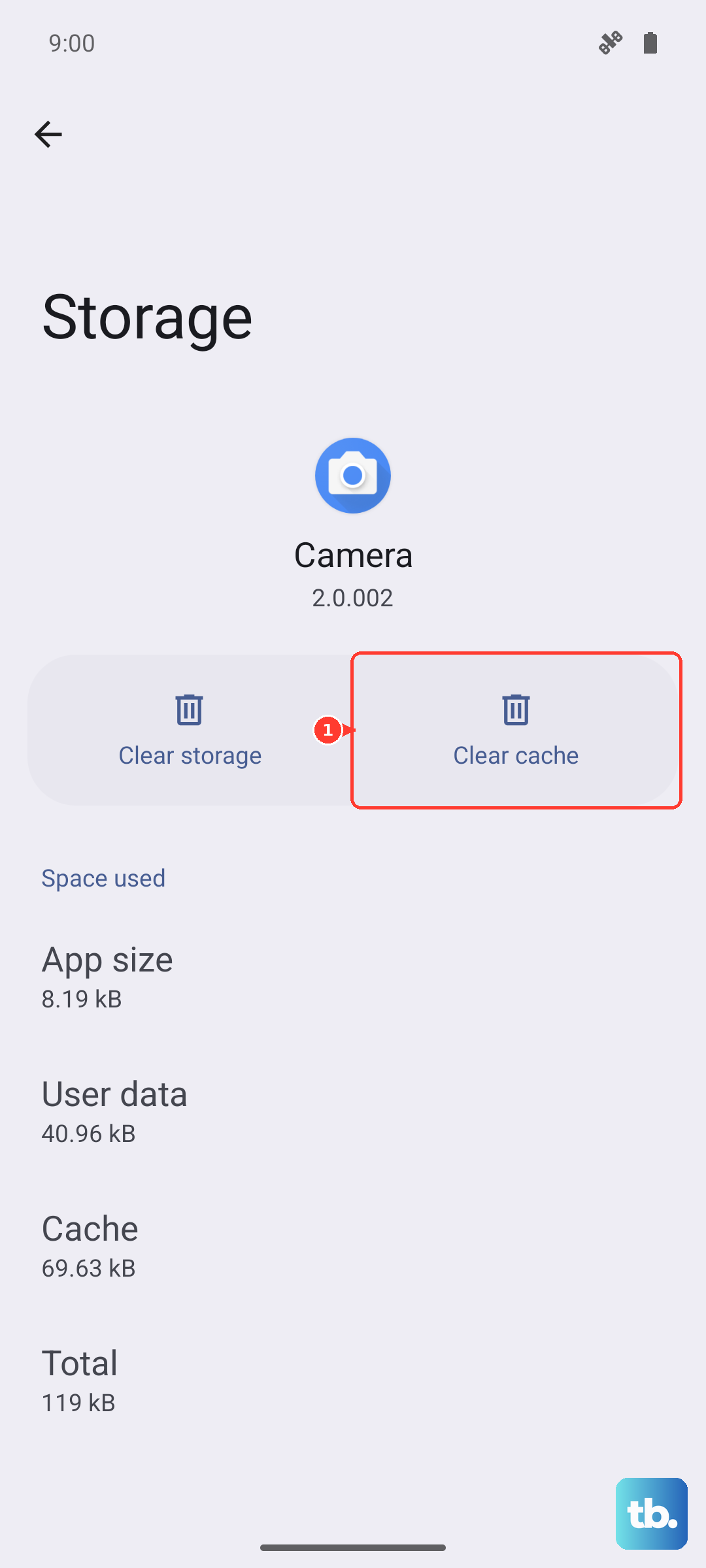
If the problem persists, you can take the next step and clear the Play Store's data. From the same Storage screen, tap "Clear Storage" or "Manage storage," then "Clear all data." This will reset the Play Store to its default state, so you may need to re-accept its terms.
Reset Google Play Services
Google Play Services works in the background to help your apps and the Play Store communicate. If it's acting up, your downloads can fail. You can give it a quick reset.
Head back to Settings > Apps > See all apps. Find "Google Play Services" in the list. Tap on it, then go to Storage & cache. Tap "Clear Cache" first. If that doesn't work, tap "Manage storage" and then "Clear all data." Don't worry, this won't delete anything personal from your phone.
While you're there, you can also force stop the service. From the main Google Play Services app info screen, just tap "Force stop." The service will restart automatically.
Check for Software Updates
Your Motorola Edge 40 runs Android 15, and sometimes a bug fix in a system update is exactly what the Play Store needs. Manufacturers like Motorola often release updates that improve system stability and app compatibility.
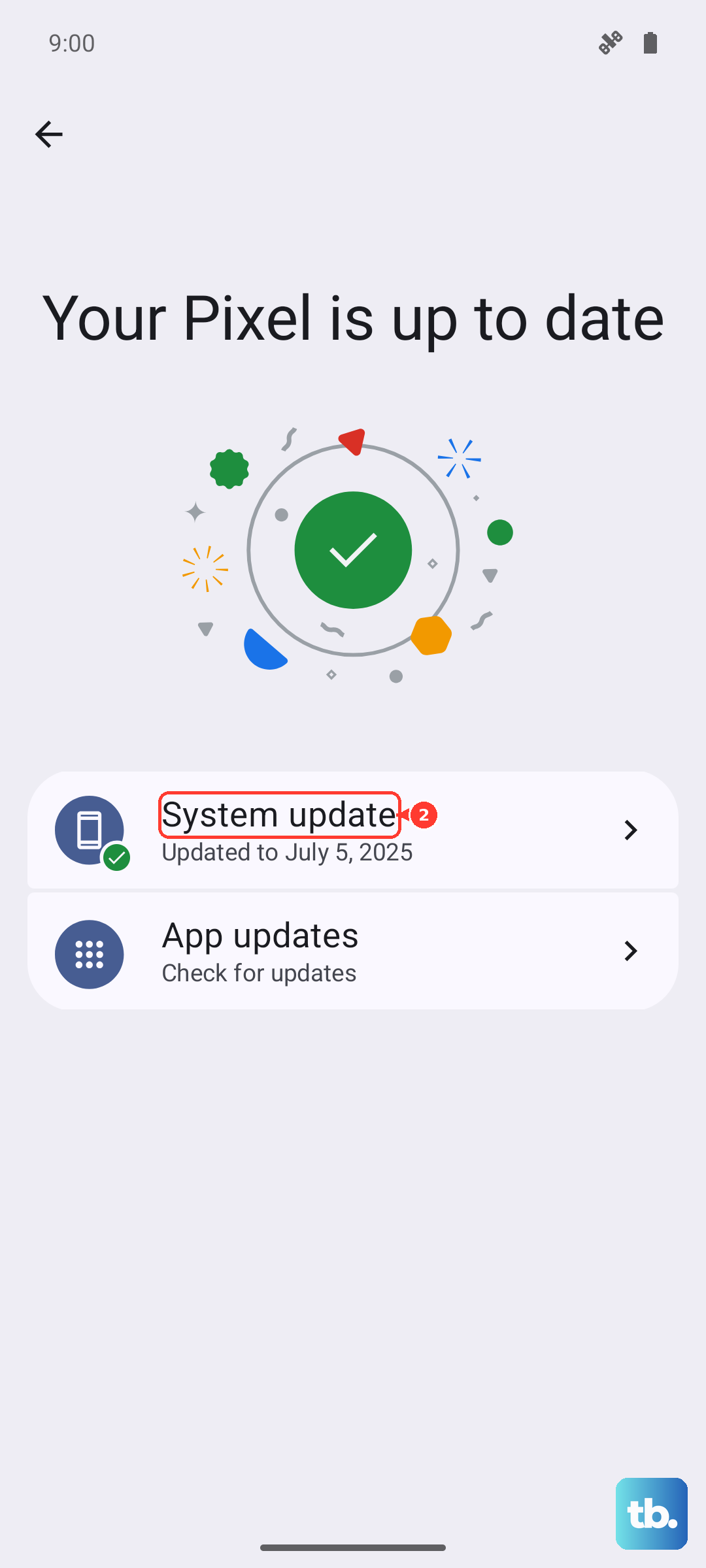
Go to Settings > System > System updates. Tap "Check for update." If an update is available, I'd recommend installing it. Make sure your phone is charged above 50% and connected to Wi-Fi before you start the update process.
Review Your Google Account Sync
Issues with your Google account syncing can sometimes interfere with downloads. A quick refresh of the sync process can clear this up.
Open Settings > Passwords & accounts. Tap on your Google account. You'll see a list of things that sync, like Gmail and Contacts. Tap the three-dot menu in the top right and select "Sync now." If that doesn't help, you can try removing and re-adding the account.
To remove it, tap on your account again and select "Remove account." Then, go back to the Accounts screen, tap "Add account," and sign back in with your Google credentials. This often resolves persistent authentication problems.
Ensure You Have Enough Storage
The Edge 40 comes with plenty of space, but if you've loaded it up with photos and videos, you might hit a limit. The Play Store will give you an "Insufficient storage" error if there's no room for the new app.
Check your available space by going to Settings > Storage. If you're running low, you can free some up. The "Clean" tool in your Motorola's settings can suggest large files or unused apps to remove. You can also move photos and videos to Google Photos or another cloud service.
Examine App Permissions
Both the Google Play Store and Google Play Services need certain permissions to function. It's worth a quick check to make sure nothing got turned off accidentally.
Go to Settings > Apps > See all apps. Find "Google Play Services" and tap on it. Then, tap Permissions. Make sure permissions like "Storage" are allowed. Do the same check for the "Google Play Store" app.
Uninstall Play Store Updates
If the problem started after a recent Play Store update, that update might be the culprit. You can roll it back to the factory version that came with your phone and then update it again.
In Settings > Apps > See all apps, find "Google Play Store." Tap the three-dot menu in the top right and select "Uninstall updates." Confirm the action. Your phone will revert to the original Play Store version. Restart your device, then open the Play Store, it will usually prompt you to update again, which often fixes the issue.
Address Specific Download Errors
Sometimes you get a specific error code. Here's how to handle a couple of common ones on your Motorola.
If you see Error DF-BPA-09, it's often related to the Google Services Framework. Go to your apps list, find "Google Services Framework," and clear its storage data. This can reset the purchase verification process.
For a persistent Error 911, it's usually a network problem. Try the download on a completely different Wi-Fi network or rely on your mobile data for a bit. Also, clear the cache and data for Google Play Services as described earlier.