When your Surface Pro 11 won't connect to WiFi, it can feel like you're carrying around a very expensive digital notepad. Whether the network list is empty, you see a "Can't connect to this network" error, or you're connected with no internet, the fixes are usually straightforward.
I'd start with the quickest one. Click the WiFi icon in the taskbar and toggle the WiFi switch off. Wait about ten seconds, then turn it back on. This simple action refreshes the wireless radio and can often kickstart a connection that's stuck.
Run the Windows Network Troubleshooter
Windows has a built-in tool that can diagnose and fix common problems automatically. Right-click the WiFi icon in your system tray and select Troubleshoot network problems. The troubleshooter will run through a series of checks and apply fixes if it finds any.
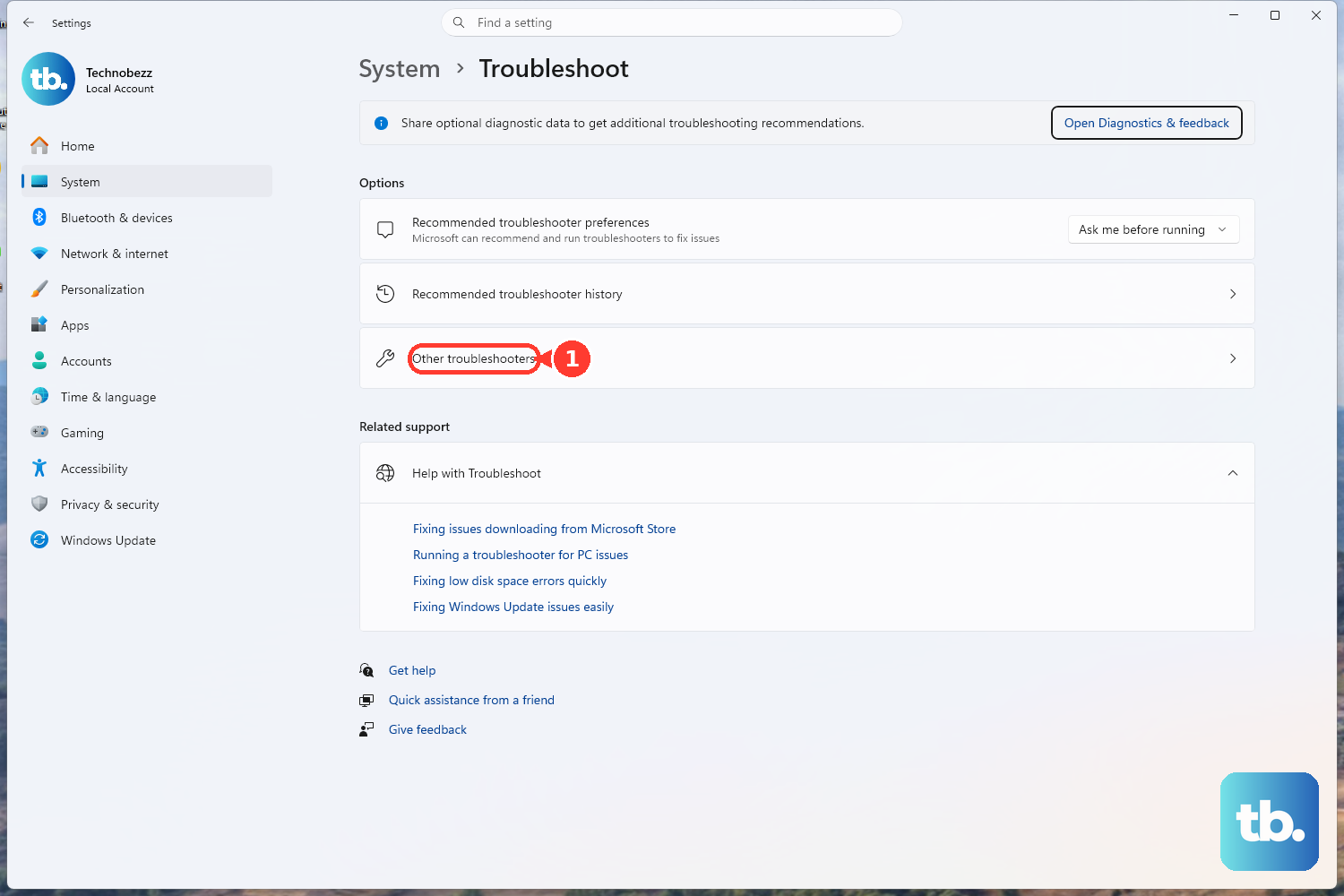
You can also launch it from Settings. Go to Settings > System > Troubleshoot > Other troubleshooters. Find the Network and Internet troubleshooter and run it from there. It's a great first step that requires almost no effort on your part.
Forget and Reconnect to Your Network
Sometimes the saved profile for your WiFi network gets corrupted. To fix this, you need to remove it and add it back. Go to Settings > Network & internet > Wi-Fi and click on Manage known networks.
Find your home or office network in the list and click the Forget button next to it. Don't worry, this just removes the login details from your Surface. Afterward, click the WiFi icon in the taskbar, select your network from the list again, and re-enter the password to reconnect.
Restart Your Surface Pro 11
It sounds basic, but a full restart clears out the network stack and reloads all drivers from scratch. Click the Start button, select the power icon, and choose Restart. Make sure it's a restart and not just putting the device to sleep, as that's what resets the critical components.
Update Your WiFi Driver
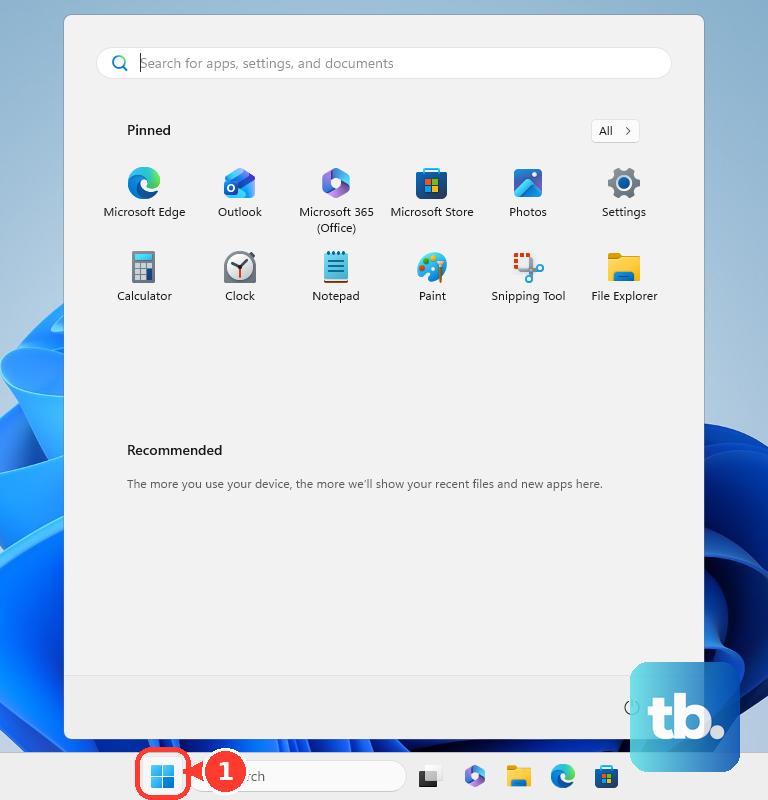
Outdated or glitchy network drivers are a frequent culprit. Press the Windows key + X on your keyboard and select Device Manager from the menu. In the window that opens, expand the Network adapters section.
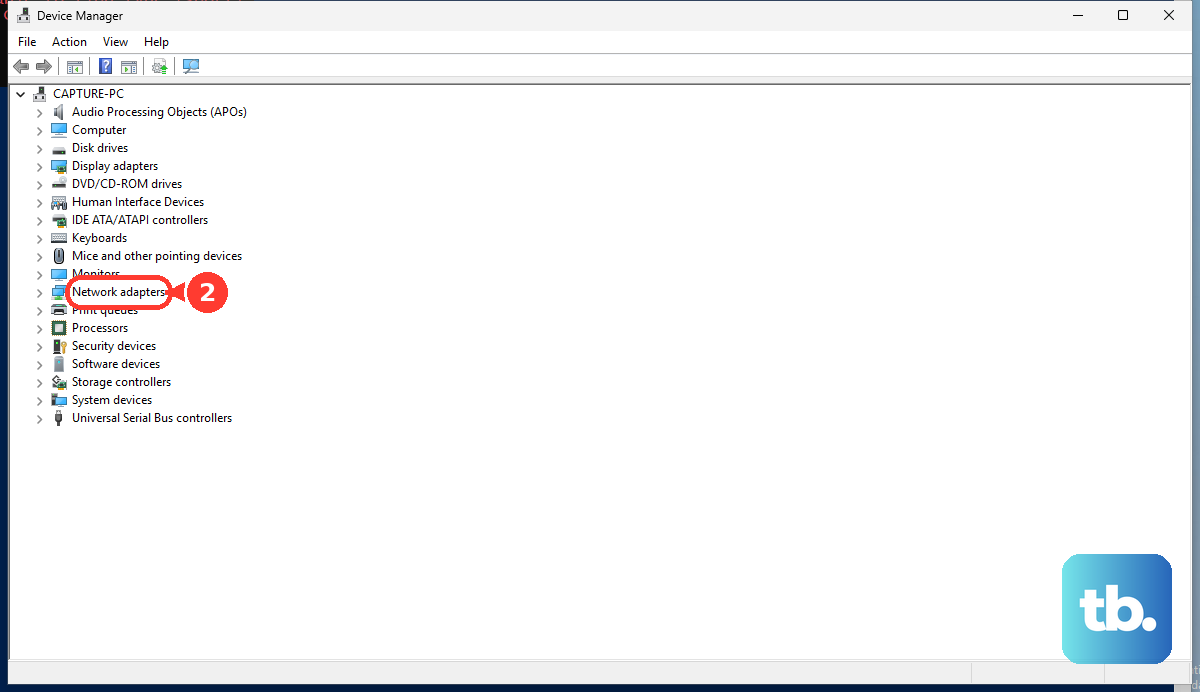
Right-click on your Qualcomm or Marvell wireless adapter (it will have "Wi-Fi" in the name) and select Update driver. Choose Search automatically for drivers and let Windows look for an update. If that doesn't find anything, you may need to download the latest driver directly from the Surface Support website.
Disable and Re-enable the WiFi Adapter
This is like giving the WiFi hardware a quick nap to wake it up. Go back into Device Manager under Network adapters. Right-click your WiFi adapter again, but this time select Disable device. Wait a moment, then right-click it once more and choose Enable device.
You'll see the WiFi icon disappear and reappear in your taskbar. This forces the adapter to reinitialize without requiring a full system reboot, and it can clear up temporary hardware states that cause connection failures.
Reset Your Network Settings
If you're still having trouble, a network reset is a more comprehensive step. This will remove and reinstall all network adapters and set every networking component back to its default state. Go to Settings > Network & internet > Advanced network settings.
At the bottom, click on Network reset. On the next screen, click the Reset now button and confirm. Your Surface will restart. Be aware that after this, you will need to reconnect to all your WiFi networks and re-enter their passwords.
Check for Windows Updates
Microsoft regularly releases updates that include fixes for connectivity issues. Make sure your Surface Pro 11 is running the latest version of Windows 11. Go to Settings > Windows Update and click Check for updates.
Install any available feature or quality updates. There have been instances in past Windows builds where specific security protocols like WPA3 caused problems, and these are always patched in subsequent updates. Keeping your system current is key.
Use the Surface Diagnostic Toolkit
Microsoft provides a dedicated tool for checking Surface hardware. If you suspect the issue might be with the physical WiFi antenna, this is a good way to test. You can download the Surface Diagnostic Toolkit from the official Microsoft Store.
Run the toolkit and follow the prompts for hardware tests. It will check your wireless radios and can help identify if there's a deeper hardware problem that the software fixes can't resolve.
Flush DNS and Reset TCP/IP via Command Prompt
This is a slightly more advanced fix for when you can connect but have no internet access, often indicated by a "No Internet, Secured" status. Search for "Command Prompt" in the Start menu, right-click it, and select Run as administrator.
Type or paste the following commands one at a time, pressing Enter after each one: ipconfig /flushdns netsh winsock reset netsh int ip reset
After running them all, restart your Surface. This clears your local DNS cache and resets the core internet protocols.
Check Your Router and Environment
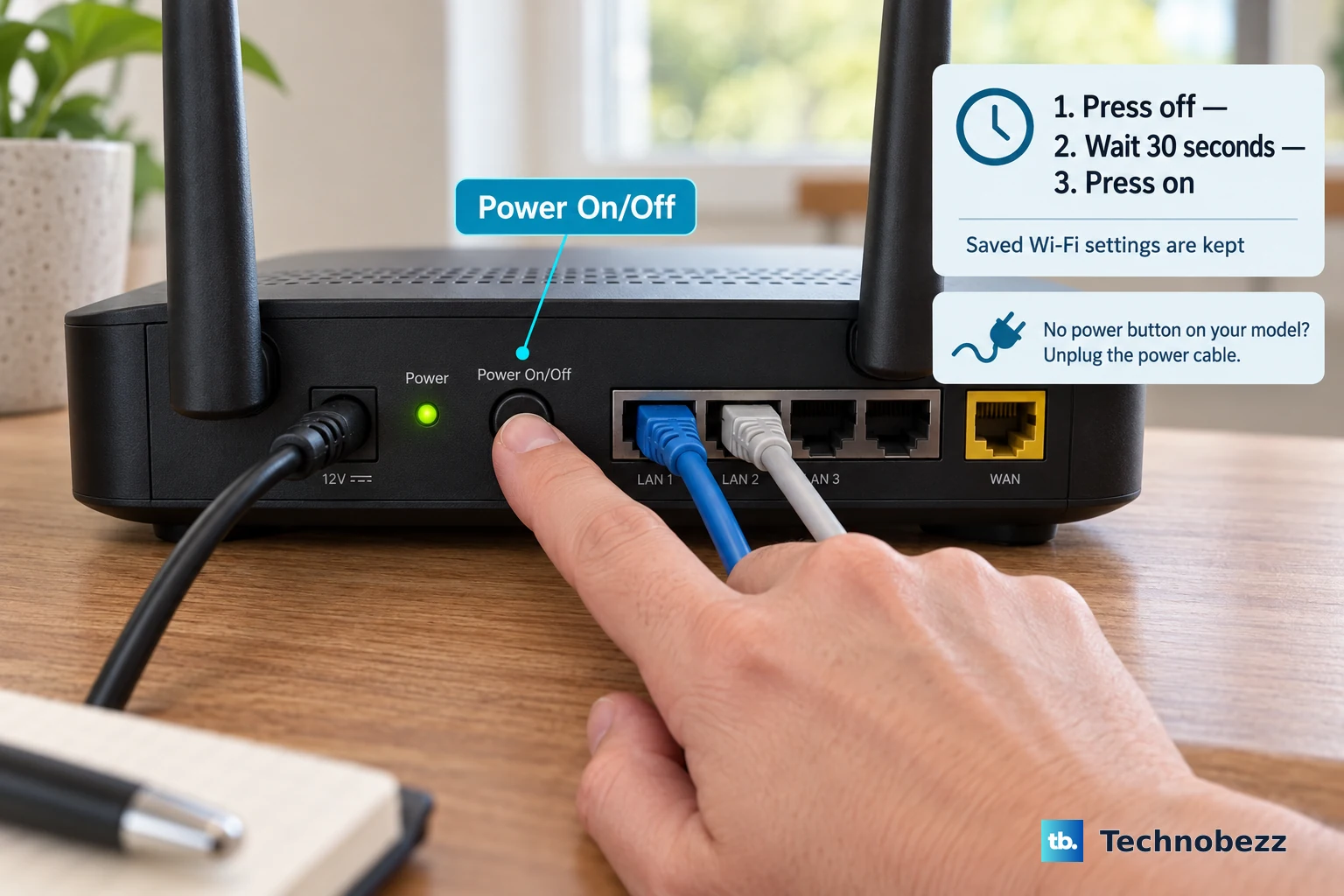
Before assuming the worst with your Surface, rule out the network itself. See if other devices, like your phone, can connect to the same WiFi. If they can't, the issue is with your router or internet service.
Try restarting your router and modem by unplugging them from power for 30 seconds. Also, test your Surface on a different network, like a public hotspot or your phone's mobile hotspot. If it connects there, you know the problem is isolated to your primary network's configuration or hardware.