
A touchpad that won't respond turns your sleek Surface Pro 11 into a frustratingly static screen. Whether the cursor is stuck, taps don't register, or multi-finger gestures are broken, the issue usually lies with the detachable Type Cover or its software.
I'd start by simply detaching the Type Cover and reattaching it firmly. A loose connection at the magnetic pogo pins is the most common culprit for touchpad failure on Surfaces. Make sure the kickstand is at a stable angle so the connection isn't stressed.
Check the Touchpad Toggle
Windows has a setting that can disable the touchpad. Press the Windows key and type "touchpad" to open the touchpad settings. Make sure the touchpad is turned on. There's also a keyboard shortcut; try pressing the Fn key along with the F1 key, as some Type Covers use this to toggle the touchpad on and off.
Restart Your Surface
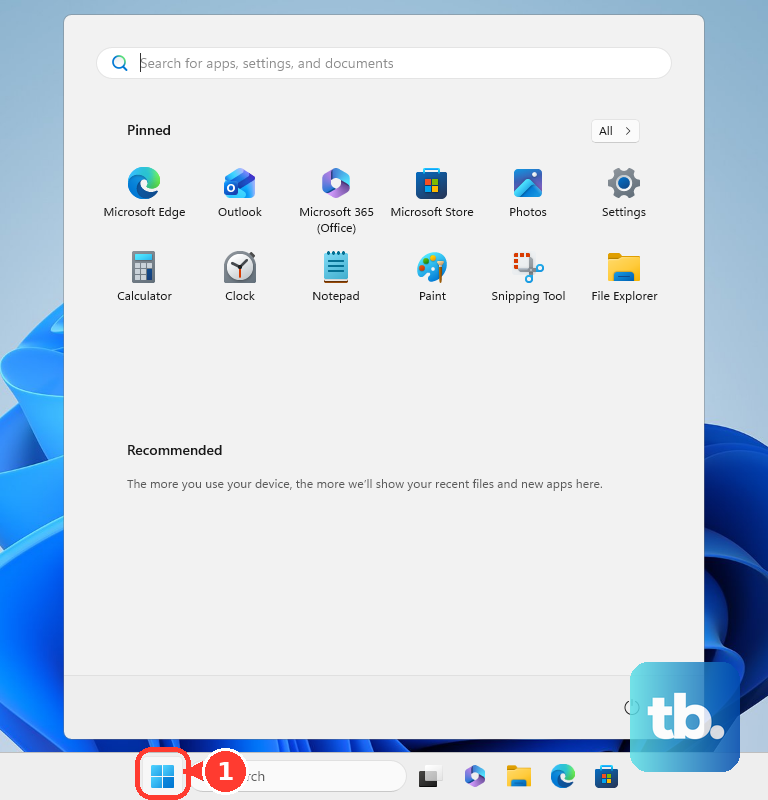
A full restart clears out temporary glitches in the driver. If the touchpad stopped working after the device woke from sleep, this is almost always the fix. You can use the on-screen keyboard to navigate: select the Start button, then the power icon, and choose Restart.
Disconnect Any External Mice
Windows sometimes prioritizes an external Bluetooth or USB mouse and can make the built-in touchpad less responsive. Unplug any wired mice and turn off Bluetooth mice in your settings. Then check if the Surface's touchpad starts working normally again.
Update Your Drivers and Windows
Outdated drivers are a frequent cause. Open Device Manager, expand "Mice and other pointing devices." Right-click on "Surface Touchpad" or a similar entry and select "Update driver." Choose "Search automatically for drivers." Also, check for full system updates in Settings > Windows Update.
Microsoft often bundles important driver fixes in their cumulative Windows updates. Letting these install can resolve a host of input issues.
Run the Surface Diagnostic Toolkit
Microsoft provides a dedicated tool for this. Download the Surface Diagnostic Toolkit from the official Microsoft website. Run it and select "Surface Type Cover" when prompted for the device to troubleshoot.
The toolkit will automatically check for driver issues, run hardware tests on the keyboard and touchpad, and apply recommended fixes. It's a comprehensive first step for any Surface hardware problem.
Reinstall the Touchpad Driver
If updating didn't help, try a clean reinstall. In Device Manager, right-click the Surface Touchpad driver and select "Uninstall device." Check the box that says "Attempt to remove the driver software for this device" if it appears. Restart your Surface Pro 11.
Windows will install a fresh driver upon reboot. For the best experience, you should then go to the Surface Driver and Firmware page on Microsoft's site to download the latest official Precision Touchpad driver for your specific model.
Check for Interference or Physical Issues
Ensure the touchpad surface and your fingers are clean and dry. Oils or moisture can interfere with the capacitive sensors. Also, inspect the magnetic connector on the Type Cover and the bottom edge of your Surface for any debris or damage.
Try connecting the Type Cover to a different Surface if possible, or try a different Type Cover on your Surface Pro 11. This will tell you if the problem is with the keyboard cover itself or the tablet.
Boot into Surface UEFI
You can check if the touchpad works at a firmware level. Shut down your Surface. Hold the Volume Up button and then press and release the Power button. Keep holding Volume Up until you see the Surface logo, then release to enter the UEFI settings menu.
If the touchpad doesn't work to navigate here either, it points more strongly to a hardware or deep connection issue with the Type Cover. If it does work in UEFI, then the problem is likely within Windows.