
A slow Surface Pro 11 can feel like you're wading through digital molasses, especially when you're trying to get work done on the go. The good news is that most slowdowns are temporary and can be fixed with a few tweaks. I'd start with the simplest solution first, as it often clears up the issue right away.
Restart Your Surface
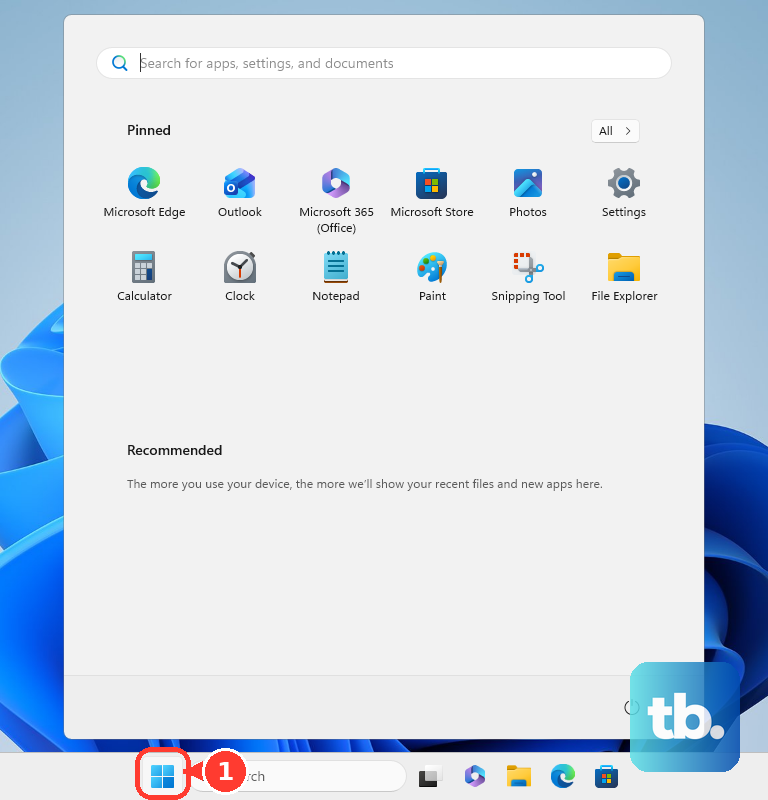
If you've been using sleep mode or just closing the Type Cover, your device accumulates background processes over time. Click Start > Power > Restart. Don't just choose Shut down, as Windows 11's Fast Startup feature doesn't fully clear the system memory. A full restart can work wonders for performance.
Check for Resource Hogs in Task Manager
Press Ctrl + Shift + Esc to open Task Manager. Click the CPU, Memory, or Disk column headers to sort by what's using the most. If you see a single app or process consuming a huge chunk of resources, that's likely the culprit. Right-click on it and select End task.
Common offenders on the Surface Pro 11 can include too many Edge or Chrome tabs, Windows Update running in the background, or certain apps that aren't fully optimized for the ARM architecture yet. Keep an eye out for anything unfamiliar using high CPU.
Disable Unnecessary Startup Programs
In the same Task Manager window, click on the Startup apps tab. You'll see a list of everything that launches when Windows boots. Right-click on any app you don't need immediately, like Spotify, Adobe Creative Cloud, or messaging services, and select Disable.
Each disabled app shaves a bit off your boot time and frees up RAM. This is especially helpful on devices with 8GB of RAM, as it leaves more memory available for your actual work.
Free Up Storage Space
A drive that's nearly full will slow down any computer, including your Surface. Go to Settings > System > Storage. Turn on Storage Sense to let Windows automatically clean up temporary files and old downloads.
You can also click Temporary files to manually select items to delete, like update cleanup files and the contents of your recycle bin. For smooth operation, try to keep at least 20% of your SSD free.
Run the Surface Diagnostic Toolkit
Microsoft provides a dedicated tool for its hardware. Search for "Surface Diagnostic Toolkit" in the Microsoft Store, download and run it. This tool can identify and sometimes fix common performance-related hardware and driver issues specific to your Surface Pro 11.
It's a great step if you suspect the slowness might be tied to the Type Cover, touchscreen, or another integrated component. The toolkit runs a series of automated checks and provides clear instructions.
Update Windows and Drivers
Head to Settings > Windows Update and click Check for updates. Install everything available, including optional driver updates if they're offered. Microsoft frequently releases performance and stability improvements through these updates.
Since the Surface Pro 11 uses custom Microsoft drivers for its unique hardware, getting these directly from Windows Update is the best method. Outdated graphics or chipset drivers are a common source of lag.
Adjust Your Power Plan
Windows might be throttling your processor to save battery. Plug in your Surface and go to Settings > System > Power & battery. For the plugged-in profile, set the Power mode to Best performance.
You can create a custom plan for battery use if you need a balance between speed and longevity. When set to "Best performance," your CPU and GPU won't be held back unnecessarily.
Check for App Compatibility Issues
The Surface Pro 11 with an ARM processor runs most apps beautifully, but some older x86-64 software runs in emulation, which can be slower. If one specific app feels sluggish, check the Task Manager to see its impact.
You might also visit the developer's website to see if a native ARM64 version is available. Apps like Chrome, Firefox, and Adobe Photoshop now have ARM64 versions that run significantly faster.
Detach and Reattach the Type Cover
If the slowdown seems connected to keyboard lag or touchpad unresponsiveness, the Type Cover connection might be the issue. Physically detach the keyboard, use a clean, dry cloth to wipe the magnetic connector pins on both the cover and the bottom of your Surface, and reattach it firmly.
A poor connection can cause system interrupts that eat up CPU cycles in the background. This simple physical step resolves a surprising number of quirky performance issues.
Perform a Cloud Reset
If you've tried everything and the system is still slow, a refresh can help. Go to Settings > System > Recovery. You'll see an option for Reset this PC. Choose Keep my files to reinstall Windows while preserving your personal documents.
For the cleanest result, select the new Cloud download option during reset. This downloads a fresh copy of Windows from Microsoft instead of using the local files, which can sometimes be corrupted.