
When you plug in your Surface Pro 11 and nothing happens, it's a frustrating roadblock. The issue could be with the charger, the port, Windows itself, or a setting that's stopping the charge.
Check Your Surface Connect Charger
Start with the basics. Look at the magnetic Surface Connect cable for any fraying or damage, especially near the magnetic tip. Make sure the LED light on the power brick is on when it's plugged into the wall.
Try a different wall outlet to rule out a problem with the power source. Also, check that the magnetic connector is snapped firmly onto the port on your Surface; it should attach with a solid click.
Perform a Two-Button Shutdown
This is the equivalent of a force restart for your Surface. Press and hold the power button and the volume-up button together for about 15 seconds, then release.
The screen may flash the Surface logo. After it shuts down completely, wait a few seconds, then press the power button once to turn it back on while it's plugged in. This can clear temporary power management glitches.
Detach and Reattach the Type Cover
It sounds odd, but a faulty connection with the Type Cover can sometimes interfere with system power states. Gently pull the keyboard cover off the bottom of your Surface.
Wait a moment, then firmly reattach it until it clicks into place. Restart your Surface afterward and see if charging resumes. I've seen this resolve quirky power issues on several Surface models.
Check for a Battery Charge Limit
Windows 11 includes a feature that can stop your battery from charging to 100% to prolong its lifespan. Go to Settings > System > Power & battery.
Click on Battery saver. Look for a setting called "Battery charge limit" or "Smart charging." If it's turned on, your Surface will stop charging before reaching full capacity, which might be what you're seeing.
Update Your Battery Driver in Device Manager
An outdated or corrupted driver can prevent Windows from communicating correctly with the battery. Right-click the Start button and select Device Manager.
Expand the Batteries section. Right-click on Microsoft ACPI-Compliant Control Method Battery and select Uninstall device. Restart your Surface Pro 11, and Windows will automatically reinstall a fresh driver upon startup.
Generate a Battery Health Report
Windows can give you a detailed look at your battery's condition. Open Command Prompt as an administrator and type the command: powercfg /batteryreport.
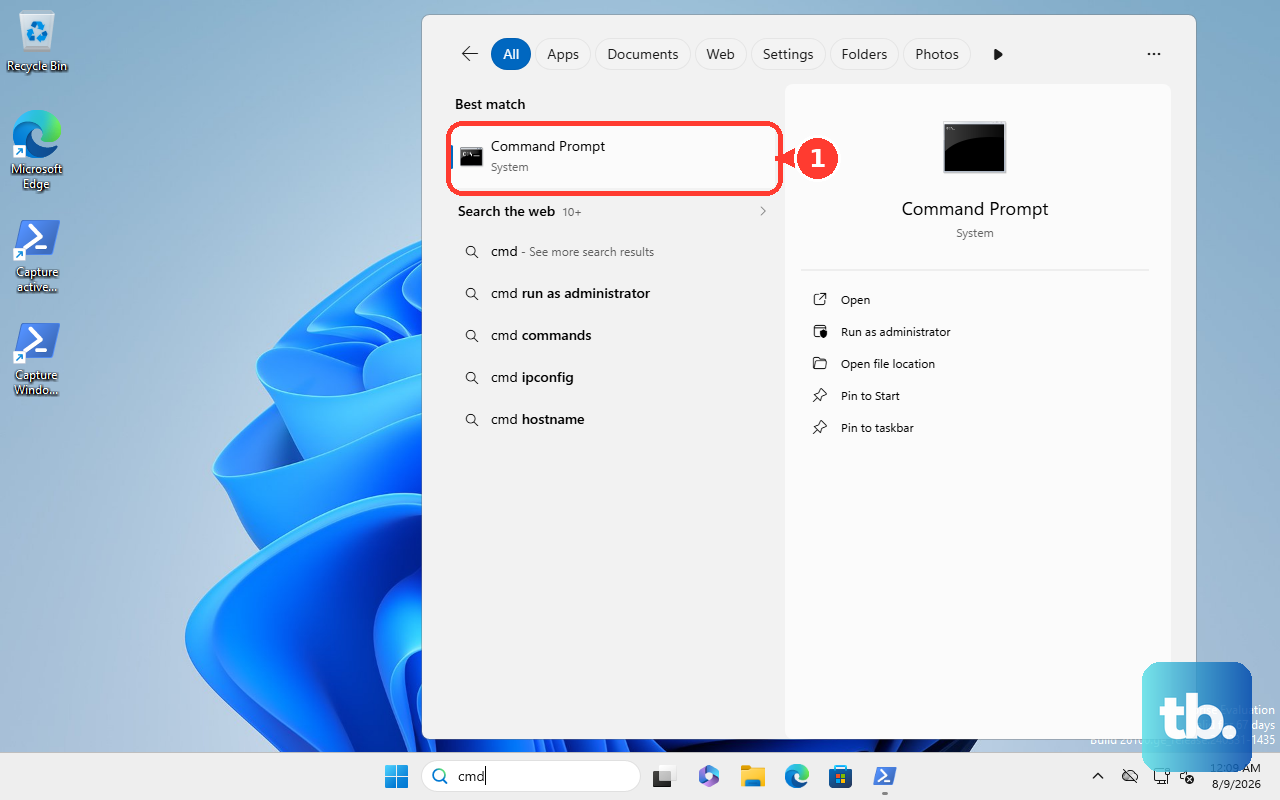
This saves an HTML file to your user folder. Open it to see your battery's design capacity versus its current full charge capacity. If the current capacity is significantly degraded, the battery itself may be nearing the end of its life.
Try Charging via USB-C
The Surface Pro 11 also features USB-C ports that support charging. If you have a compatible USB-C PD (Power Delivery) charger, try plugging it into one of these ports instead of the magnetic Surface Connect port.
This test helps you figure out if the problem is with your main Surface charger or with the tablet's charging circuitry itself. A 65W or higher USB-C PD charger is recommended for best results.
Run the Surface Diagnostic Toolkit
Microsoft offers a dedicated tool to check for hardware problems. Download the "Surface Diagnostic Toolkit" from the official Microsoft website and run it.
The tool will automatically test your battery, power system, and thermal management. It can identify known issues and often provides specific repair steps or guidance if it finds a hardware fault.
Clean the Magnetic Charging Port
Dust and metal shavings can get stuck in the magnetic Surface Connect port, preventing a good connection. Power off your Surface and unplug the charger.
Use a can of compressed air to blow gently into the port. You can also carefully use a dry, soft-bristled brush, like a clean paintbrush, to dislodge any debris. Avoid using anything metal that could cause a short.