
When your Microsoft Surface Pro 11's keyboard acts up, it's almost always the detachable Type Cover. A few keys not working, the whole keyboard being dead, or it typing the wrong characters can usually be fixed without much hassle.
Detach and Reattach the Type Cover
This is the first thing to try. The magnetic connector at the bottom of the screen can get a bit finicky. Firmly pull the keyboard cover off, check the connector for any dust or debris, and snap it back on until you hear a click.
Sometimes the connection just needs to be reset. I've seen this fix work for most intermittent key issues. Make sure the Surface is awake and unlocked when you reattach it.
Restart Your Surface
A simple restart can clear out temporary software glitches that are interfering with the keyboard driver. If the keyboard is completely unresponsive, hold the power button down for about 30 seconds to force a shutdown.
Wait a few seconds, then press the power button again to turn it back on. This is different from just putting it to sleep and waking it up, which often won't resolve a driver hiccup.
Check for Physical Issues
Take a close look at the problematic keys. Are they sticking? Is there any visible debris like crumbs or pet hair around them? Gently turn the Type Cover upside down and tap it to dislodge anything loose.
For more stubborn particles, a can of compressed air is your best friend. Use short bursts to blow between the keys. Avoid using any liquid cleaners directly on the keyboard.
Run the Surface Diagnostic Toolkit
Microsoft provides a dedicated tool for this. Download the Surface Diagnostic Toolkit from the official Microsoft website. Run it and follow the on-screen instructions.
The tool will automatically test the keyboard hardware and connections. It can identify if there's a known firmware issue and often prompts you to install a fix.
Update Your Device
Outdated firmware or Windows drivers are a common culprit. Go to Settings > Windows Update and click Check for updates. Install everything available, including optional driver updates.
After updating, you'll need to restart. It's a good idea to check for updates in the Surface app from the Microsoft Store as well, as it sometimes has specific driver packages.
Check Keyboard and Language Settings
If keys are typing the wrong characters, your keyboard layout might have been switched accidentally. Go to Settings > Time & language > Typing.
Look at your installed keyboards. Make sure only the layout you intend to use (like US QWERTY) is listed. Remove any others you don't need to prevent accidental shortcuts from changing it.
Reinstall the Keyboard Driver
Press the Windows key + X and select Device Manager. Expand the Keyboards section, right-click on Surface Type Cover Filter Device, and select Uninstall device.
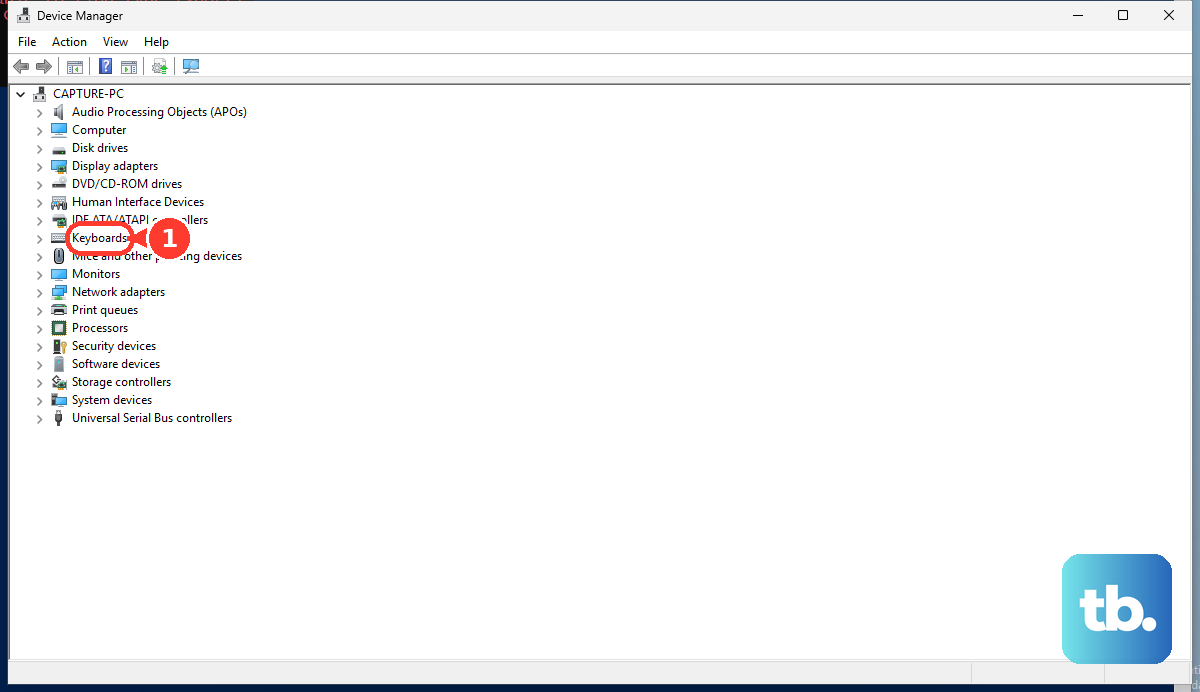
Restart your Surface Pro 11. Windows will automatically detect the Type Cover and reinstall a fresh driver when it boots back up. Don't uninstall the driver while the Type Cover is detached.
Test in Windows Safe Mode
Booting into Safe Mode loads Windows with only essential drivers and services. If your keyboard works perfectly here, a third-party app you installed is likely causing a conflict.
To get into Safe Mode, go to Settings > System > Recovery and under Advanced startup, click Restart now. After the restart, choose Troubleshoot > Advanced options > Startup Settings > Restart, then press 4 or F4 for Safe Mode.
Try a Different Type Cover or USB Keyboard
If you have access to another Surface Type Cover, try attaching it. Alternatively, plug in any standard USB keyboard or connect a Bluetooth one.
If the external keyboard works flawlessly, the issue is almost certainly with your original Type Cover hardware or its specific connection to your device. This helps confirm whether you're dealing with a software problem or a physical one.