
The Blue Screen of Death on your Surface Pro 11 is Windows hitting the emergency stop button. It's usually a driver conflict, a hardware hiccup, or a corrupted system file. While the specific error code gives you a clue, these general fixes will tackle the most common causes behind the crash.
Restart and See if It Happens Again
Sometimes a BSOD is just a one-time fluke. A temporary driver issue or a memory glitch can cause a single crash. Restart your Surface normally. If it boots up fine and runs without another crash for a while, you can probably chalk it up to bad luck. If the blue screen comes back immediately or within a few minutes of use, you've got a recurring problem to solve.
Write Down the Stop Code
When the blue screen appears, look for the all-caps stop code. Common ones include CRITICAL_PROCESS_DIED, IRQL_NOT_LESS_OR_EQUAL, or SYSTEM_SERVICE_EXCEPTION. Jot this code down. It points to the category of the failure, which can be helpful later if the basic fixes don't work, but don't get bogged down searching for it first.
Boot Into Safe Mode
If your Surface Pro 11 keeps crashing before you can even log in, you'll need to boot into Safe Mode. From the sign-in screen, hold down the Shift key on your keyboard (or tap the on-screen keyboard icon if your Type Cover isn't working) and click the power icon, then select Restart. Keep holding Shift.
After it restarts to a blue menu, select Troubleshoot > Advanced options > Startup Settings > Restart. When your device restarts again, press the 4 key to enable Safe Mode. This loads Windows with only the essential drivers, which can help you rule out software conflicts.
Uninstall Recent Updates or Drivers
Think about when the crashes started. If they began right after a Windows Update, you can roll it back. Go to Settings > Windows Update > Update history > Uninstall updates. Look for the most recent quality update or feature update and remove it.
The same goes for new software or drivers. If you just installed a new app or a driver update for something like your GPU, uninstall it from the Settings app or Device Manager. I've seen recent cumulative updates cause instability on some configurations.
Update Your Drivers
Outdated or buggy drivers are the single biggest cause of BSODs. Since the Surface Pro 11 uses custom Microsoft drivers, it's best to get them through Windows Update. Go to Settings > Windows Update > Advanced options > Optional updates.
If you see driver updates listed there, install them. You can also use the Surface app from the Microsoft Store to check for firmware and driver updates specifically tailored for your device.
Run the System File Checker
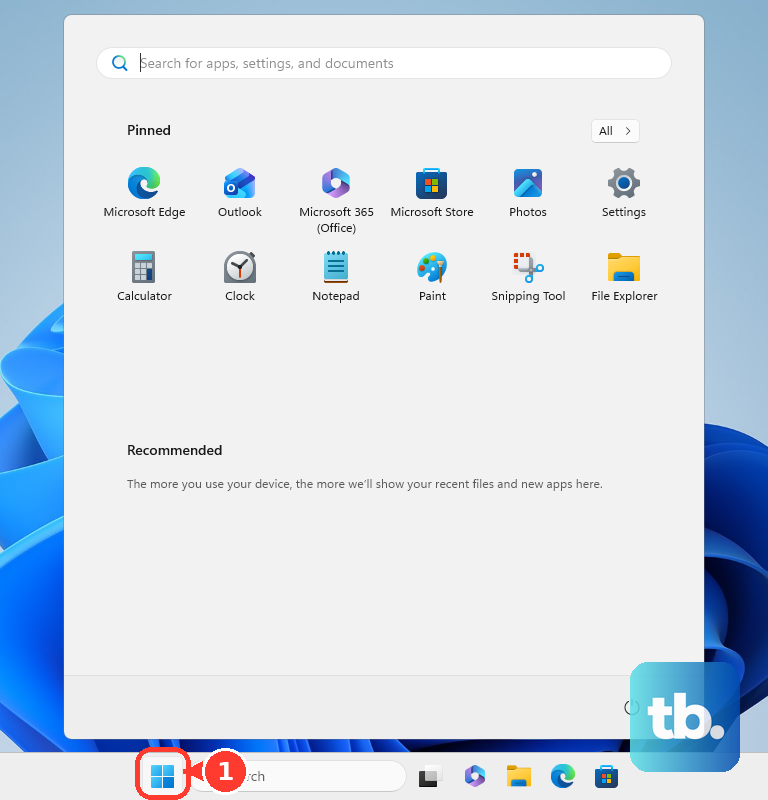
Corrupted Windows system files can definitely lead to crashes. To check for this, open the Start menu, type cmd, right-click on Command Prompt, and select Run as administrator. In the window that opens, type the command sfc /scannow and press Enter.
This scan will look for and attempt to repair any corrupted protected files. If it finds problems it can't fix, run this command first: DISM /Online /Cleanup-Image /RestoreHealth. After it finishes, run the sfc /scannow command again.
Check for Memory Problems
Faulty RAM is a classic hardware cause for random BSODs. Search for Windows Memory Diagnostic in the Start menu and open it. Choose Restart now and check for problems. Your Surface will reboot and run a memory test before Windows loads.
Any errors found will be displayed after Windows starts back up. On a Surface Pro, the RAM is soldered to the motherboard, so if this test fails consistently, it points to a hardware issue that requires service.
Check Your SSD Health
A failing SSD can cause crashes related to data reading errors. To check your disk, open an Administrator Command Prompt like before. Type chkdsk C: /f /r and press Enter. It will schedule the check for the next restart.
Type Y to confirm, then restart your Surface. The check will run during boot-up. For a more detailed health report, you can search for and open "Defragment and Optimize Drives". Select your C: drive and click Analyze; the status will show if the drive is healthy.
Use the Surface Diagnostic Toolkit
Microsoft provides a dedicated tool for hardware issues. Download the "Surface Diagnostic Toolkit" from the official Microsoft website. Run the tool and follow the prompts; it will automatically test key components like the battery, display, and thermal systems.
This is a great way to rule out a hardware fault specific to the Surface platform. If the toolkit finds an issue, it will provide a clear error code and next steps.
Reset Your Surface Pro 11
If you're still facing crashes after all that, a reset is your most thorough software fix. Go to Settings > System > Recovery. Click Reset PC next to the "Reset this PC" option.
Choose Keep my files to reinstall Windows 11 while preserving your personal documents, photos, and most settings. This process cleans out all apps and drivers and installs a fresh copy of Windows, which resolves deep-seated software corruption that other tools might miss.