
When your Surface Laptop 7 won't connect to WiFi, it can feel like you're cut off from everything. Whether you see no networks, get stuck on "Connecting," or have a connection with no internet, these steps will get you back online.
Run the Windows Network Troubleshooter
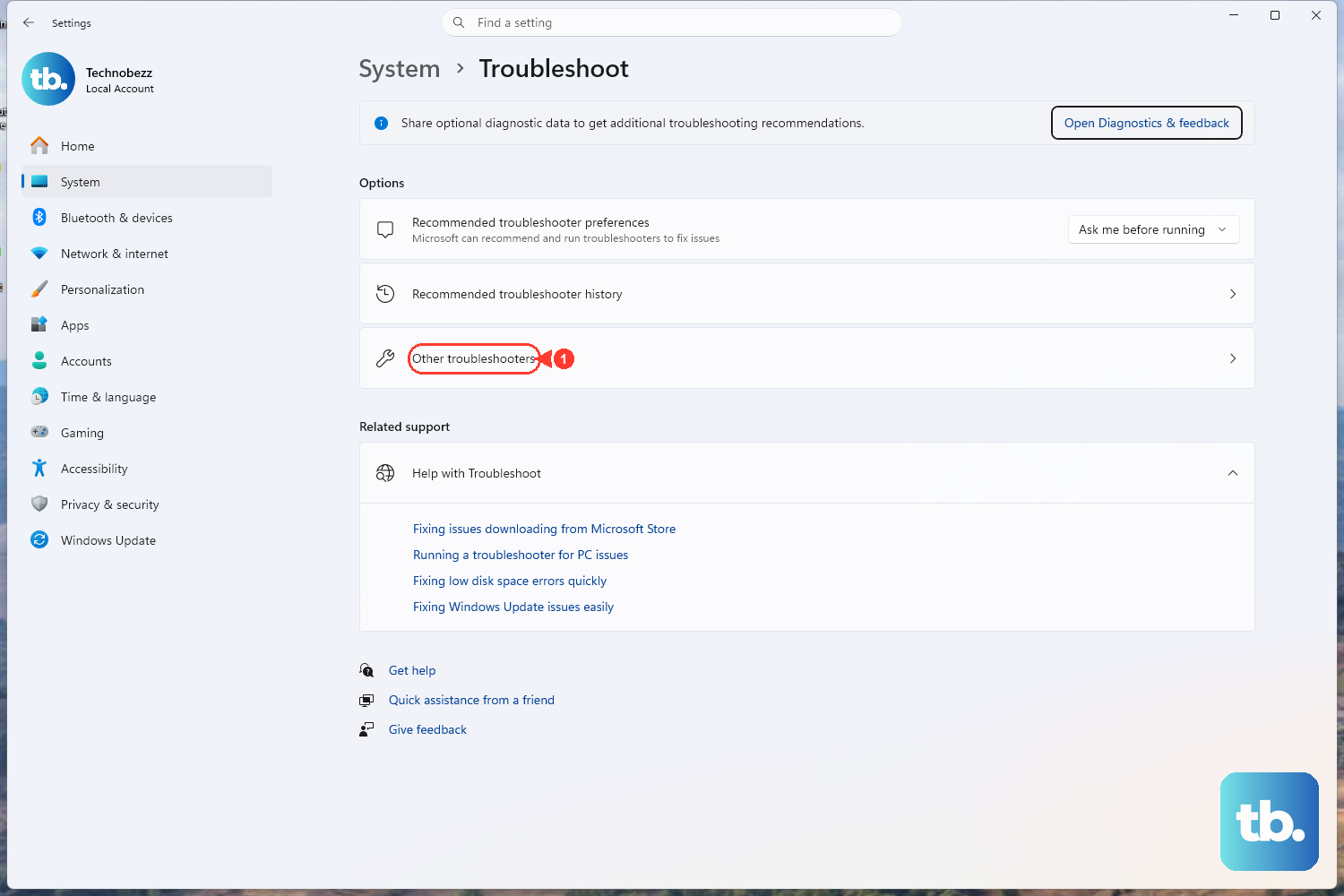
This is the quickest place to start. Right-click the WiFi icon in your taskbar and select Troubleshoot network problems. Windows will automatically scan for and try to fix common issues. You can also find it in Settings > System > Troubleshoot > Other troubleshooters.
Toggle WiFi and Airplane Mode
Click the network icon in the taskbar and turn WiFi off. Wait about 10 seconds, then turn it back on. For a more thorough refresh, toggle Airplane mode on, wait a moment, and then turn it off again. This resets the wireless radio.
Forget and Re-add Your Network
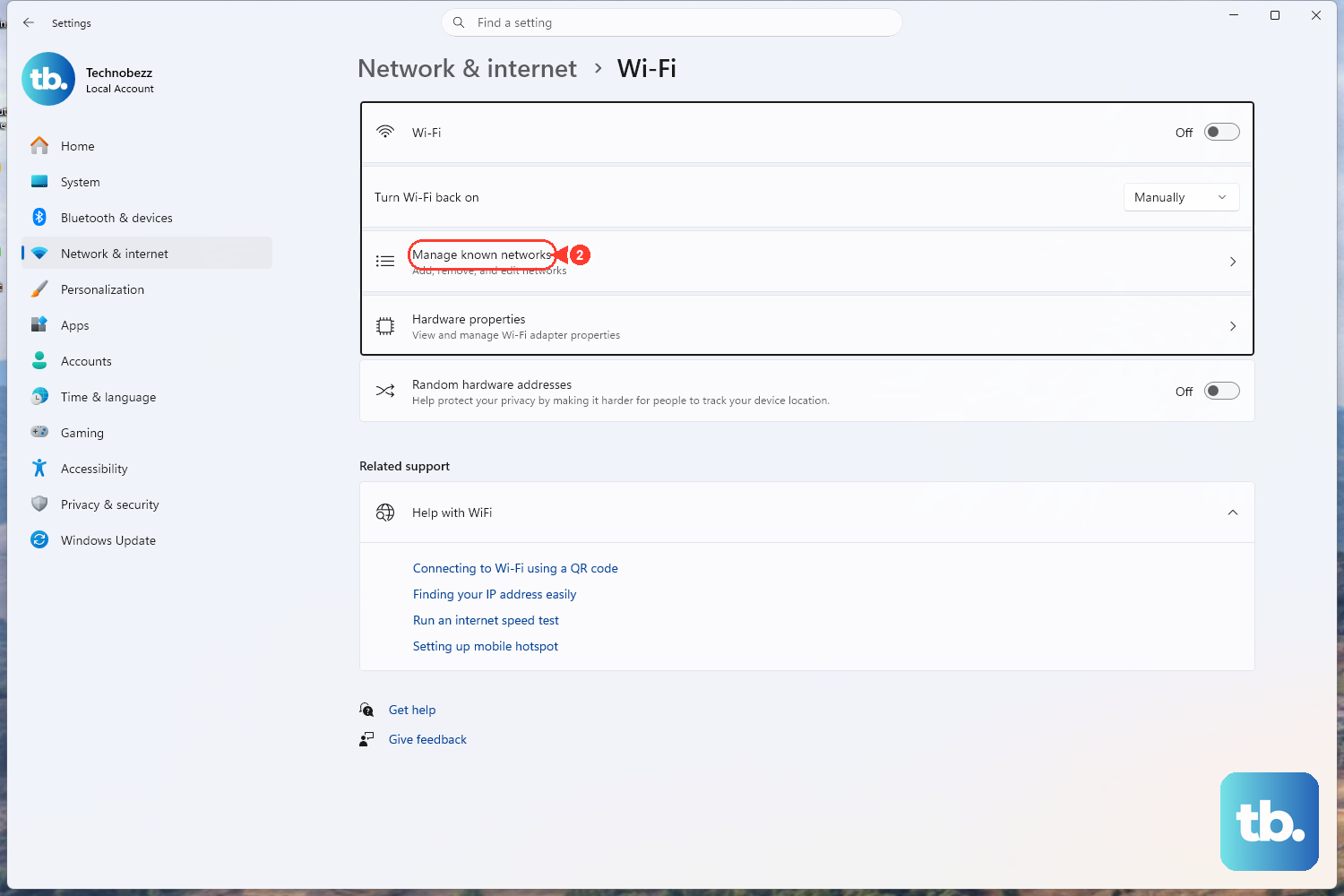
Sometimes the saved network profile gets corrupted. Go to Settings > Network & internet > Wi-Fi > Manage known networks. Find your network, click the three dots, and select Forget. Then, just reconnect by selecting it from the list and entering your password again.
Restart Your Surface Laptop
A full restart clears out temporary glitches in the network stack. Click Start > Power > Restart. I've found this resolves a surprising number of one-off connection problems, especially if the laptop has been in sleep mode for a long time.
Update Your WiFi Driver

Outdated or buggy drivers are a common culprit. Press Windows key + X and choose Device Manager. Expand Network adapters, right-click your Qualcomm WiFi adapter, and select Update driver > Search automatically for drivers.
If that doesn't find anything, use the Surface app from the Microsoft Store. It provides driver and firmware updates tailored specifically for your device, which is crucial for the Snapdragon X chipset.
Use the Surface Diagnostic Toolkit
Microsoft offers a dedicated tool for Surface devices. Download the Surface Diagnostic Toolkit from the Microsoft Store. Run it and select Wireless Networking when prompted. It will run a series of automated tests and attempt repairs.
Reset Your Network Settings
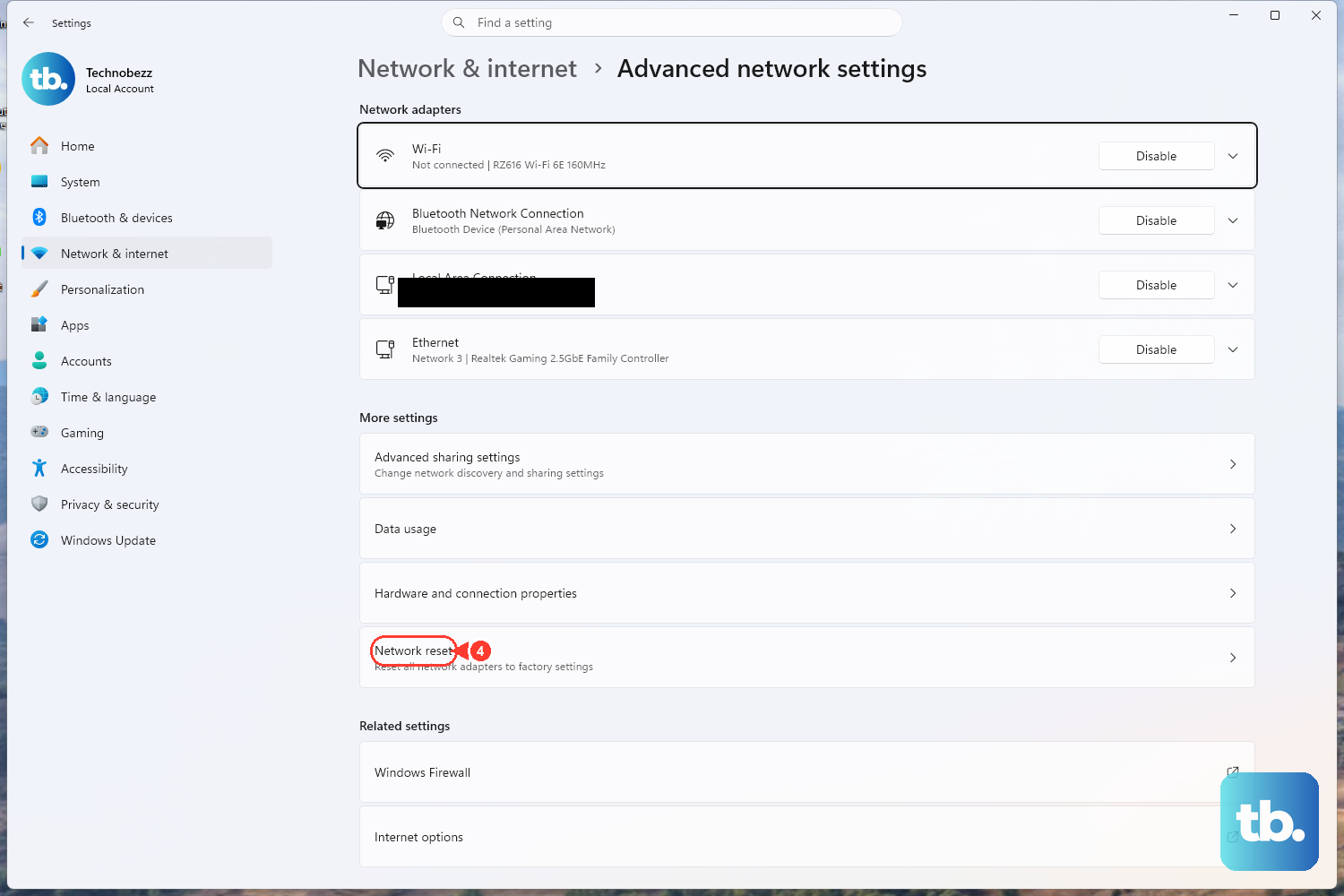
This is a more comprehensive fix. Navigate to Settings > Network & internet > Advanced network settings > Network reset. Click Reset now. This will remove and reinstall all network adapters and reset components to default.
You will need to reconnect to all your WiFi networks afterward, so have your passwords handy.
Disable and Re-enable the Network Adapter
This forces the hardware to reinitialize. In Device Manager under Network adapters, right-click your wireless adapter and choose Disable device. Wait 10 seconds, then right-click it again and select Enable device.
Flush DNS and Reset Winsock
Open Command Prompt as an administrator. Type each command below and press Enter after each one.
netsh winsock reset
netsh int ip reset
ipconfig /flushdns
ipconfig /release
ipconfig /renew
After running these, restart your laptop for the changes to take full effect.
Check for Windows Updates
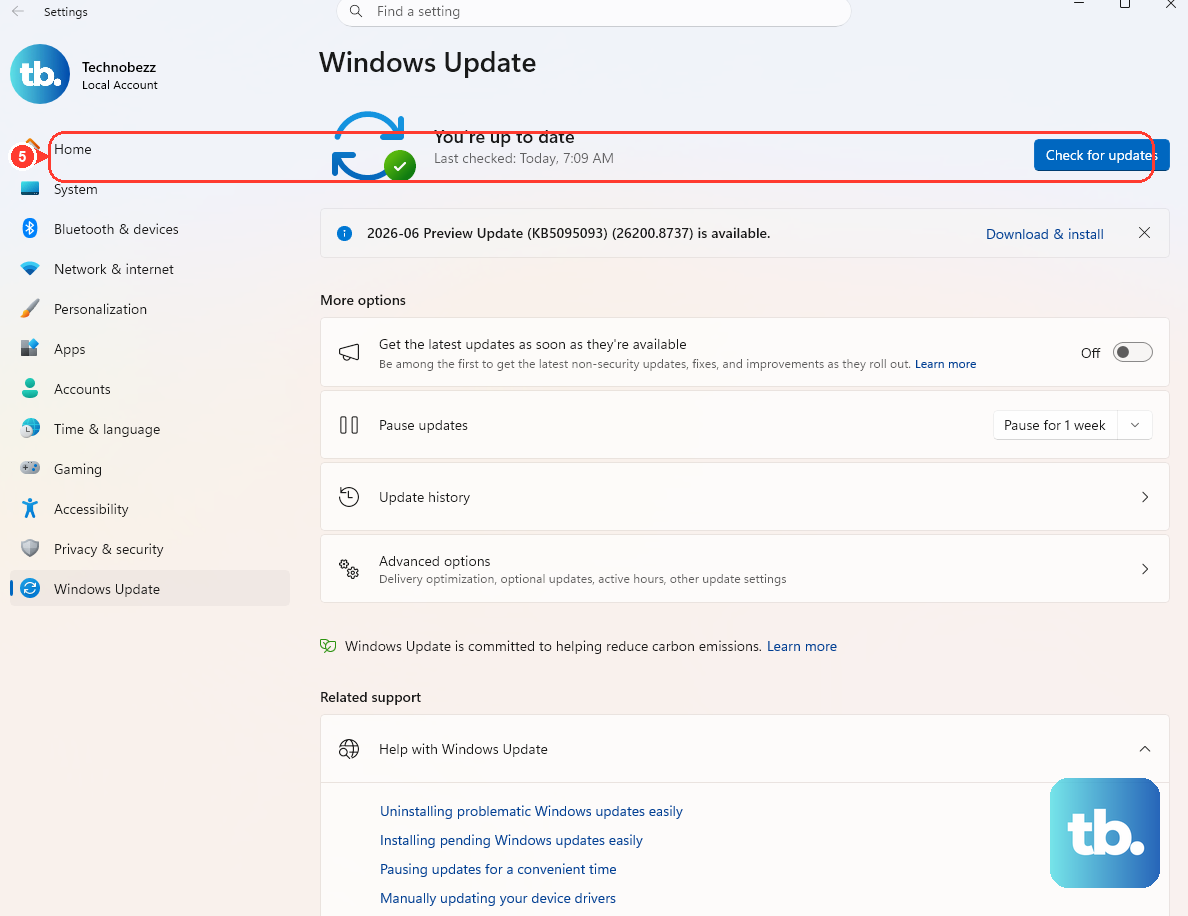
Microsoft frequently releases patches for connectivity issues. Go to Settings > Windows Update and click Check for updates. Install any available feature or quality updates, as they often contain critical driver and system fixes for new hardware like the Surface Laptop 7.
Check Your Router and Other Devices
If other devices in your home also can't connect, the problem is likely your router or internet service. Try restarting your router by unplugging it for 30 seconds. To test your laptop's hardware, try connecting to a different network, like a mobile phone hotspot.
If it connects to the hotspot, you know the issue is with your primary network. Some older routers or certain security settings can have compatibility issues with newer WiFi standards.