
When your Microsoft Surface Laptop 7 shows a "USB Device Not Recognized" error or simply doesn't react to a connected device, it can be frustrating. The issue could be with the port, the cable, a driver conflict, or even a setting in Windows. Let's get it working again.
Try a Different USB Port on Your Surface
Unplug the device and connect it to another USB-C port on your laptop. The Surface Laptop 7 has multiple USB4 ports, and one might be malfunctioning. If the device works in a different port, you've likely found a hardware issue with the first one.
Perform a Full Restart
Go to the Start menu, click the power icon, and choose Restart. This simple step reloads all the USB drivers and resets the controller. I've found it clears up a surprising number of temporary glitches where a device was just working a moment ago.
Test the Device on Another Computer
Plug the USB device into a different Windows PC or laptop. If it isn't recognized there either, the problem is almost certainly with the device or its cable. If it works perfectly on another machine, then the focus shifts to your Surface Laptop 7's configuration.
Swap Out the USB Cable
For devices like external drives or phones, the cable is a common point of failure. Try a different, high-quality USB-C cable that you know works for data transfer. Some cables are designed only for charging and lack the internal wires needed for data, which won't help you here.
Update or Reinstall USB Drivers
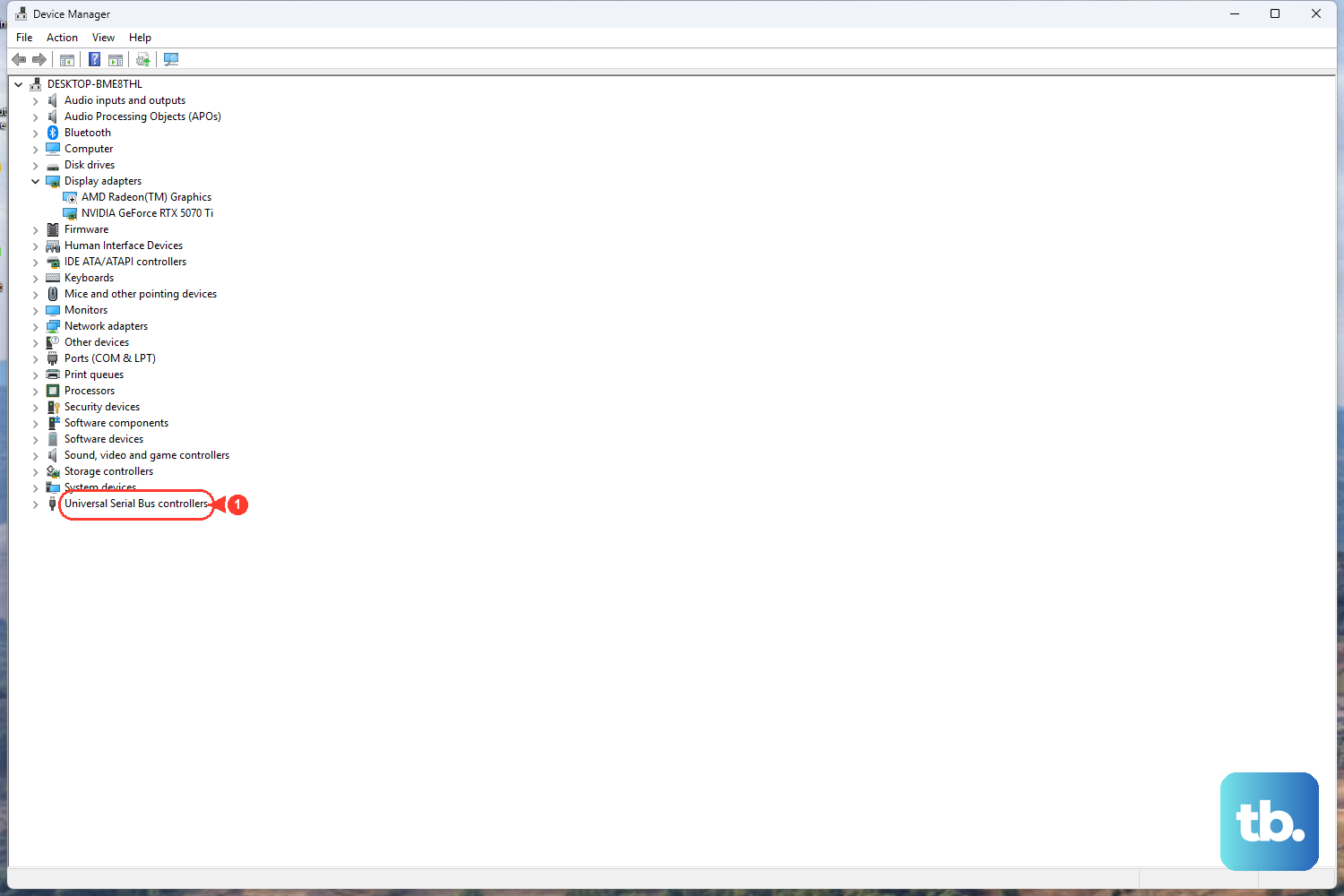
Right-click the Start button and select Device Manager. Expand the Universal Serial Bus controllers section. Look for any entries with a yellow exclamation mark. Right-click on them and choose Update driver > Search automatically for drivers. You can also right-click the problematic device and select Uninstall device, then restart your laptop to let Windows reinstall it fresh.
Use the Surface Diagnostic Toolkit
For a Surface-specific check, download the Surface Diagnostic Toolkit from the Microsoft Store. Run it and select the option to test hardware. It will check your USB ports and controllers for known issues and can sometimes apply fixes automatically, which is a great first step for any Surface problem.
Check for App and Driver Compatibility
Since the Surface Laptop 7 uses a Qualcomm Snapdragon X chip, some older peripherals or their companion software might not have ARM-compatible drivers. Check the manufacturer's website for a driver specifically labeled for Windows 11 on ARM. If you're trying to use a device that requires x86 emulation, there can be a performance overhead that sometimes affects detection.
Disable USB Selective Suspend
This power-saving feature can sometimes turn off ports prematurely. Search for and open Edit power plan in the Start menu. Click Change advanced power settings. In the window that opens, expand USB settings and then USB selective suspend setting. Set both "On battery" and "Plugged in" to Disabled. Click Apply and OK.
Install All Windows and Optional Updates
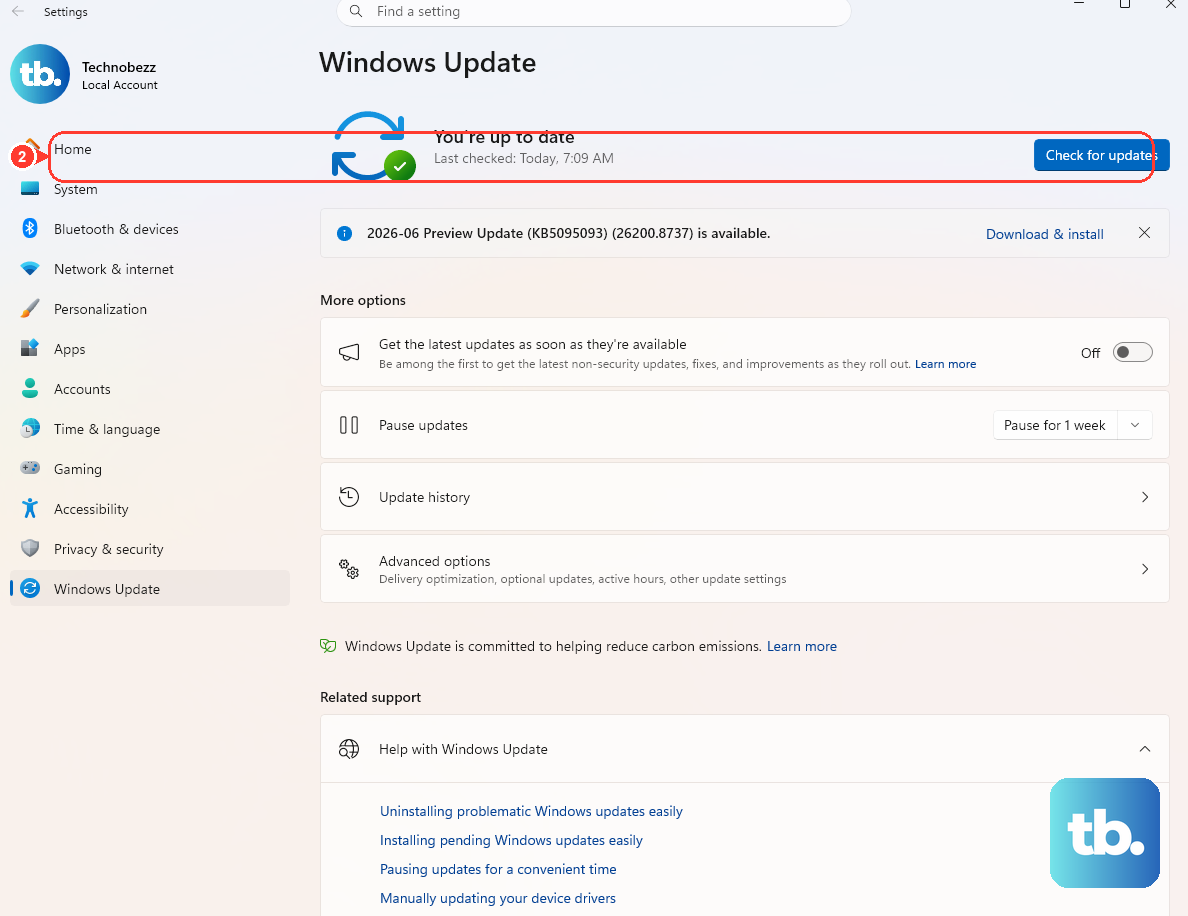
Go to Settings > Windows Update and click Check for updates. Install everything available. Then, click Advanced options and look under Optional updates. There may be driver updates specifically for your Surface hardware or chipset that improve USB stability.