A touchpad that suddenly stops working on your Surface Laptop 7 can feel like a major roadblock. Whether the cursor is frozen, taps aren't registering, or multi-finger gestures have stopped, the issue is usually software-related and fixable without needing a repair shop.
Check the Touchpad Toggle
First, see if the touchpad was accidentally disabled. On the Surface Laptop 7 there is no keyboard shortcut to toggle the touchpad on or off, so you'll need to check its status in Windows Settings instead. You should also open Settings > Bluetooth & devices > Touchpad and ensure the main toggle at the top is set to "On."
Restart Your Surface
A simple restart is a powerful fix, especially if the problem started after the laptop woke from sleep. It reloads all the drivers, including the one for your touchpad. Use the keyboard to navigate: press the Windows key, then use the arrow keys to highlight the power icon, press Enter, and select "Restart."
Disconnect Any External Mice
Windows has a setting that can automatically turn off the touchpad when it detects a mouse. Unplug any USB mice and turn off any paired Bluetooth mice. Then, go to Settings > Bluetooth & devices > Touchpad and look for the setting that says "Leave touchpad on when a mouse is connected." Make sure this is turned on to prevent it from happening again.
Update Your Drivers
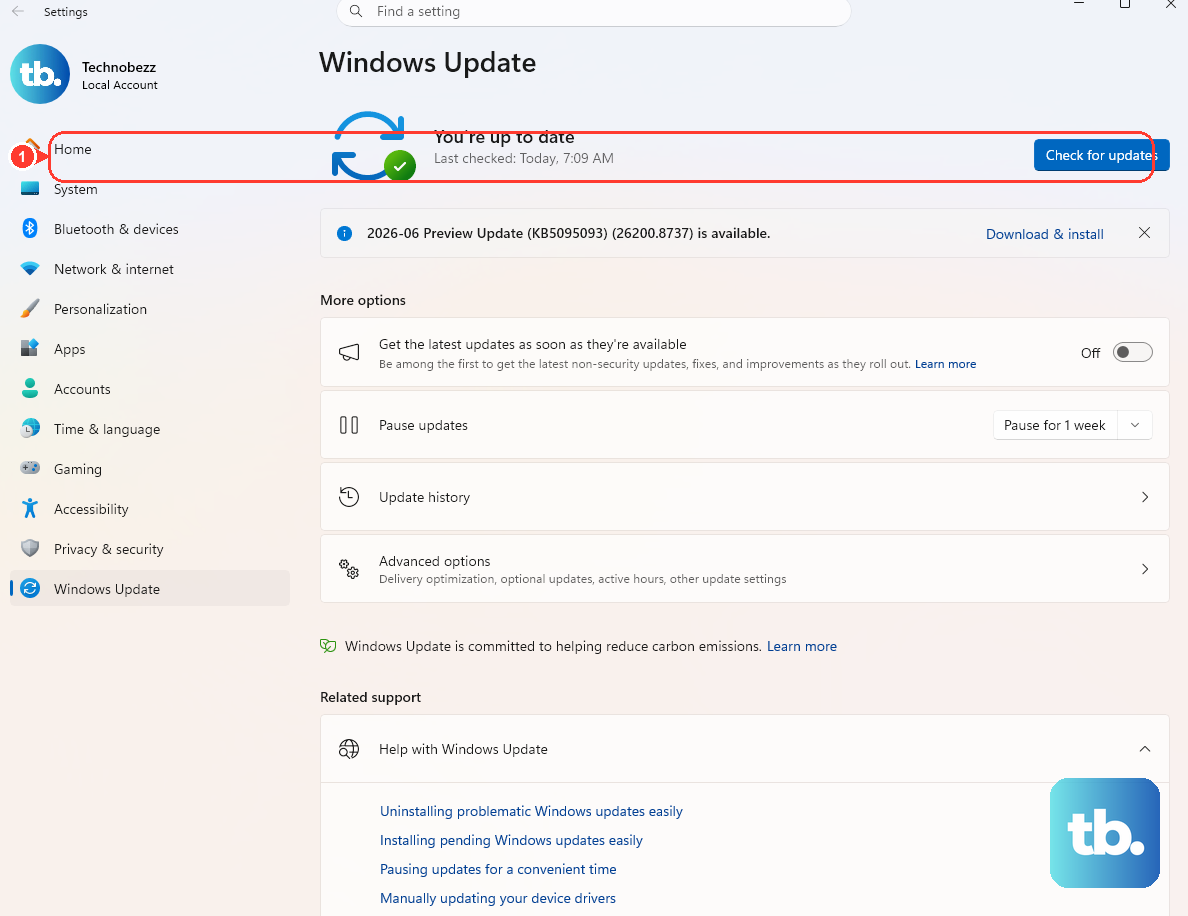
Outdated or corrupted drivers are a common culprit. For a Surface device, the best place to start is the Surface app from the Microsoft Store. Open it and check for updates in the support section. You can also use Windows Update. Go to Settings > Windows Update > Advanced options > Optional updates to see if any driver updates are listed there.
Run the Surface Diagnostic Toolkit
Microsoft offers a dedicated tool for problems like this. Download the "Surface Diagnostic Toolkit" from the Microsoft Store. Run it, and it will automatically test your touchpad and other input devices, often finding and fixing issues with drivers or settings that you might miss manually.
Reinstall the Touchpad Driver
If an update didn't help, try a clean reinstall. Press the Windows key + X and select Device Manager. Expand the "Mice and other pointing devices" section. Right-click on "Surface Touchpad" or a similar entry and select "Uninstall device." Check the box that says "Attempt to remove the driver for this device" if you see it, then restart your laptop. Windows will reinstall a fresh driver upon reboot.
Check for App Conflicts
The Surface Laptop 7 runs on a Qualcomm Snapdragon X chip, which uses emulation for some older x86 apps. I've seen cases where a poorly optimized or incompatible app can interfere with system processes, including input. Try booting into Safe Mode (hold Shift while clicking Restart in the power menu) to see if the touchpad works there. If it does, a recently installed app might be the cause.
Reset Your UEFI Settings
Rarely, a setting in the device's firmware can cause issues. You can reset it to default. Shut down your laptop completely. Then, hold down the Volume Up button and, while holding it, press and release the Power button. Keep holding Volume Up until you see the Surface logo, then release to enter the UEFI menu. From there, navigate to the "Security" tab, select "Reset to Factory Defaults," and confirm.
Consider Hardware and System Integrity
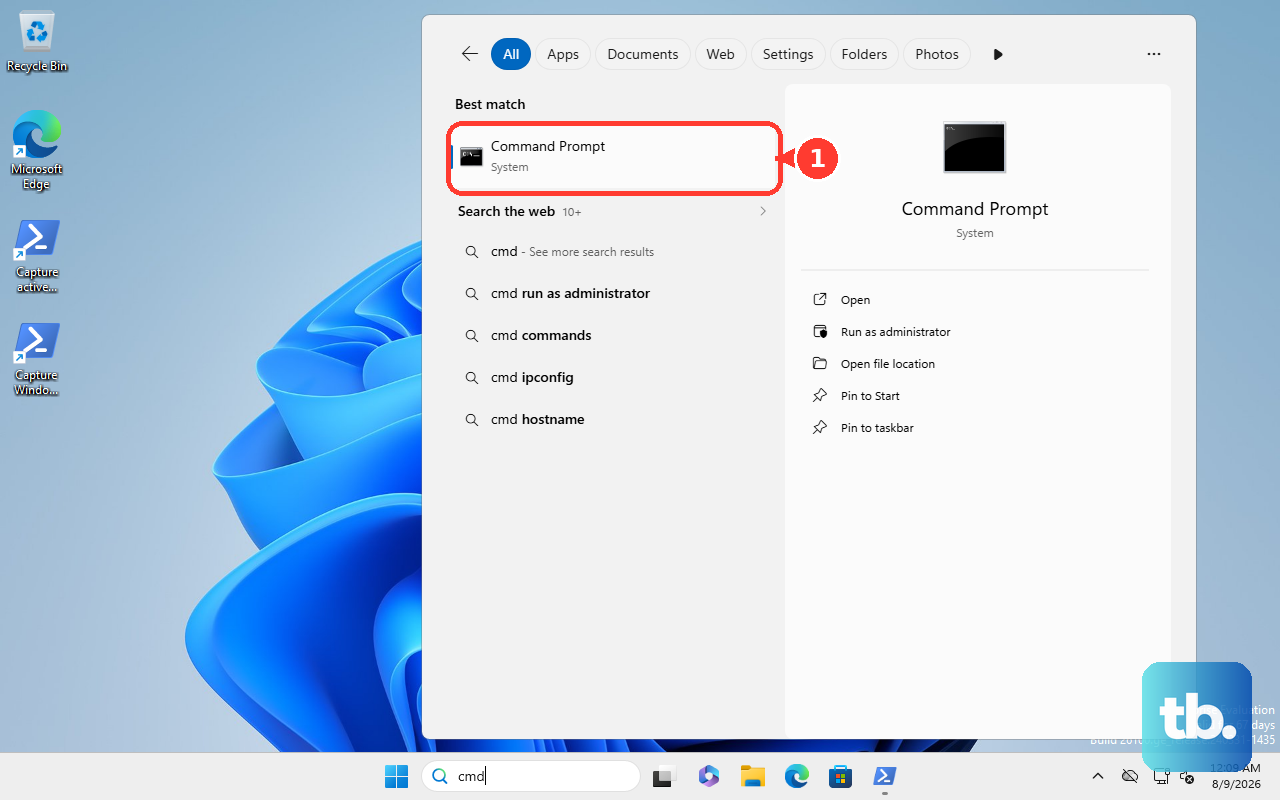
If the touchpad is completely dead in all scenarios, including the UEFI menu and Safe Mode, it could point to a hardware issue. Before assuming the worst, run a system file check. Open Command Prompt as Administrator and type sfc /scannow. This will scan for and repair corrupted Windows system files that could be affecting hardware functionality.