
Screen flickering on your Surface Laptop 7 is incredibly distracting, whether it's a rapid flash, intermittent blackouts, or subtle tearing. It can make the device feel unusable. Let's get it sorted.
The first thing I'd try is a simple restart. Hold down the power button for about 10 seconds until the device shuts down completely, then press it again to turn it back on. This can clear out temporary software glitches that might be causing the display to act up.
Update Your Display Drivers
Since the Surface Laptop 7 uses a Qualcomm Snapdragon X chip, it relies on specific ARM-optimized drivers. The best way to get these is through the Surface app from the Microsoft Store. Open it, go to the Help & Support section, and check for any available driver or firmware updates.
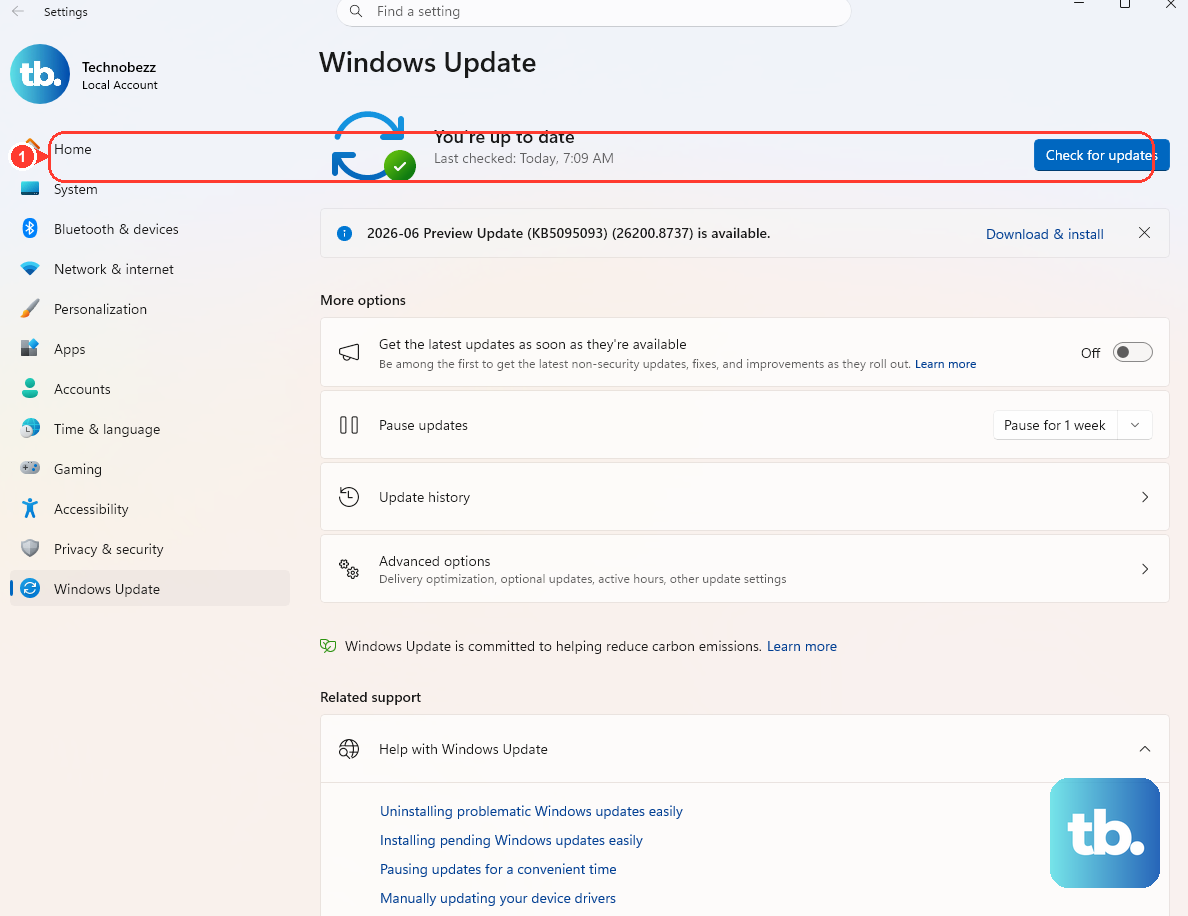
You can also check manually through Windows Update. Go to Settings > Windows Update > Advanced options > Optional updates. If there's a driver update listed for your display or graphics, install it. Microsoft bundles critical fixes here.
Check for App Conflicts in Task Manager
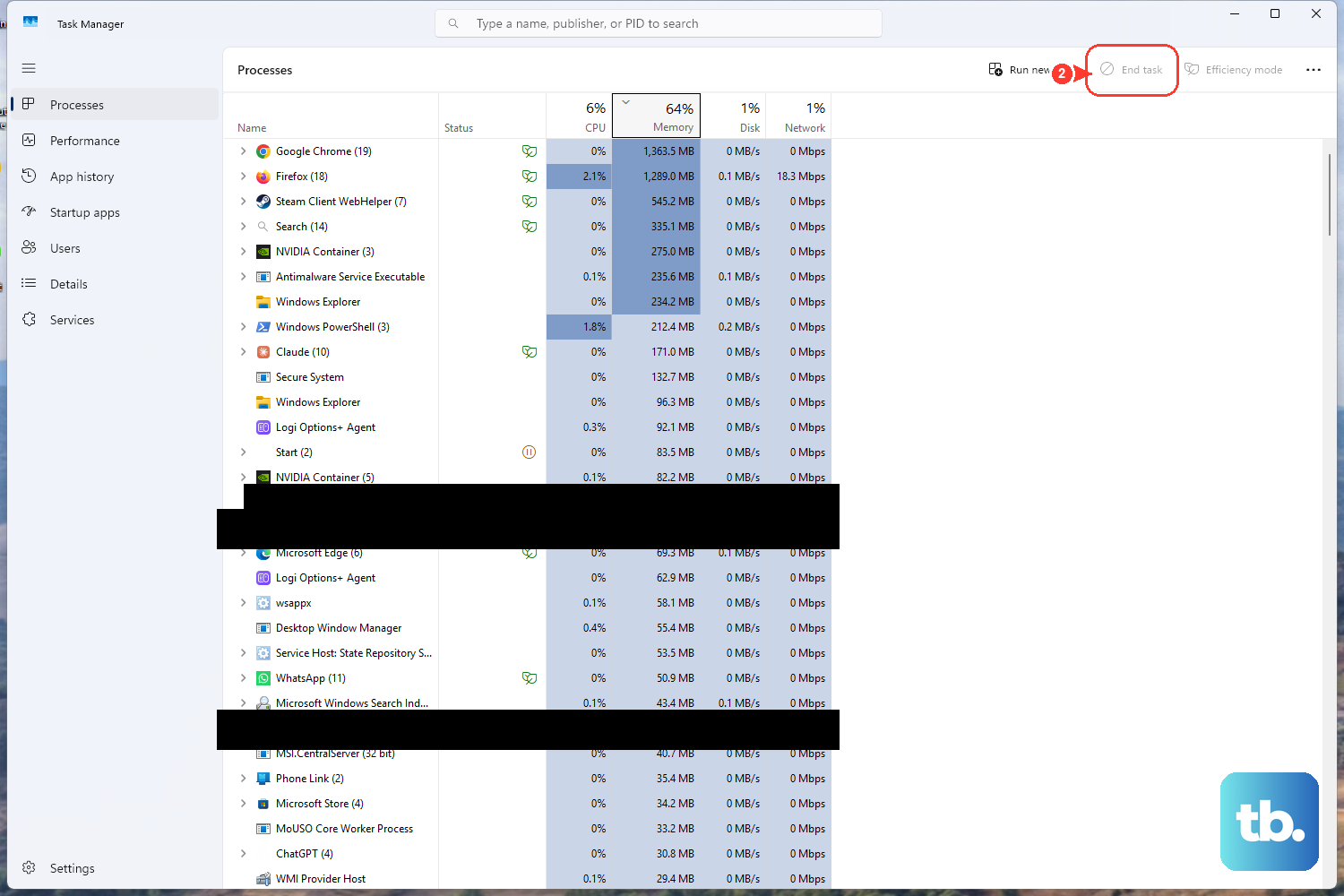
Press Ctrl + Shift + Esc to open Task Manager. Watch the Task Manager window itself. If it flickers along with everything else, the issue is likely system-wide, like a driver. If Task Manager stays perfectly stable while your desktop or other windows flash, a specific app is probably the culprit.
This is especially relevant on the ARM architecture. Some older x86 apps running through emulation can have compatibility hiccups that affect graphics performance. If you suspect a recently installed app, try uninstalling it to see if the flickering stops.
Adjust Your Display Refresh Rate
Head to Settings > System > Display > Advanced display. Look at the refresh rate setting. Try switching it to a different value. If it's set to 120Hz, try dropping it to 60Hz to see if that stabilizes the image. Sometimes, panel compatibility issues manifest as flickering.
Disable Hardware Acceleration in Apps
Many apps, like web browsers, use your GPU to render content. A conflict here can cause flickering. In apps like Chrome or Edge, go to Settings > System and turn off Use hardware acceleration when available. Restart the app and see if the problem clears up while using it.
Run the Surface Diagnostic Toolkit
Microsoft provides a dedicated tool for problems like this. Download the Surface Diagnostic Toolkit from the Microsoft Store. Run it and follow the prompts. It will automatically test your display, graphics system, and related drivers, and it can often apply fixes or give you a clear report on what's wrong.
Boot Into Safe Mode
If the flickering is constant, booting into Safe Mode loads Windows with only essential drivers. Hold the Shift key while clicking Restart from the Start Menu power options. After the reboot, choose Troubleshoot > Advanced options > Startup Settings > Restart. Press 4 to enable Safe Mode.
If the screen is stable in Safe Mode, you've confirmed a third-party driver or startup program is causing the issue. You can then use Safe Mode to uninstall recent graphics drivers or problematic software.
Roll Back Your Display Driver
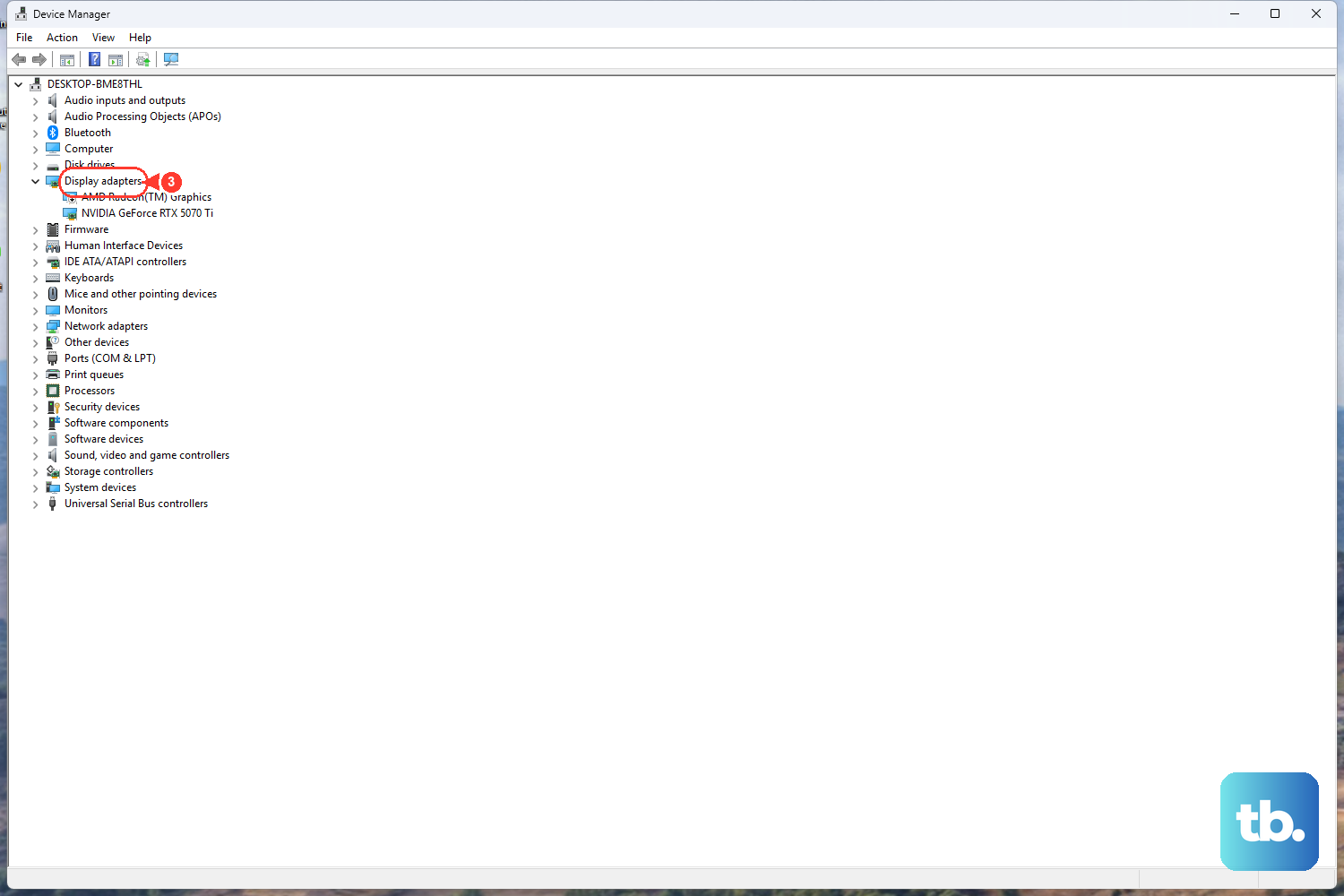
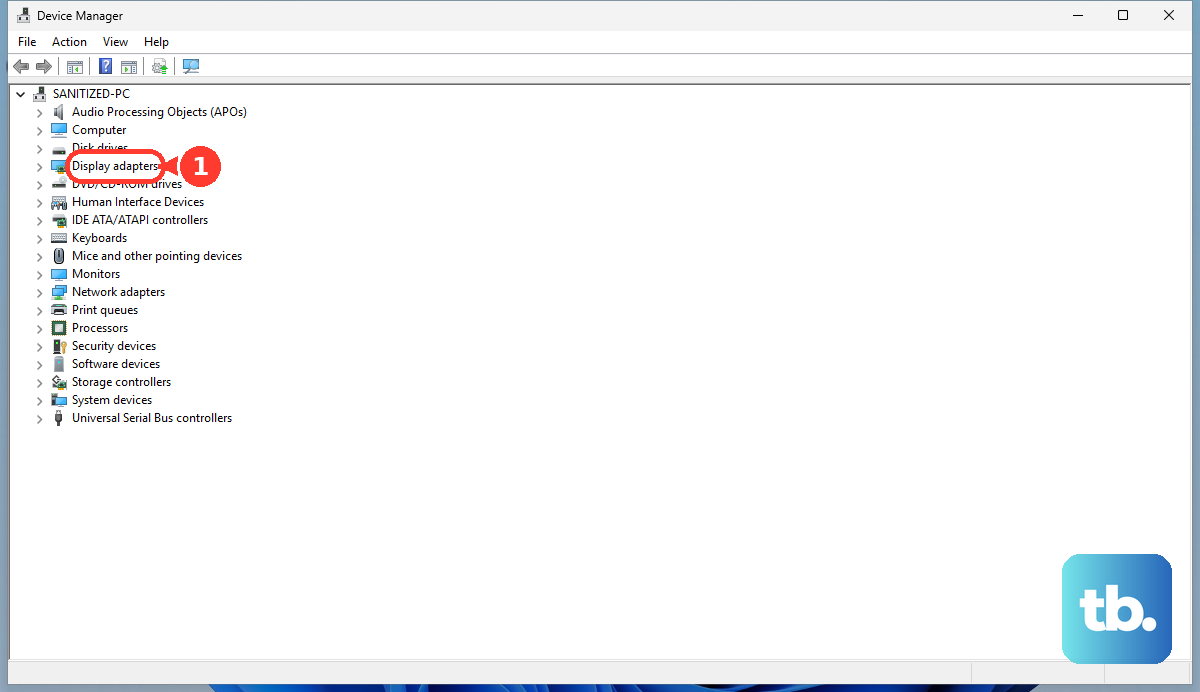
If the flickering started right after a driver update, rolling it back can help. Open Device Manager, expand Display adapters, right-click the Qualcomm Adreno or Microsoft Display Adapter, and select Properties. Go to the Driver tab and click Roll Back Driver if the option is available.
Check for Physical Connection Issues
While less common on a new device, a loose internal display cable can cause flickering that worsens when you move the lid. If the problem is intermittent and seems tied to physically adjusting the screen angle, it could be a hardware connection. This type of fix generally requires professional service.
Access Surface UEFI for a Hardware Check
You can boot into the device's built-in firmware to see if the flickering happens there, which would point to a hardware fault. Shut down the laptop completely. Then, hold the Volume Up button and press the Power button once. Keep holding Volume Up until you see the Surface logo, then release it to enter the UEFI menu.
If the screen flickers in this simple menu environment, it strongly suggests a hardware problem with the display panel or its connection.











