
A slow Surface Laptop 7 can feel like you're wading through digital mud, especially when you expect the new Snapdragon X chip to be snappy. The good news is that most slowdowns are temporary and fixable with a few adjustments. I'd start with the simplest steps first.
Restart Your Surface
If you've been using sleep mode for days or weeks, a full restart is your best first move. Click Start > Power > Restart. This clears out temporary memory glitches and stops any background processes that have gotten stuck. It's a quick fix that works surprisingly often.
Check Task Manager for Resource Hogs
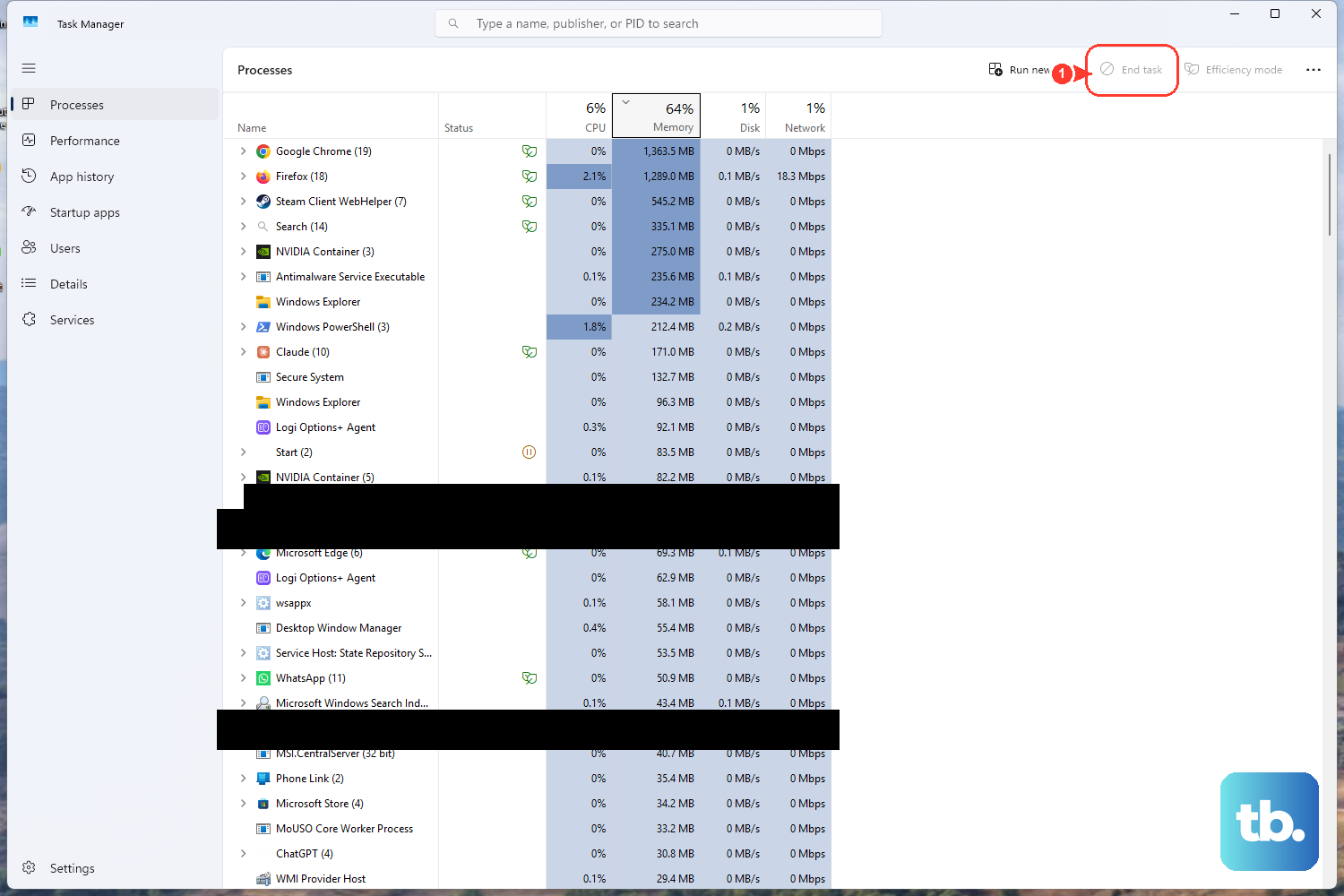
Press Ctrl + Shift + Esc to open Task Manager. Click the CPU, Memory, or Disk column headers to sort by what's being used the most. On the Surface Laptop 7, pay special attention to apps running under "x64" or "x86" architecture, as these are running in emulation and can be resource-intensive. Right-click and End task on anything non-essential that's using a high percentage.
Manage Your Startup Apps
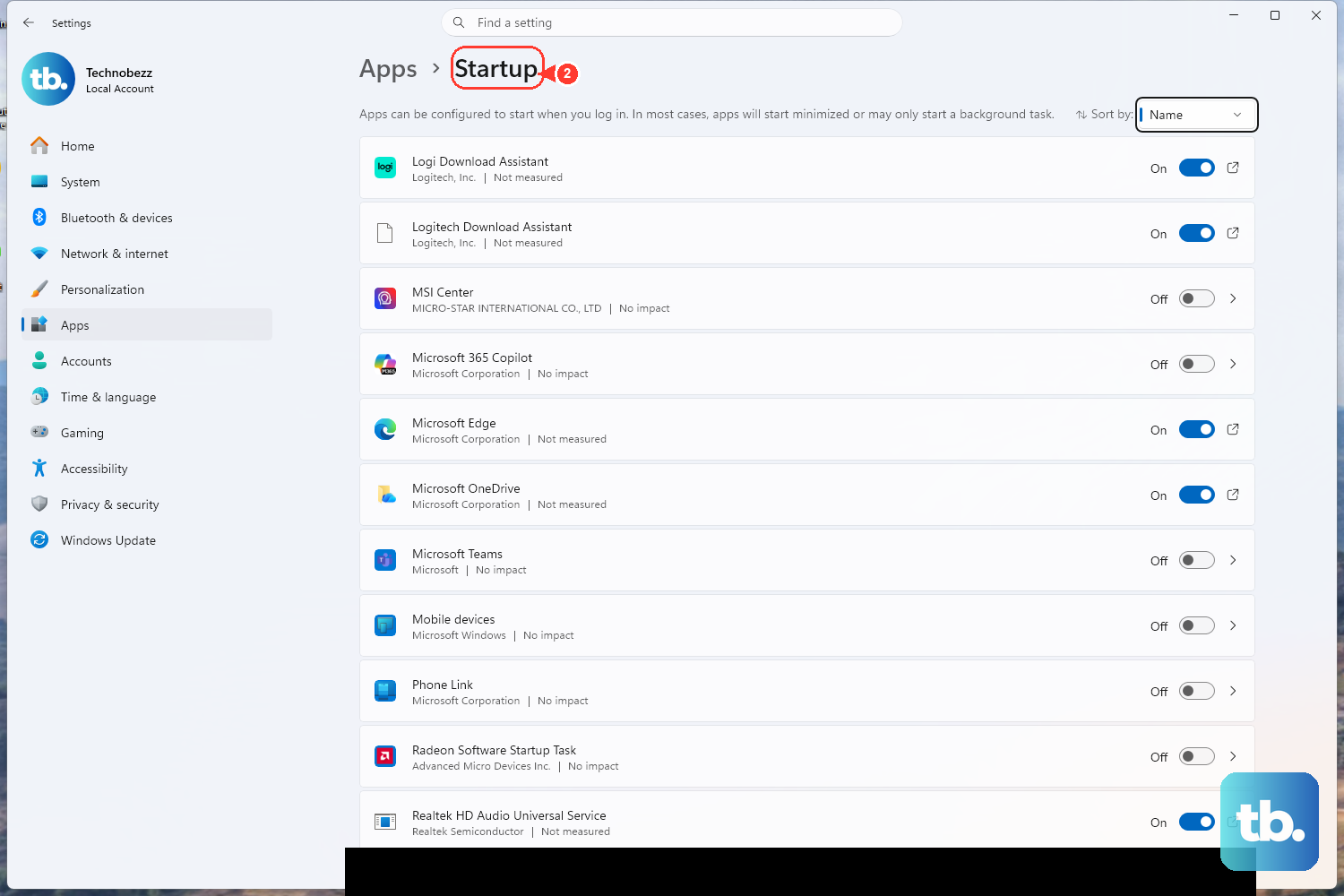
In Task Manager, switch to the Startup apps tab. Every app here launches when you boot Windows, slowing down your startup and using RAM. Disable anything you don't need immediately, like game launchers, chat apps, or cloud storage services. Keeping this list lean helps your Surface feel faster from the moment you turn it on.
Free Up Storage Space
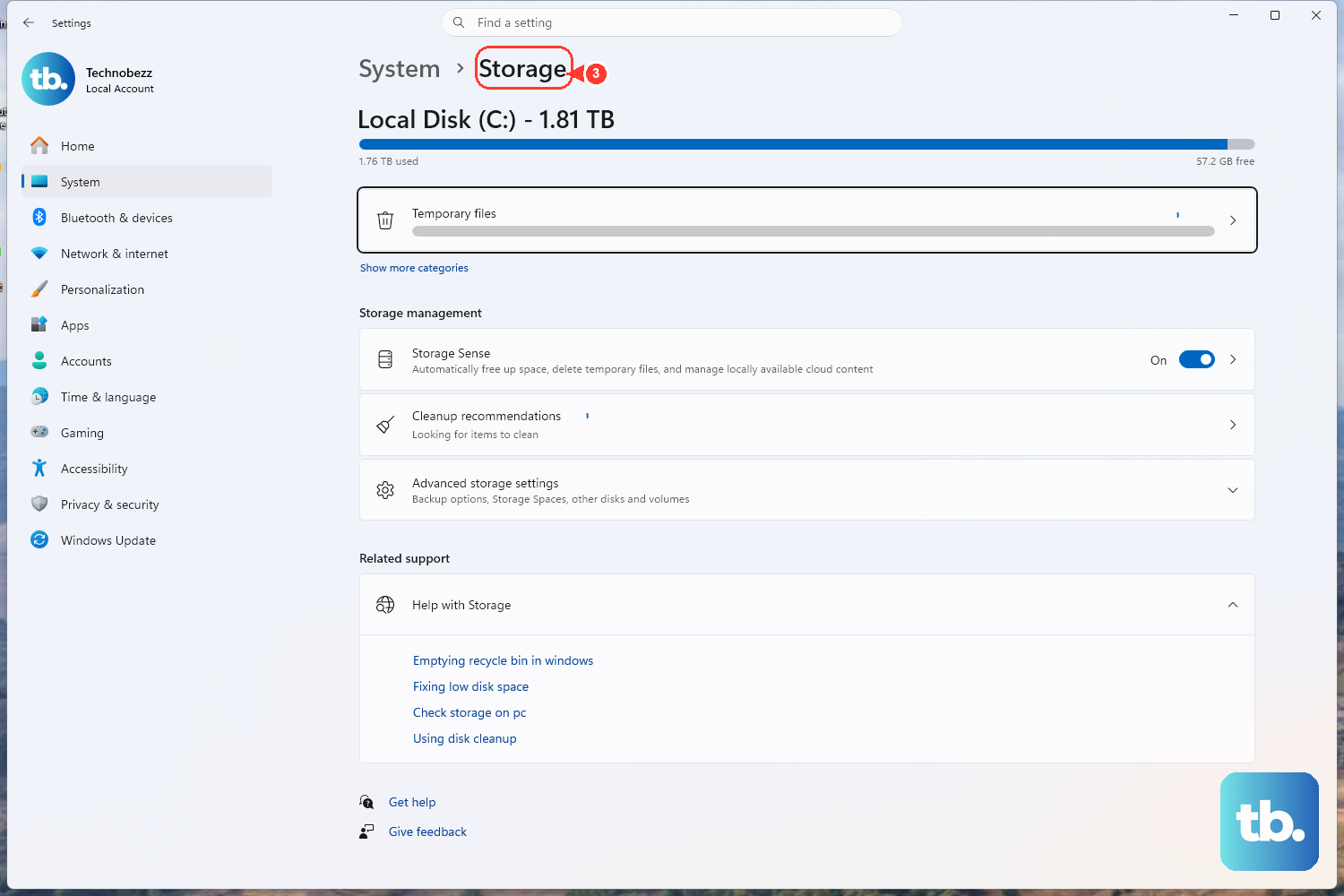
Windows needs room to breathe. Go to Settings > System > Storage. Turn on Storage Sense to let Windows automatically clean up temporary files. You can also click Temporary files to manually remove update cleanup files and empty the recycle bin. Try to keep at least 20% of your SSD free for optimal performance.
Run a Malware Scan
Open Windows Security from the Start menu. Go to Virus & threat protection and run a Full scan. Malicious software running in the background can silently eat up your CPU and memory, causing major slowdowns. It's a good habit to run this scan periodically.
Update Everything
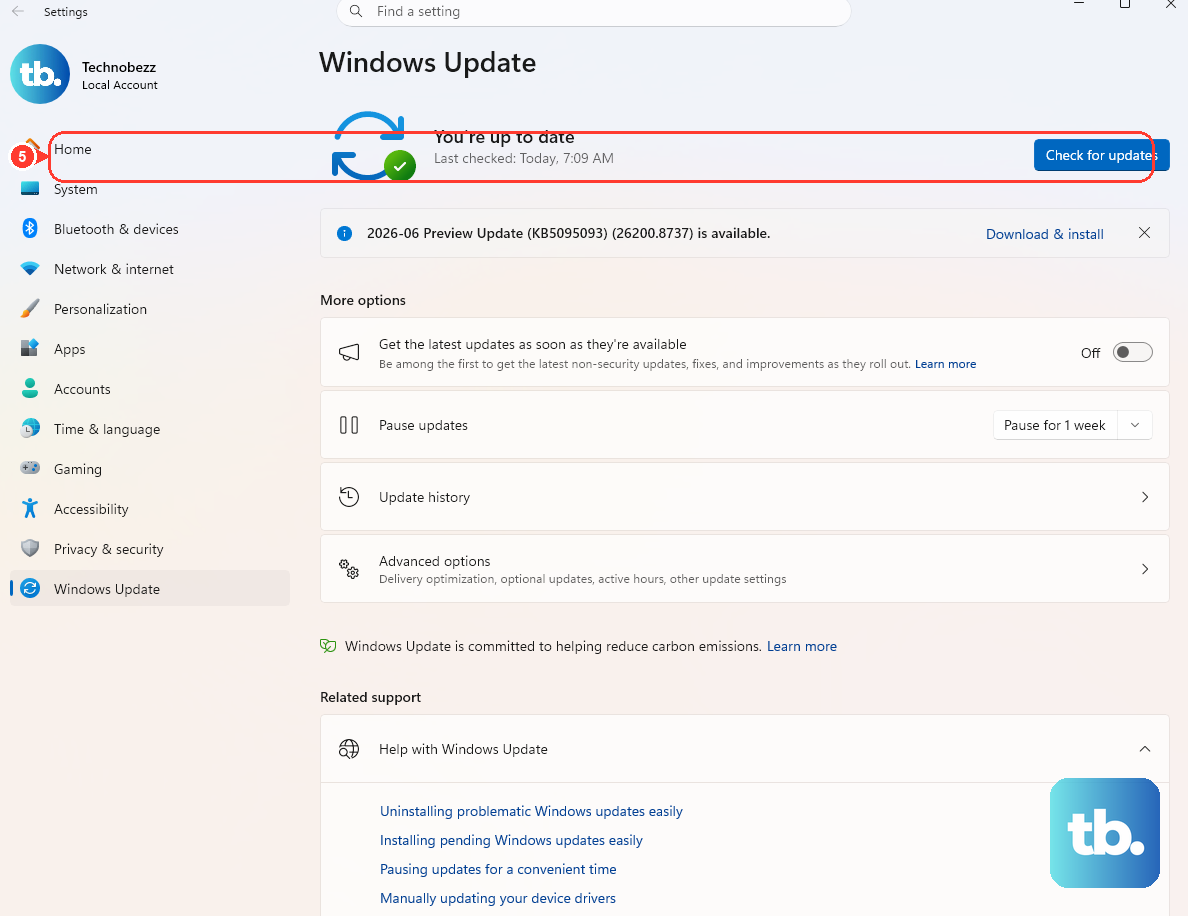
First, go to Settings > Windows Update and install all available updates. Microsoft is constantly optimizing Windows for the Snapdragon X platform. Next, open the Microsoft Store and check for updates in the Library section. Finally, search for and open the Surface app from the Start menu, which can provide model-specific driver and firmware updates.
Adjust Your Power Plan
Your Surface might be slowing itself down to save battery. Click the battery icon in the system tray and move the slider to Best performance. For more control, go to Settings > System > Power & battery. When plugged in, make sure the power mode is set to favor performance over efficiency.
Check for App Compatibility Issues
This is a key step for the Surface Laptop 7. Some older x86 apps run slowly through the emulation layer. Open Task Manager and look at the "Architecture" column. If a critical app you use daily is listed as x86 and is slow, check the developer's website for a native ARM64 version. Switching to an ARM-optimized app can lead to a huge speed boost.
Use the Surface Diagnostic Toolkit
For hardware-specific checks, download the Surface Diagnostic Toolkit from the Microsoft Store. This official tool can run tests on your battery, memory, and thermal systems to see if a hardware issue is causing the slowdown. It's a more targeted approach than general Windows troubleshooting.
Reset or Refresh Windows
If clutter and software conflicts persist, a reset can help. Go to Settings > System > Recovery and click Reset PC. Choose Keep my files to reinstall Windows while preserving your personal data. All your apps will need to be reinstalled, but you'll get a clean, fresh system. Before you do this, consider creating a backup of any important files.