
An overheating Surface Laptop 7 can throttle its performance, cause unexpected shutdowns, and shorten the lifespan of its components. If the chassis feels unusually hot, the fans are constantly loud, or you're seeing performance slowdowns, these steps can help you cool it down.
Check for Software Updates First
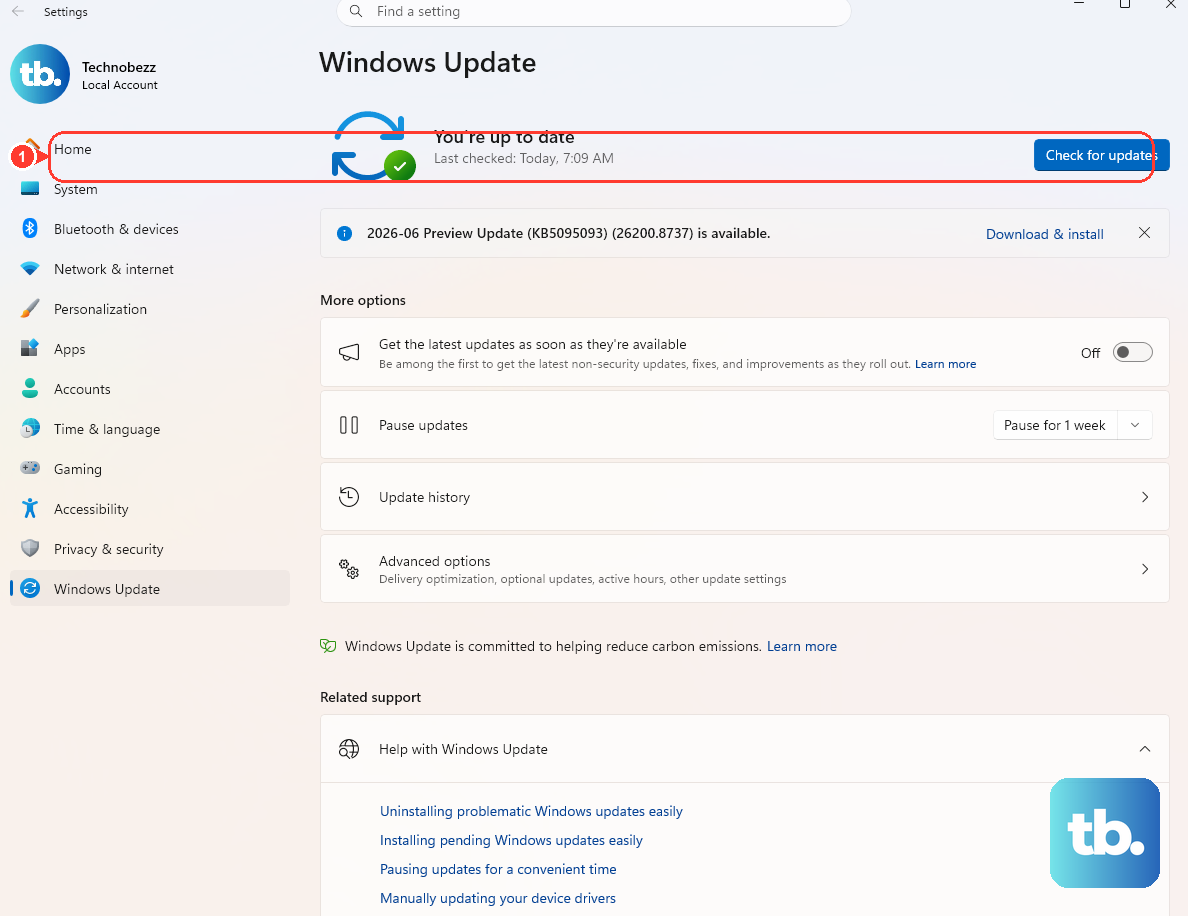
Start by making sure your system is completely up to date. Microsoft frequently releases firmware and driver updates that improve thermal management. Open the Surface app from the Microsoft Store and check for updates there, as it often has device-specific drivers. Then, go to Settings > Windows Update and install any available updates.
Manage Your Power Mode
The Snapdragon X chip is powerful, but you can control its heat output. Click the battery icon in your system tray and slide the power mode to Recommended or Best power efficiency for everyday tasks. This reduces the processor's peak speeds and heat generation. Switch to Best performance only when you need it for demanding apps.
Monitor App Compatibility and CPU Load
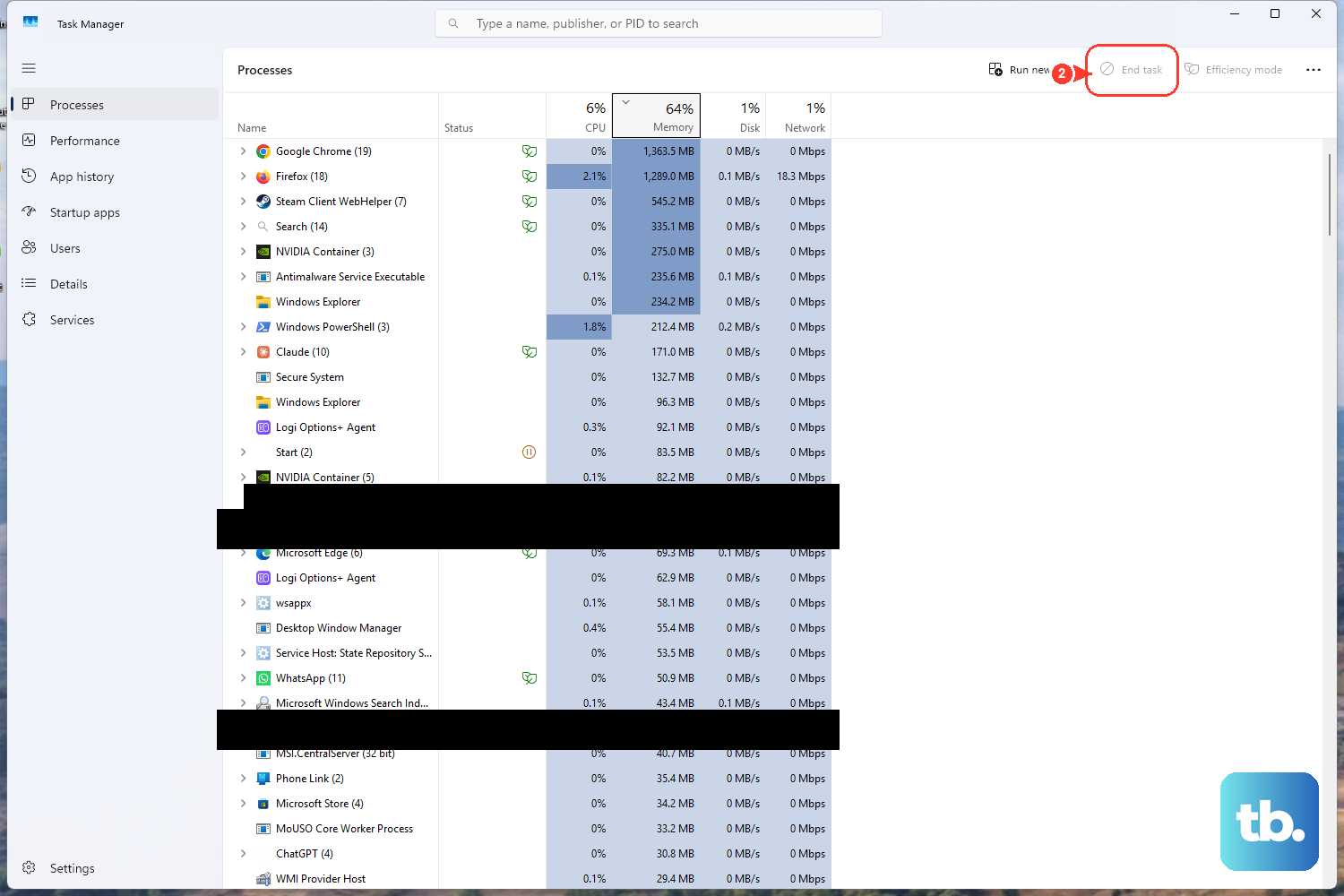
Open Task Manager (Ctrl + Shift + Esc) and sort by CPU usage. Pay special attention to apps running under emulation, as the x86-to-ARM translation layer adds overhead. If an older, emulated app is constantly using high CPU, it could be a major heat source. Consider closing it or checking for a native ARM64 version.
Ensure Proper Ventilation
Always use your Surface Laptop 7 on a hard, flat surface like a desk or table. Using it on a bed, blanket, or your lap can block the ventilation grilles along the bottom edge and sides. Even propping up the back of the laptop slightly with a book can improve airflow significantly and help the fans do their job.
Run the Surface Diagnostic Toolkit
Microsoft provides a dedicated tool for troubleshooting. Download the Surface Diagnostic Toolkit from the Microsoft Store. Run the full diagnostic, which includes tests for the thermal system and fans. It can identify and sometimes fix driver-related issues that might be causing poor heat management.
Clean the Vents and Fans
Dust buildup is a classic culprit for overheating. With the laptop powered off, use a can of compressed air to blow short bursts into the ventilation grilles. Aim to dislodge dust from the fan and heatsink inside. Avoid using a vacuum cleaner, as it can create static electricity that could damage the sensitive components.
Adjust Display and Graphics Settings
A bright screen generates heat. Lower your display brightness to a comfortable level via Settings > System > Display. Also, check graphics settings for individual apps. Go to Settings > System > Display > Graphics and set less demanding apps to use the power-efficient integrated graphics instead of any higher-performance option.
Review Background Processes and Startup Apps
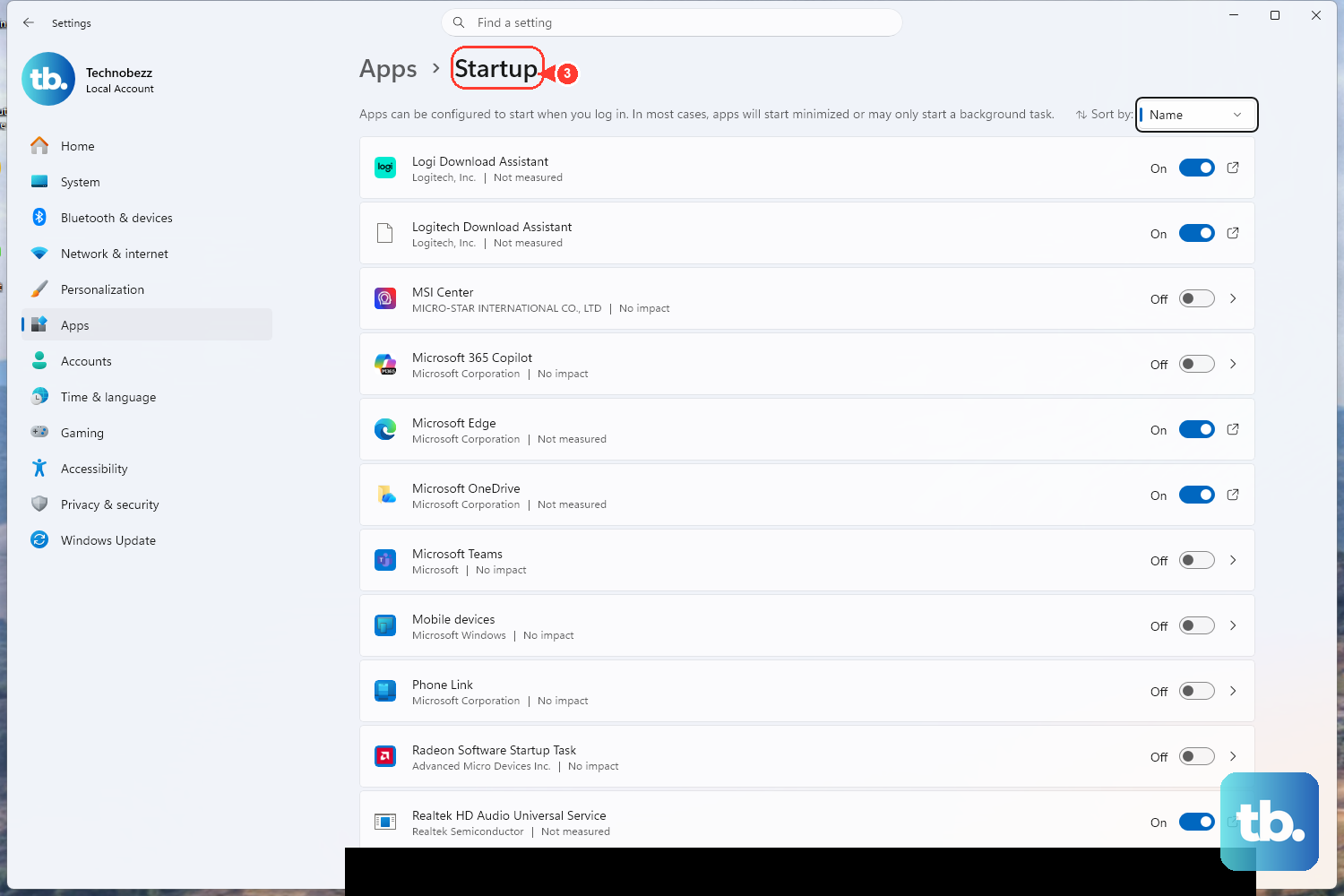
Background services can keep the CPU busy. In Task Manager, check the "Startup apps" tab and disable any non-essential programs from launching automatically. Also, look for processes like Windows Search indexing, OneDrive syncing, or antivirus scans that might be running intensive tasks. Scheduling these for off-hours can help.
Use a Laptop Cooling Pad
For a consistent thermal boost, especially during long work sessions or gaming, a cooling pad is a great investment. Choose one with fans that align with the intake vents on the bottom of your Surface Laptop 7. A good pad can lower internal temperatures by several degrees, which helps maintain peak performance.
Check Peripheral and Driver Compatibility
Some older peripherals or their drivers might not be fully compatible with the ARM architecture, causing system instability or extra CPU load. If you notice heating issues after connecting a specific device, try disconnecting it. Ensure you have the latest drivers from the peripheral manufacturer's website, looking for ARM64 versions if available.