
When you plug in your Surface Laptop 7 and nothing happens, it's a frustrating roadblock. The issue could be with the charger, the port, Windows itself, or the battery. Let's walk through the most effective fixes to get you powered up again.
Inspect Your Surface Connect Charger
Start with the basics. Check your Surface Connect cable for any obvious damage, like fraying or kinks near the magnetic connector. Try plugging the power brick into a different wall outlet to rule out a faulty socket. The LED light on the power brick should be solid white when it's properly connected to power.
If you're using a USB-C charger, ensure it's plugged into a port that supports charging. Not all USB-C ports on every device or hub can deliver power. I'd also recommend trying the official Surface Connect charger first, as it's guaranteed to provide the correct wattage.
Perform a Full Shutdown and Restart
This simple step can resolve a lot of software-related power glitches. Don't just put the laptop to sleep. Click Start, select Power, and choose Shut down. Wait a full minute, then press the power button to turn it back on while it's plugged into the charger.
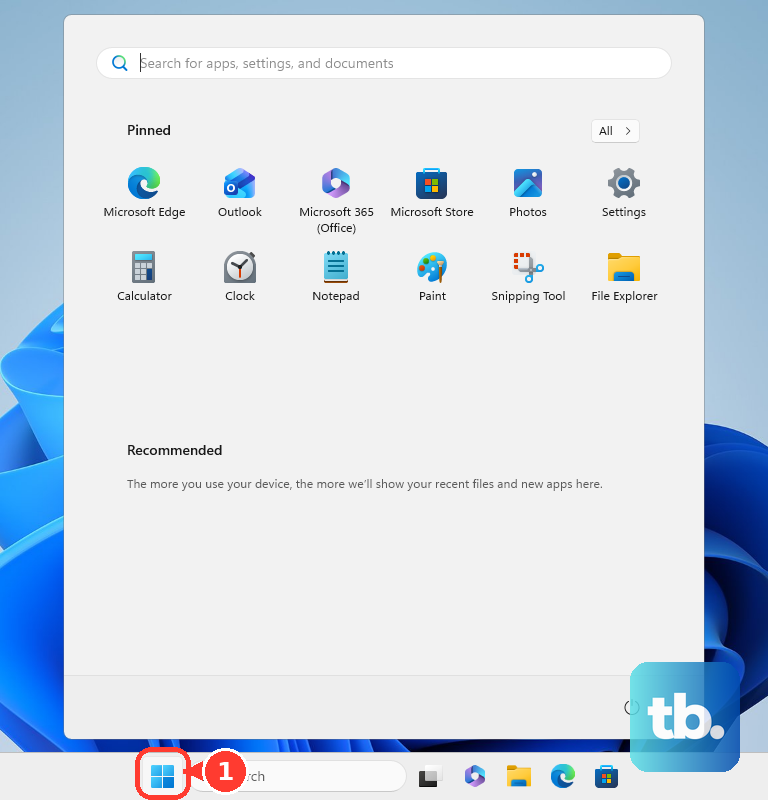
This process resets the Surface's internal power management controller, which can sometimes lose track of the connected charger. It's a quick fix that works more often than you'd think.
Check for Battery Health and Report
Windows has a built-in tool to give you a detailed look at your battery's condition. Press the Windows key, type "Command Prompt," and run it as an administrator. In the window, type the command powercfg /batteryreport and press Enter.
This generates an HTML file on your drive. Open it in your web browser and look for the "Design Capacity" versus "Full Charge Capacity" sections. If the full charge capacity is significantly lower than the design capacity, your battery's health is degraded and may be the root cause.
Update or Reinstall Battery Drivers
Outdated or corrupted drivers can prevent Windows from communicating correctly with the battery. Right-click the Start button and select Device Manager. Expand the Batteries section, right-click on Microsoft ACPI-Compliant Control Method Battery, and select Uninstall device.
Do the same for the Microsoft Surface ACPI-Compliant Control Method Battery if it's listed. Don't restart yet. Also uninstall the device under Batteries called Surface Battery. Now, restart your laptop. Windows will automatically reinstall fresh drivers upon reboot.
Run the Surface Diagnostic Toolkit
Microsoft provides a dedicated app for troubleshooting Surface devices. Open the Microsoft Store and search for "Surface Diagnostic Toolkit." Download and run it. The tool will walk you through tests for your battery, charger, and thermal systems.
It's one of the best ways to get a clear, official diagnosis from Microsoft itself. If it finds an issue, it will often point you directly to the next step, whether that's a firmware update or a support contact.
Check Power Settings and Limiters
Some devices have software features that limit charging to prolong battery lifespan. On your Surface Laptop 7, open the Surface app from the Start menu. Look for settings related to battery or power management.
Also, go to Settings > System > Power & battery. Scroll down and click on Battery saver. Make sure "Turn battery saver on automatically" is not set to an overly aggressive percentage like 50%, which could affect charging behavior.
Clean the Charging Ports
Lint and dust can easily build up in the magnetic Surface Connect port or the USB-C ports, preventing a solid connection. Power off the laptop and use a can of compressed air to blow gently into the ports.
For more stubborn debris, a dry, soft-bristled brush or a wooden toothpick can be used with extreme care. Avoid using metal objects that could scratch or short the contacts. This is a common fix for intermittent charging problems.
Test With a Different Charger
If you have access to another compatible Surface Connect charger or a high-wattage USB-C PD (Power Delivery) charger, try it. Chargers can fail internally even if the light is on, providing data but not enough power.
Ensure any third-party USB-C charger supports at least 65W Power Delivery for reliable charging with the Surface Laptop 7. Using an underpowered charger might only slow battery drain rather than actually charge it.
Update Surface UEFI and Drivers
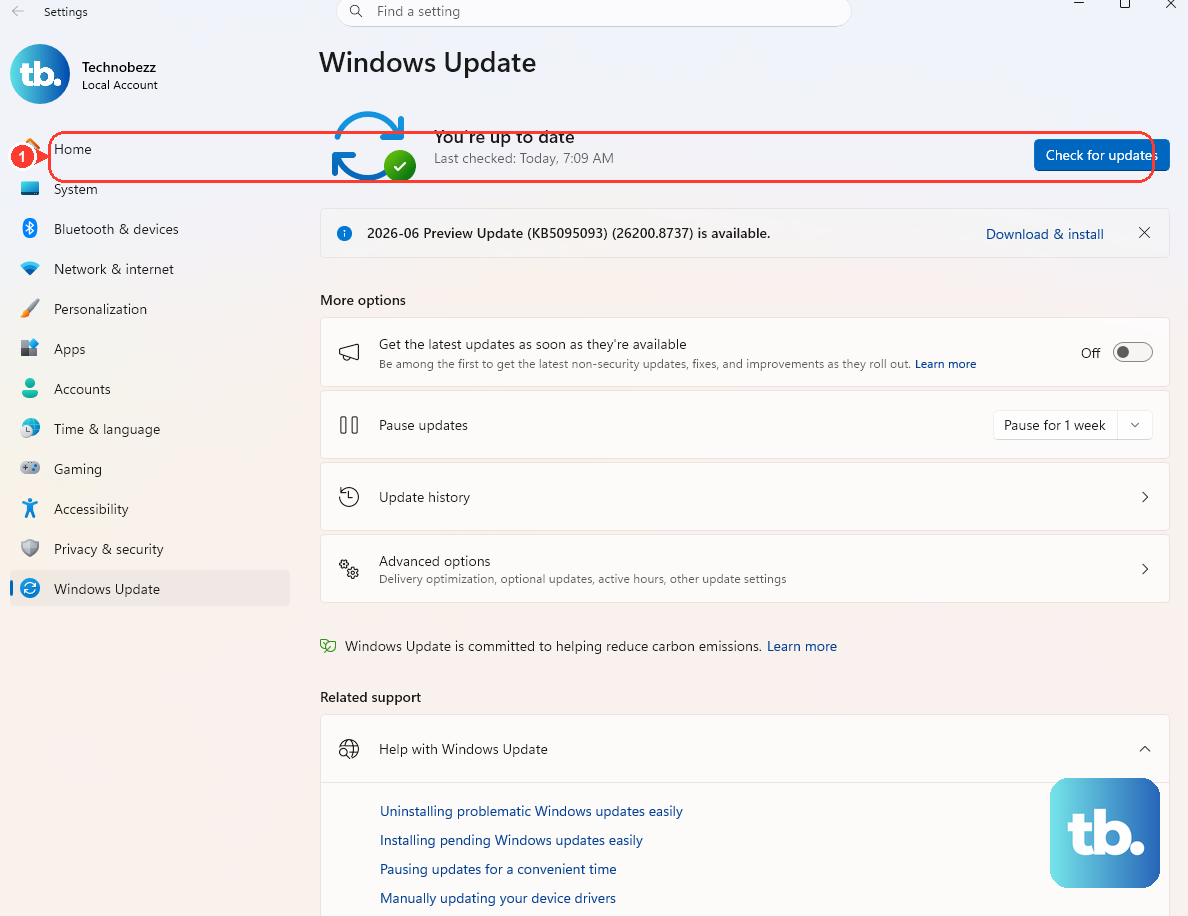
Firmware updates from Microsoft often include fixes for power management and battery charging algorithms. Open the Surface app or go to Settings > Windows Update > Advanced options and check for optional updates.
For more direct control, you can visit the official Microsoft Surface support website, enter your model, and manually download the latest Surface UEFI firmware installer. Running this can resolve deep-seated hardware communication issues that affect charging.