
When your Surface Laptop 7 goes silent, it's often a quick software setting or driver hiccup, especially with the new Snapdragon X chip. The good news is you can usually get the sound back in a few minutes.
Run the Surface Diagnostic Toolkit
This is the best first step for any Surface-specific issue. Download the Surface Diagnostic Toolkit from the Microsoft Store. Run it and select the audio test. It will automatically check for driver problems and known compatibility issues with the ARM architecture, applying fixes where it can.
Check Your Volume and Output
Click the speaker icon in your taskbar. Make sure the master volume slider isn't all the way down or muted. Click the little arrow next to the slider to see all available output devices. If you recently unplugged headphones, Windows might still be trying to send audio to them. Select your laptop's speakers from this list.
Restart Your Surface
This simple step reloads all the audio drivers and clears any stuck processes. It's particularly effective if the sound cut out after waking from sleep or after a recent app installation. Click Start, then the power icon, and choose Restart.
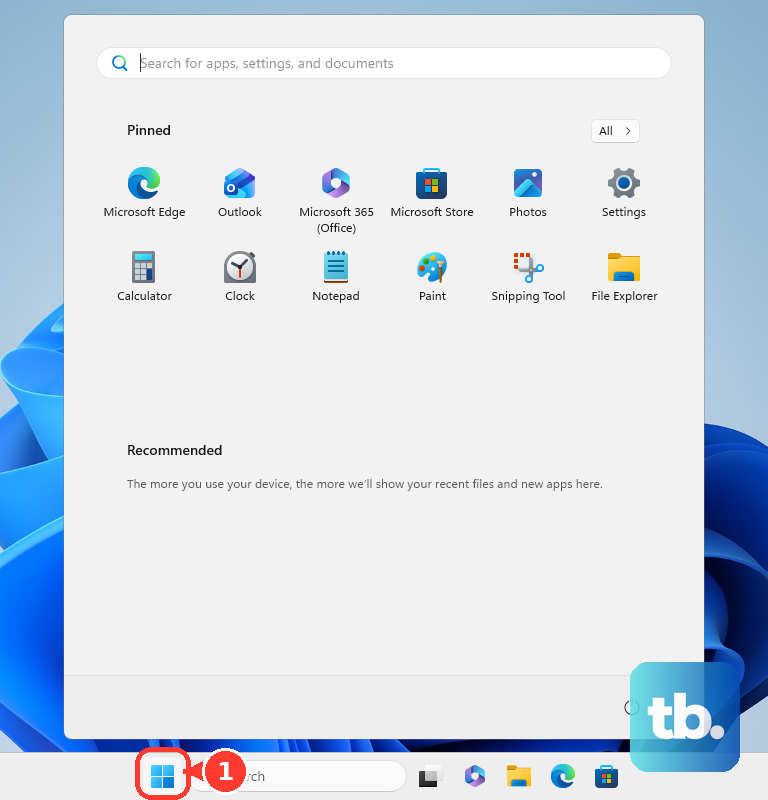
Update Drivers via the Surface App
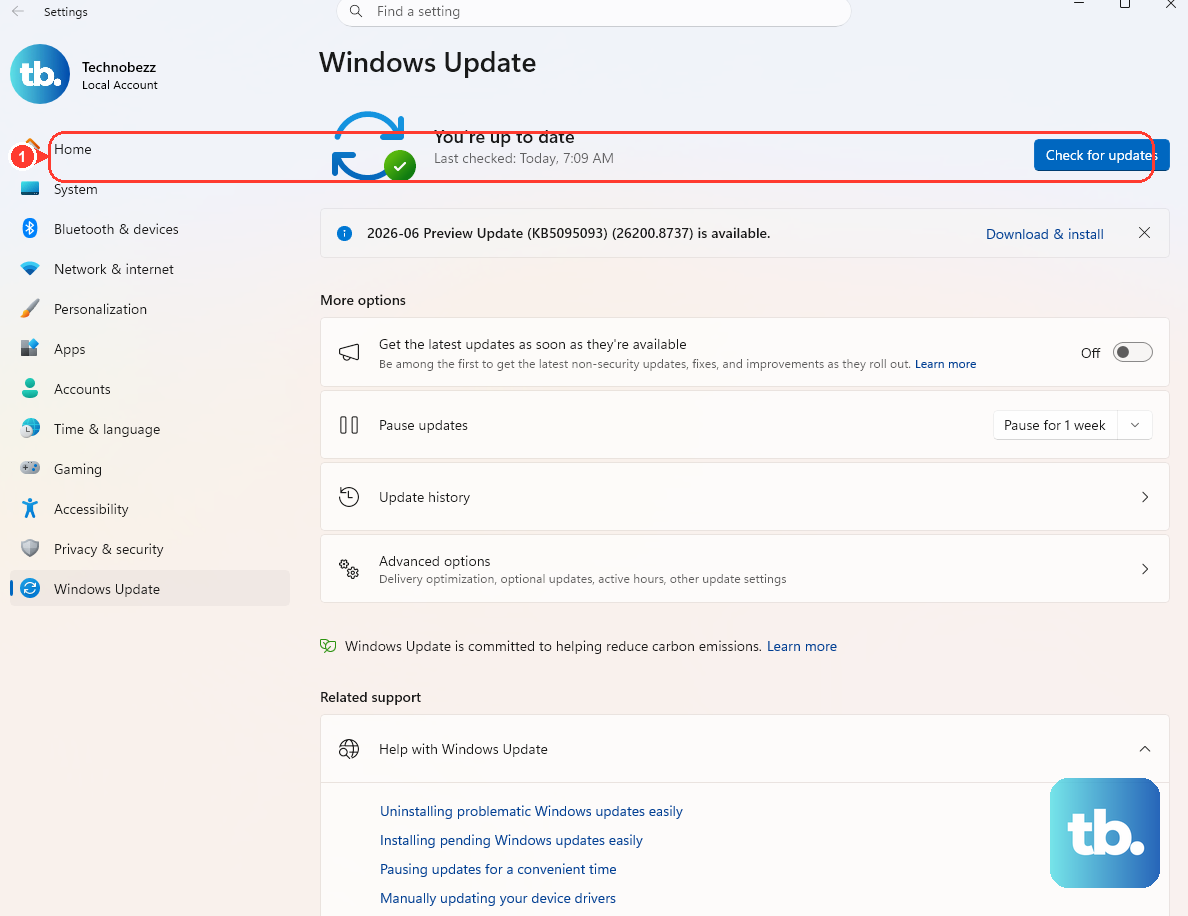
Open the Surface app from your Start menu. Expand Help & support to check your update status. If updates are available, choose Check for updates so Windows Update can install the Surface driver and firmware updates for your model. If audio still fails after that, use Microsoft's manual Surface driver package for your exact Windows build.
Check App Compatibility and Volume Mixer
If sound works in some apps but not others, it could be an app compatibility issue with the ARM processor. Open Settings > System > Sound > Volume mixer. Make sure the problematic app's individual volume slider isn't muted. Also, try running the app in x64 emulation mode if available in its properties.
Disable Audio Enhancements
Go to Settings > System > Sound. Click on your speaker output device, then scroll down to find Audio enhancements. Set this dropdown to Off. These software effects can sometimes conflict and cause the audio to cut out completely on Surface devices.
Restart the Windows Audio Services
Press the Windows key + R, type services.msc, and hit Enter. In the list, find Windows Audio. Right-click it and select Restart. Do the same for the Windows Audio Endpoint Builder service just below it. This forces the audio system to reinitialize.
Check for Physical Connection Issues
If you're using headphones or external speakers, try a different pair or a different USB-C port. For the 3.5mm jack, ensure the plug is fully inserted. I've seen cases where a slightly loose connection can cause Windows to disable the internal speakers incorrectly.
Roll Back a Problematic Driver Update

If the sound stopped after a recent Windows Update, you can revert the driver. Press Windows + X and choose Device Manager. Expand Sound, video and game controllers, right-click your audio device, and select Properties. Go to the Driver tab and click Roll Back Driver if the option is available.
Open Surface UEFI and Restart
For persistent hardware-related audio failures, you can open the Surface UEFI settings menu, then restart back into Windows. Shut down your laptop completely and wait about 10 seconds. Hold down the Volume Up button, then press and release the Power button. Keep holding Volume Up until the UEFI screen appears. From there, choose exit and select "Restart now." This opens the firmware settings menu; it is not a firmware reset.











