
When your Surface Laptop 7 keyboard stops responding, it can feel like you've hit a wall. The keys might not register at all, certain rows could be dead, or you might get the wrong characters on screen. Here's how to get it working again.
If some keys seem unresponsive, run an online key test first. Keys that register there but not in your app point to software rather than hardware.
I'd start with a simple restart. For the Surface Laptop 7, hold the power button down for about 10 seconds until the screen goes black and the device shuts off completely. Wait a few seconds, then press the power button once to turn it back on. This forces a fresh load of the keyboard driver and can clear up temporary glitches.
Check for App Compatibility Issues
Since the Surface Laptop 7 runs on a Qualcomm Snapdragon X ARM chip, some older x86 apps running through emulation can cause system instability. If the keyboard stopped working after launching a specific program, that app might be the culprit. Try closing all non-Microsoft apps and see if the keyboard starts working again.
You can also check the app's compatibility. Right-click the app's shortcut, select Properties, go to the Compatibility tab, and try running it in compatibility mode. For persistent issues, consider using the ARM64 or native version of the software if it's available.
Run the Surface Diagnostic Toolkit
Microsoft provides a dedicated tool for this. Open the Microsoft Store, search for "Surface Diagnostic Toolkit," and install it. Run the tool and select Keyboard when prompted for the device to test.
The toolkit will perform a series of automated checks on your keyboard hardware and drivers. It can often identify and fix common software-related issues automatically, which is a huge time saver.
Update Drivers via the Surface App
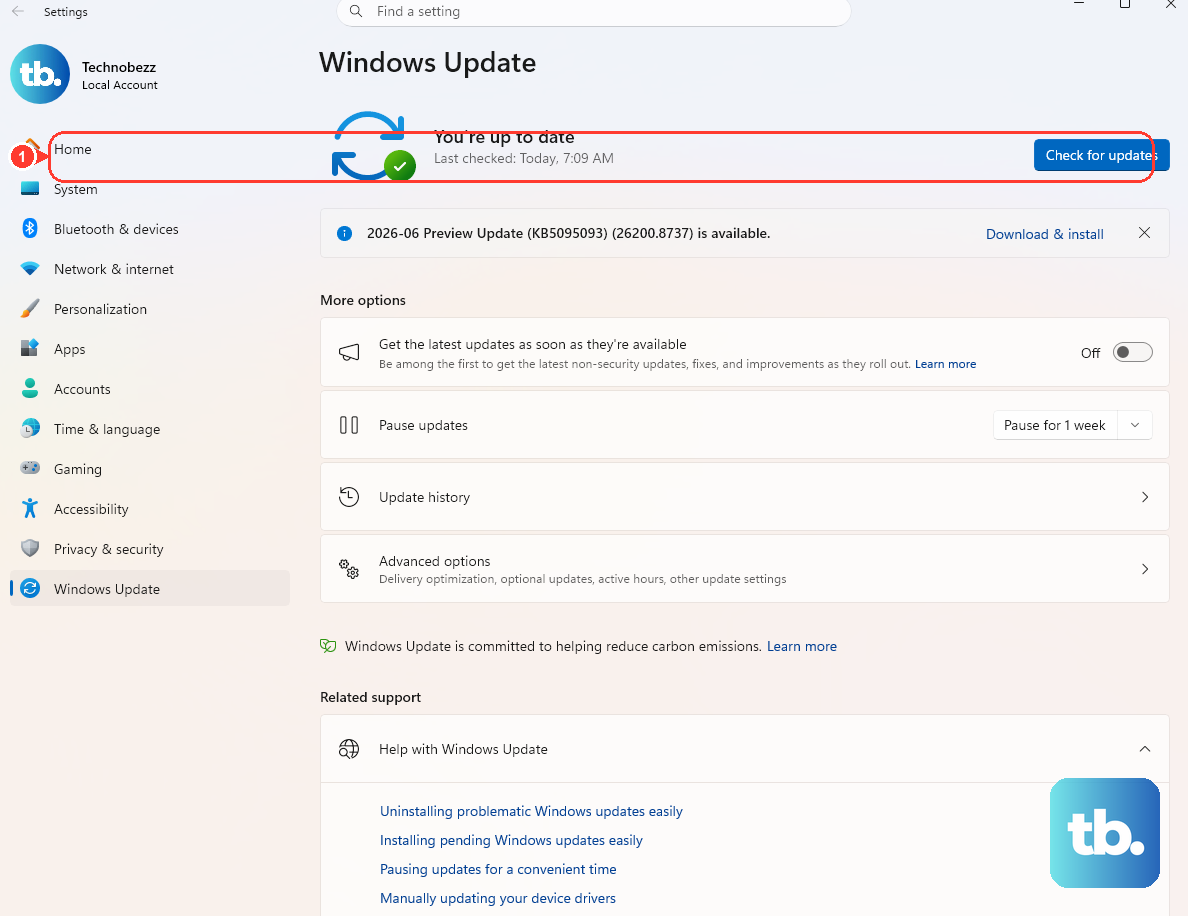
Don't just use the generic Windows Update. Open the Surface app from your Start Menu. Go to the Help & Support section and look for any available driver or firmware updates specifically for your device.
These Surface-specific updates often contain fixes for hardware components like the keyboard that aren't covered by general Windows updates. Installing them can resolve compatibility problems introduced by other system updates.
Check and Reinstall the Keyboard Driver
Press the Windows key + X and select Device Manager. Expand the Keyboards section, right-click on "Surface Keyboard" or "HID Keyboard Device," and select Update driver. Choose "Search automatically for drivers."
If that doesn't work, right-click the keyboard device again and select Uninstall device. Restart your Surface Laptop 7. Windows will automatically reinstall a fresh, default driver upon startup, which can clear up corruption.
Disable Accessibility Features
Accidentally enabled settings can make the keyboard seem broken. Go to Settings > Accessibility > Keyboard. Ensure that Filter Keys, Sticky Keys, and Toggle Keys are all turned off.
Filter Keys, in particular, ignores brief or repeated keystrokes, which can make typing feel completely unresponsive. It's easy to turn on by holding the right SHIFT key for 8 seconds, so it's a common culprit.
Verify Your Keyboard Layout and Language
If you're typing an "A" and getting a "Q," your keyboard layout has likely been switched. Click the language abbreviation (like "ENG") in your taskbar's system tray to see which layout is active. Make sure it's set to your correct region, like "English (United States)."
To manage this permanently, go to Settings > Time & language > Typing > Advanced keyboard settings. Here, you can set your default input method and remove any extra keyboard layouts you don't use to prevent accidental switching.
Boot into Safe Mode
This helps determine if a third-party app is causing the conflict. Go to Settings > System > Recovery. Next to "Advanced startup," click Restart now. After the blue menu appears, go to Troubleshoot > Advanced options > Startup Settings > Restart.
When your device reboots, press 4 or F4 to enable Safe Mode. If the keyboard works perfectly here, you'll need to troubleshoot your recently installed software by uninstalling programs one by one from normal Windows.
Check for Physical Issues and Use an External Keyboard
While the Surface Laptop keyboard is sealed, debris can still get around the key edges. Turn the laptop off, hold it at an angle, and use a can of compressed air to blow between the keys. Avoid using liquids.
As a diagnostic step, connect a USB or Bluetooth keyboard. If the external keyboard works flawlessly, it strongly suggests a hardware fault with the built-in keyboard, such as a loose internal connection or physical damage.
Access the Surface UEFI for Hardware Tests
For a deeper hardware check, you can enter the Surface UEFI. Shut down your laptop completely. Press and hold the Volume Up button, then press and release the Power button. Keep holding Volume Up until you see the Surface logo, then release it.
In the UEFI menu, you can navigate using the keyboard (if it's working at this level). Look for device or hardware information to see if the keyboard is detected. If the keyboard doesn't work in the UEFI at all, it points to a hardware problem.