
When you plug your Surface Laptop 7 into an external monitor and the screen stays black, it's usually a quick settings or connection fix. The Snapdragon X chip inside is powerful, but sometimes the handshake between the laptop and an external display needs a nudge.
Start with a free screen test to check the panel with fullscreen test patterns. What you see there tells you whether to blame the display, the cable, or the source.
Press Windows + P First
This is the fastest thing to try. Press the Windows + P keys together. A menu will pop up on the right side of your screen. Make sure it's not set to PC screen only. Choose Duplicate or Extend to send the video signal out.
If that doesn't work, cycle through all the options once. Sometimes toggling from Duplicate to Second screen only and back can kickstart the connection.
Check Your Cable and Port
Unplug the cable from both your laptop and the monitor, then plug it back in firmly. I'd recommend trying a different cable if you have one, as they can fail internally without looking damaged.
Also, double-check that your monitor is set to the correct input source. If you're using a USB-C to HDMI or DisplayPort adapter, make sure it's a high-quality one that supports video. Some cheaper adapters don't play nicely with the ARM architecture.
Run the Surface Diagnostic Toolkit
Microsoft has a dedicated tool for this. Open the Microsoft Store, search for "Surface Diagnostic Toolkit," and install it. Run the tool and select the option for display and video issues.
It will automatically check for driver problems and known compatibility issues. This is a great first step because it's designed specifically for Surface hardware, including the new Snapdragon models.
Update Your Display Drivers

Don't just rely on Windows Update. Open the Surface app from your Start Menu, which comes pre-installed. Go to the Help & Support tab and look for any available driver or firmware updates.
You can also check manually. Press Windows + X and select Device Manager. Expand Display adapters, right-click on the Qualcomm Adreno GPU or any listed adapter, and select Update driver. Choose "Search automatically for drivers."
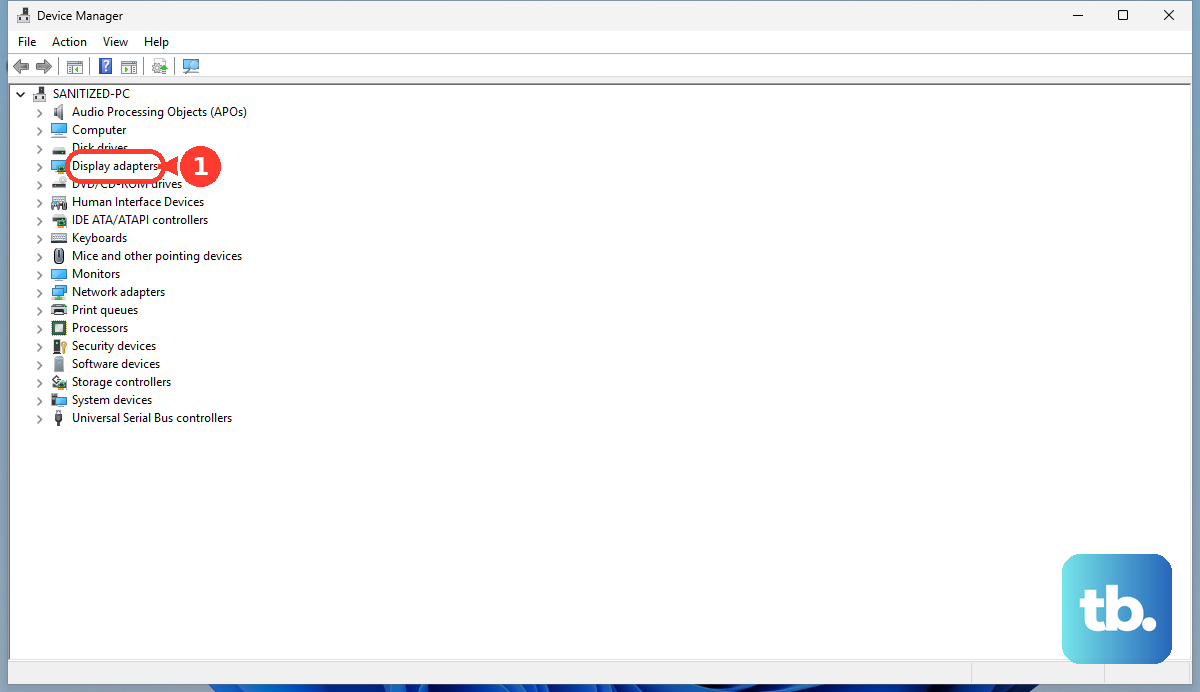
Adjust Your Display Settings
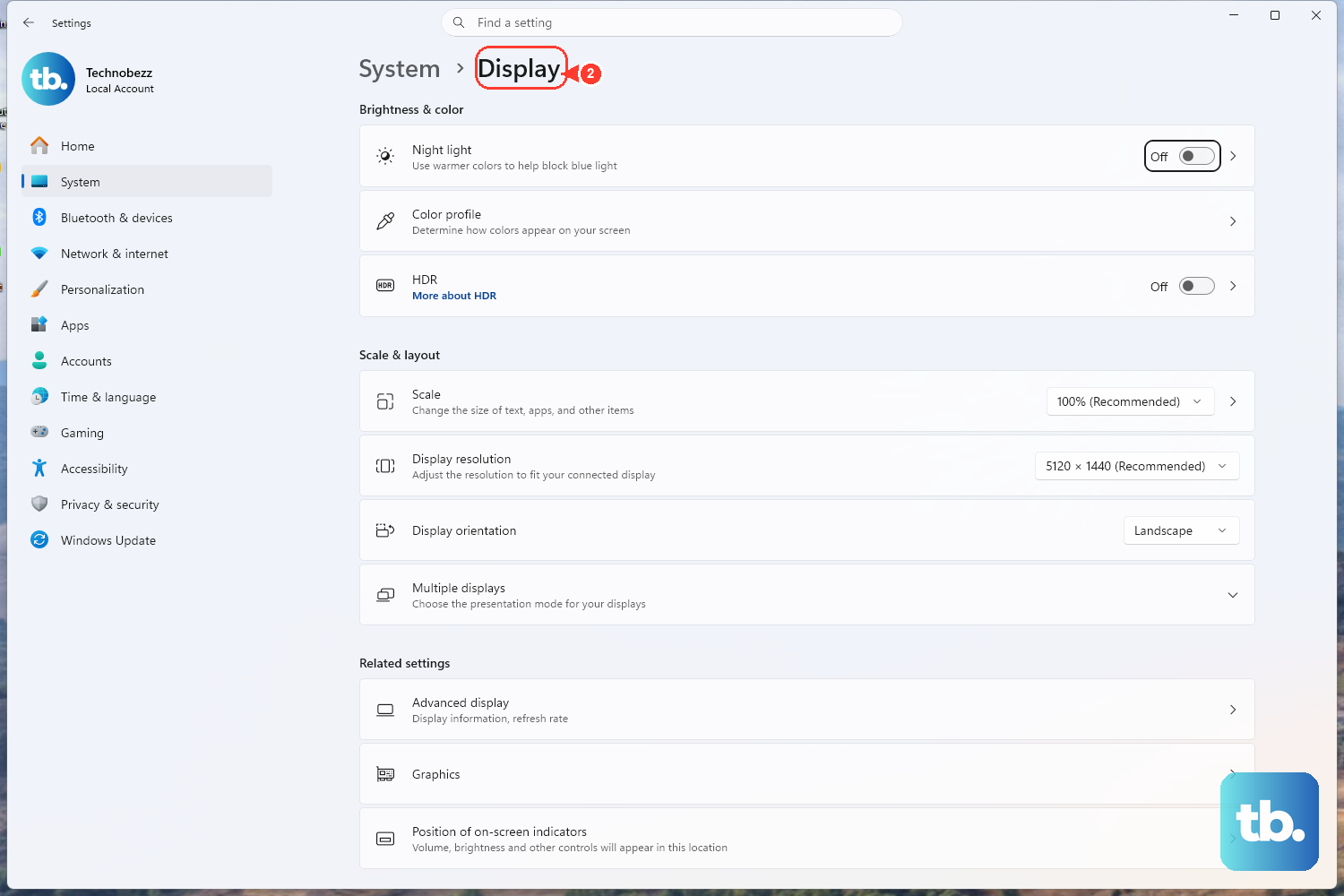
Go to Settings > System > Display. Click the Detect button. If your monitor appears, click on its rectangle and scroll down to ensure the display resolution and refresh rate are set to recommended values.
Some older monitors might not support the default resolution the laptop tries. Try setting it to a standard resolution like 1920x1080 at 60Hz to see if the picture comes back.
Restart With the Monitor Connected
Shut down your Surface Laptop 7 completely. With the external monitor still plugged in and turned on, power the laptop back on. The boot process sometimes initializes the display output in a way that Windows doesn't during a simple sleep/wake cycle.
Watch the external monitor as soon as you hit the power button. If you see the Surface logo or BIOS text appear there, then you know the hardware connection is good and the issue is within Windows.
Check for App Compatibility Issues
Since the Surface Laptop 7 uses an ARM chip, some older x86 apps run through emulation. It's rare, but a buggy display driver within an emulated app could interfere.
If the display stopped working after opening a specific program, try closing it. For a broader test, perform a clean boot by searching for "System Configuration," going to the Services tab, checking "Hide all Microsoft services," and clicking Disable all. This rules out third-party software conflicts.
Disable and Re-enable the Display Adapter
Go back to Device Manager under Display adapters. Right-click on your display device and select Disable device. Your screen will flicker. Wait about 10 seconds, then right-click it again and select Enable device.
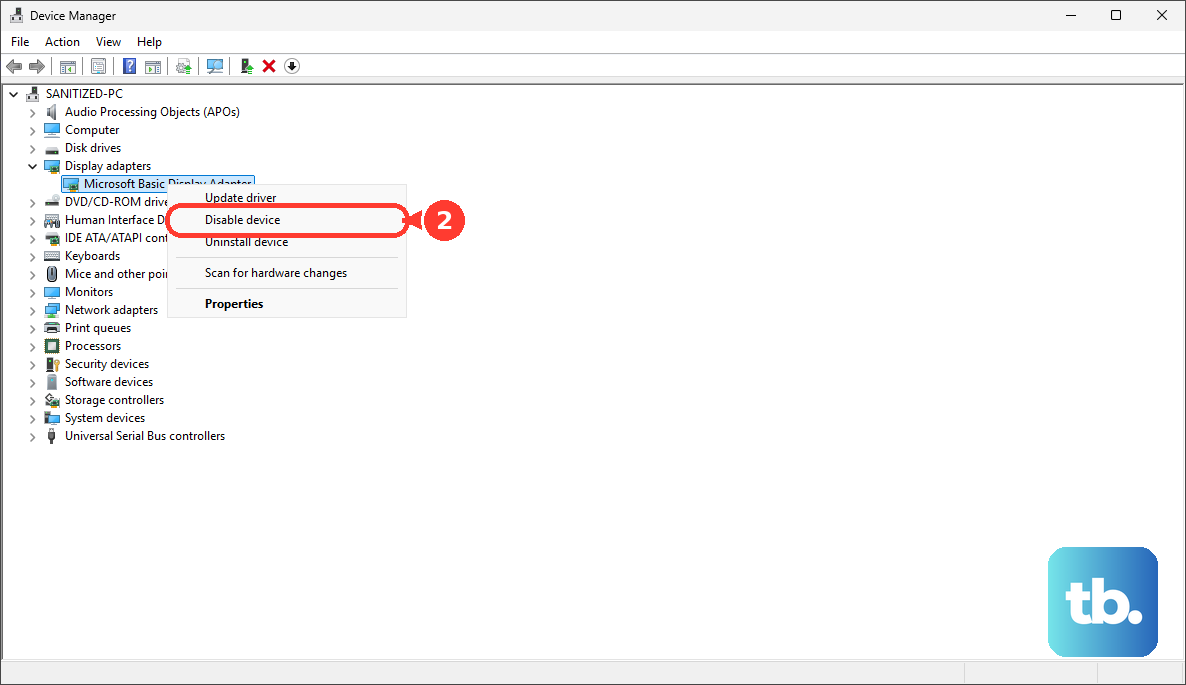
This forces the graphics driver to fully reload and re-detect all connected outputs, which can clear up a stuck state.
Try a Different Port or Monitor
If your monitor has multiple inputs like HDMI 1 and HDMI 2, try a different one. The goal is to rule out a faulty port on the monitor itself. If you have access to another TV or monitor, even temporarily, connect your laptop to it.
If it works on a different display, the problem is likely with your original monitor. If it still doesn't work, you've confirmed the issue is with the laptop or cable. Trying the other USB-C port on your Surface Laptop 7 can also help determine if one port is having problems.