
When your Surface Laptop 7's camera shows a black screen or apps say it can't be found, it puts a quick stop to video calls and meetings. The fixes are usually straightforward, and I'd start with the privacy settings.
It takes seconds to confirm the camera works with an online webcam test. If the preview stays black there too, keep reading, because the steps below target exactly that.
Check Windows Camera Privacy Settings
Windows 11 has a system-wide camera privacy toggle. Open Settings > Privacy & security > Camera. First, ensure Camera access
Then, scroll down to the list of apps. Find the app you're trying to use, like Microsoft Teams or Google Chrome, and make sure its individual toggle is also enabled. This is a common blocker.
Use the Surface Diagnostic Toolkit
Microsoft provides a dedicated tool for Surface devices. Download the Surface Diagnostic Toolkit from the Microsoft Store. Run it and select the option to test your camera.
The tool will check for hardware issues and often can apply automatic fixes for driver or configuration problems. It's a great first step for any Surface-specific problem.
Update Your Drivers via the Surface App
Open the Surface app from your Start menu. If you don't have it, you can get it from the Microsoft Store. Go to the Support tab within the app.
Check for any available driver or firmware updates. Microsoft pushes camera and sensor updates through here that might not appear in Windows Update, which is crucial for the Snapdragon X chipset.
Close Other Apps Using the Camera
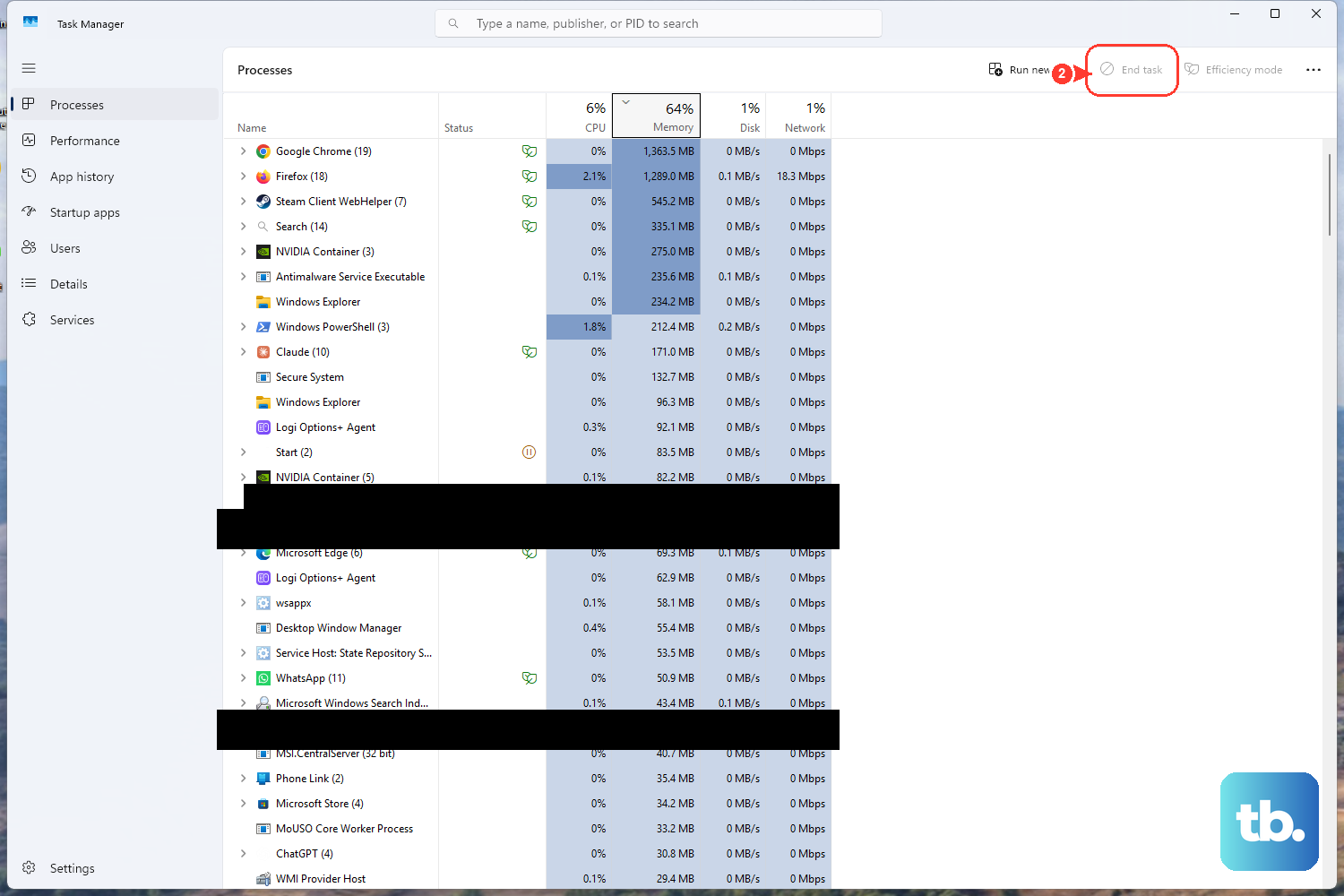
Windows only allows one app to access the camera at a time. If you had another video app open in the background, it could be holding the camera hostage.
Open Task Manager by pressing Ctrl + Shift + Esc. Look under the Processes tab for any apps like Camera, Teams, or Zoom, and end their tasks. Then try your camera again in the app you want.
Check for App Compatibility Issues
The Surface Laptop 7 runs on an ARM-based Qualcomm Snapdragon X chip. Some older x86 apps running through emulation can have issues with peripherals like the camera.
Try the camera in the native Windows Camera app first. If it works there, the issue is likely with the specific desktop app you're trying to use. Check the developer's website for an ARM64-native version.
Reinstall the Camera Driver
Press the Windows key and type Device Manager to open it. Expand the Cameras section, right-click on the Surface Camera Front or Surface Camera Rear device, and select Uninstall device.
Check the box that says Attempt to remove the driver for this device if it appears. Restart your laptop, and Windows will automatically reinstall a fresh driver on startup.
Run a System Restart
Sometimes a full shutdown and restart is what's needed to clear a stuck process. Save your work and select Restart from the Windows power menu, don't just put it to sleep.
This clears the memory and ensures all hardware, including the camera sensors, re-initializes properly when Windows boots back up.
Check for Windows Updates
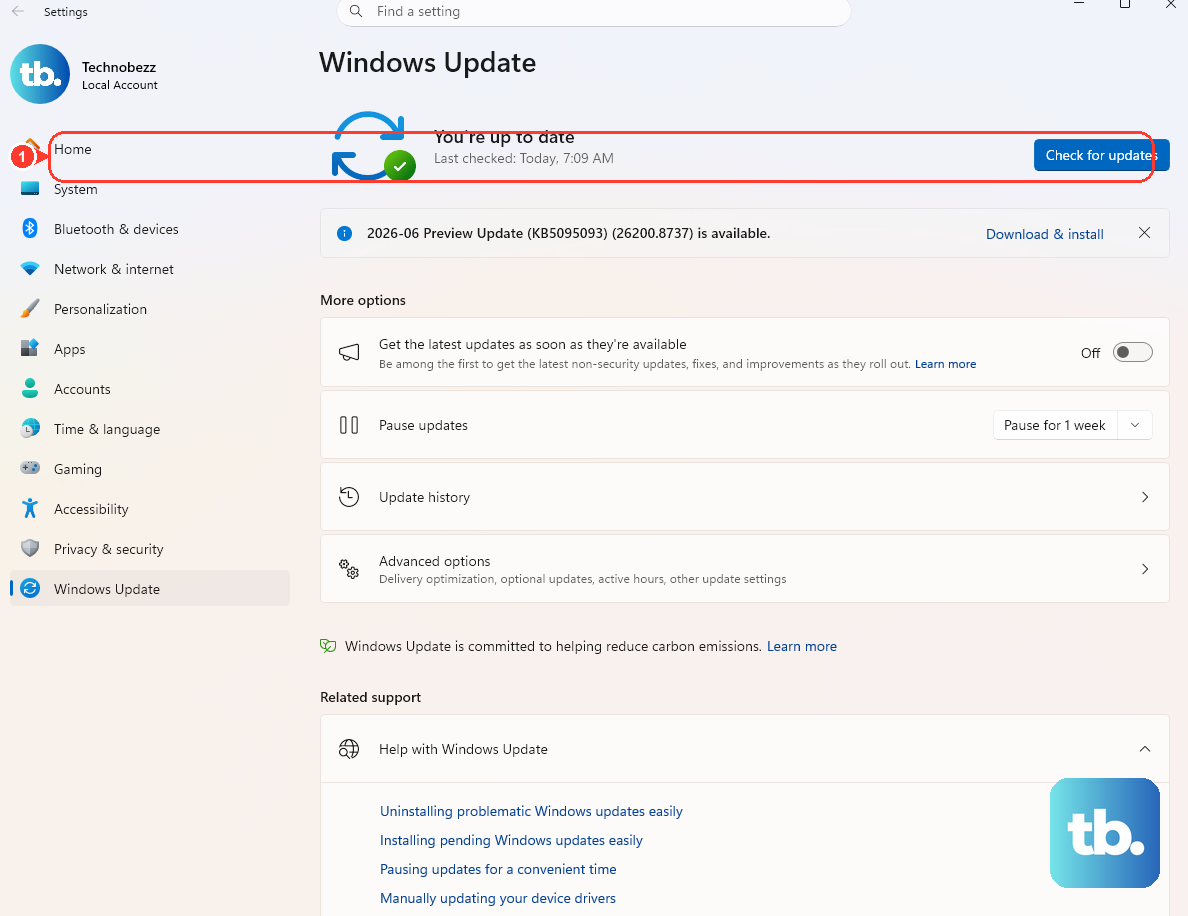
Go to Settings > Windows Update and click Check for updates. Install any available feature or quality updates. Microsoft frequently includes compatibility and driver improvements in these updates.
After the main updates, click Advanced options and then Optional updates. There may be driver updates listed here specifically for your Surface hardware.
Reset the Camera App
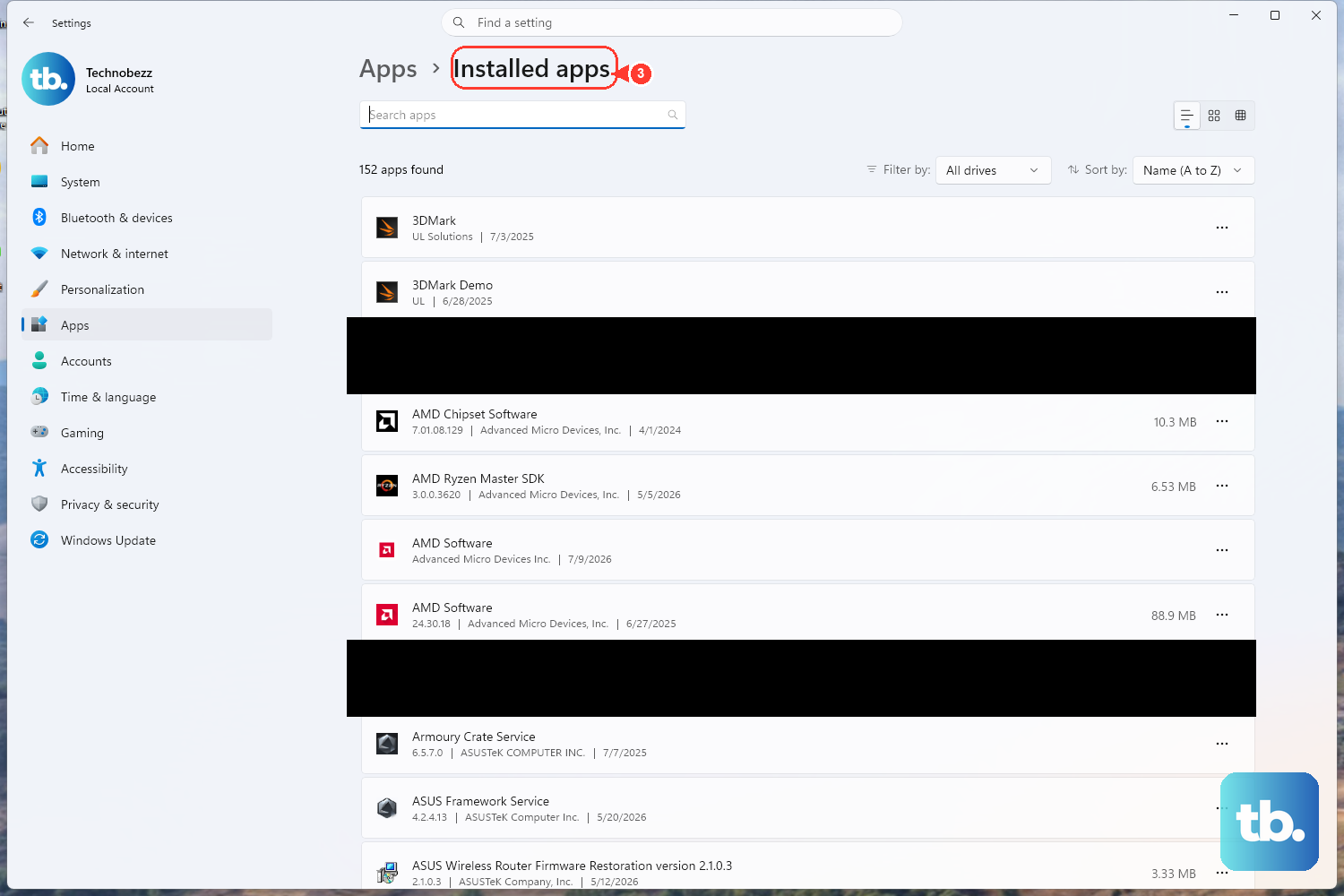
If the issue is only with the built-in Camera app, you can reset it. Go to Settings > Apps > Installed apps, search for "Camera", and click the three-dot menu next to it.
Select Advanced options and then click the Reset button. This will clear the app's cache and settings without affecting your personal files or other applications.