
When Bluetooth stops pairing on your Surface Laptop 7, it can leave your wireless mouse, headphones, or speakers useless. You might see the device fail to appear, get stuck on "Connecting," or get a generic error. The good news is, it's usually a software hiccup you can fix yourself.
Toggle Bluetooth Off and On
Start with the quickest fix. Click the network icon in your taskbar and make sure the Bluetooth tile is turned on. If it's already on, turn it off, wait about ten seconds, and then turn it back on. This simple reset of the Bluetooth radio can clear up temporary pairing glitches instantly.
Remove and Re-Pair the Device
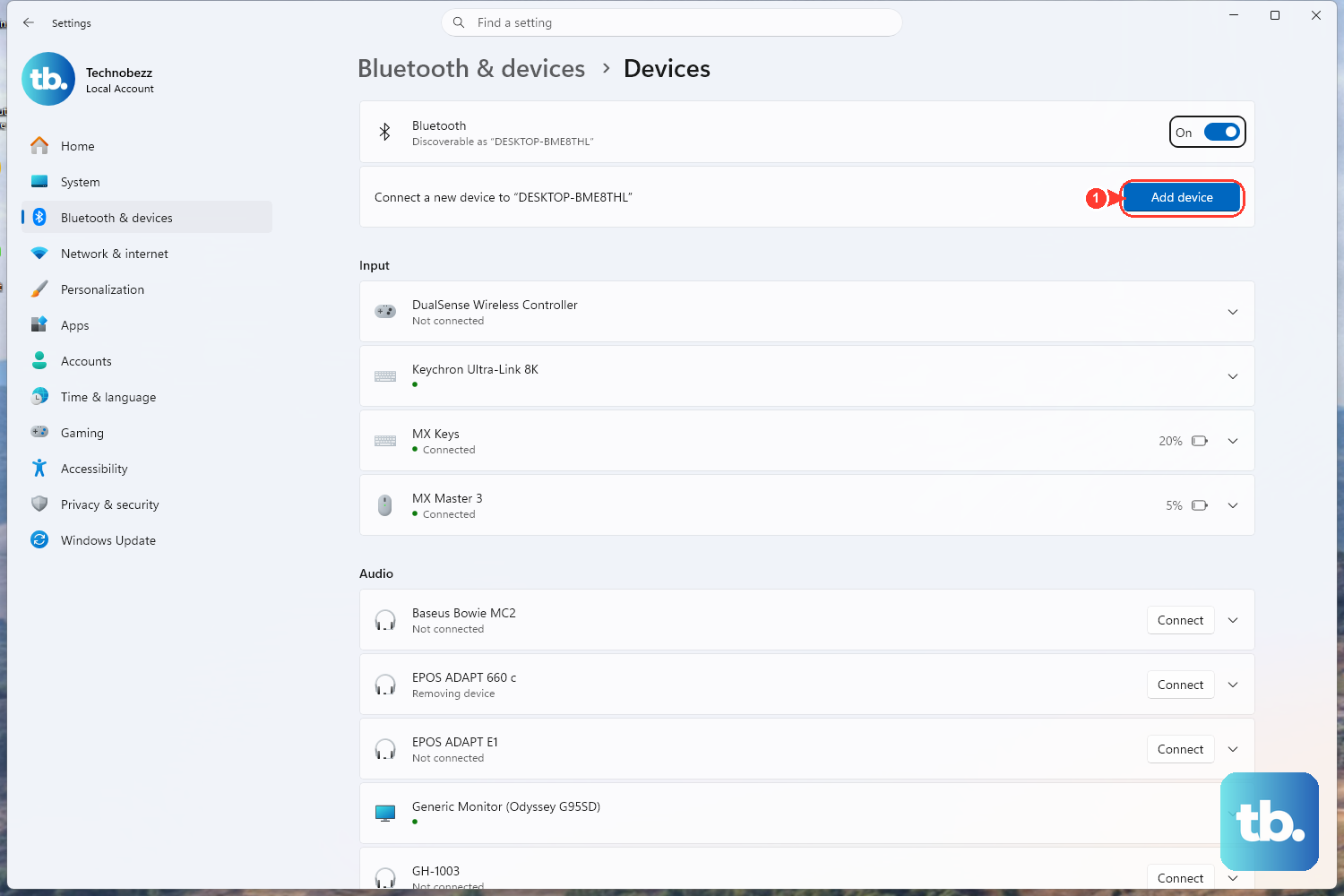
Go to Settings > Bluetooth & devices. Find the problematic device in the list and click the three dots next to it, then select Remove device. Put your Bluetooth accessory back into pairing mode (usually by holding a button), then click Add device on your Surface to start fresh. A corrupted pairing profile is one of the most common blockers.
Restart Your Surface Laptop 7
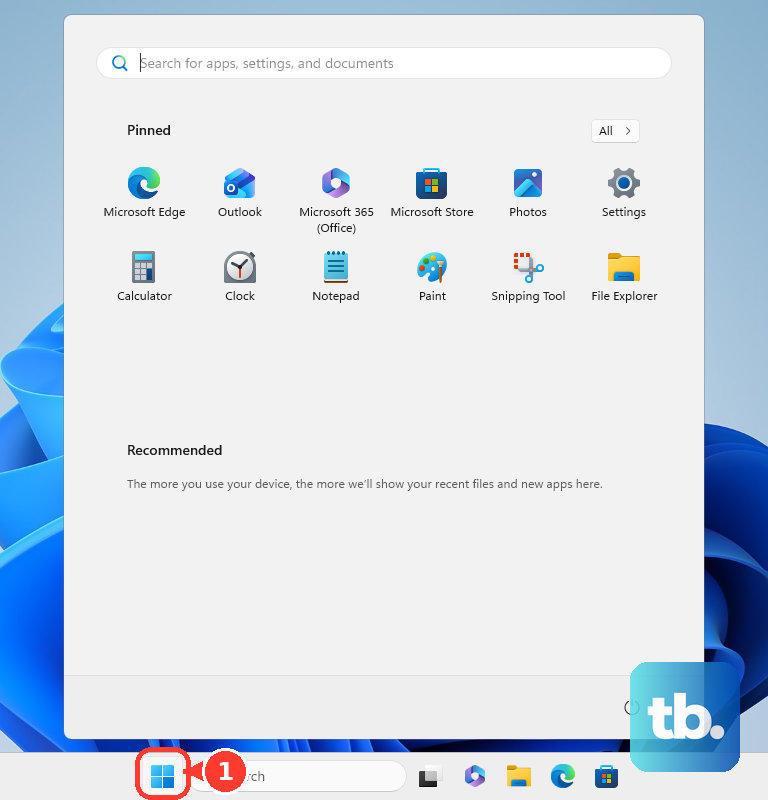
If toggling didn't work, give the whole system a fresh start. Click the Start menu, select the power icon, and choose Restart. This fully reloads the Bluetooth drivers and services, which often fixes issues that pop up after the laptop wakes from sleep or following a system update.
Run the Built-In Bluetooth Troubleshooter
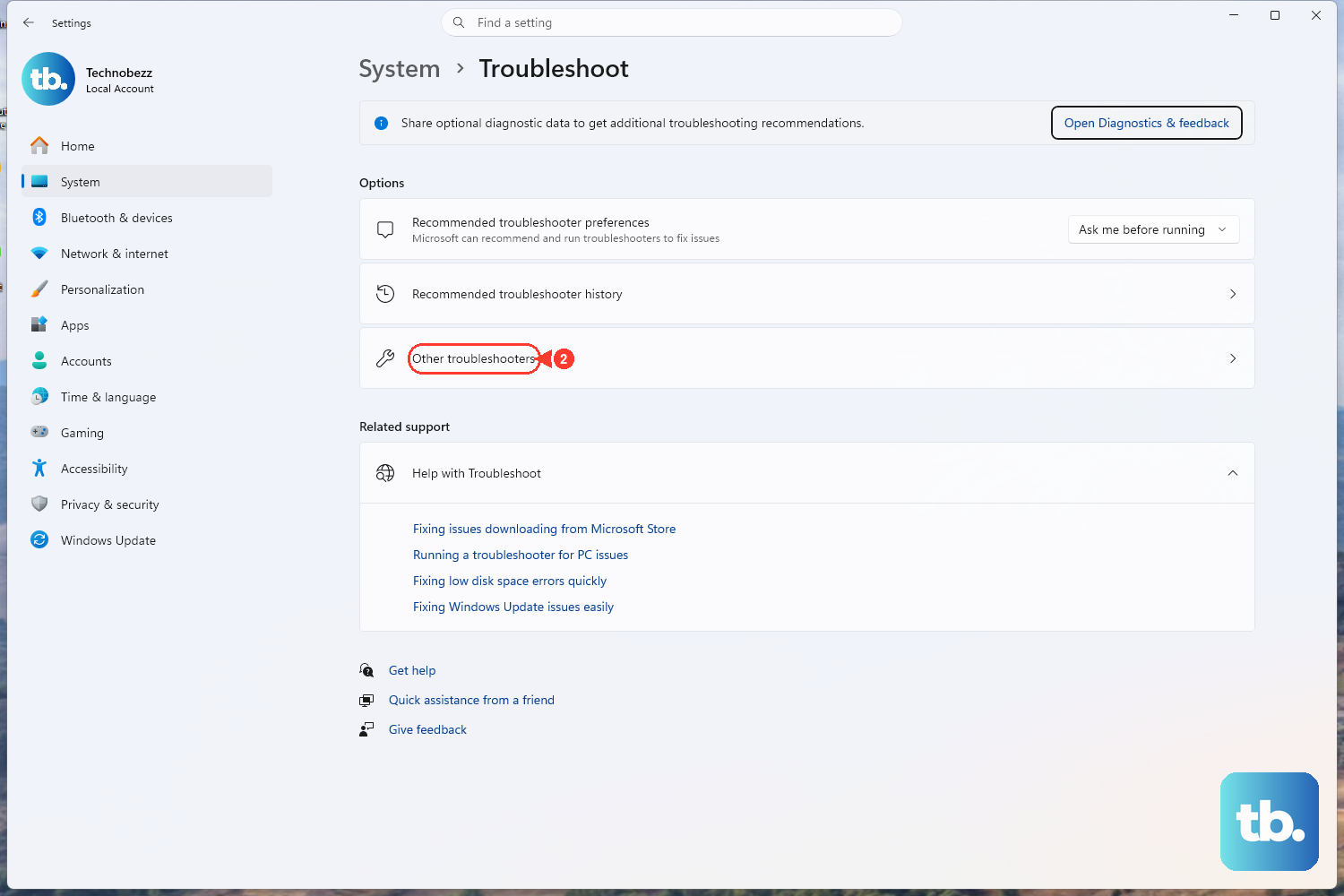
Windows has a dedicated tool for this. Go to Settings > System > Troubleshoot > Other troubleshooters. Find the Bluetooth troubleshooter and click Run. It will scan for common configuration problems and attempt to apply automatic fixes, which can save you a lot of manual digging.
Update Your Bluetooth Drivers
Outdated or corrupted drivers are a frequent culprit. Press the Windows key + X and select Device Manager. Expand the Bluetooth section, right-click on your Bluetooth adapter (it might be listed as a Qualcomm or Microsoft device), and select Update driver > Search automatically for drivers. Let Windows look for the latest version.
Use the Surface App for Updates
For a Surface-specific check, open the Surface app from the Microsoft Store. Go to the Support tab and check for any available driver or firmware updates. Microsoft often pushes fixes for hardware compatibility here, which is especially important for the new Snapdragon X chip in the Laptop 7.
Check for Windows Updates
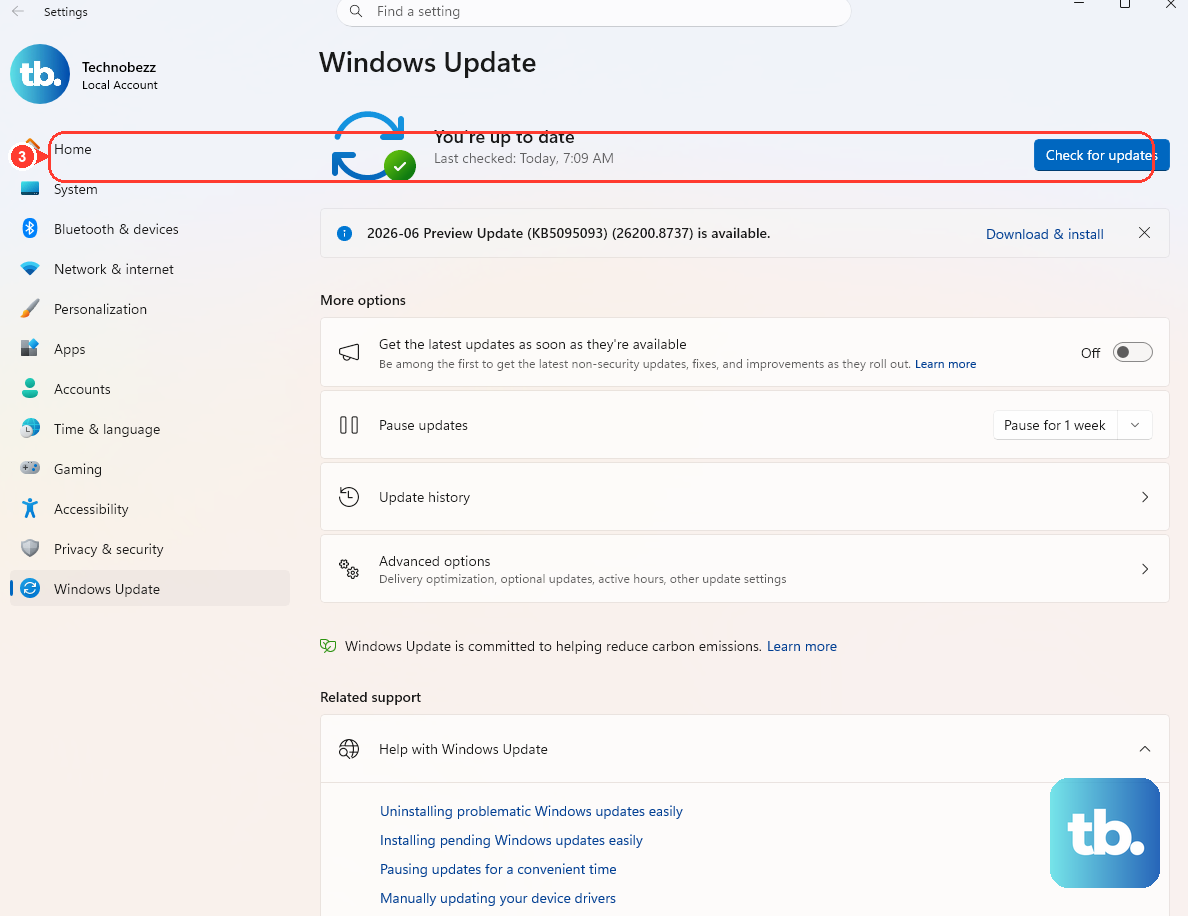
Head to Settings > Windows Update and click Check for updates. Install any available feature or quality updates. Microsoft regularly patches Bluetooth connectivity and audio issues in these updates, so staying current is key. I'd make sure this is done before trying more complex steps.
Restart the Bluetooth Support Service
Sometimes the background service that manages Bluetooth gets stuck. Press Windows key + R, type services.msc, and hit Enter. Scroll down to find Bluetooth Support Service, right-click it, and select Restart. Also, right-click it, select Properties, and ensure the Startup type is set to Automatic.
Consider App and Peripheral Compatibility
The Surface Laptop 7 uses a Qualcomm Snapdragon X ARM processor. While most modern Bluetooth devices work fine, some older peripherals or their companion software might not have full ARM-native drivers yet. Check the manufacturer's website for your Bluetooth device to see if they mention Windows on ARM or Snapdragon X compatibility.
Reinstall the Bluetooth Adapter
If all else fails, a clean driver reinstall can work. Go back to Device Manager, find your Bluetooth adapter under the Bluetooth section, right-click it, and select Uninstall device. Check the box that says Attempt to remove the driver for this device if it appears. Then, restart your laptop. Windows will automatically reinstall the default driver on startup.











