
Seeing a blue screen on your new Surface Laptop 7 can be jarring, especially after an update. This is Windows hitting a critical error it can't recover from, forcing a shutdown to protect your system. On a device with the Snapdragon X chip, this can sometimes be related to app compatibility or driver issues as the ARM architecture matures.
Restart and See if It Happens Again
The first thing to do is a simple restart. A single blue screen can be a one-time glitch, often tied to a temporary driver hiccup. Let your laptop boot normally. If it starts up fine and you can use it without another crash, you might be in the clear. If the blue screen reappears quickly, you've got a recurring problem to solve.
Write Down the Stop Code
When the blue screen appears, look for the all-caps error code near the bottom. Common ones include DRIVER_IRQL_NOT_LESS_OR_EQUAL, SYSTEM_SERVICE_EXCEPTION, or KERNEL_SECURITY_CHECK_FAILURE. Jot this code down. It points to the category of failure, which is useful for searching later, though the general fixes here cover most bases.
Boot Into Safe Mode
If crashes prevent you from reaching the desktop, you'll need to boot into Safe Mode. On the sign-in screen, hold the Shift key while you click the power icon and select Restart. After the reboot, navigate to Troubleshoot > Advanced options > Startup Settings > Restart. Once your laptop restarts again, press the 4 key to enable Safe Mode. This loads Windows with minimal drivers, which can help you isolate a problematic app or driver.
Uninstall the Latest Update
Since the issue appeared after an update, that's a prime suspect. From Safe Mode or a stable boot, go to Settings > Windows Update > Update history > Uninstall updates. Look for the most recent quality update or feature update, click Uninstall next to it, and restart. I've seen this resolve update-related crashes on many Windows machines immediately.
Update Drivers with the Surface App
Outdated or incompatible drivers are a leading cause of blue screens. For your Surface Laptop 7, the best tool is the official Surface app from the Microsoft Store. Open it and check for firmware and driver updates. This ensures you get versions specifically tuned for your device's hardware, including the Snapdragon X chipset, which is crucial for stability.
Check for Problematic Apps
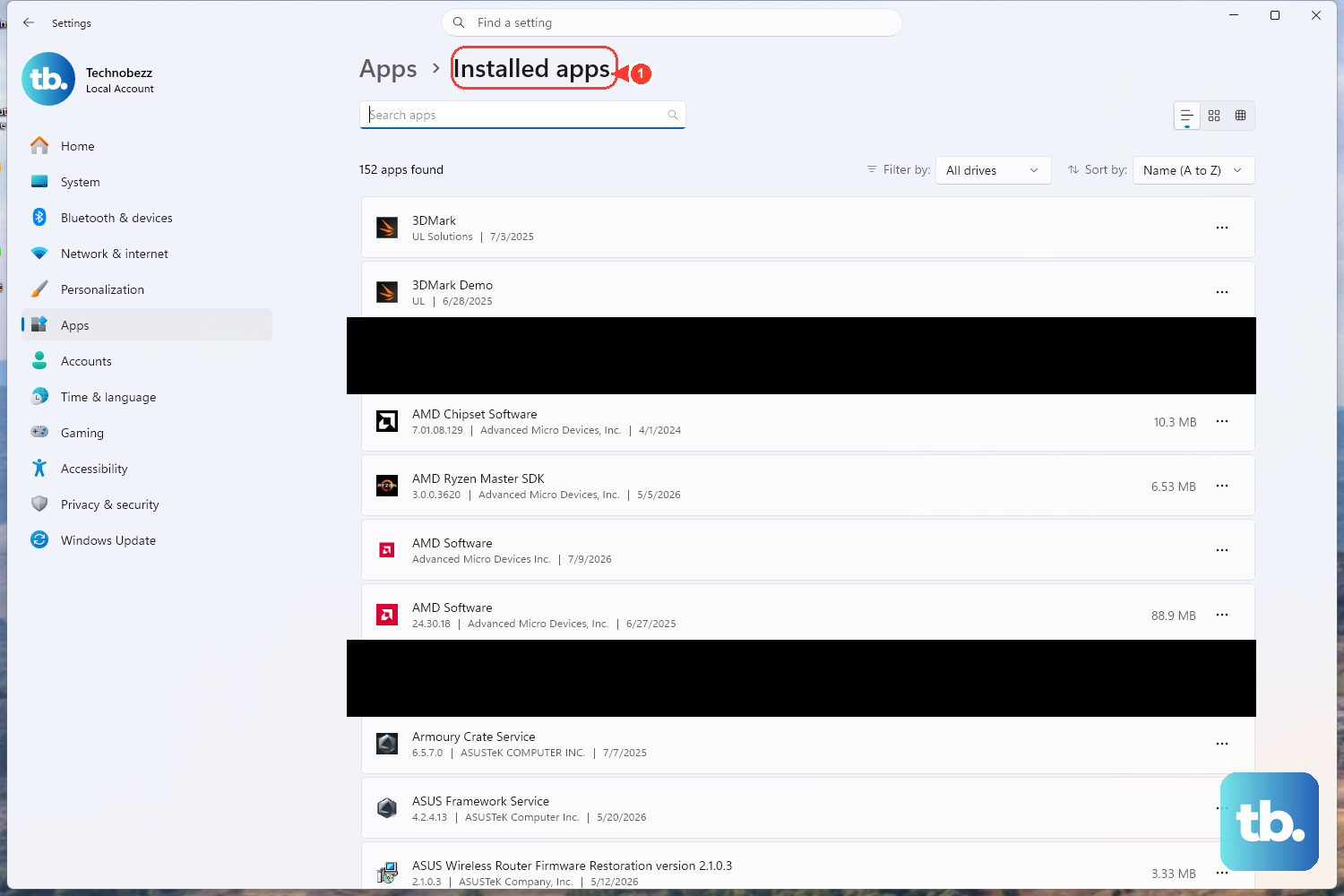
Some older x86 applications running through emulation on the ARM chip can cause instability. Think about any new software you installed just before the crashes began. Try uninstalling it from Settings > Apps > Installed apps. Also, check the developer's website for a native ARM64 version, as it will run much more smoothly and with less overhead.
Run the Surface Diagnostic Toolkit
Microsoft provides a dedicated tool for Surface devices. Download the Surface Diagnostic Toolkit from the Microsoft Store. Run it and follow the prompts, it will automatically test your hardware (like memory and storage) and check for common software issues. It's a straightforward way to rule out basic problems.
Scan for Corrupted System Files
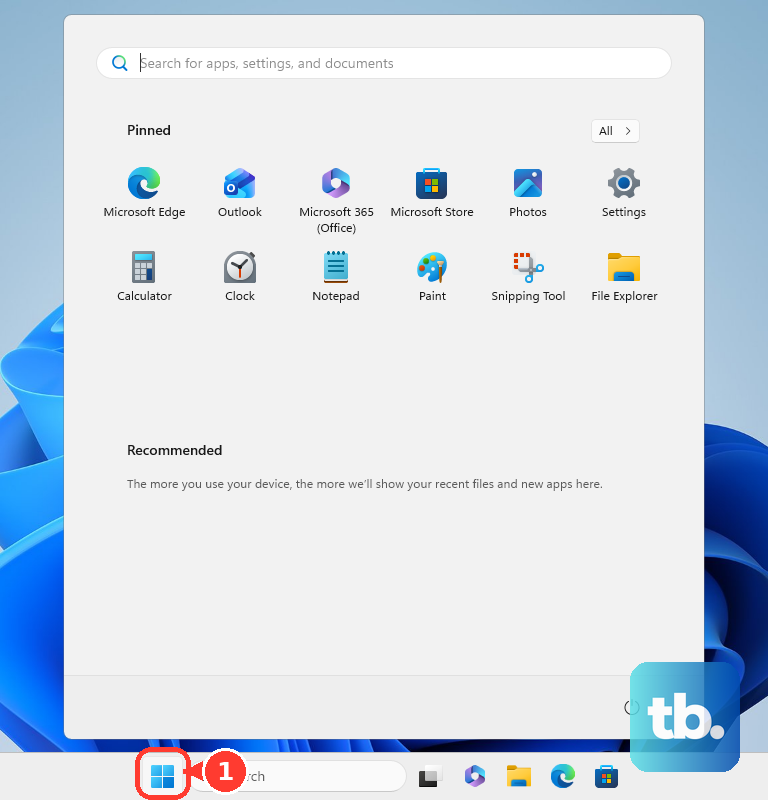
Open the Start menu, type cmd, right-click Command Prompt, and select Run as administrator. In the window, type sfc /scannow and press Enter. This System File Checker scans for and repairs corrupted Windows system files. If it finds issues it can't fix, run DISM /Online /Cleanup-Image /RestoreHealth first, then try sfc again.
Check Your Disk and Memory
In that same Administrator Command Prompt, you can check your drive by typing chkdsk C: /f and pressing Enter. It will schedule a scan for the next restart. To test your RAM, search for Windows Memory Diagnostic in the Start menu and run it, choosing to restart and check for problems. Faulty memory is a classic blue screen culprit.
Reset Your PC
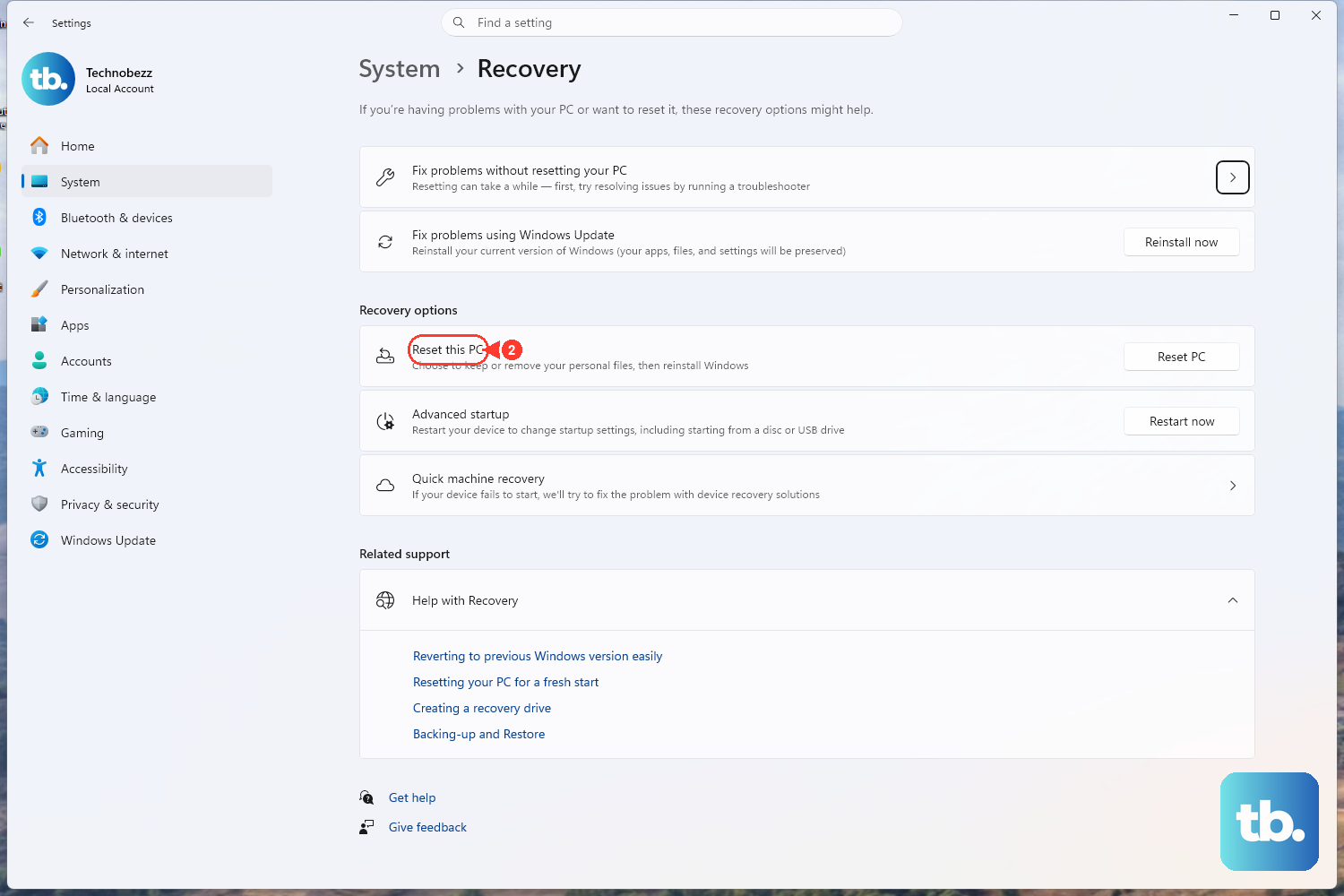
If all else fails and the blue screens continue, a reset is your most comprehensive software fix. Go to Settings > System > Recovery and click Reset PC. Choose Keep my files to reinstall Windows while preserving your personal documents. This will remove all your apps and settings, wiping out any deep-seated driver conflicts or system corruption.