You click the Microsoft Edge icon and nothing happens. Or the window flashes open for a second and vanishes. Maybe it opens but freezes on a blank page, or a pop-up has locked it up entirely.
This is almost always fixable without losing your favorites or passwords. The cause is usually something small: low memory from too many tabs, a stuck background process, an outdated version, a bad extension, or a corrupted profile.
Work through the fixes below in order. The quickest and most common ones come first, so most people are back in their browser within the first two or three steps.
Restart Your Computer First
Before anything else, restart the PC. A full reboot clears stuck processes and frees up memory, and it resolves a surprising number of "Edge won't open" cases on its own.
Once you're back at the desktop, try opening Edge again before moving on.
Free Up System Resources
Edge needs available memory to launch. If too many tabs, apps, and extensions are competing for resources, it can fail to open or freeze immediately.
Close every tab except the one showing the error message.
Close other apps or programs that are currently open.
Pause any active downloads.
Uninstall or disable extensions you don't need.
Then relaunch Edge and see if it opens normally.
End Stuck Edge Processes in Task Manager
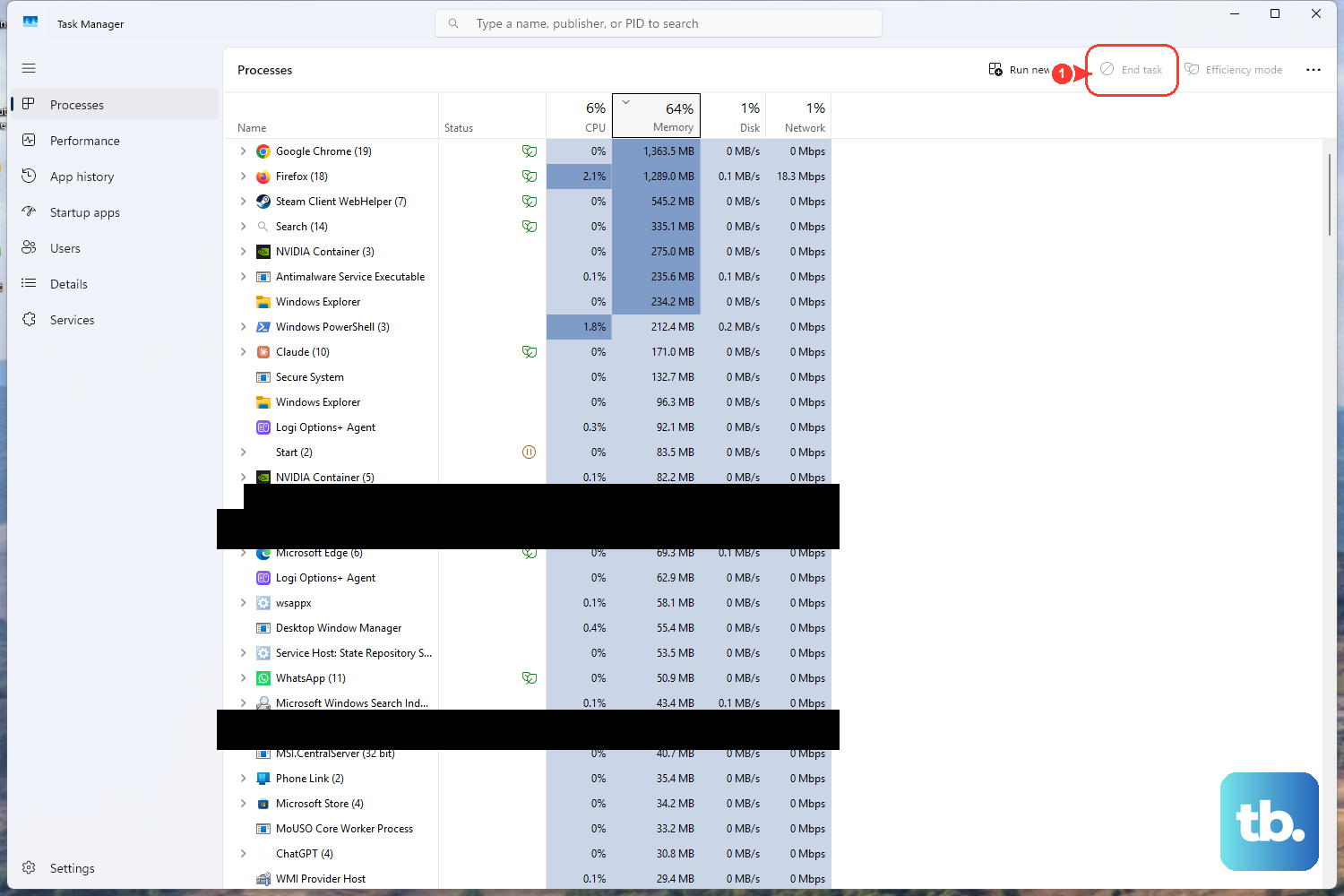
Edge can keep running in the background even when no window is visible. Those orphaned processes can block a clean relaunch, so closing them first is essential before any repair, profile fix, or reinstall.
Right-click Start and select Task Manager.
Select Microsoft Edge, then select End task.
Confirm the browser closed, then close Task Manager.
Reopen Edge as you normally would.
If a frozen pop-up was the problem, this also clears the unresponsive window. If you suspect that pop-up was a tech-support scam or malware, run a scan (covered further down).
Update Microsoft Edge
An outdated version can fail to launch or behave unpredictably. If Edge will open even briefly, update it.
Select Settings and more (the ... menu).
Go to Settings > About Microsoft Edge.
If an update is available it downloads automatically; apply it from this page.
If Edge won't open at all, installing pending Windows updates (a step below) is the other route to getting current.
Update Your Third-Party Security Software
Out-of-date antivirus or security software, such as Norton or McAfee, can conflict with Edge and stop it from opening.
Open the security app directly and check for updates, or visit the vendor's website to confirm you're on the latest version. Once it's current, try Edge again.
Isolate a Problem Extension
A broken or incompatible extension is a common cause. The fastest test is an InPrivate window, where extensions are off by default.
Right-click the Edge icon and select New InPrivate window. If Edge opens here, an extension is the likely culprit.
Close Edge completely using Task Manager.
Right-click the Edge shortcut, select Properties, and in the Target field add --disable-extensions at the end (note the leading space). Click Apply, then OK.
Launch Edge, go to edge://extensions, and disable all extensions. Close the browser.
Remove the --disable-extensions text from the Target field.
Reopen Edge and re-enable extensions one at a time to find the one causing trouble.
Be sure to remove that flag afterward, or your extensions stay disabled.
Repair Microsoft Edge
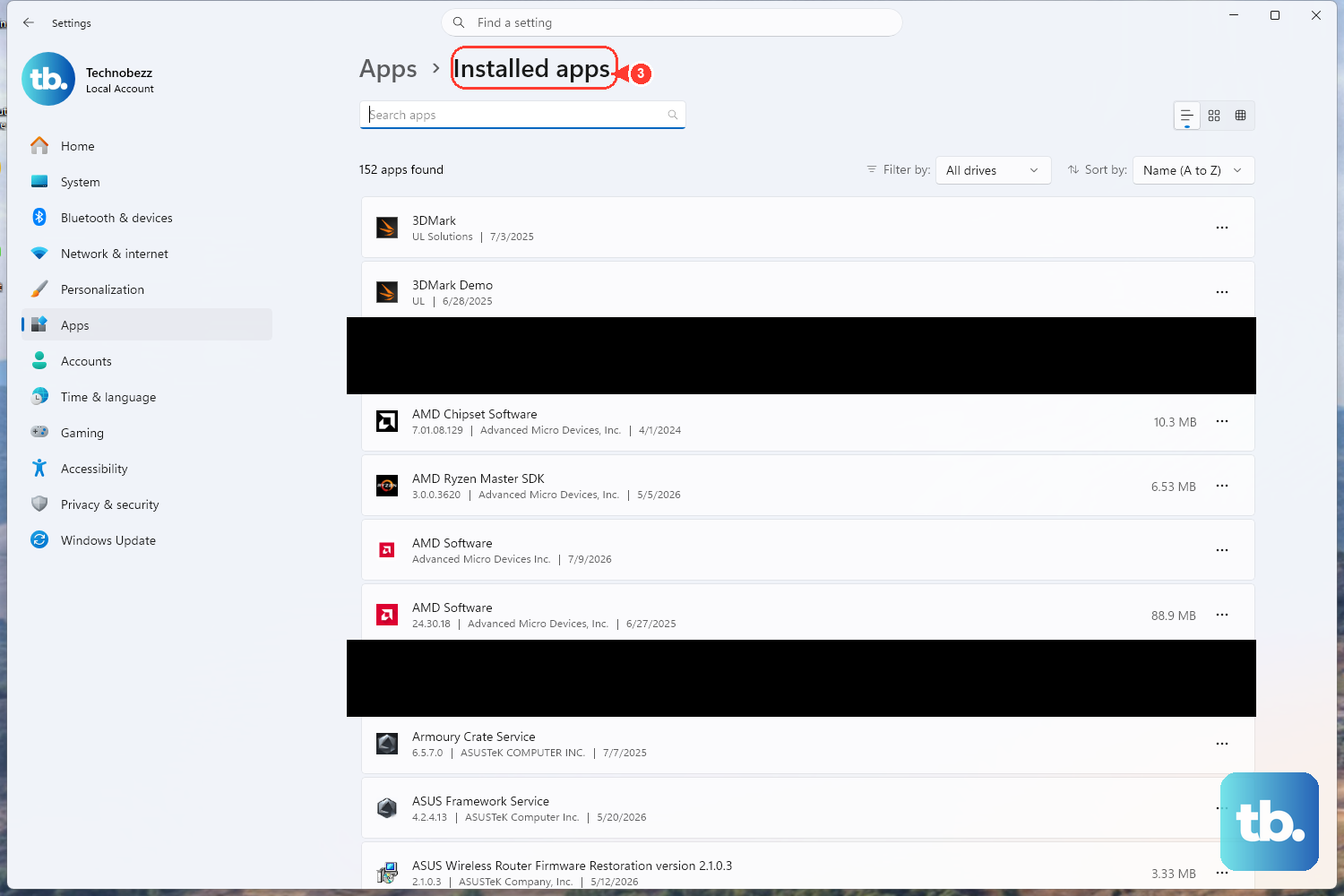
If Edge is corrupted, Windows can repair it without touching your data. Per Microsoft, your browser data and settings shouldn't be affected by a repair.
- 1.Make sure Edge is fully closed (end all Edge tasks in Task Manager) and that you have administrative rights.
- 2.Go to Start > Settings > Apps > Installed apps.
- 3.Find Microsoft Edge and select Modify. On Windows 11 this sits behind the three-dot menu next to Microsoft Edge.
- 4.At the prompt "Do you want to allow this app to make changes to your device?", select Yes.
- 5.Confirm you're connected to the internet, then select Repair.
Repair needs Edge fully closed, administrative rights, and an active internet connection to work.
Run the Built-In Troubleshooters
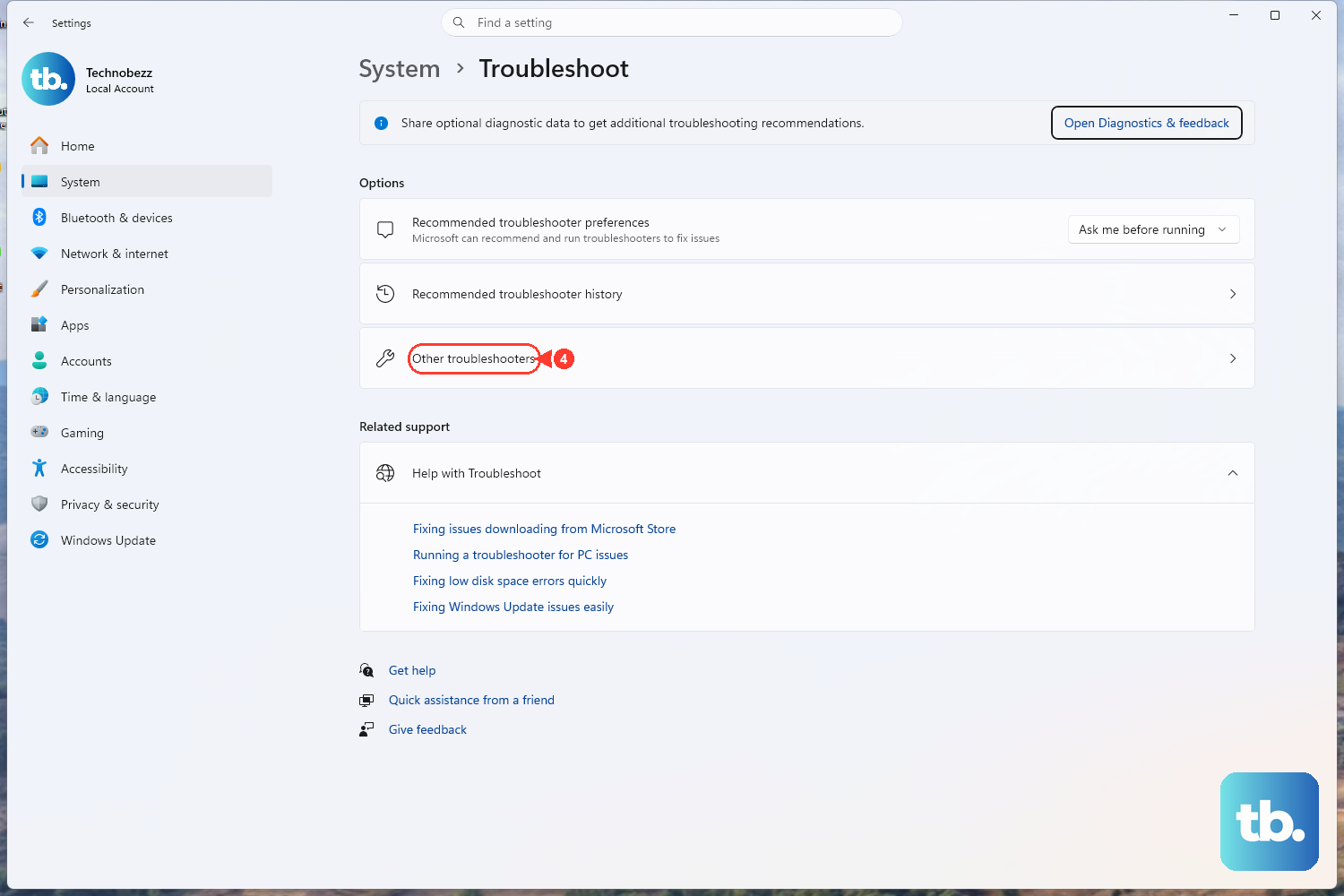
Windows includes troubleshooters that detect and fix app and compatibility problems automatically.
For Windows Store Apps: search troubleshoot settings > Other troubleshooters > find Windows Store Apps > Run.
For Program Compatibility (Windows 11): Start > Settings > System > Troubleshoot > Other troubleshooters > Program Compatibility Troubleshooter > Run.
For Program Compatibility (Windows 10): Start > Settings > Update & Security > Troubleshoot > Additional troubleshooters > Program Compatibility Troubleshooter > Run the troubleshooter.
Install Pending Windows Updates
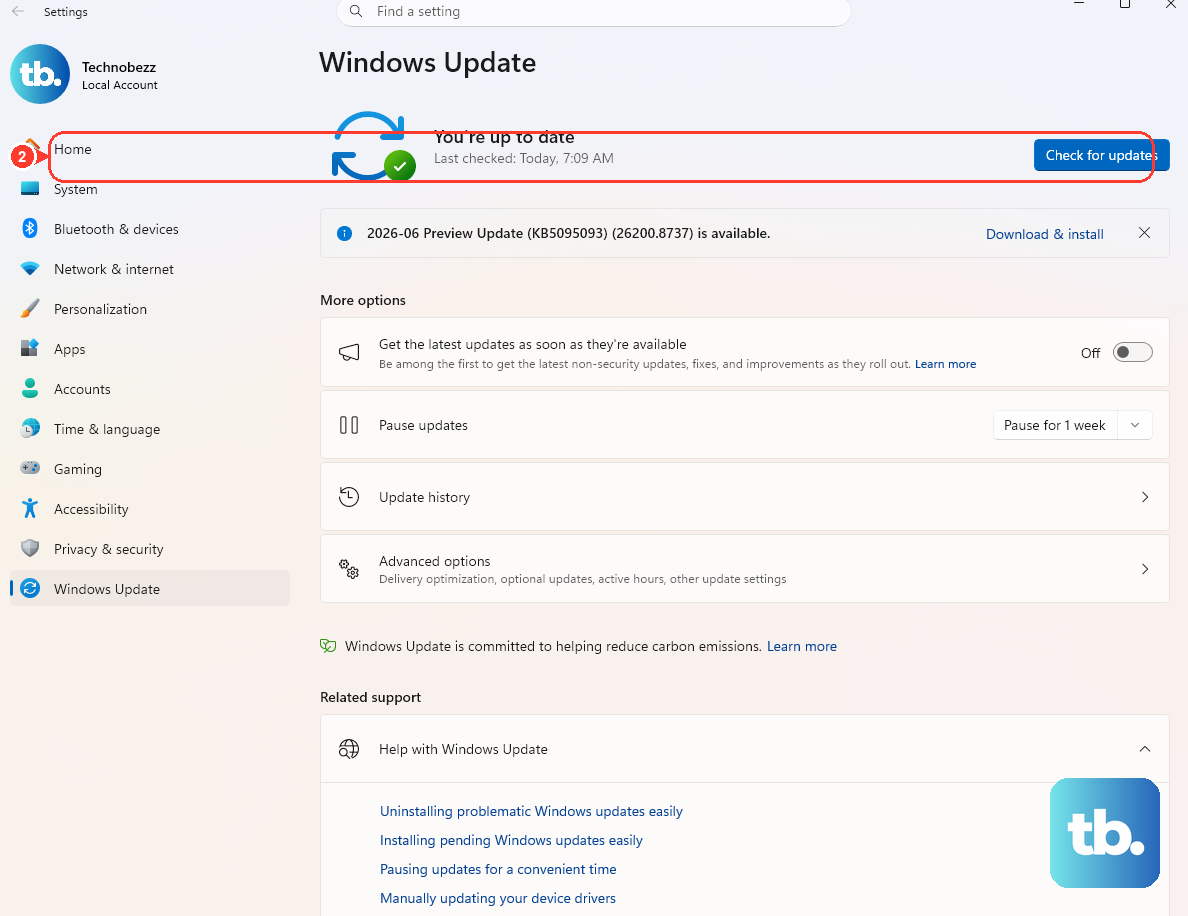
Missing updates can leave Edge or its components in a broken state. Installing them also updates Edge when you can't open the browser to update it directly.
Press Windows key + I to open Settings.
On Windows 11, go to Windows Update > Check for updates. On Windows 10, go to Update & security > Check for updates.
Install any pending updates, restart if prompted, then reopen Edge.
Scan for Malware
Malware or a tech-support-scam pop-up can hijack or freeze Edge. Rule it out with a scan.
Open Windows Security (Windows Defender) or a trusted antivirus.
Run a full system scan.
Remove any detected threats, then reopen Edge.
Repair Windows System Files With SFC and DISM
If core Windows files or the component store are damaged, Edge can fail to launch. These built-in tools check and repair them.
Right-click Start and select Terminal (Admin) or Command Prompt as administrator. Select Yes at the prompt.
Type sfc /scannow and press Enter; let it finish.
Then run these one at a time: DISM /Online /Cleanup-Image /CheckHealth, DISM /Online /Cleanup-Image /ScanHealth, DISM /Online /Cleanup-Image /RestoreHealth.
Restart the PC and try opening Edge.
Delete the Corrupted Edge Profile
A damaged user profile can stop Edge from opening. Deleting the local profile folder forces Edge to rebuild a fresh one. Sign in and sync first, because this wipes local-only history, cookies, and unsynced data.
Close Edge completely and end all Edge processes in Task Manager.
Press Windows key + R to open the Run dialog.
Paste appdata\Local\Microsoft\Edge\User Data and press Enter. The full path is C:\Users\<YourUsername>\AppData\Local\Microsoft\Edge\User Data.
Locate and delete the Default folder. Back it up first if you want to keep local-only data.
Reopen Edge; it rebuilds a clean profile.
Reset Edge to Default Settings
Resetting clears settings that may be causing the problem. It clears settings, disables extensions, and removes temporary data like cookies, but your favorites, history, and saved passwords are not affected. If you're signed in with a Microsoft account, synced data returns afterward.
Open Edge, click the three-dot menu, and choose Settings.
Select Reset Settings > Restore settings to their default values > Reset.
If you can't open Edge to reach this menu, some builds expose a reset under Settings > Apps > Installed apps > Microsoft Edge > Advanced options > Reset.
Reinstall Microsoft Edge
If nothing else works, reinstall over the existing copy. Edge is a core part of Windows and can't be uninstalled like a normal app, so you install fresh on top of it rather than removing it.
Using another browser, download the latest installer from the official Edge page at microsoft.com/edge.
Run the installer as administrator to reinstall over your current copy.
Restart the computer and try opening Edge again.
Frequently Asked Questions
Will repairing or resetting Edge delete my favorites and passwords?
Repair does not affect your browser data or settings. Reset clears settings and temporary data like cookies and disables extensions, but it keeps your favorites, history, and saved passwords. If you're signed in with a Microsoft account, synced data (including favorites and passwords) returns after a reset.
What's the difference between Repair and Reset?
Repair fixes a corrupted installation while leaving all your data and settings intact. Reset restores Edge to its defaults and clears settings and cookies while disabling extensions (favorites, history, and saved passwords stay). Try Repair first; use Reset only if Repair doesn't solve it.
Why can't I just uninstall and reinstall Edge?
Microsoft treats Edge as an essential component of Windows that relies on the web platform, so the standard uninstall option usually isn't available in Settings. Instead, use Repair, Reset, or run the official installer over the top to reinstall.
My Repair or reinstall didn't seem to do anything. Why?
Edge often keeps running in the background with no visible window. If those processes are still active, a Repair, profile delete, or reinstall can silently fail. End every Microsoft Edge task in Task Manager first, then run the action again.
Edge opens for a second and then closes, or only some pages fail to load. Is that a different problem?
Not necessarily. Microsoft routes these symptoms through the same flow: update Edge, free up resources, then Repair. Connection or website issues can also cause individual pages to fail, so check your network too.
I removed Edge anyway, but it came back. What happened?
A future Windows update can reinstall or restore Edge, since it's a built-in component. Full removal should be reserved for systems where you've already tested the impact; for a browser that won't open, Repair or reinstalling over the top is the reliable path.