

You open Microsoft Edge, reach for a site you saved months ago, and the favorites bar is empty. Maybe a whole folder is gone, or every favorite vanished after an update or a fresh sign-in.
Most of the time your favorites are not actually deleted. They are hidden, sitting in a different profile, or waiting on a sync that has not finished. A smaller number of cases are genuine deletions, and those have their own recovery paths.
Work through the fixes below in order. They start with the quick checks that solve most cases and move to file-level recovery only if those come up empty.
Check You Are in the Right Profile and Account
Edge stores favorites separately for each profile. If Edge opened in a different profile, your favorites will look gone even though they are safe in another one.
Select the profile icon in the top-right corner of Edge and confirm the email shown is the account your favorites belong to. If it is the wrong one, switch to the correct account, or choose Add new account and then Sign in to sync data. If you see Manage profile settings, that profile is already signed in.
This matters because favorites sync is tied to the Microsoft account signed into Edge, not your Windows or Mac login. Signing out, or signing in with a different email, can make synced favorites disappear until the right account is active again.
Show the Favorites Bar If It Is Just Hidden
If only the bar across the top is missing, your favorites may still exist and the bar may simply be set to Never or Only on new tabs. Press Ctrl+Shift+B to show or hide the favorites bar.
To set this permanently, select Settings and more (the "..." menu, top right) > Settings > Appearance. Under Other appearance settings, select Toolbar, then use the Favorites drop-down to choose Always, Only on new tabs or Never.

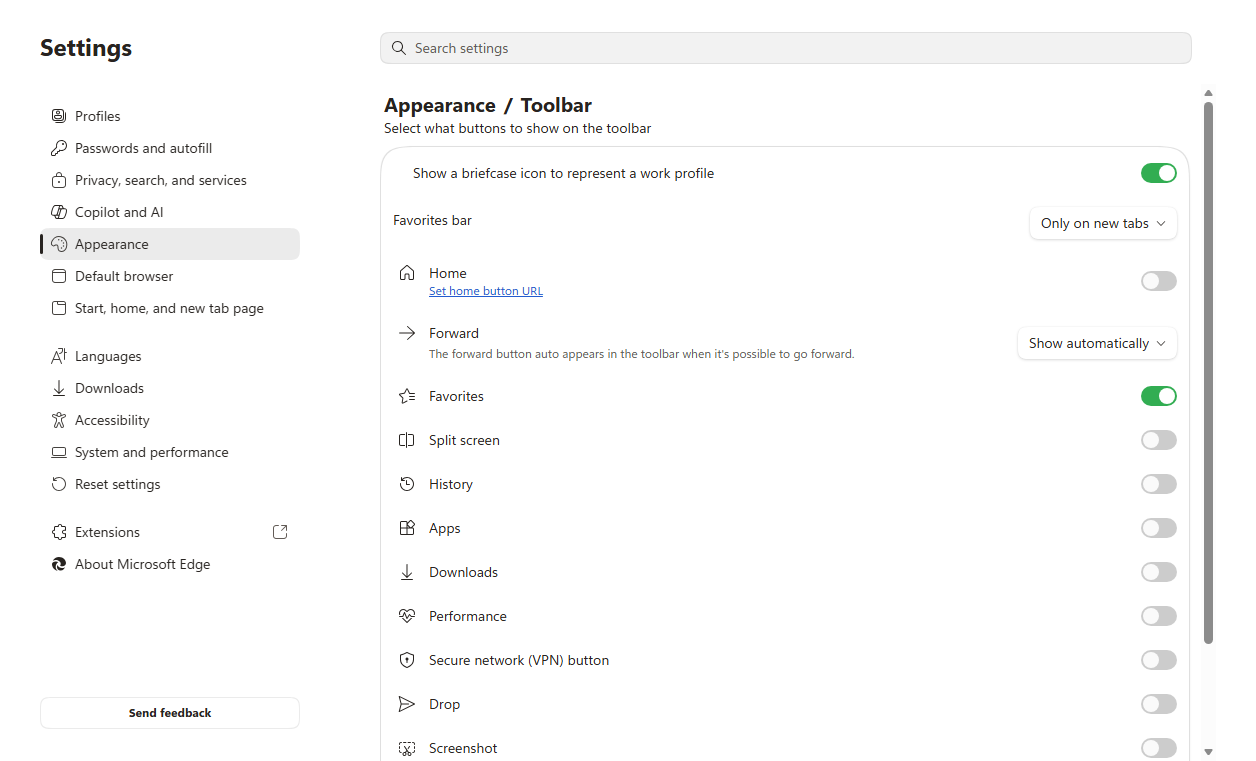
You can also press Ctrl+Shift+O at any time to open the full Favorites pane and confirm what is actually saved.
Turn On Favorites Sync and Give It Time
On a new or reset device, favorites can take a few minutes to download after you sign in. If Favorites sync is switched off, they will not appear at all.
Select Settings and more (...) > Settings > Profiles > Sync, and make sure the Favorites toggle is on. Edge can also sync passwords, history, extensions, settings, open tabs, autofill entries and payment info.
Give the first sync a few minutes to finish. When you sync favorites, your saved collections, reading list and any tabs you set aside earlier sync along with them.
Verify Sync on the Edge Mobile App
If your favorites live on your phone, or you want them to appear there, confirm the app is signed in and syncing. The steps are the same in the iPhone and Android Edge apps.
Open the Microsoft Edge app, select the profile image, then select Accounts. Select your account and choose Sign in to sync.
To check what is syncing, go to More options (...) > Settings, select your profile image, then select Sync under Sync settings and make sure favorites are enabled.
Stop Sync From Re-Deleting Your Favorites
This is the fix for the frustrating pattern where favorites keep vanishing, or deleted ones keep coming back. It happens when a "deleted" favorites state in the cloud, often from another device or app signed into the same account, gets pushed down and overwrites your local copy.
Microsoft recommends backing up your favorites before any sync reset. Press Ctrl+Shift+O, select More options (...) > Export favorites, and save the .html file somewhere safe.
- 1.On every other device and profile signed into the same Microsoft account, confirm your favorites are present, or turn off Favorites sync there so a deleted state cannot be pushed down.
- 2.On this device, go to Settings > Profiles > Sync and toggle Favorites off.
- 3.Restore or recreate the favorites locally while sync is off (use a file-based method below if needed).
- 4.In Settings > Profiles > Sync, under Re-sync data to this device, select Still having sync problems? Try another option, then select Reset sync. Keep Edge open until the reset finishes.
- 5.Resume sync on this device and toggle Favorites back on. Sign back in on your other devices if you want them to sync again.
Be careful here: deleting sync data while signed in and syncing removes it from all your synced devices. If a reset reports that it could not complete, wait a few hours and try again.
Recover an Earlier Version of the Bookmarks File
If favorites were genuinely deleted, Windows may still hold an older copy of the file Edge keeps them in. This only works if File History or System Restore was already turned on before the loss.
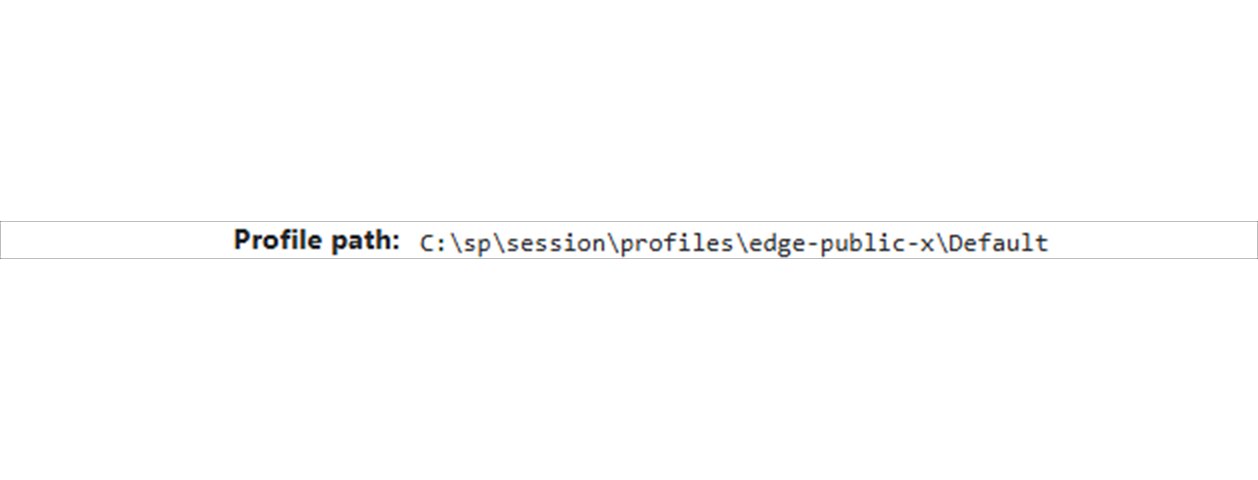
Close Microsoft Edge completely. Open File Explorer, paste %LocalAppData%\Microsoft\Edge\User Data\Default into the address bar and press Enter. If you are unsure of your profile folder, type edge://version in Edge and read the Profile path.
Right-click the file named Bookmarks and select Properties > Previous Versions. If a version from before the loss is listed, select it and choose Restore, then restart Edge. The restored file replaces the current one and this cannot be undone, so copy the current Bookmarks file elsewhere first. If the tab is empty, no earlier copy was kept.
If sync is on and the cloud copy is in a deleted state, Edge can overwrite your restored file on launch, so turn off Favorites sync first.
Restore From the Automatic Bookmarks.bak Backup
Edge keeps an automatic backup named Bookmarks.bak in the same profile folder. You can swap it in, but it only helps if it still holds your favorites. If it has already been overwritten, it cannot bring them back.
- 1.Close Microsoft Edge completely. The swap will not work while Edge is open.
- 2.Open your Edge profile folder, for example C:\Users\<username>\AppData\Local\Microsoft\Edge\User Data\Default. Turn on file name extensions in File Explorer so you can see the .bak ending.
- 3.Rename Bookmarks to
Bookmarks.old. - 4.Rename Bookmarks.bak to
Bookmarks(remove the .bak extension). - 5.Launch Edge.
As with the previous method, turn off Favorites sync first if a deleted cloud state could overwrite the restored file.
Re-Import From an Exported HTML Backup
If you previously exported your favorites to an .html file, you can bring them straight back.
Select Settings and more (...) > Settings. In Profiles settings, select Import browser data. Under Other import locations, select Import next to Import browser data now.
In the Import from list, select Favorites or bookmarks HTML file. Select Choose file, pick your exported .html file, select Open, and select Done when the import finishes.
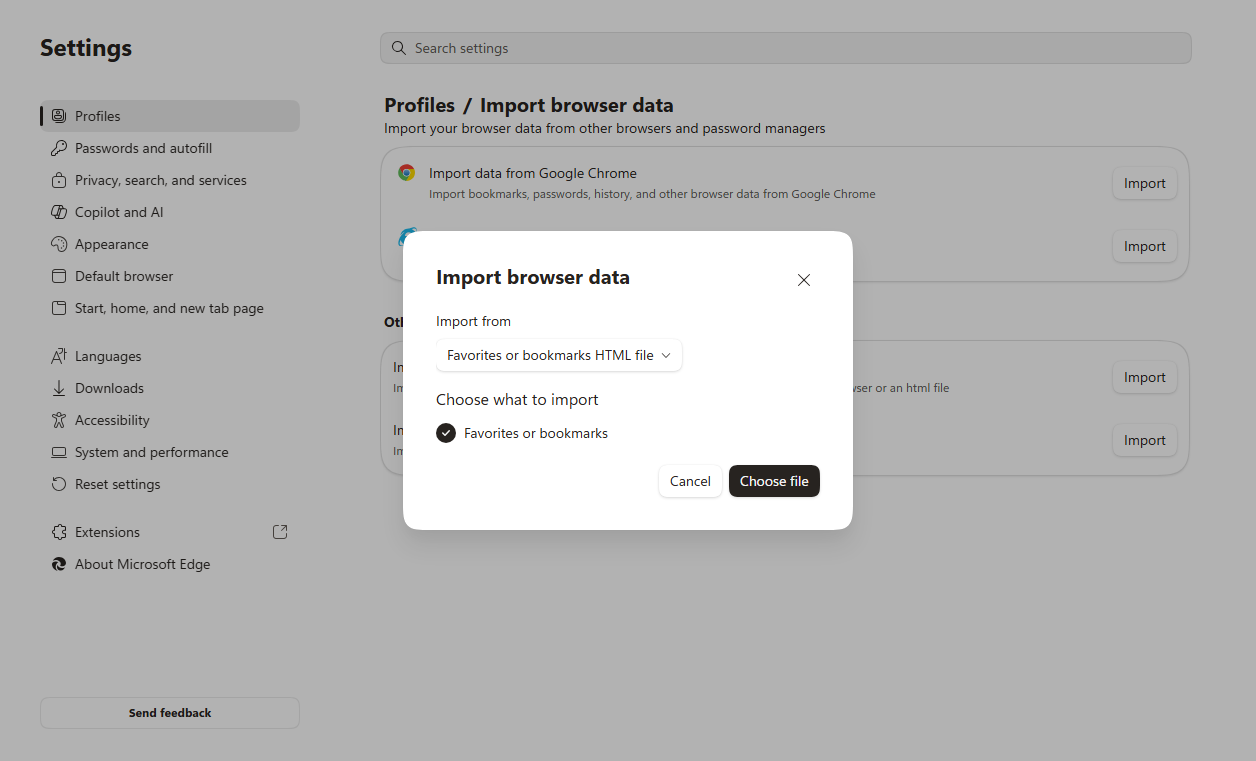
Imported favorites appear in a folder on the favorites bar that may be named Imported, so check there rather than expecting them to merge into the root.
Import From Another Browser Still on the PC
If your favorites also exist in Chrome or Internet Explorer 11 on the same machine, you can pull them in as a recovery source.
Select Settings and more (...) > Settings, and in Profiles settings select Import browser data. Select Import next to the source, for example Import data from Google Chrome or Import data from IE11.
Under Choose what to import, tick Favorites or bookmarks, then select Import and Done. The imported items land in a folder on the favorites bar that may be named Imported.
About the Old "Restore Deleted Favorites" Button
Earlier versions of Edge had a trash-can Restore deleted favorites icon in the Favorites menu. Microsoft removed that feature in Edge version 128.0.2739.42, so it does not exist on current Edge.
If you are still on a version older than 128.0.2739.42, open Favorites with Ctrl+Shift+O and select the Restore deleted favorites icon in the top-right corner. Right-click a favorite or folder and select Restore. On up-to-date Edge, use the file-based or sync methods above instead.
Frequently Asked Questions
Where does Edge store my favorites on Windows?
In your profile folder, reachable by pasting %LocalAppData%\Microsoft\Edge\User Data\Default into File Explorer. The favorites live in a file named Bookmarks, with an automatic backup named Bookmarks.bak. If you are unsure which profile folder applies, type edge://version in Edge and read the Profile path.
Why do my deleted favorites keep coming back?
A stale state on one device or app can be pushed to the cloud and then synced down to your other devices, undoing your changes. Export a backup, turn off Favorites sync on your other devices, make the change, then use Reset sync under Settings > Profiles > Sync to clear the cloud copy before turning sync back on.
My favorites vanished right after a Windows or Edge update. Are they gone?
Not necessarily. First confirm you are in the correct profile and signed into the right Microsoft account, then check that Favorites sync is on and allow a few minutes for it to download. If they are still missing, try recovering an earlier Bookmarks file through Previous Versions or the Bookmarks.bak rename.
Why is the file recovery method not working for me?
Previous Versions only works if File History or System Restore was on before the loss. The Bookmarks.bak method only helps if the backup still holds your favorites, and Edge must be fully closed while you rename the files. If the cloud copy and every local copy have already lost the favorites, they are likely unrecoverable.
How do I stop this from happening again?
Export a backup copy of your favorites to an .html file and store it somewhere safe. Press Ctrl+Shift+O to open Favorites, then select More options (...) > Export favorites. You can also copy the Bookmarks file from your profile folder to another location. To re-save a lost site, open it and press Ctrl+D.
I deleted just one favorite by accident. What is the fastest fix?
Current Edge has no one-click undo, since the Restore deleted favorites button was removed in version 128.0.2739.42. If it was a well-known site, the quickest route is to open it and re-save it with Ctrl+D. For bulk loss, use Previous Versions, the Bookmarks.bak swap, or re-import from an HTML backup.