
A MacBook Pro 16-inch M5 Pro that's dragging its feet is incredibly frustrating, especially on a machine built for speed. When apps take forever to launch, the beachball spins constantly, or everything just feels laggy, there are several things you can do to get it back up to pace.
Restart Your MacBook Pro
If you just close the lid and let it sleep for days or weeks, background processes and memory can get gummed up. The simplest fix is often a full restart. Click the Apple menu in the top-left corner and select Restart.
This clears out the system memory and gives macOS a fresh start. I'd make this your first move every time things start to feel sluggish.
Check What's Hogging Resources
Open Activity Monitor from your Applications > Utilities folder. Click the CPU tab and sort the list by "% CPU" to see what's working the hardest.
Look for any single process using a very high percentage for a prolonged time. If you spot a runaway app, select it and click the stop button (the octagon with an "X") to force quit it. Do the same on the Memory tab to see what's eating up your RAM.
Free Up Storage Space
macOS needs breathing room on your drive to operate efficiently. Click Apple menu > About This Mac > More Info > Storage Settings to see a breakdown.
If your drive is nearly full, performance will tank. Use the recommendations here to manage storage, enable iCloud optimizations, and review large files. Aim to keep at least 15-20% of your drive free.
Update macOS
Apple regularly releases updates that include performance improvements and bug fixes. Head to System Settings > General > Software Update to make sure you're running the latest version of macOS 26 Tahoe.
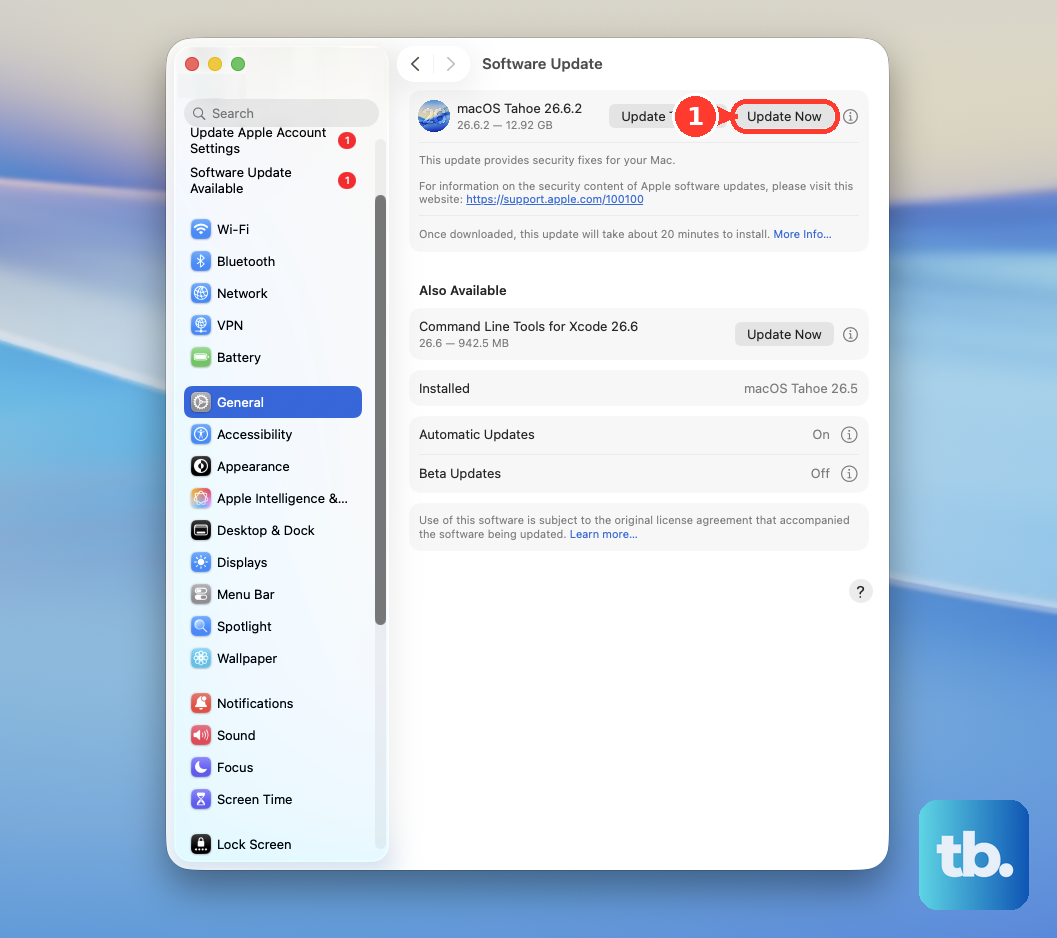
An outdated system can be a major cause of slowdowns, especially after new app updates.
Manage Startup and Background Apps
Too many apps launching at login or running in the background will slow down your boot and drain resources. Go to System Settings > General > Login Items & Extensions and remove anything you don't need starting automatically.
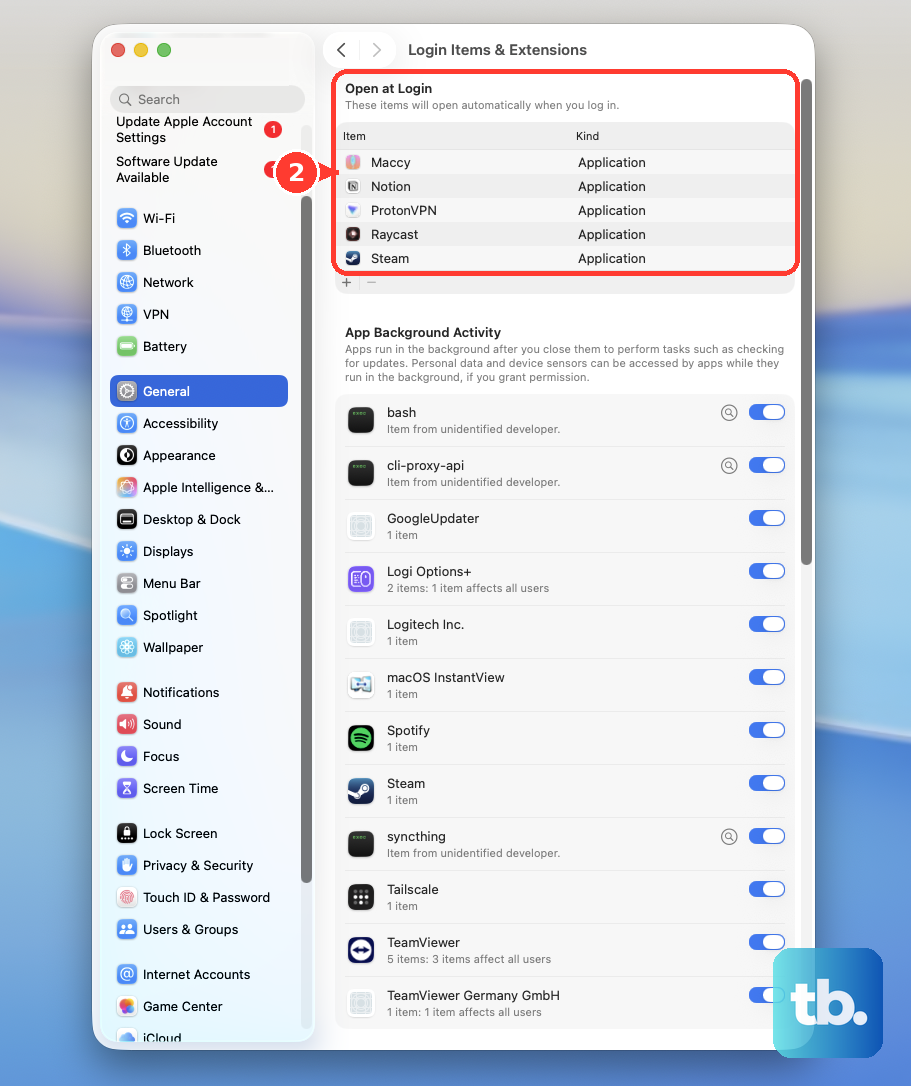
Also, check the menu bar at the top of your screen. If you see icons for apps you're not actively using, open those apps and look in their preferences for a setting to disable running in the background.
Reduce Visual Effects
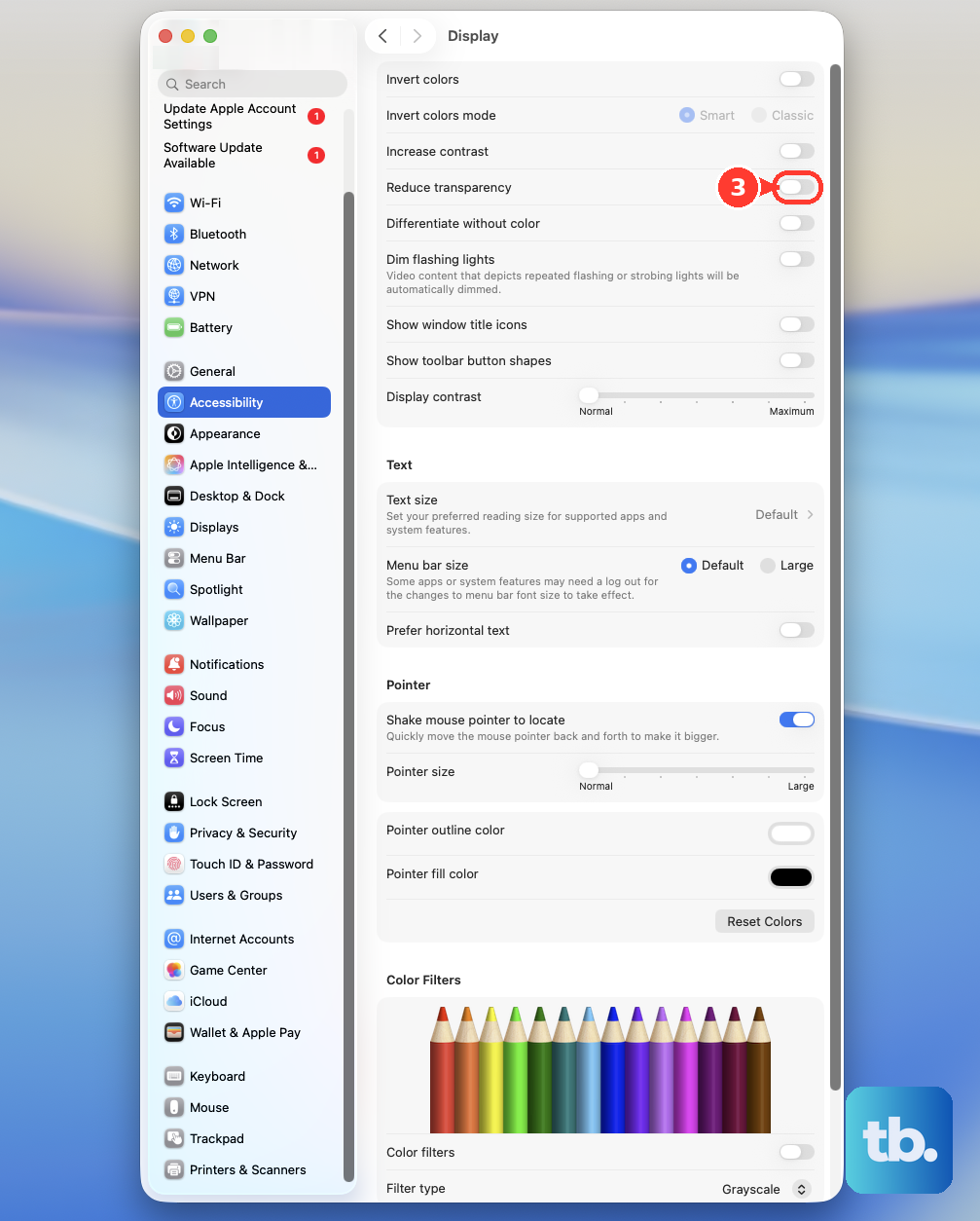
While the M5 Pro's GPU is powerful, disabling some visual flourishes can free up resources for your actual work. Go to System Settings > Accessibility > Display.
Turn on Reduce motion and Reduce transparency. This minimizes window animations and makes menus solid, which can make the whole interface feel snappier.
Tame Your Browser
Modern web browsers, especially with dozens of tabs open, are massive resource hogs. Each tab uses RAM and CPU. Try to keep your tab count reasonable or use browser extensions that suspend tabs you aren't using.
Also, check your browser extensions themselves. A poorly coded extension can single-handedly slow everything down. Try disabling them one by one to see if performance improves.
Let Spotlight Finish Its Job
After a major macOS update or restoring from a backup, Spotlight will re-index your files. During this time, which can last hours, your Mac may feel slow and the fans might spin up.
You can check if this is happening in Activity Monitor by looking for processes named "mds" or "mdworker". The best fix is to just let it finish. Plug in your MacBook Pro and leave it alone for a while.
Use Low Power Mode Strategically
Your MacBook Pro 16-inch has a Low Power Mode in System Settings > Battery. This reduces CPU clock speeds and other background activity to extend battery life.
While it's great for on-the-go use, it will make your machine feel slower. If you're plugged in and need full performance, make sure Low Power Mode is turned off.
Run Apple Diagnostics
If slowdowns are sudden and severe, it's worth checking for underlying hardware issues. Shut down your MacBook Pro, then turn it on and immediately press and hold the Power button.
Keep holding until you see the startup options window, then release. From there, you can initiate Apple Diagnostics to see if it finds any problems with your memory, storage, or other components.