
When your MacBook Pro 16-inch M5 Pro goes silent, it's almost always a quick settings fix or a minor software hiccup. Let's get your sound back.
Start with a free quick sound test that plays left and right channels one at a time. Hearing both sides confirms the hardware, which makes the remaining steps much easier to pin down.
Check Volume and Mute First
Press the volume up key on your keyboard. Look at the sound icon in your menu bar. If you see a line through the speaker icon, your Mac is muted. Click the icon and slide the volume up.
Also, check the physical F12 key. If it's lit up orange, the system is muted. Press it once to turn the mute off.
Select the Correct Output Device
Head to System Settings > Sound > Output. Make sure "MacBook Pro Speakers" is selected. If you recently unplugged headphones or an external monitor, your Mac might still be trying to send audio to that device.
I've seen this happen a lot after using HDMI. Simply clicking back to the internal speakers usually solves it instantly.
Restart Your MacBook Pro
Click the Apple menu > Restart. This is the most reliable way to clear any stuck audio processes, especially if the sound cut out after waking from sleep. It reloads the Core Audio framework completely.
Given the powerful M5 Pro chip, a restart takes just a moment and often resolves the glitch.
Reset the Core Audio Daemon
Open Terminal from your Utilities folder. Type sudo killall coreaudiod and press Enter. You'll need to type your administrator password (you won't see characters as you type).
This command restarts the background service that manages all audio without needing a full reboot. Sound should return within a few seconds.
Check the App You're Using
Some applications, like Spotify, QuickTime, or Zoom, have their own independent volume controls. Make sure the volume is turned up within the app itself.
You can also check System Settings > Sound > Output while audio is playing. The volume slider for the selected device should move, confirming audio is being routed there.
Inspect Audio Ports and Connections
The MacBook Pro 16-inch doesn't have a traditional headphone jack, but it does have HDMI and USB-C ports that can carry audio. If your Mac thinks something is plugged in, it may route sound there.
Unplug any cables from these ports, then check your Sound Output settings again. A loose connection can sometimes confuse the system.
Manage Bluetooth Audio Devices
If you've ever paired AirPods or other Bluetooth headphones, your Mac might automatically connect to them. Go to System Settings > Bluetooth.
Find any audio devices in the list and click the "Disconnect" button next to them. This will force audio back to your laptop's speakers.
Run Apple Diagnostics
Shut down your MacBook Pro. Turn it on and immediately press and hold the Power button. Keep holding until you see the startup options window.
Press Command (⌘) + D on your keyboard. This boots into Apple Diagnostics, which can check for hardware issues with the speakers or audio components. It's a good way to rule out a physical problem.
Update macOS
Go to System Settings > General > Software Update. Apple frequently releases updates that include fixes for audio drivers and system bugs.
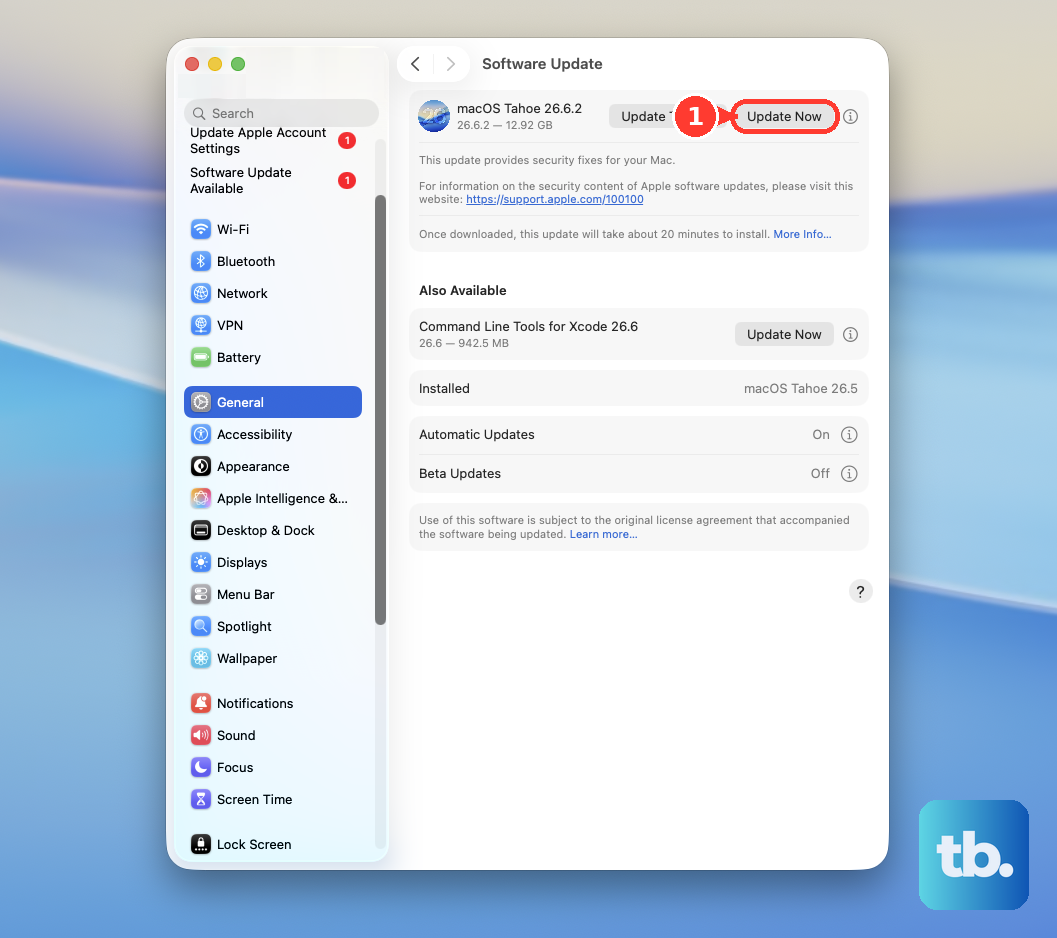
Make sure you're running the latest version of macOS 26 Tahoe. An update is a common fix for intermittent audio problems that appear out of nowhere.