
When your MacBook Pro 16-inch M5 Pro is running out of juice faster than you'd expect, it can feel like you're tethered to the charger. The good news is, a few adjustments in macOS 26 Tahoe can often get you back to the long battery life you bought it for.
Start with Low Power Mode
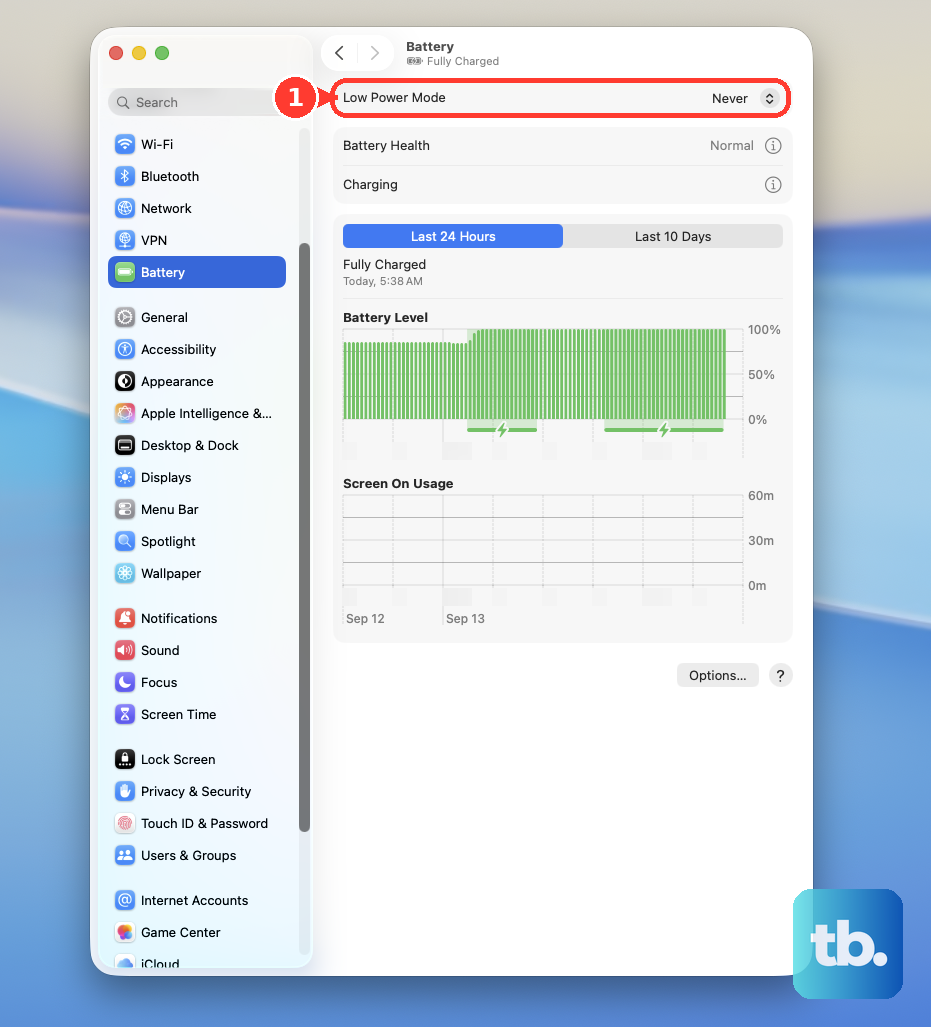
This is the quickest win for extending your battery. Head to System Settings > Battery and turn on Low Power Mode. It automatically reduces display brightness, throttles the M5 Pro chip's peak performance, and limits background activity. I'd start with this one, as it makes a noticeable difference with a single click.
Check What's Draining Power
Open Activity Monitor from your Applications > Utilities folder and click the Energy tab. Sort the list by "Energy Impact" to see which apps are the biggest culprits. Pay special attention to any app that says "Yes" in the "Preventing Sleep" column, as these are keeping your MacBook awake and active when it should be idling.
Quit any apps you don't actively need, especially resource-intensive ones like video editors or 3D modeling software. Even a dozen open browser tabs in Chrome can add up, so consider using Safari or closing unused tabs.
Adjust Your Display Settings
The stunning 16-inch display is a major power draw. Lower the brightness to a comfortable level using the F1 and F2 keys. In System Settings > Displays, make sure "Automatically adjust brightness" is enabled so your Mac can manage it based on your environment.
Also, reduce the screen's refresh rate if your model supports ProMotion. Go to System Settings > Displays > Refresh Rate and select a lower setting, like 60Hz, when you're on battery power for less demanding tasks.
Manage Startup and Background Items
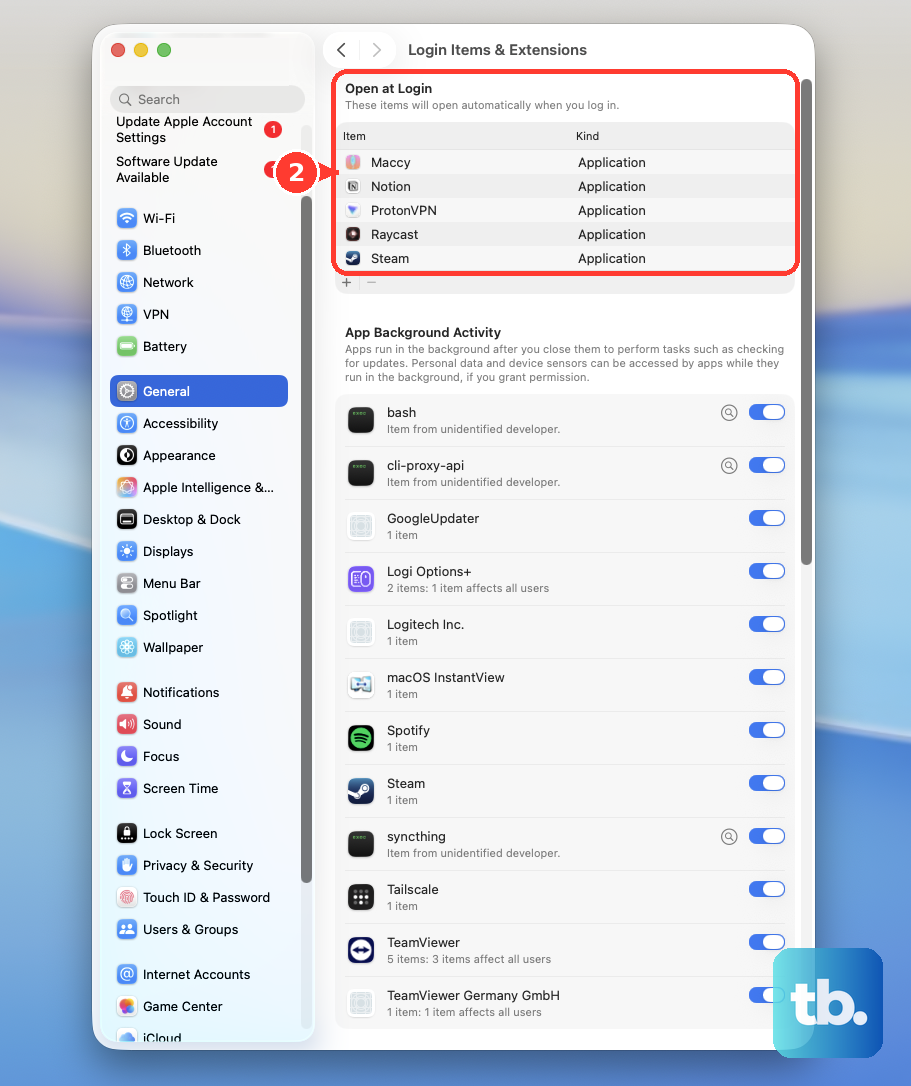
Apps that launch automatically and run in the background will chip away at your battery all day. Go to System Settings > General > Login Items & Extensions. Review the list under "Open at Login" and remove anything that isn't essential.
Don't forget about menu bar utilities and cloud syncing services like Dropbox or OneDrive. Pausing sync or quitting these apps when you don't need them can save a surprising amount of power over time.
Update macOS and Your Apps
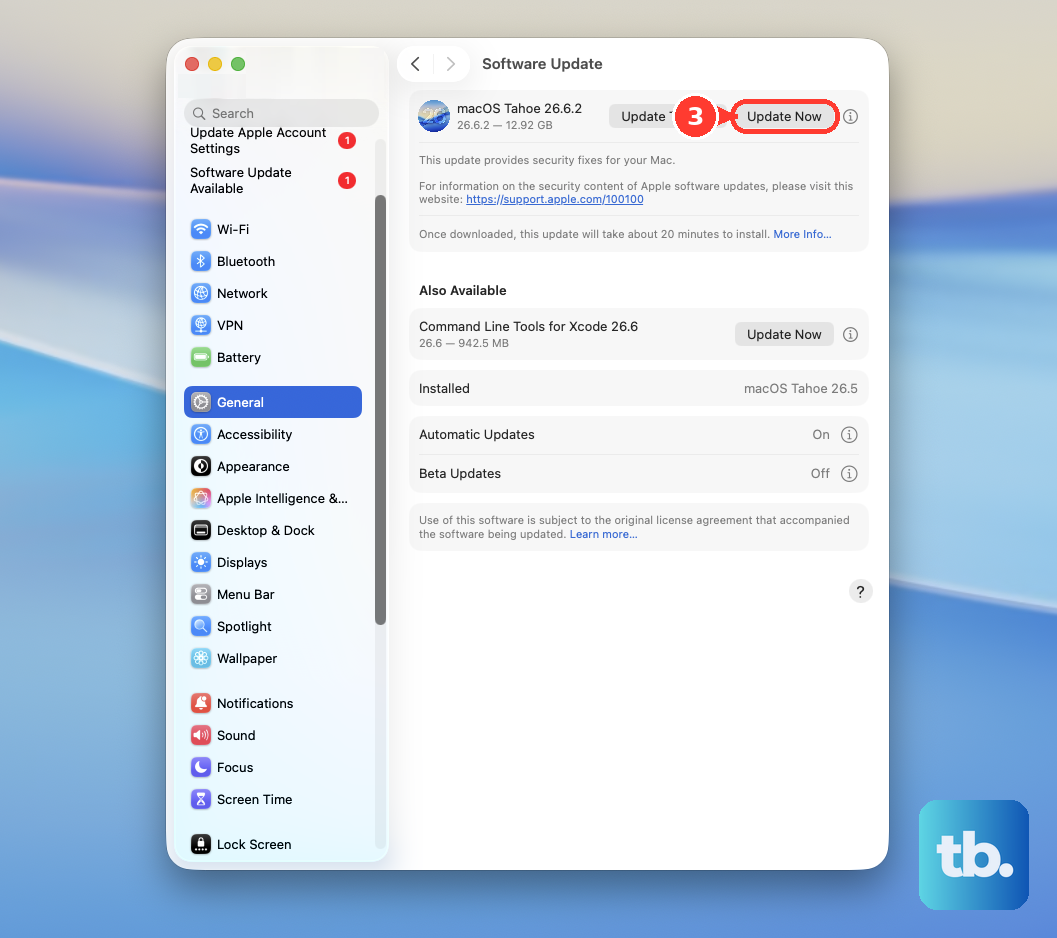
Apple is constantly refining power management. Check for updates by going to System Settings > General > Software Update. Install any available updates for macOS 26 Tahoe. It's also a good idea to update your apps through the App Store, as developers often release optimizations for new Apple silicon chips.
After a major update, you might see higher battery drain for a day or two while Spotlight reindexes your drive and other system tasks complete. Give it a little time to settle down.
Disable Unused Wireless Features
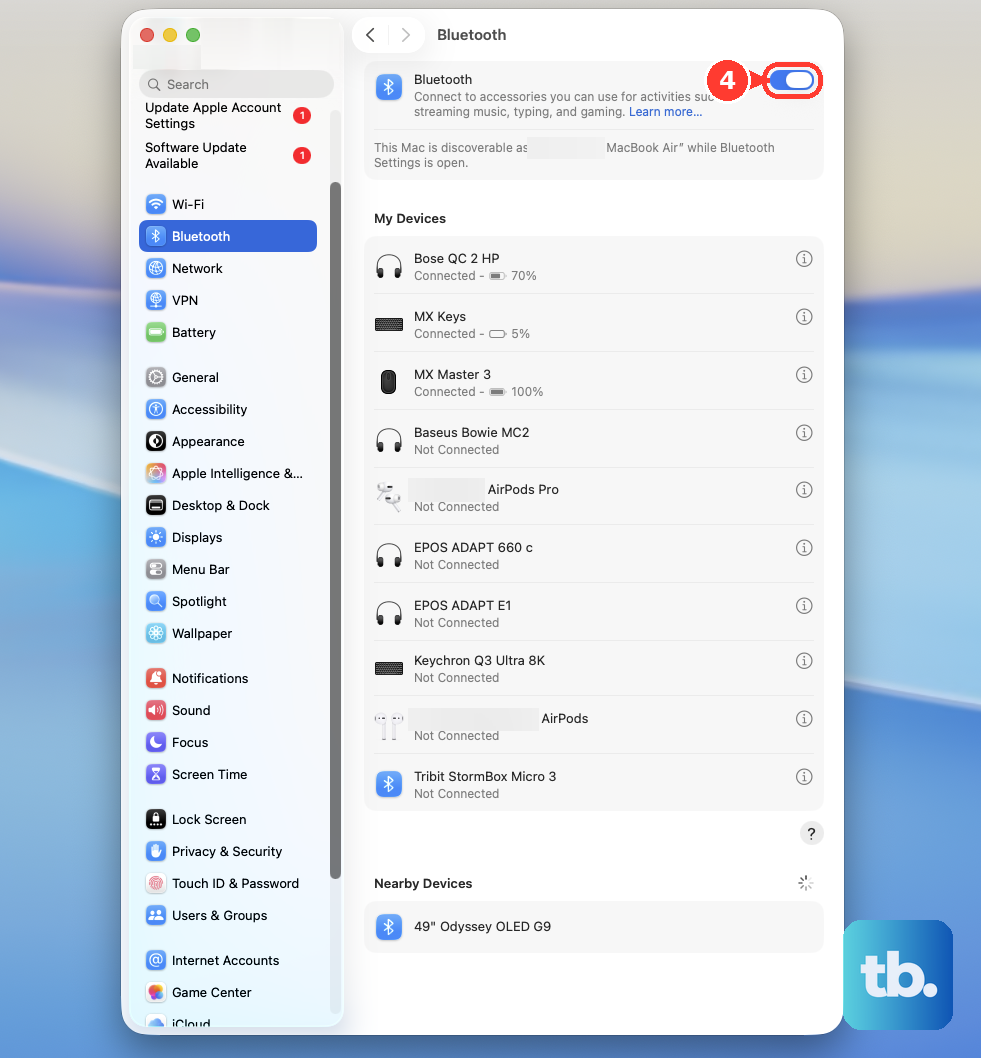
If you're not using them, turn off Bluetooth and Wi-Fi. You can click their icons in the menu bar or go to System Settings > Bluetooth and System Settings > Wi-Fi. Also, consider turning off Location Services for apps that don't truly need it in System Settings > Privacy & Security > Location Services.
Run Apple Diagnostics
If battery life seems unusually poor and the software fixes aren't helping, it's worth checking for a hardware issue. Shut down your MacBook Pro, then turn it on and continue to press and hold the power button as it starts up. Release the power button when you see the startup options window, then press and hold Command (⌘)-D on your keyboard until you see the Diagnostics screen.
This built-in tool will check the battery and other components for problems. If it finds an issue, it will provide a reference code and steps to follow.
Be Patient with Charging
Remember, the 16-inch model has a very large battery capacity to support its powerful components. This means it will take longer to charge from empty to full compared to a smaller laptop. Using the included high-wattage charger is the fastest way to top it up.
For the best long-term battery health, avoid constantly draining it to zero. I've found that keeping it between 20% and 80% for daily use is a good practice, though macOS's built-in optimized charging feature will handle this for you automatically over time.