
When your MacBook Pro 16-inch M5 Max won't connect to WiFi, drops the connection during a heavy workload, or shows "No Internet Connection" despite being linked to the network, it can be a real roadblock. Here's how to get back online.
Toggle WiFi Off and On
Click the WiFi icon in your menu bar and select "Turn Wi-Fi Off." Wait about ten seconds, then click the icon again and choose "Turn Wi-Fi On." This simple refresh of the wireless adapter clears out most temporary glitches and is the quickest thing to try.
I'd start with this one every time. It's fast and often solves the problem right away, especially if the connection just dropped suddenly.
Restart Your Mac
Click the Apple menu in the top-left corner and choose "Restart." A full reboot reloads the WiFi driver and clears any cached network states that might be causing trouble.
This is particularly effective for fixing intermittent drops or if the WiFi menu is behaving strangely. It's a foundational step that resolves a wide range of software hiccups.
Forget and Rejoin Your Network
Open System Settings and go to the Wi-Fi section. Click the "Details" button next to the network you're trying to use. At the bottom of the details window, click "Forget This Network."
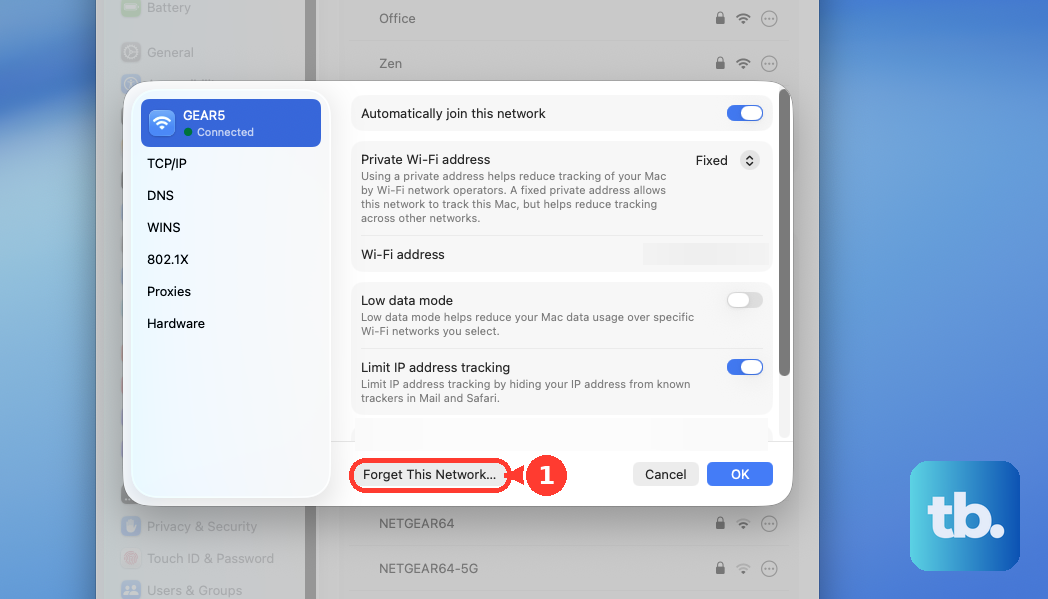
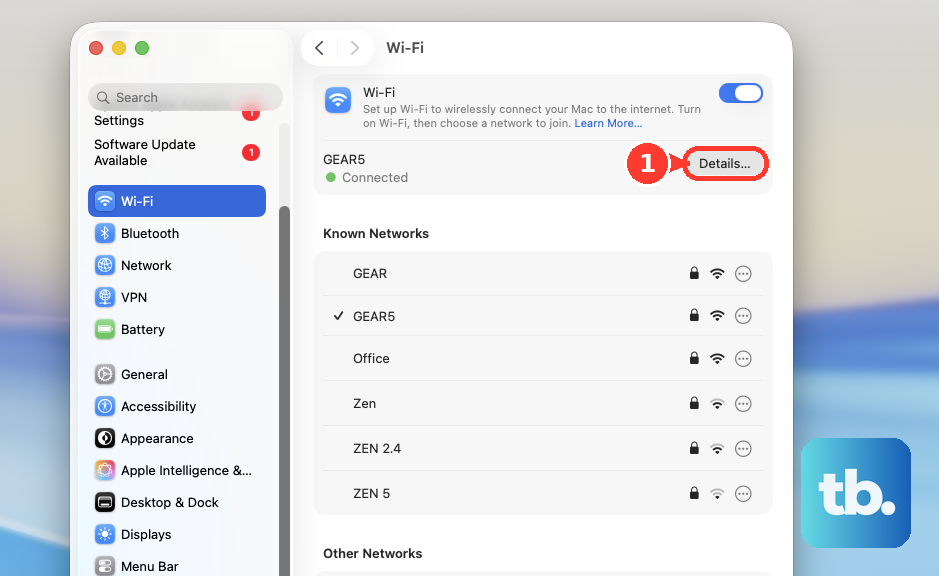
After confirming, your Mac will remove all saved settings for that network. Just select it from the list again and re-enter the password to create a brand new, clean connection profile. This can fix password errors or corrupted network data.
Renew Your DHCP Lease
If you're connected to WiFi but have no actual internet access, this is a key step. Go to System Settings > Wi-Fi and click "Details" for your connected network.
Select the "TCP/IP" tab. Here, you'll see a button labeled "Renew DHCP Lease." Click it. This forces your Mac to request a fresh IP address from your router, which can clear up "connected but no internet" scenarios.
Change Your DNS Servers
Sometimes the WiFi itself is fine, but the DNS servers your Mac is using to translate website names into addresses are slow or down. In the same network Details window, go to the "DNS" tab.
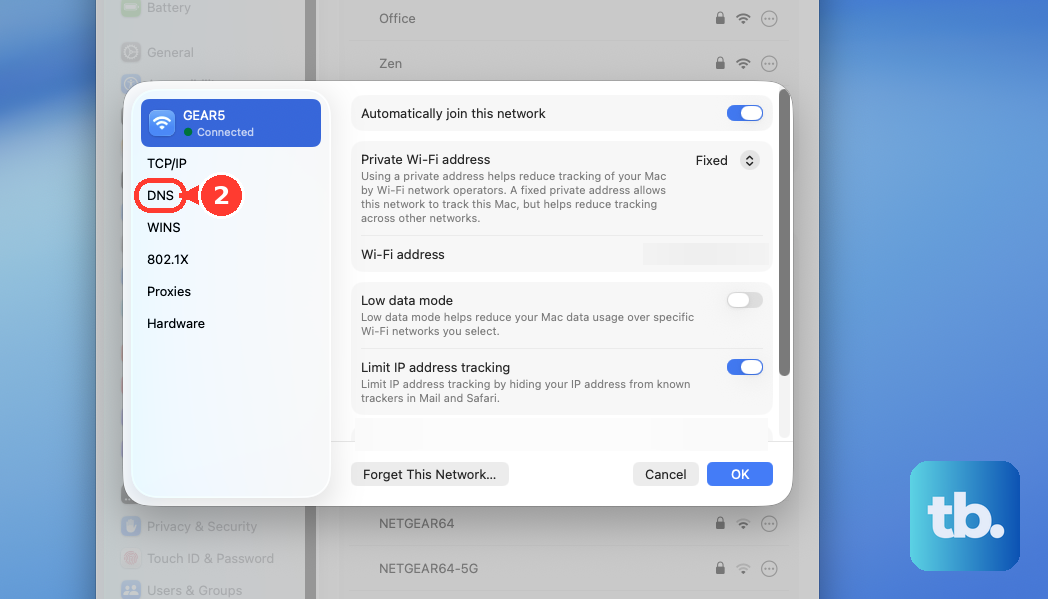
Remove any existing DNS server addresses listed. Then, click the "+" button to add new ones. Reliable public options include 8.8.8.8 and 8.8.4.4 (Google) or 1.1.1.1 (Cloudflare). This change can make a noticeable difference in browsing speed and reliability.
Check for macOS Updates
Apple regularly releases updates that include fixes for WiFi and networking components. Go to System Settings > General > Software Update to check for and install any available updates for macOS 26 Tahoe.
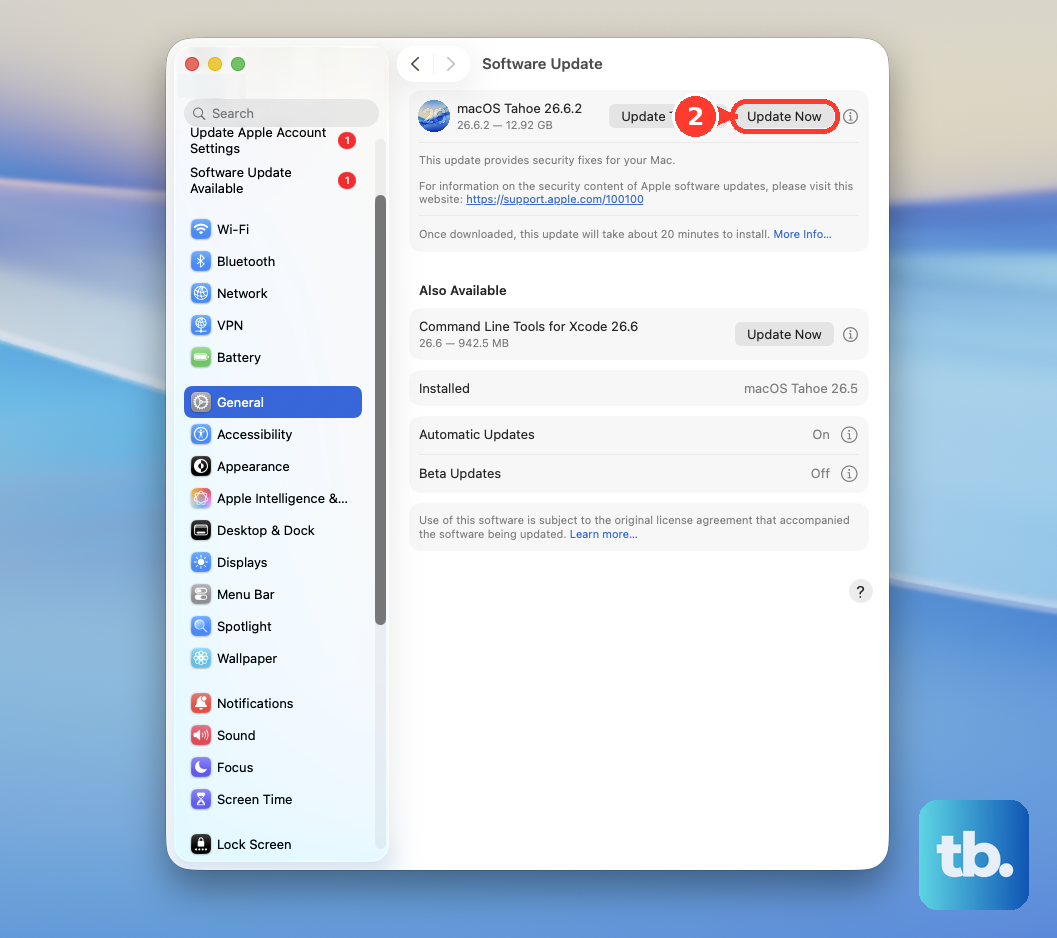
Keeping your system up to date is one of the best ways to ensure stability, especially for a high-performance machine like the M5 Max that pushes hardware and software to their limits.
Create a New Network Location
This is a more comprehensive reset that doesn't delete your individual network settings. Go to System Settings > Network. At the very top of the window, you'll see a dropdown menu labeled "Location."
Click it and choose "Edit Locations." Click the "+" icon to add a new location, give it a name like "Fresh Start," and click "Done." Finally, select your new location from the menu. This tells macOS to build a completely new set of network preferences from scratch.
Inspect WiFi Signal Details
Hold down the Option key on your keyboard and then click the WiFi icon in the menu bar. A detailed dropdown menu will appear.
Look for the RSSI value, which indicates signal strength. A number closer to zero is better; if you're seeing -70 dBm or lower, the signal is quite weak. If you're far from your router, especially in a home with thick walls, moving closer or using a WiFi extender might be necessary.
Reset the SMC and NVRAM
For Apple silicon Macs like your M5 Max, the process is simple. Shut down your Mac completely. Wait about 30 seconds, then press and hold the power button for a full 10 seconds.
Release the button, then wait another few seconds before pressing it normally to turn your Mac back on. This process helps clear certain low-level settings related to power management and hardware, which can sometimes affect peripheral connectivity like WiFi.
If you've recently used High Power Mode for a demanding task, a quick restart or this reset can help the system re-establish optimal network communication as it returns to a standard power state.