
When your MacBook Pro 16-inch M5 Max gets too hot, you'll hear the fans ramp up and you might notice the performance starting to stutter as the system protects itself. It's a powerful machine designed for heavy workloads, but that power comes with heat. Let's get it running cooler.
Identify the Culprit in Activity Monitor
Start by opening Activity Monitor from your Utilities folder. Click the CPU tab and sort the "% CPU" column to see what's at the top. The M5 Max is a beast, but a runaway process from a buggy app or a browser tab can still push it unnecessarily hard. If you see something using a huge, sustained percentage, that's your heat source.
You can select that process and click the stop (X) button in the toolbar to force quit it. I'd pay particular attention to kernel_task if it's high, as that's often the system managing heat, but it can sometimes indicate a deeper driver issue.
Manage Your Workload and Power Mode
This MacBook is built for tasks like video export, 3D rendering, and driving multiple external displays. All of these will make it hot, and that's expected. The key is to close applications you're not actively using to free up resources.
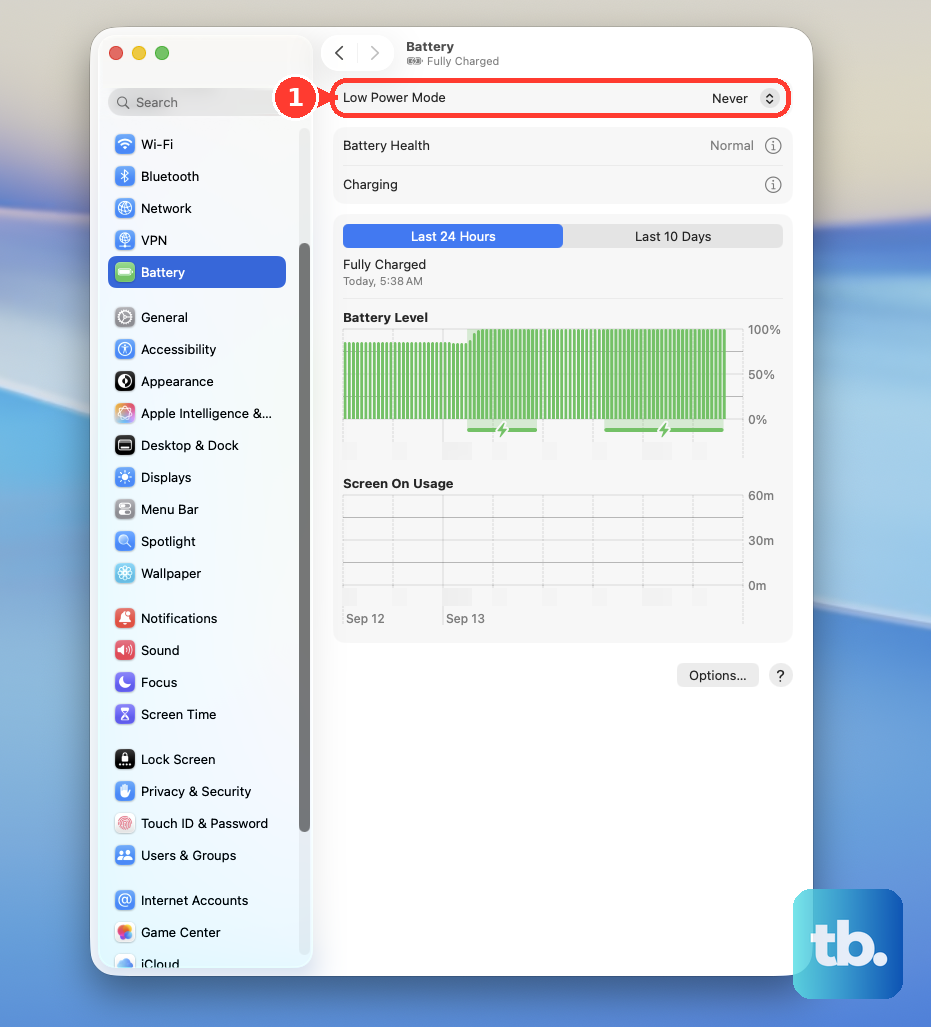
Also, check your power mode. Go to System Settings > Battery. If you have it set to High Power mode, the system is prioritizing maximum performance over heat and noise. For general use, switching to Automatic or Low Power mode can make a significant difference in thermals.
Update macOS and Your Apps
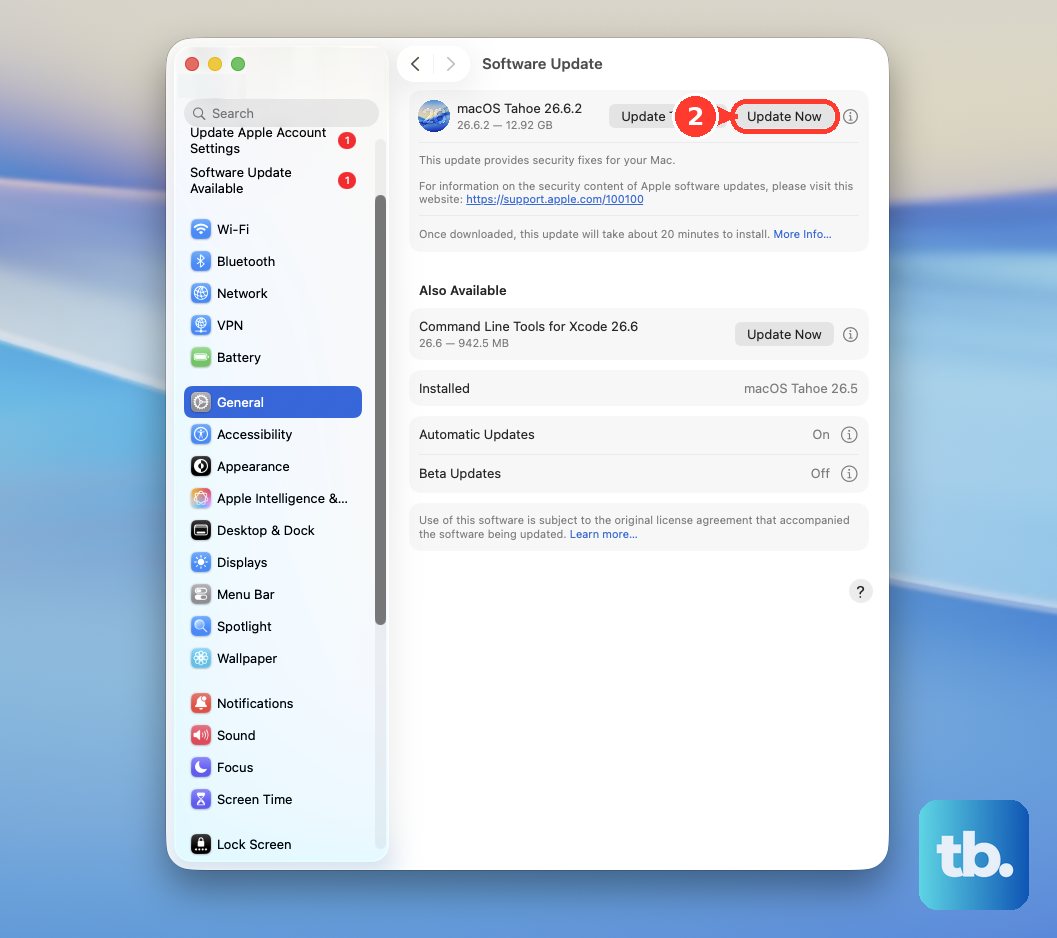
Apple frequently releases updates that improve power management and fix bugs causing excessive CPU usage. Head to System Settings > General > Software Update to install any available updates.
It's also a good idea to check for updates to the specific apps you use for heavy work, like Final Cut Pro, Adobe Creative Cloud apps, or Blender. Developers often optimize for new Apple Silicon chips in subsequent updates.
Give It Room to Breathe
The cooling system on the 16-inch MacBook Pro is robust, but it needs airflow. Never use it on a soft surface like a bed, couch, or your lap if it's covered by a blanket, as this will block the air intake along the bottom and sides.
Always place it on a hard, flat surface. Using a laptop stand or even just propping up the back edge with a book can improve airflow underneath and help the fans do their job more efficiently.
Reset the Thermal Management System
Since you're on an Apple Silicon Mac (the M5 Max), there's no separate SMC to reset. A full shutdown and restart often clears up temporary glitches in the thermal management. Simply shut down your MacBook, wait about 30 seconds, and then turn it back on.
This can help if the fans seem stuck at a high speed even when the CPU load has dropped, as it resets the various system management controllers.
Keep the Vents Clear of Dust
Over time, dust can accumulate in the vents and heatsinks, acting as an insulator. With the MacBook powered off, you can use a can of compressed air to gently blow out the vents along the rear hinge and the intake grilles along the sides and bottom.
Hold the can upright and use short bursts to avoid spraying moisture. Doing this every few months if you're in a dusty environment can help maintain optimal cooling.
Adjust Display and Peripheral Settings
The stunning Liquid Retina XDR display is a major source of power draw. Reducing the screen brightness from maximum to a comfortable level is one of the fastest ways to reduce heat and save battery.
If you're using the MacBook's capability to drive up to four external displays, remember that each one adds to the GPU workload and overall power consumption. Disconnecting displays you aren't actively using during intense tasks can help manage temperatures.
Check for Background Processes
Some heat issues come from things running when you don't expect it. Go back to Activity Monitor and click the Energy tab. This shows you which apps have used the most energy over the last 12 hours or have high "Preventing Sleep" impact.
You might find an app you thought was closed is still active. Also, consider your browser. Safari is generally more energy-efficient on macOS than Chrome, especially with many tabs open. Switching or at least closing unused tabs can lower the thermal load.
Monitor Temperature with Third-Party Tools
If you want to see exactly how hot your M5 Max is getting, you can use a lightweight app like TG Pro or iStat Menus. These tools can show you the actual temperature readings from the CPU and GPU cores, as well as give you precise control over the fan speeds.
This data is useful to confirm if the machine is actually overheating or just running warm under a normal heavy load. It can also help you correlate temperature spikes with specific activities or applications.