
When your MacBook Pro 16-inch M5 Max goes silent, it can be jarring, especially on a machine built for high-fidelity audio. The issue is almost always a quick settings tweak or a software hiccup. Let's get your sound back.
It is worth confirming the basics with a quick online speaker test. If neither channel plays a tone, you are looking at a hardware or connection problem rather than a settings issue.
Check the Volume and Mute
First, tap the volume up key on your keyboard a few times. Look at the sound icon in your menu bar. If you see a slash through the speaker, your Mac is muted. Click the icon and drag the slider up.
Also, check if the physical F10 key is lit up orange, which indicates the mute is engaged. Press it once to turn the mute off.
Select the Right Output Device
Head to System Settings > Sound > Output. Your M5 Max can handle multiple outputs, so make sure "MacBook Pro Speakers" is selected and not an HDMI display, a Bluetooth headset, or AirPlay device you're not using.
If you just unplugged headphones or an external monitor, the system might still be trying to send audio there. Selecting the internal speakers manually will correct this.
Restart Your MacBook Pro
Click the Apple menu > Restart. This is the single most effective fix for a temporary audio glitch. It reloads the entire audio subsystem and clears any processes that might have gotten stuck, especially after waking from sleep.
Given the high power draw of the M5 Max chip during intensive tasks, a quick restart can resolve conflicts that cause audio to drop out.
Reset the Core Audio Process
You can restart just the audio engine without rebooting your whole computer. Open Terminal from your Utilities folder and type the command sudo killall coreaudiod.
Press Enter, type your administrator password when prompted (you won't see characters as you type), and press Enter again. The sound should return within a few seconds as the service restarts.
Check the App You're Using
Some applications, like video editors, music players, or conferencing software, have their own independent volume controls. Make sure the volume is turned up within the app itself, like Spotify or QuickTime Player.
You can also look in System Settings > Sound to see if alert sounds are being routed to a different output than your main system audio.
Manage Bluetooth and External Displays
Your MacBook Pro supports up to four external displays, and audio can sometimes get routed to one of them via HDMI or USB-C. Go to System Settings > Sound > Output and verify your selection.
If you've paired Bluetooth headphones or speakers, go to System Settings > Bluetooth, click the Info button next to the device, and choose "Disconnect" to see if sound returns to your laptop speakers.
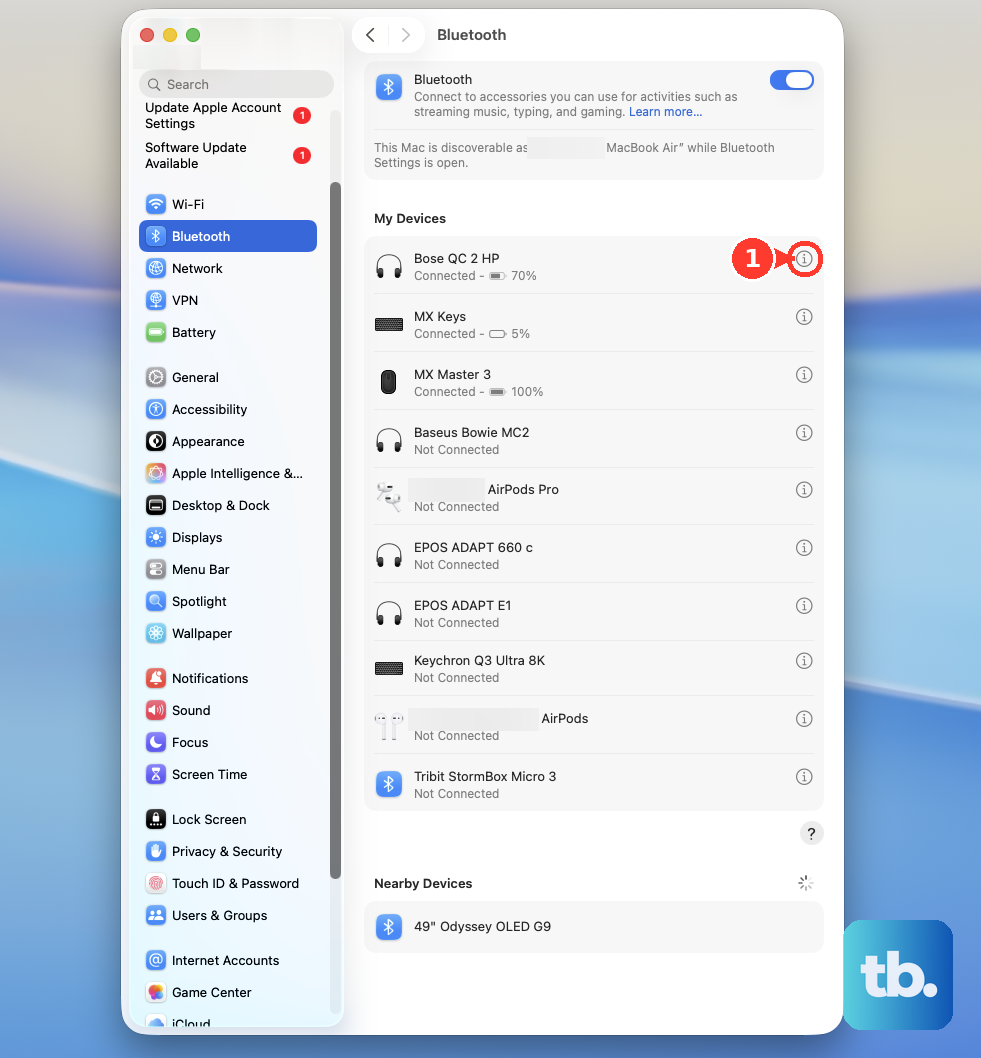
Update macOS
Audio drivers are frequently improved with system updates. Go to System Settings > General > Software Update and install any available updates for macOS 26 Tahoe.
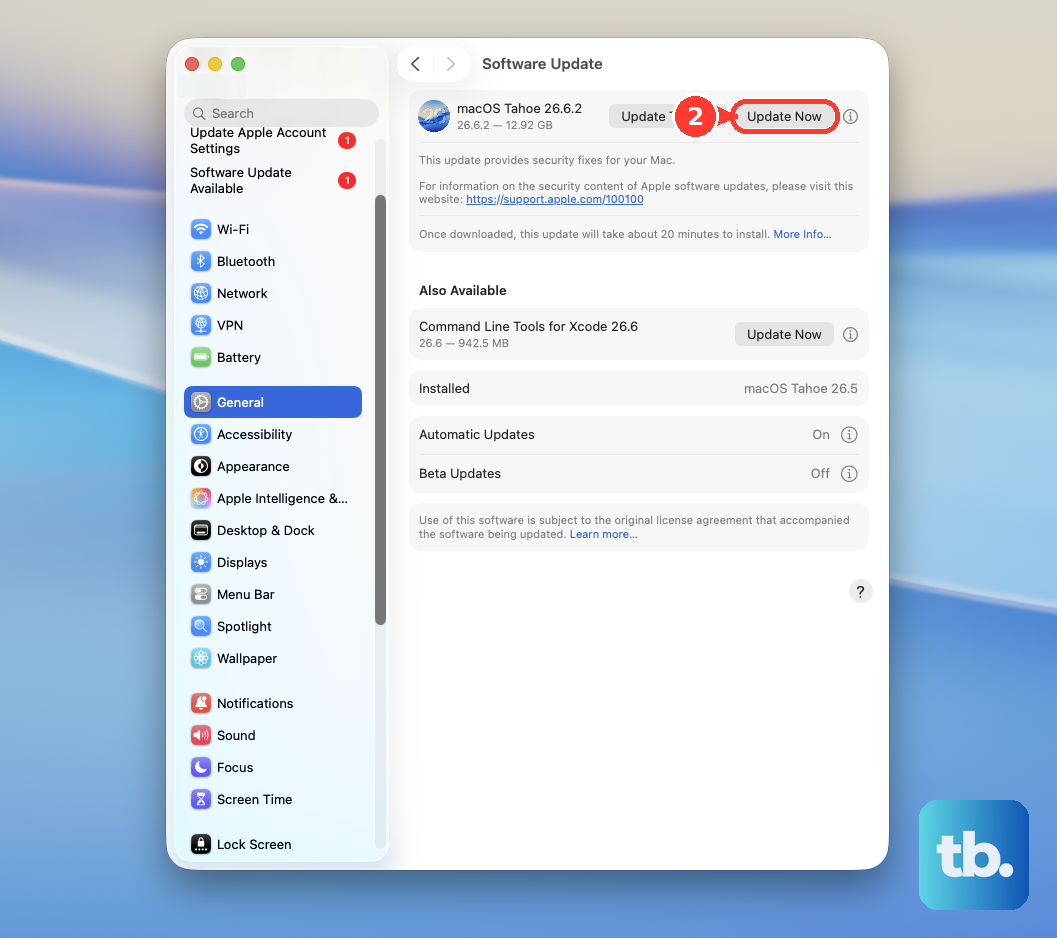
Apple often releases patches that address specific hardware and software compatibility issues, which can include audio problems on new chipset generations like the M5 Max.
Check for Sound Enhancements
In System Settings > Sound, there's an option for "Sound Enhancements." I'd recommend turning this setting off temporarily to test. Sometimes these software processing features can interfere with audio playback on certain apps or files.
You can always turn it back on later if you prefer the effect and it's working correctly.
Create a New User Account to Test
If sound works in a new user account, the problem is isolated to your main user's settings or login items. Go to System Settings > Users & Groups, click the Add Account button, and set up a "Standard" user for testing.
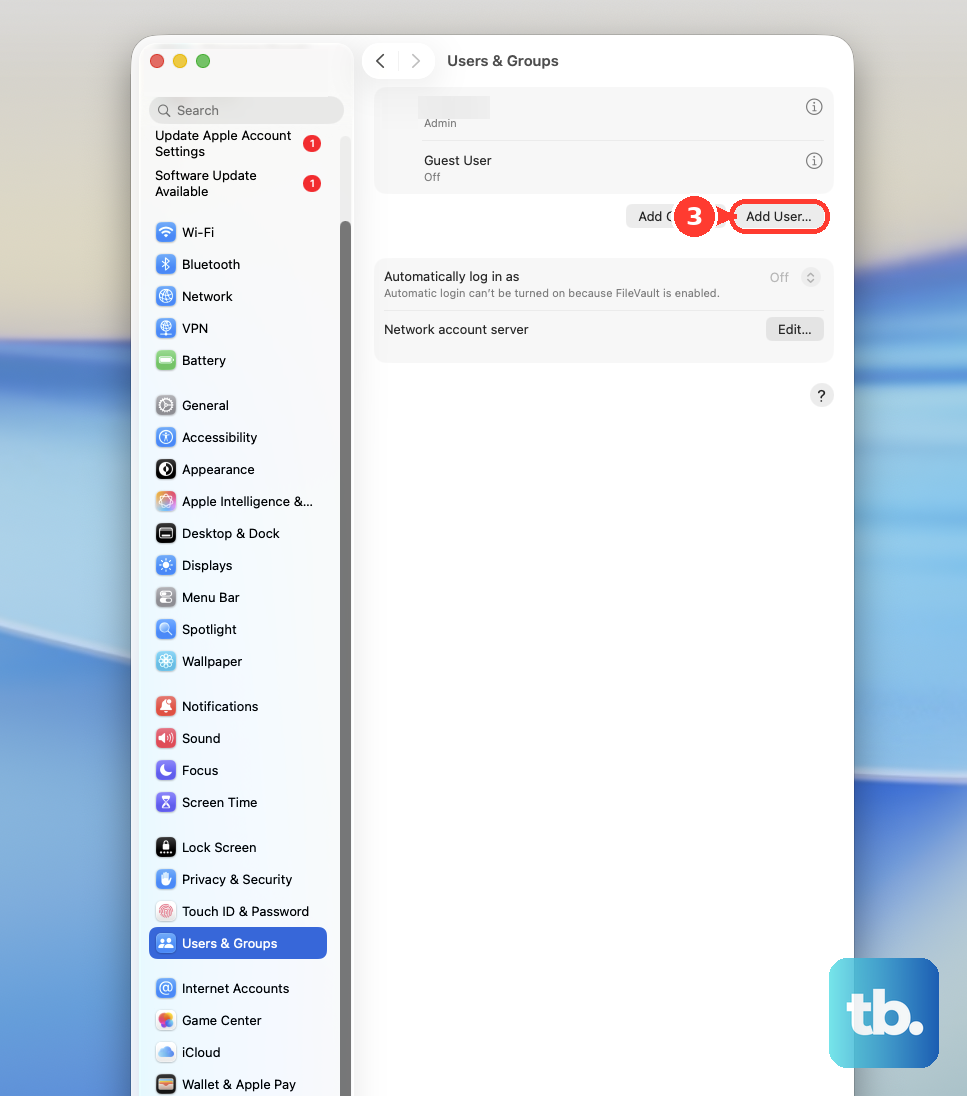
Log into the new account and try playing audio. If it works, you know the issue is with a corrupted preference file or a startup item in your original account.