
When your AirPods won't connect to your MacBook Pro, it cuts you off from your favorite way to listen. Whether they show up but won't pair, or they've disappeared from the list entirely, getting them working again is usually straightforward.
It helps to confirm what actually works before changing settings. Run a headphone test, note which channels and frequencies play correctly, and match the result against the steps below.
Toggle Bluetooth Off and On
Click the Bluetooth icon in your Mac's menu bar and choose "Turn Bluetooth Off." Wait about ten seconds, then turn it back on. If you don't see the menu bar icon, you can find the toggle in System Settings > Bluetooth.
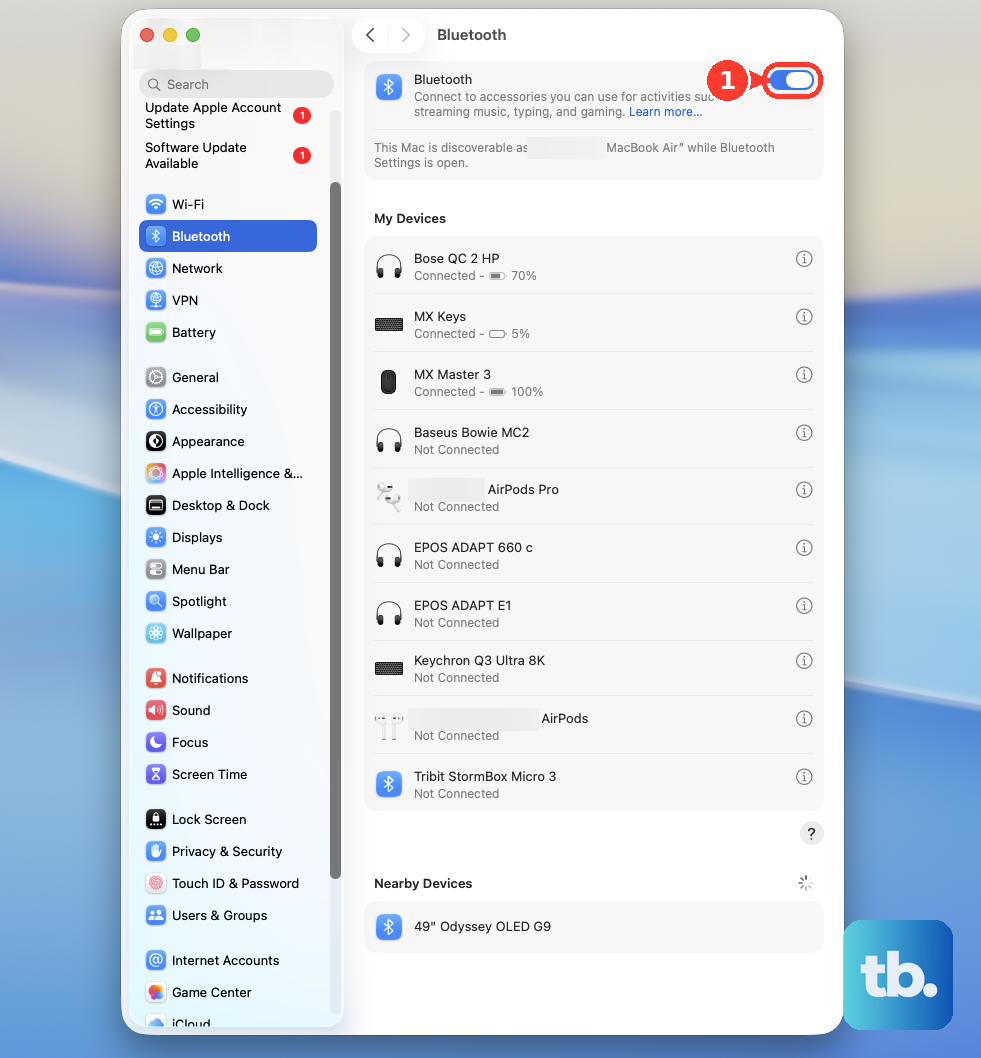
This is the digital equivalent of unplugging something and plugging it back in. It forces the Bluetooth controller to reinitialize, which can clear up a temporary glitch preventing the handshake with your AirPods.
Restart Your MacBook Pro
Go to the Apple menu > Restart. A full restart is more thorough than just toggling Bluetooth. It reloads the entire Bluetooth stack and all related system processes from scratch.
I'd start with this one if the simple toggle didn't work. It's the most effective single step for clearing out corrupted connection states that can block a successful pairing.
Forget and Re-Pair Your AirPods
Open System Settings > Bluetooth. Find your AirPods in the list of devices, click the i (info) button next to them, and select Forget This Device. Confirm your choice.
Now, with your AirPods in their case and the lid open, put them back into pairing mode. On your Mac, click "Connect" next to them in the Bluetooth list. This creates a fresh, clean pairing profile, which often solves persistent connection problems.
Reset the Bluetooth Module
Hold down the Shift and Option keys on your keyboard, then click the Bluetooth icon in the menu bar. A new debug menu will appear. From that menu, select Reset the Bluetooth module.
This performs a deeper hardware-level reset than the standard toggle. Your Mac will restart automatically afterward. You won't lose your paired devices, but you may need to manually reconnect some of them.
Check for Software Updates
Navigate to System Settings > General > Software Update. Apple frequently releases macOS updates that include fixes for Bluetooth connectivity and compatibility. Since you're on macOS 26 Tahoe, make sure you have the very latest version installed.
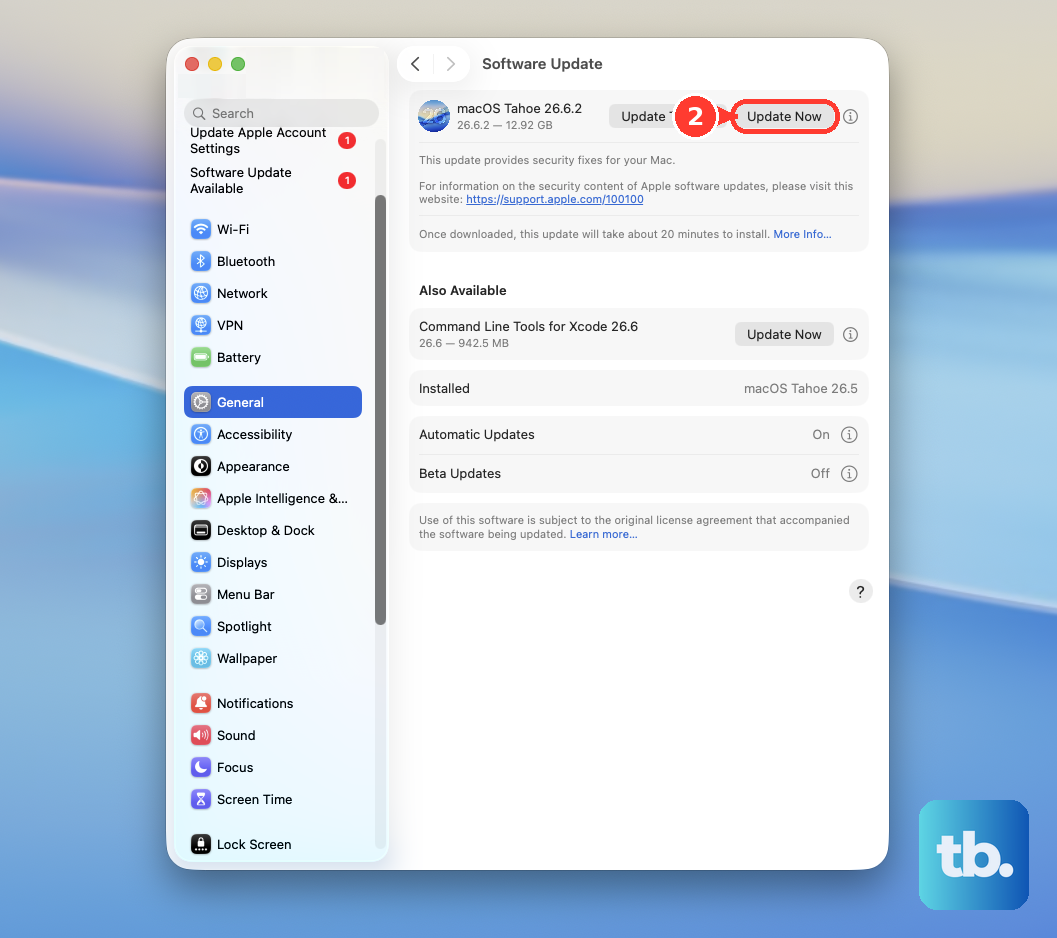
These updates can contain crucial drivers for the wireless hardware in your M5 Max MacBook Pro, so this is an important step if you've been putting off an update.
Check for Wireless Interference
Your MacBook Pro's environment can play a big role. USB 3.0 hubs and devices are notorious for causing Bluetooth interference on the 2.4GHz band. Try unplugging any non-essential USB devices, especially external drives or hubs.
Also, try moving away from other strong wireless sources like routers, microwaves, or even dense clusters of other Bluetooth devices. A cleaner wireless environment can make all the difference.
Delete Bluetooth Preference Files
If the issue is really stubborn, corrupted system files might be the cause. Open a Finder window, press Command + Shift + G, and type /Library/Preferences/ into the box that appears.
Look for a file named com.apple.Bluetooth.plist and move it to the Trash. You will need to restart your Mac. macOS will generate a new, clean version of this file when it boots up. Be aware, you will have to re-pair all your Bluetooth devices after this.
Boot Into Safe Mode
Shut down your MacBook Pro. Press and hold the power button until you see "Loading startup options." Select your main drive, then press and hold the Shift key and click "Continue in Safe Mode."
Safe Mode loads only essential Apple software. If your AirPods connect perfectly here, the problem is likely caused by a third-party app or login item interfering with Bluetooth. You can then start up normally and troubleshoot by disabling recent installations.
Reset the SMC and NVRAM (For Intel-specific issues, but good for M-series power cycle)
For Apple Silicon Macs like your M5 Max, the traditional SMC reset doesn't apply. Instead, a full power cycle can help. Shut down your MacBook Pro, unplug all cables (including power), and wait for about 30 seconds.
Press and hold the power button for a full 10 seconds, then release. Plug the power back in and turn on your Mac. This can help clear any low-level power state issues that might be affecting the wireless components.