
When your MacBook Pro 14-inch M5 won't connect to WiFi, drops the connection frequently, or shows "No Internet Connection" despite being connected, it can grind your work to a halt. The fixes below are specific to macOS and the M5 chip architecture.
I'd start with the simplest solution first. Click the WiFi icon in the menu bar at the top of your screen and toggle it off. Wait a solid ten seconds, then turn it back on. This forces the wireless hardware to reinitialize, which often clears up temporary glitches.
Restart Your MacBook Pro
Click the Apple menu in the top-left corner and select Restart. A full reboot reloads the WiFi driver and clears any cached network states that might be causing trouble. It's a classic fix for a reason, and it works on the M5 models just as well as older ones.
Forget and Rejoin Your Network
Go to System Settings and select WiFi. Click the small i icon next to the network name you're trying to use. At the bottom of the details panel, click Forget This Network and confirm.
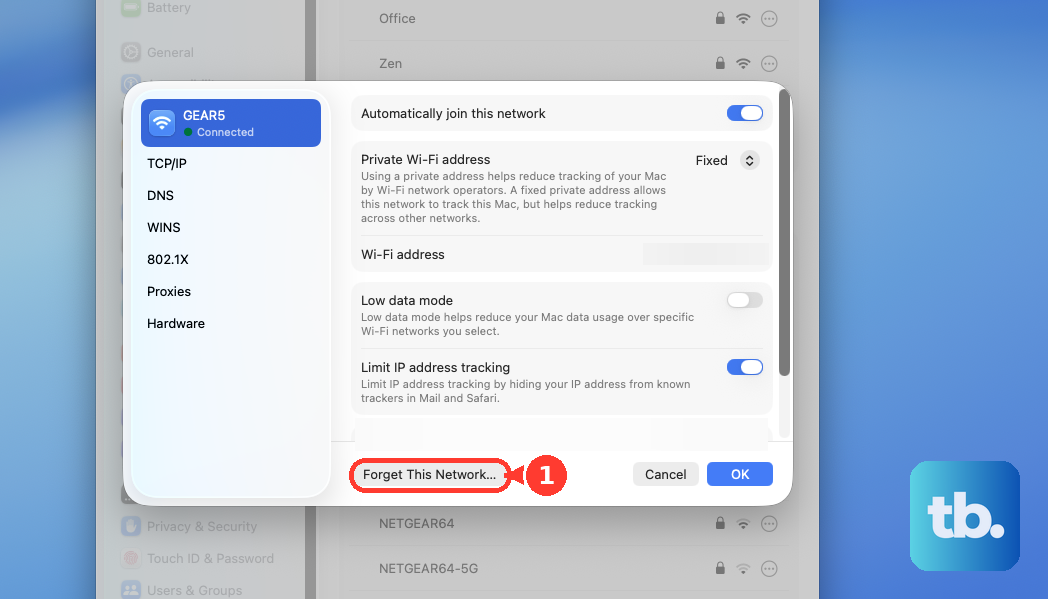
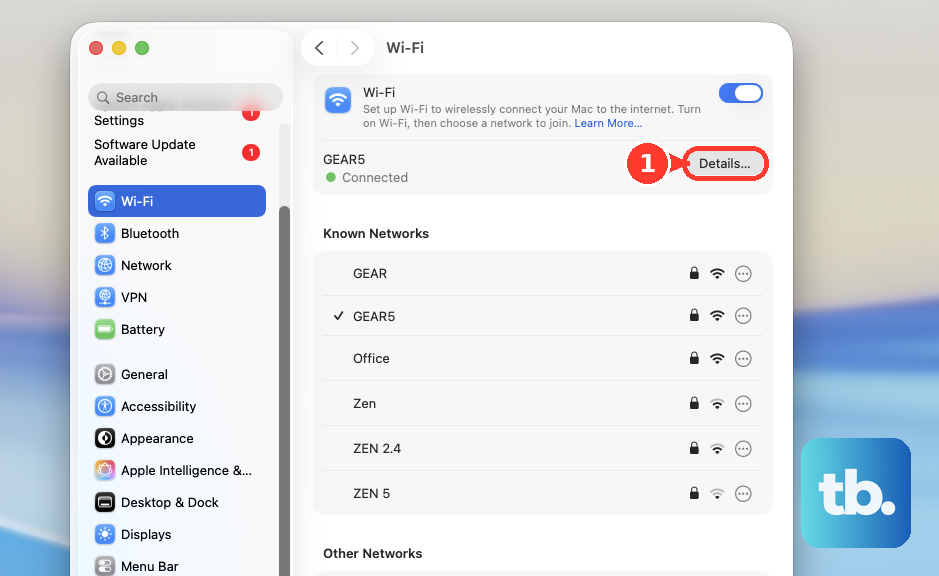
Now, select the same network from the list again and enter the password to rejoin. This creates a brand new connection profile, which can resolve authentication or configuration errors that were preventing a stable link.
Renew Your DHCP Lease
If you're connected to WiFi but have no internet, this is a great next step. In System Settings > WiFi, click the Details button next to your connected network. Navigate to the TCP/IP tab.
Here, you'll see a button labeled Renew DHCP Lease. Click it. This asks your router for a fresh IP address, which can clear up conflicts or stale data causing the "connected, no internet" problem.
Change Your DNS Servers
Sometimes the WiFi is fine, but the Domain Name System servers your Mac is using are slow or down. In the same WiFi Details window, go to the DNS tab. Remove any existing DNS server addresses listed.
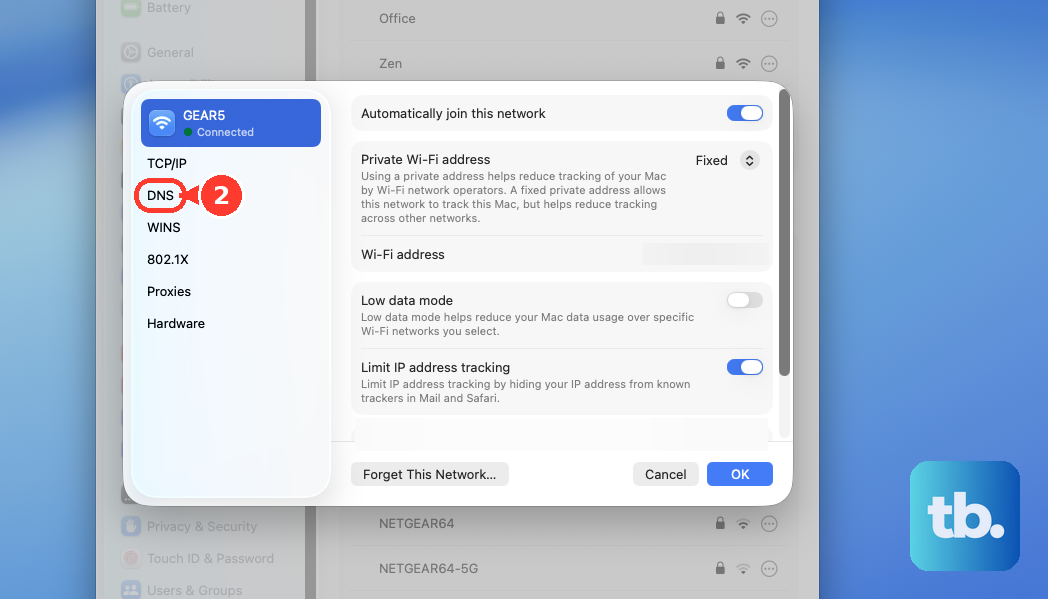
Click the plus (+) button to add new ones. Reliable public options are 8.8.8.8 and 8.8.4.4 for Google DNS, or 1.1.1.1 for Cloudflare. This change can make websites load instantly when they previously timed out.
Delete Network Configuration Files
Corrupted system preferences can cause persistent issues. Open a new Finder window, press Command + Shift + G, and type this exact path: /Library/Preferences/SystemConfiguration/.
Look for these three files: NetworkInterfaces.plist, com.apple.wifi.message-tracer.plist, and preferences.plist. Move them to the Trash. You'll need to enter your administrator password. Restart your MacBook Pro immediately after. macOS will generate clean versions of these files on startup.
Check for macOS Updates
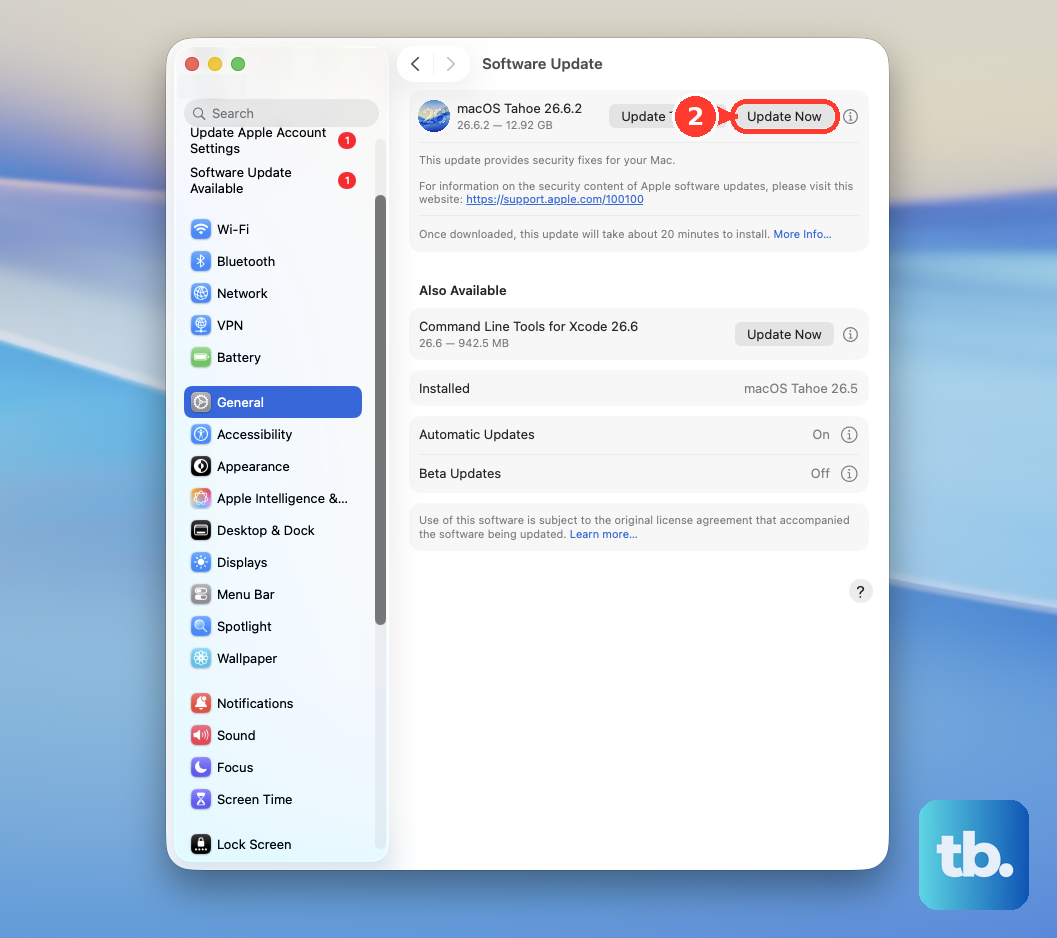
Apple frequently releases updates that include fixes for wireless connectivity. Go to System Settings > General > Software Update. If an update is available, install it. This is especially important for a new OS like macOS Tahoe, where early bugs are still being patched.
Inspect Your WiFi Signal
Hold down the Option key on your keyboard and click the WiFi icon in the menu bar. A dropdown menu will appear with technical details. Look for the RSSI value, which indicates signal strength.
A number closer to 0 is stronger. If you see a value below -70 dBm, your signal is weak. Try moving closer to your router. The metal chassis of the MacBook Pro can also slightly impact reception depending on its orientation.
Create a New Network Location
This is a nuclear option for network settings that often works when others fail. Go to System Settings > Network. Click the three-dot menu button next to the network services list and select Locations > Edit Locations.
Click the plus (+) icon to add a new location, give it a name like "Fresh Start," and click Done. Finally, use the same three-dot menu to switch to your new location. This loads a completely blank slate for all network interfaces.
If you've tried all these steps and the issue persists, you can run Apple Diagnostics. Shut down your MacBook Pro, turn it on, and immediately press and hold the power button until you see the startup options screen. Then press Command + D to begin hardware testing, which includes checks for the WiFi module.