
A MacBook Pro with an M5 Pro chip should feel fast, but sometimes it doesn't. If your 14-inch model is lagging when opening apps, stuttering during video playback, or just generally feeling sluggish, there are a few things you can check.
I'd start with the simplest fix first. Click the Apple menu in the top-left corner and choose Restart. If you've been closing the lid for weeks without a full reboot, a restart clears out memory leaks and resets all the system processes.
See What's Using Your Resources
Open Activity Monitor from your Applications > Utilities folder. Click the CPU tab and sort by "% CPU" to see what's working the hardest. Look for any single process using a very high percentage.
Also, check the Memory tab. Your M5 Pro has unified memory, and if the "Memory Pressure" graph is yellow or red, your Mac is struggling. You can quit problematic apps directly from here by selecting them and clicking the stop button.
Make Sure You Have Enough Free Space
Go to Apple menu > About This Mac > More Info > Storage Settings. macOS needs breathing room on your SSD to manage files and memory efficiently. Aim to keep at least 15-20% of your drive free for optimal performance.
The storage settings panel can help you quickly review and delete large files, old downloads, and unused applications. Enabling Optimize Mac Storage can also automatically move older files you don't often use to iCloud.
Stop Apps from Launching at Startup
Too many apps launching when you log in can slow down your boot time and drain resources. Open System Settings and go to General > Login Items.
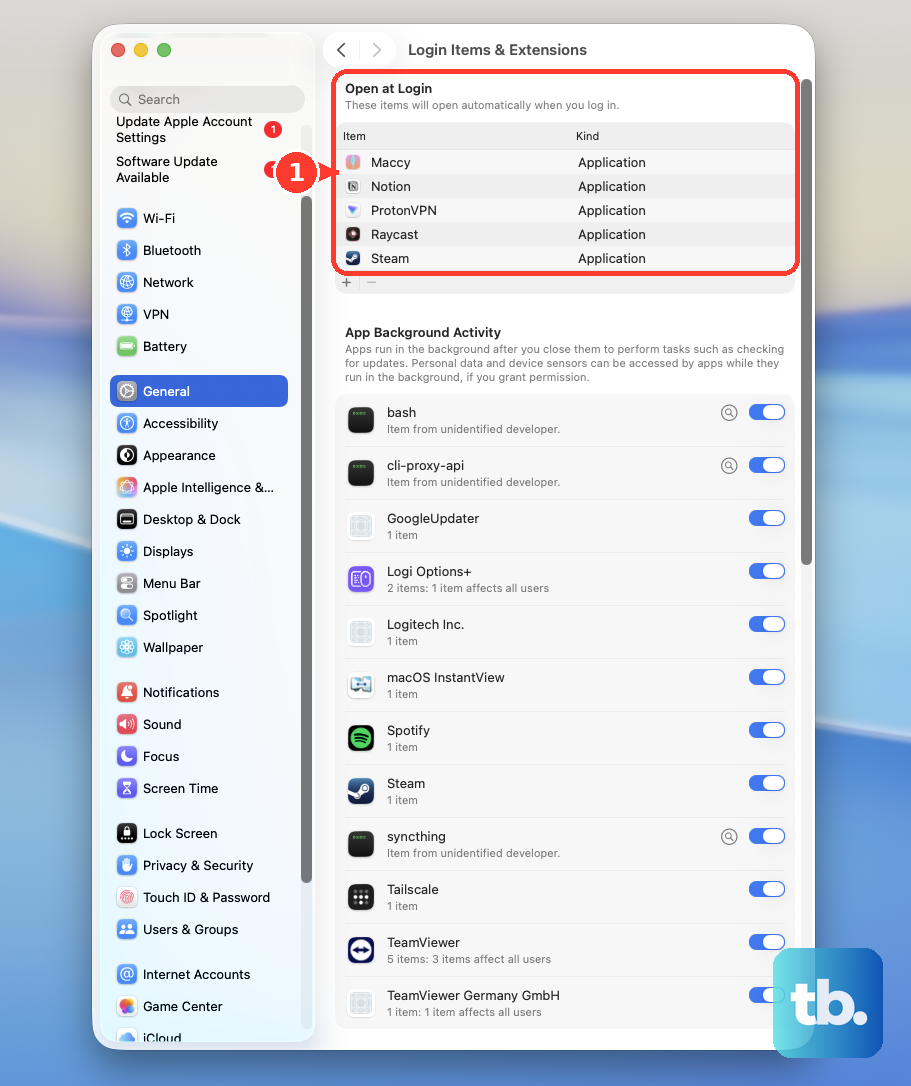
Review the list under "Open at Login." For any app you don't need immediately upon starting your Mac, select it and click the minus (-) button to remove it. You can always open these apps manually later.
Install the Latest macOS Updates
Apple frequently releases updates that include performance improvements and bug fixes. Go to System Settings > General > Software Update to check for and install any available updates for macOS 26 Tahoe.
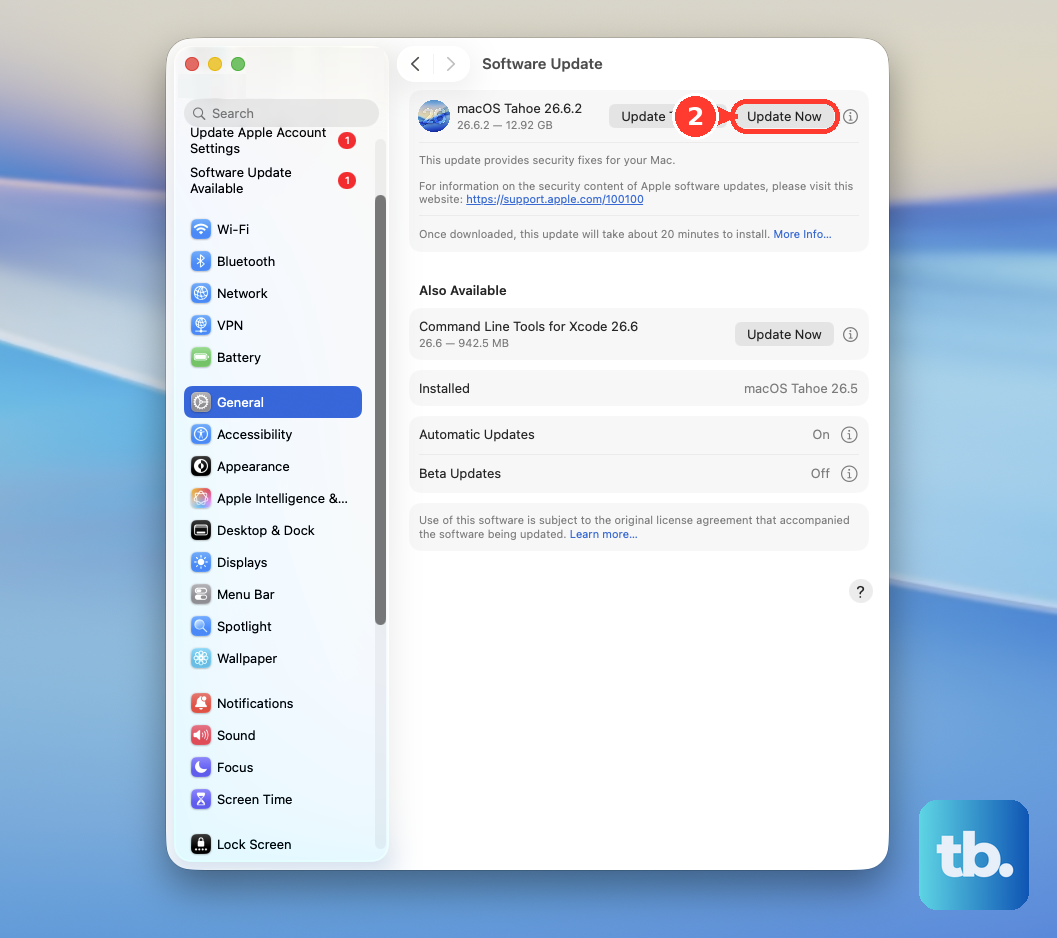
This is especially important for a new chip like the M5 Pro, as early software updates often contain crucial optimizations that can resolve slowdowns.
Manage Your Browser's Demands
Web browsers are common culprits. Each open tab, especially ones with video or complex web apps, uses RAM and CPU. If you have dozens of tabs open, try closing the ones you aren't using.
You can also check your browser's built-in task manager (on Mac, open Chrome's Task Manager from the Window menu) to see which specific tab or extension is using excessive resources and close it from there.
Adjust a Few Visual Settings
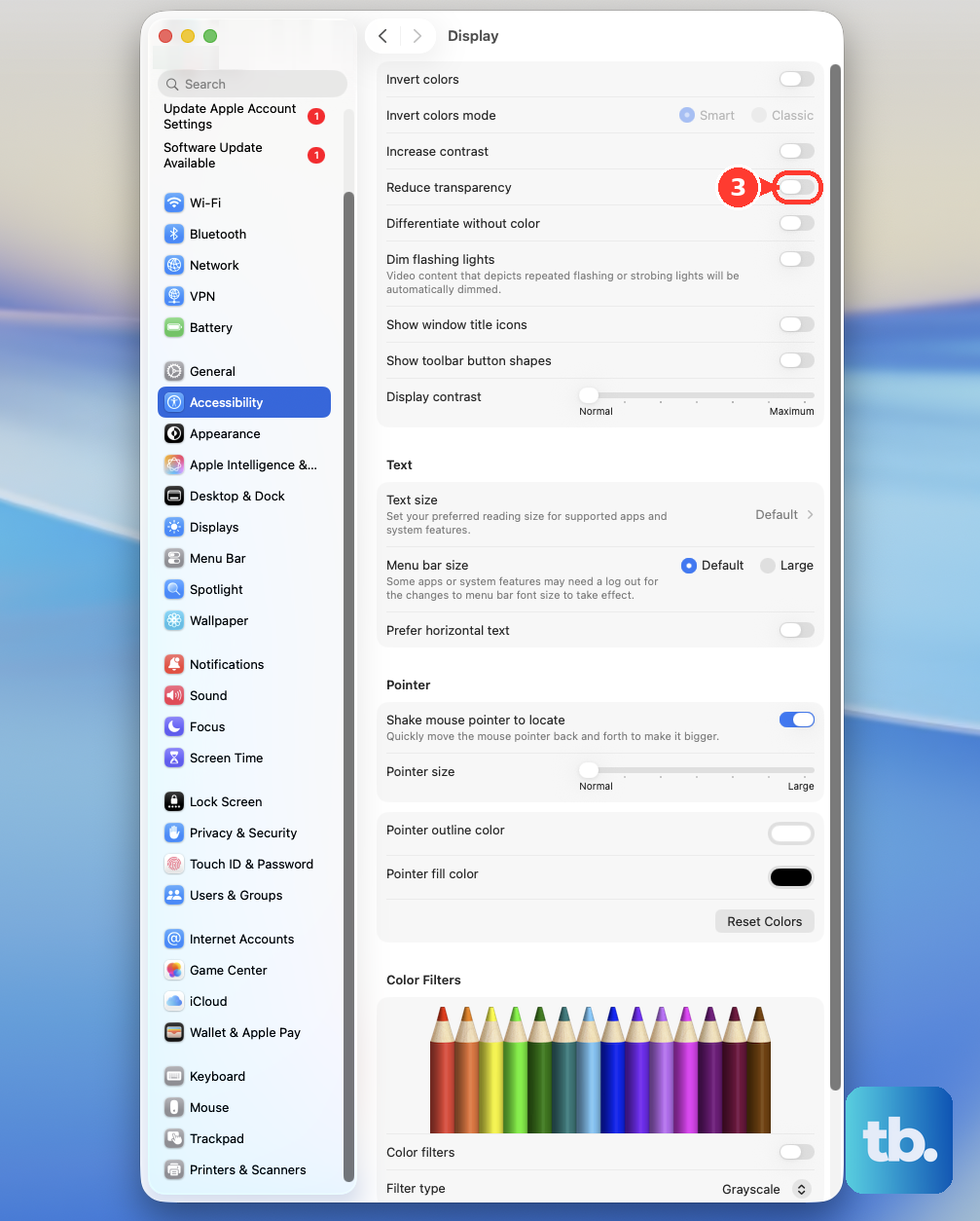
Some visual effects, while nice, use GPU power. You can tone them down in System Settings > Accessibility > Display.
Turn on Reduce motion to minimize desktop and window animations. Enabling Reduce transparency makes menus and toolbars solid, which can also give a slight performance boost and make text easier to read.
Check for Background Indexing
After a major update or if you've just added a lot of new files, Spotlight might be re-indexing your drive. This can cause temporary slowdowns. You'll see processes named "mds" or "mdworker" in Activity Monitor.
It's best to let this process finish, which could take a few hours. If it seems stuck, you can try rebuilding the index by adding your entire drive to the privacy list in System Settings > Spotlight > Privacy, waiting a minute, and then removing it.
Consider Your Workflow and Accessories
The M5 Pro is powerful, but sustained, heavy workloads like 3D rendering or compiling large codebases will use a lot of power and generate heat. This is normal, but ensure your Mac has good ventilation and isn't sitting on a soft surface like a bed or pillow.
Also, if you're using a Thunderbolt 5 dock or an external monitor via HDMI, try disconnecting them to see if the slowdown stops. Some early compatibility issues with docks and certain monitors can cause system instability.
For a deeper hardware check, you can run Apple Diagnostics. Shut down your Mac, then turn it on and immediately press and hold the power button until you see the startup options window. Press and hold Command (⌘) + D to start the test.