
When your MacBook Pro 14-inch M5 Pro starts running hot, you'll hear the fans ramp up and might notice the performance dipping as the system throttles to protect itself. It's a common issue, especially under heavy workloads, but there are several straightforward things you can do to cool it down.
Identify the Culprit in Activity Monitor
Your first stop should be Activity Monitor. Open it from your Utilities folder and click on the CPU tab. Click the "% CPU" column header to sort processes by how much of your processor they're using.
Look for any single app or process using an unusually high percentage. This is almost always the source of the heat. Common offenders include web browsers with many tabs, video editing software, or 3D rendering applications. You can select the process and click the stop (X) button to force quit it.
Manage Your Workload and Apps
The M5 Pro chip is powerful, but sustained pro workloads like video encoding, complex code compilation, or running multiple virtual machines will generate heat. This is expected behavior under heavy load.
If you're pushing the system, try to close any applications you aren't actively using. For tasks like video editing, consider rendering during a time when you can step away and let the fans do their job without disturbance.
Update to the Latest macOS
Software bugs can sometimes cause unnecessary CPU activity. Head to System Settings > General > Software Update to check for any available updates.
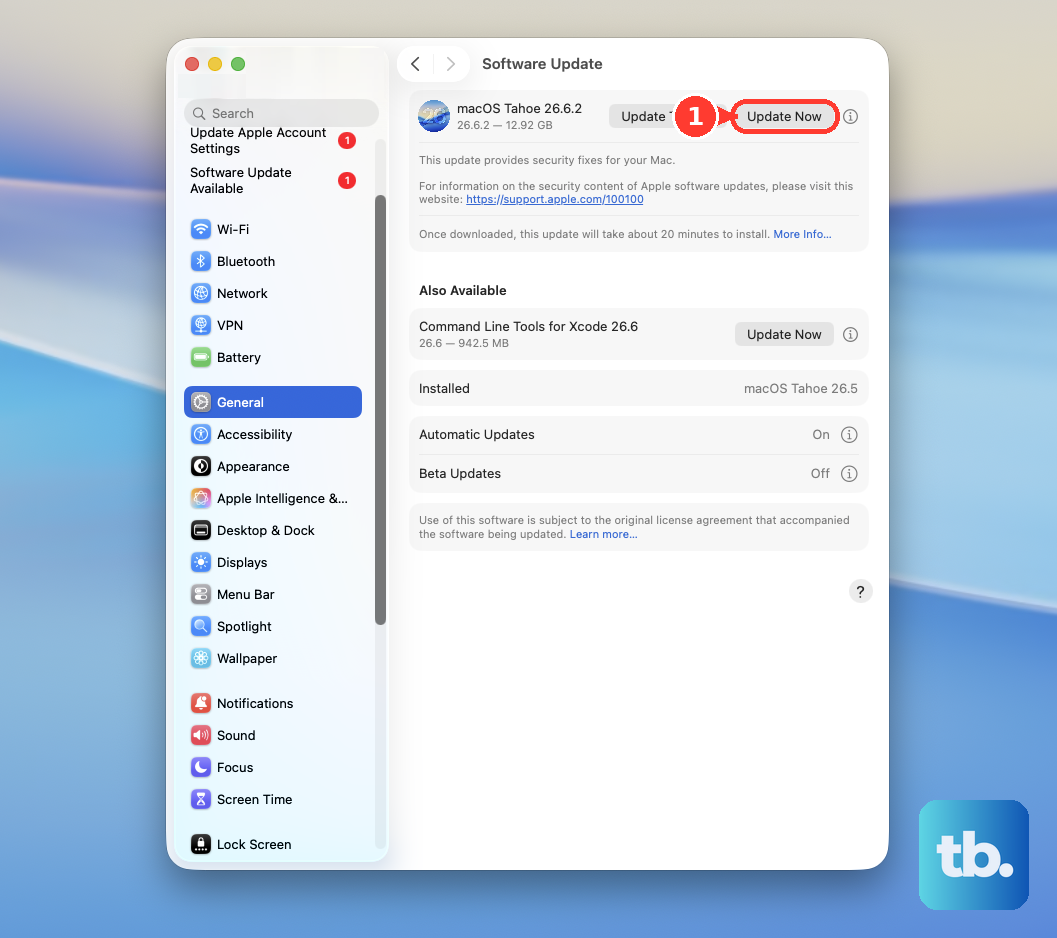
Apple frequently releases updates that include performance optimizations and thermal management improvements for specific Mac models. Ensuring you're on the latest version of macOS 26 Tahoe is a simple but effective step.
Give It Some Breathing Room
The MacBook Pro's cooling system pulls air in from the bottom and vents it out the back near the hinge. Using it on a soft surface like a bed, blanket, or your lap can block these vents completely.
Always place it on a hard, flat surface. I've found that even slightly elevating the back of the laptop with a stand or a book can significantly improve airflow and reduce temperatures.
Let Apple Silicon Manage Itself
For Macs with Apple Silicon chips like your M5 Pro, there's no separate SMC to reset. The thermal and power management is integrated directly into the macOS.
A simple restart can resolve many temporary software glitches that might be affecting fan control or power distribution. Just shut down your MacBook Pro completely, wait a moment, and turn it back on.
Clear Out Dust Buildup
Over time, dust can accumulate in the vents and internal heatsinks, acting as an insulator. If your workspace is dusty, this can contribute to higher operating temperatures.
Carefully use a can of compressed air to blow out the vents along the rear hinge. Hold the laptop at an angle and use short bursts to dislodge any dust without pushing it further inside.
Adjust Display and Peripheral Settings
The mini-LED display is brilliant but can generate heat, especially at full brightness. Lowering the screen brightness to a comfortable level is one of the quickest ways to reduce thermal output.
Also, if you're using multiple external displays via Thunderbolt 5 or HDMI 2.1, know that driving several high-resolution monitors adds to the GPU workload. Disconnecting displays you don't currently need can help.
Run Apple Diagnostics
If the overheating seems sudden or unrelated to your workload, it's worth checking for underlying hardware issues. Shut down your MacBook Pro, then turn it on and immediately press and hold the Power button.
Keep holding until you see the startup options window, then release. Press and hold Command (⌘) + D on your keyboard to start Apple Diagnostics. This built-in tool will test your system, including the fans and thermal sensors, for any problems.
Optimize Your Browser and Connections
Google Chrome is notoriously power-hungry on macOS. If you do a lot of web-based work and notice heat, try switching to Safari for a while, as it's much more energy-efficient on Apple hardware.
Also, be aware that some early Thunderbolt 5 docks or certain monitors over HDMI 2.1 can have firmware issues that cause power negotiation problems, potentially leading to extra heat. Try connecting directly to power or using a different monitor port to see if the issue persists.