
When your MacBook Pro 14-inch M5 Pro goes silent, it can be a real roadblock. Whether the built-in speakers, connected headphones, or external monitors have no audio, the issue is almost always a quick settings fix or a minor software hiccup. Let's get your sound back.
A browser based speaker test helps narrow this down fast. If test tones play clearly, the speakers work and the problem lives in an app or setting.
Check the Volume and Mute Key
First, tap the volume up key (F12) on your keyboard. Look at the sound icon in your menu bar to see if the volume slider appears and isn't at the very bottom. If you see a small slash through the speaker icon, your Mac is muted. Click the icon and make sure mute isn't selected.
Sometimes, the physical function keys can be toggled to control other features. Hold the Fn (Globe) key on your keyboard and then press the volume up key to ensure it's sending the correct command to the system.
Select the Correct Output Device
Head to System Settings > Sound > Output. Your M5 Pro MacBook Pro can output sound to its own speakers, any connected headphones, Bluetooth devices, or external displays via HDMI or Thunderbolt.
Make sure "MacBook Pro Speakers" is selected. If you see "HDMI" or the name of a Bluetooth headset you're not using, click on the internal speakers to route audio back correctly. I've seen this happen a lot after disconnecting from a monitor.
Restart Your MacBook Pro
Click the Apple menu > Restart. This is a classic fix for a reason. It reloads the entire audio subsystem and clears out any temporary glitches in the Core Audio process.
If the sound cut out right after your Mac woke from sleep or you connected a new Thunderbolt 5 dock, a restart is the first thing I'd try. It resolves the issue more often than not.
Reset the Core Audio Daemon
You can restart just the audio service without a full reboot. Open Terminal from your Utilities folder or via Spotlight search. Type the command sudo killall coreaudiod and press Return.
Enter your administrator password when prompted (you won't see characters as you type). The command line will come back, and your audio should return within 10-15 seconds as the daemon restarts.
Inspect App-Specific Audio Settings
Check the volume inside the specific app you're using, like Safari for YouTube, QuickTime Player, or music streaming apps. They sometimes have independent volume sliders that can be turned all the way down.
Also, take a quick look in System Settings > Sound > Alerts. While this shouldn't affect media playback, it's good to confirm your alert sound isn't set to a non-existent output device.
Manage Bluetooth and External Audio
If you've ever paired Bluetooth headphones or speakers, your Mac might still be trying to send audio to them. Go to System Settings > Bluetooth, find any audio devices, and click the "Disconnect" button next to them.
For external displays, the HDMI 2.1 port on your MacBook Pro can sometimes have handshake issues that affect audio. Try unplugging the HDMI cable, ensuring sound works on the laptop speakers, then reconnecting it.
Run Apple Diagnostics
Your MacBook Pro 14-inch has a built-in hardware test. Shut down your Mac, then turn it on and immediately press and hold the Power button. Release the button when you see the startup options window.
Press and hold Command (⌘) + D on your keyboard. This will boot into Apple Diagnostics and check for any hardware issues with components like the speakers. Follow the on-screen instructions.
Check for macOS Updates
Audio driver bugs are commonly patched in system updates. Navigate to System Settings > General > Software Update. If an update for macOS 26 Tahoe is available, install it.
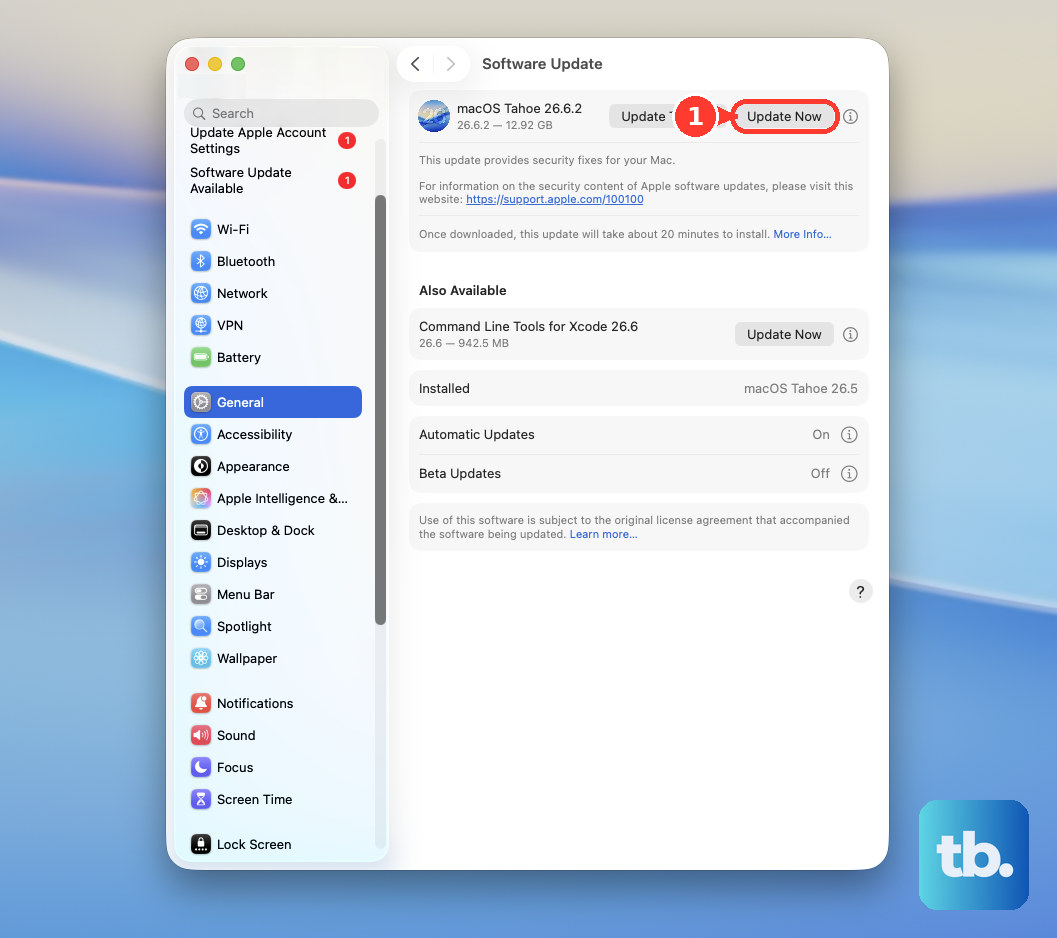
Updates can resolve compatibility issues, especially with new peripherals like specific Thunderbolt 5 docks that might interfere with system audio routing.
Create a New User Account to Test
If sound works in a fresh user account, the problem is isolated to your main user's preferences or a login item. Go to System Settings > Users & Groups, click the "+" to add a new "Standard" user, and log into it.
Test your audio there. If it works, you know the issue is with a corrupted preference file or a background app in your original account. You can then migrate back and start removing recent login items.