
When your MacBook Pro 14-inch M5 gets too hot, the fans can get loud, performance might slow down, and it can feel uncomfortable to use. The M5 chip is powerful, but that power generates heat, especially under heavy loads. Here are the most effective ways to cool it down.
Find What's Using Your CPU
Open Activity Monitor from your Utilities folder and click the CPU tab. Click the "% CPU" column header to sort from highest to lowest. A single app, like a web browser with too many tabs or a video editor, can often be the culprit. If you see a process using a huge percentage, you can select it and click the stop (X) button in the toolbar to force quit it.
Sometimes, a background process like kernel_task will show high usage. This is often the system's response to heat, not the cause. It's throttling other processes to cool the CPU. In that case, the fixes below are your best bet.
Close Unnecessary Apps and Browser Tabs
Apps like Final Cut Pro, Blender, or modern games will push the M5 chip hard. If you're not actively using a heavy app, quit it completely. For web browsing, each tab, especially those playing video or running complex web apps, consumes resources.
Try to keep your browser tab count manageable. I've found that simply closing a dozen unused tabs can make a noticeable difference in fan noise and chassis temperature on my own MacBook Pro.
Update to the Latest macOS
Go to System Settings > General > Software Update. Apple frequently releases updates that improve power management and fix bugs causing excessive CPU usage. Installing the latest version of macOS 26 Tahoe is a good first step.
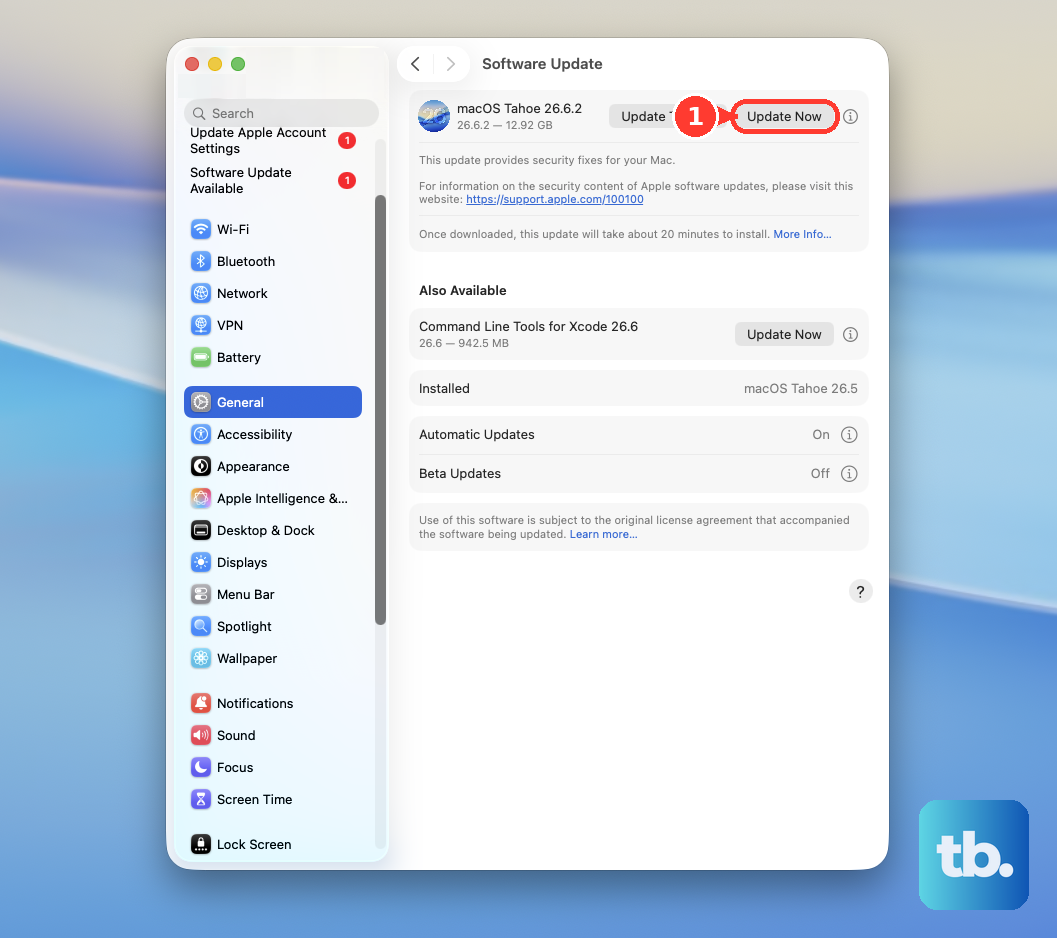
Right after a major update, your Mac may run warm for a few hours as Spotlight reindexes your drive. This is normal. Just let it finish its work while plugged in.
Let Your MacBook Breathe
The vents on the MacBook Pro 14-inch are along the sides and back hinge. Using it on a soft surface like a blanket, pillow, or your lap blocks these vents and traps heat. Always use it on a hard, flat desk or table.
For even better airflow, consider a simple laptop stand that elevates the back. This gives the fans much more room to pull in cool air. Just a little elevation can drop temperatures significantly.
Manage Your Display Settings
The stunning Liquid Retina XDR display is a major source of heat. Lowering the screen brightness is one of the quickest ways to reduce temperature. You don't need it at maximum indoors.
Also, consider temporarily turning off ProMotion (the 120Hz adaptive refresh rate). You can find this in System Settings > Displays, then click the Refresh Rate pop-up menu. While smooth, it can sometimes cause the display controller to work harder with certain content, generating extra heat.
Check for Background Processes
Some apps run background services even when they're closed. Check the menu bar for any apps you don't recognize. Also, look in System Settings > General > Login Items for applications that launch at startup and run in the background.
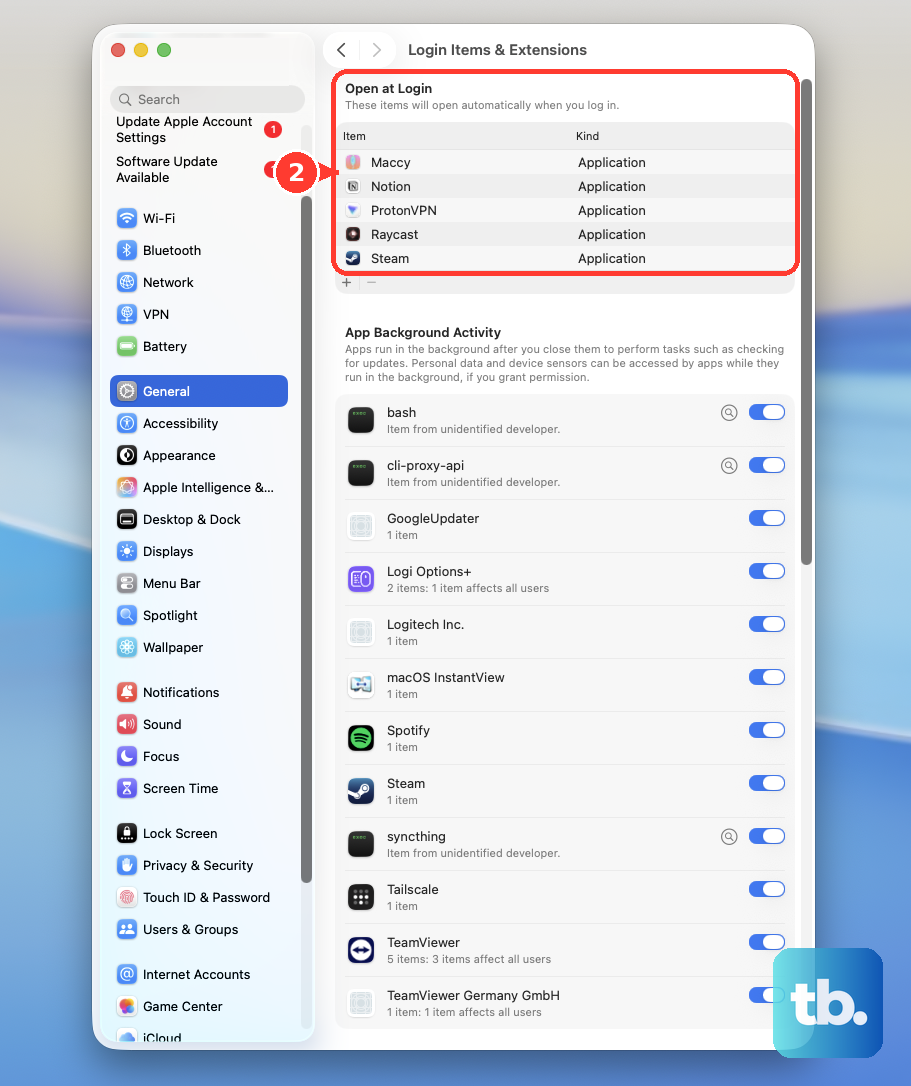
Disable any non-essential login items. This prevents them from automatically consuming resources every time you turn on your MacBook.
Try a Different Web Browser
If you spend most of your time in a browser and your Mac is hot, your browser might be the reason. Chrome, while popular, is notorious for high CPU and energy use on Macs.
Safari is deeply optimized for Apple Silicon and is generally much more efficient. Switching to Safari for everyday browsing can lead to a cooler laptop and longer battery life. It's a simple swap that often works.
Reset the Thermal Management System
For Apple Silicon Macs like your M5 model, a full shutdown and restart can clear out any temporary software glitches affecting the thermal management. It's the equivalent of the old SMC reset for Intel Macs.
First, save all your work. Then, choose Apple menu > Shut Down. Wait a full 30 seconds, then press the power button to turn it back on. This gives the system a clean slate.
Run Apple Diagnostics
If the overheating is sudden and severe, and none of the software fixes help, it's worth checking for a hardware issue. Shut down your MacBook Pro, then turn it on and immediately press and hold the power button.
Keep holding until you see the startup options window. Press and hold Command (⌘) + D on your keyboard. This will boot into Apple Diagnostics, which will test your system, including the fans and thermal sensors, for problems.