
When Bluetooth stops working on your MacBook Pro 14-inch M5, your wireless accessories and audio gear become useless. Whether your Magic Mouse won't connect, your AirPods won't pair, or connections keep dropping, these steps will get you reconnected.
Start with the simplest fix. Click the Bluetooth icon in your menu bar and turn it off. Wait about ten seconds, then turn it back on. If you don't see the icon, you can find the toggle in System Settings > Bluetooth.
Restart Your MacBook Pro
Click the Apple menu in the top-left corner and select Restart. This single step reloads the Bluetooth stack and clears out any temporary software glitches that are blocking connections. I've seen this resolve more Bluetooth issues than any other quick fix.
Forget and Re-Pair the Device
Head to System Settings > Bluetooth. Find the troublesome device in your list and click the information i button next to it. Choose Forget This Device and confirm. Now, put your accessory back into pairing mode and reconnect it from scratch. Corrupted pairing data is a very common culprit.
Reset the Bluetooth Module
Hold down the Shift and Option keys on your keyboard, then click the Bluetooth icon in the menu bar. A hidden debug menu will appear. Select Reset the Bluetooth module from the list. This performs a deep reset of the Bluetooth hardware. Your Mac will restart automatically to complete the process.
Delete Bluetooth System Preferences
Open a new Finder window and press Command + Shift + G. Type /Library/Preferences/ into the box and press Go. Look for the file named com.apple.Bluetooth.plist and move it to the Trash. You'll need to restart your MacBook Pro afterward. macOS will generate a fresh preferences file, but you will have to re-pair all of your Bluetooth devices.
Check for Wireless Interference
USB 3.0 hubs and devices can emit radio frequency interference that disrupts the 2.4GHz band Bluetooth uses. Try unplugging any USB-C hubs or external drives to see if the connection improves. Also, move away from other strong wireless sources like routers, microwaves, or dense clusters of other Bluetooth devices.
Update macOS
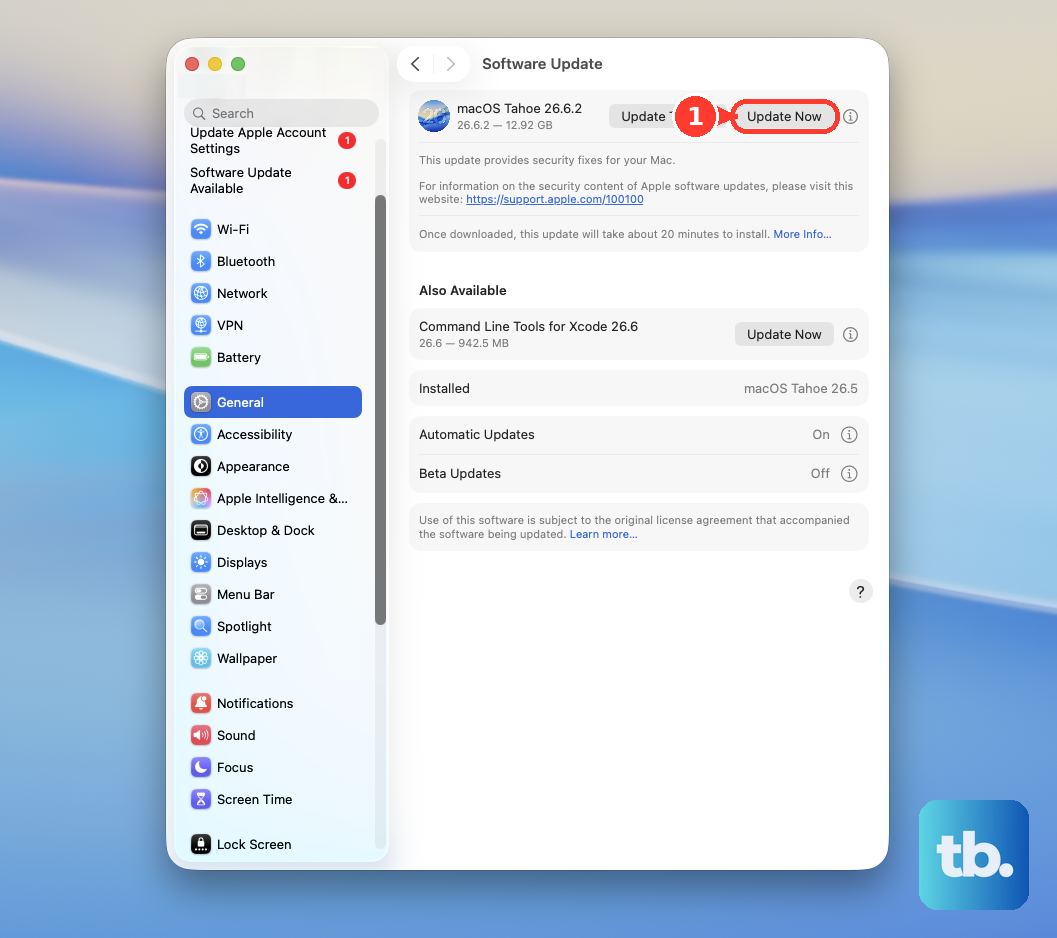
Apple frequently releases updates with driver improvements. Go to System Settings > General > Software Update to check for and install any available updates. If you're running macOS 26 Tahoe, make sure you have the latest version, as it includes Bluetooth optimizations for Apple Silicon chips like your M5.
Check Your Accessory's Battery
A low battery in your wireless mouse, keyboard, or headphones can cause erratic behavior. The battery level for many compatible devices is shown right in System Settings > Bluetooth, next to the device name. If it's low, charge it up or replace the batteries before trying to connect again.
Boot Into Safe Mode
Shut down your MacBook Pro. Press and hold the power button until you see "Loading startup options." Select your main drive, then press and hold the Shift key and click Continue in Safe Mode. If Bluetooth works normally here, the issue is being caused by a third-party login item, app, or system extension loading during a normal boot.
If you're still having trouble, you can run Apple Diagnostics to check for hardware issues. Shut down your Mac, then turn it on while immediately pressing and holding the D key. Follow the on-screen instructions. For persistent app-related problems, remember you can force quit any application by pressing Option + Command + Esc.