
When your MacBook Pro 14-inch M5 seems to be losing its charge way too quickly, it can feel like you're constantly tethered to the wall. The good news is, there are several specific checks and adjustments you can make to get your battery life back on track.
Check Battery Health and Cycle Count
Start by clicking the Apple menu > System Settings > Battery. Look for the Battery Health section. If it says "Service Recommended," the battery has degraded significantly and likely needs replacement. For a more detailed look, go to Apple menu > About This Mac > More Info > System Report > Hardware > Power. Here you can see the exact cycle count and condition.
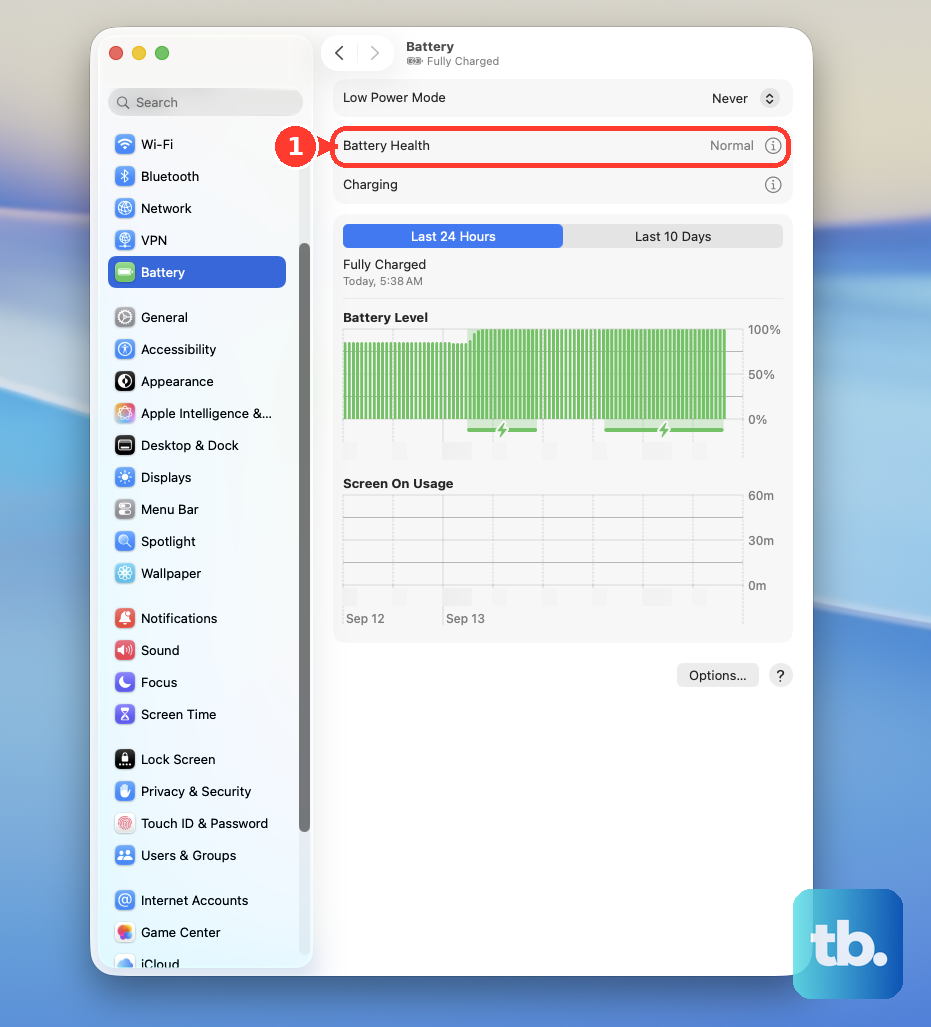
Apple's M-series batteries are designed to retain 80% of their original capacity at 1000 cycles. If you're well below that cycle count but still seeing poor performance, the issue is probably software-related.
Use Activity Monitor to Find Energy Hogs
Open Activity Monitor from your Utilities folder and click the Energy tab. This is your mission control for battery drain. Sort the list by "Energy Impact" to see which apps are using the most power right now.
Pay special attention to the "Preventing Sleep" column. Any app marked "Yes" is actively keeping your Mac awake, which is a major drain. I'd quit any high-impact apps you aren't actively using, especially if they're preventing sleep.
Adjust Display and ProMotion Settings
The stunning Liquid Retina XDR display is a significant power draw. Lowering the brightness with the keyboard keys can make an immediate difference. You can also head to System Settings > Displays to fine-tune it.
For the M5 MacBook Pro, consider your ProMotion settings. Go to System Settings > Displays > Advanced. You can change the refresh rate from "ProMotion" to a fixed 60Hz. This can save a noticeable amount of battery, though you'll lose the buttery-smooth scrolling.
Manage Background App Activity
Many apps continue to run processes even when you've closed their windows. Go to System Settings > General > Login Items & Extensions. Review the "Allow in the Background" list and turn off permissions for apps that don't need to update or sync constantly.
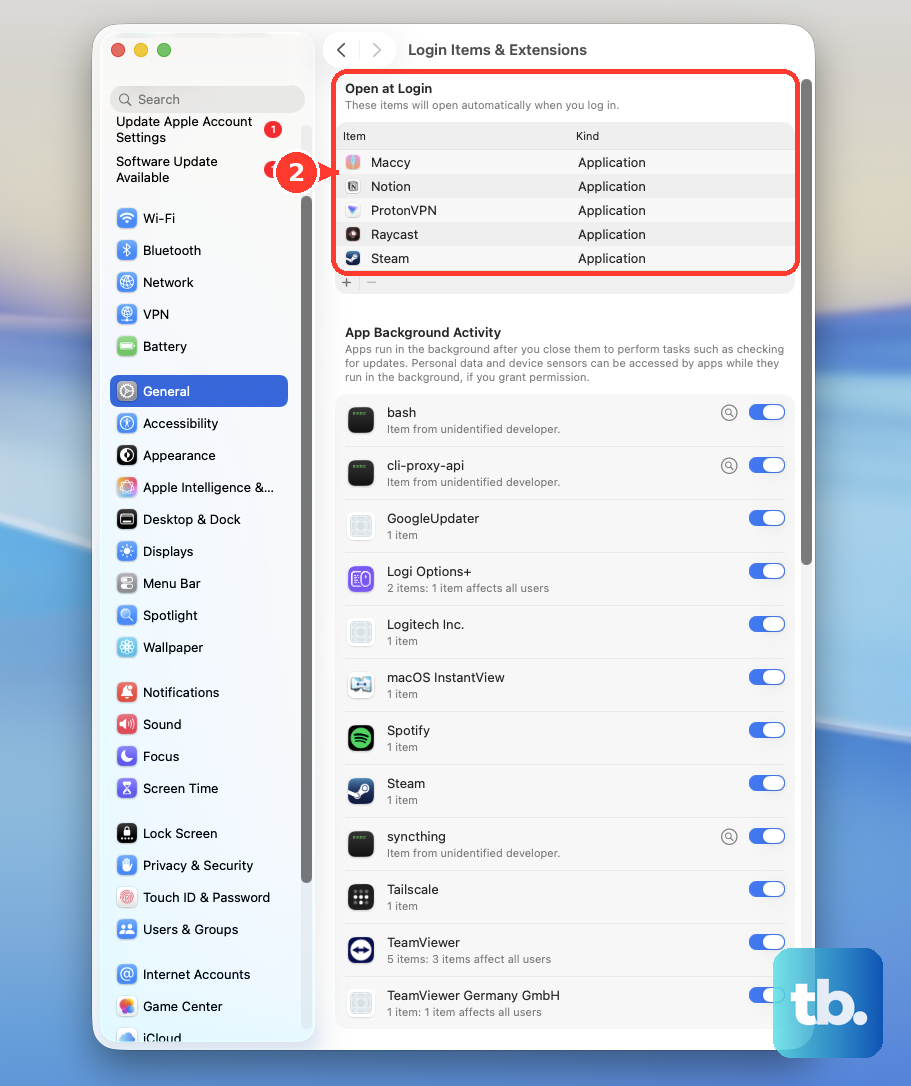
Also, check System Settings > General > Background Items on the right. Disable any items here that you don't need running all the time, like cloud storage sync helpers or menu bar utilities.
Enable Low Power Mode
macOS includes a dedicated Low Power Mode for MacBooks. Go to System Settings > Battery and click on the "Low Power Mode" option. You can choose to turn it on only when on battery power, or always.
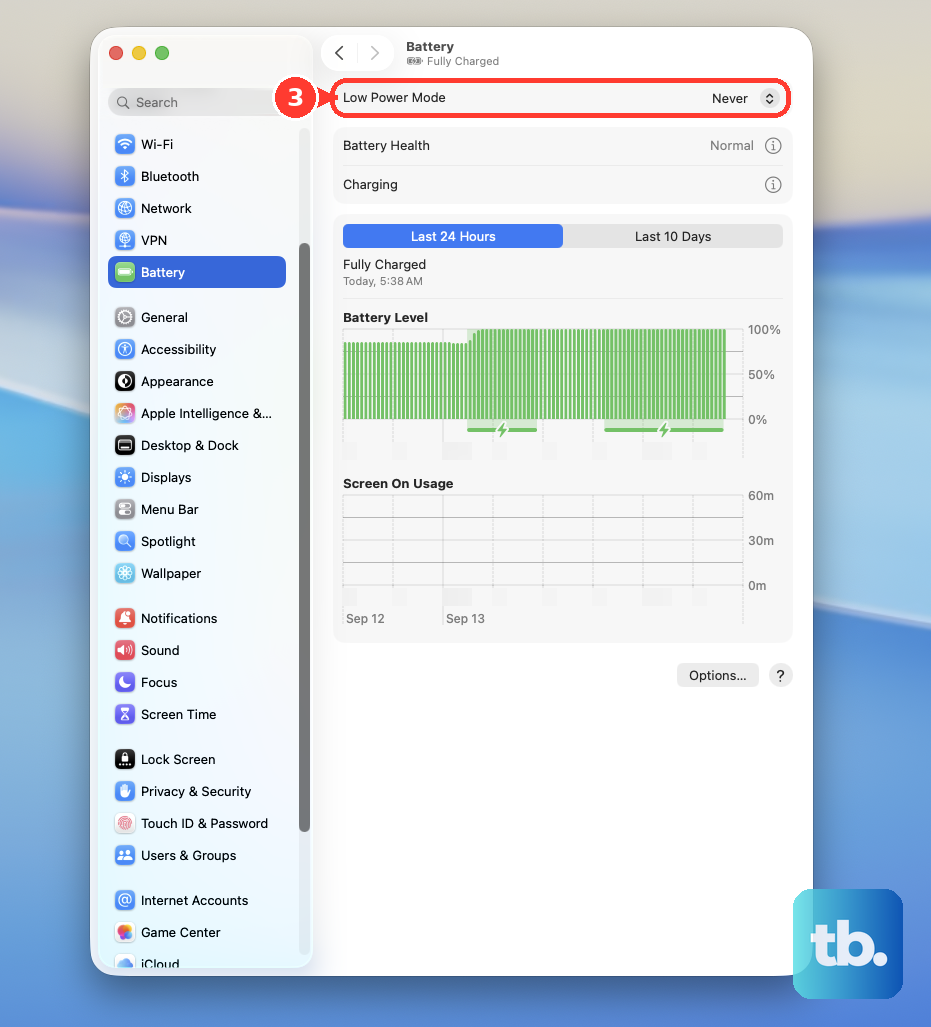
This mode reduces system performance slightly, lowers display brightness, and minimizes background activity. It's a very effective way to squeeze more hours out of a single charge when you need it.
Update to the Latest macOS
Apple releases software updates that often include power management improvements and bug fixes. Go to System Settings > General > Software Update to check for and install any available updates.
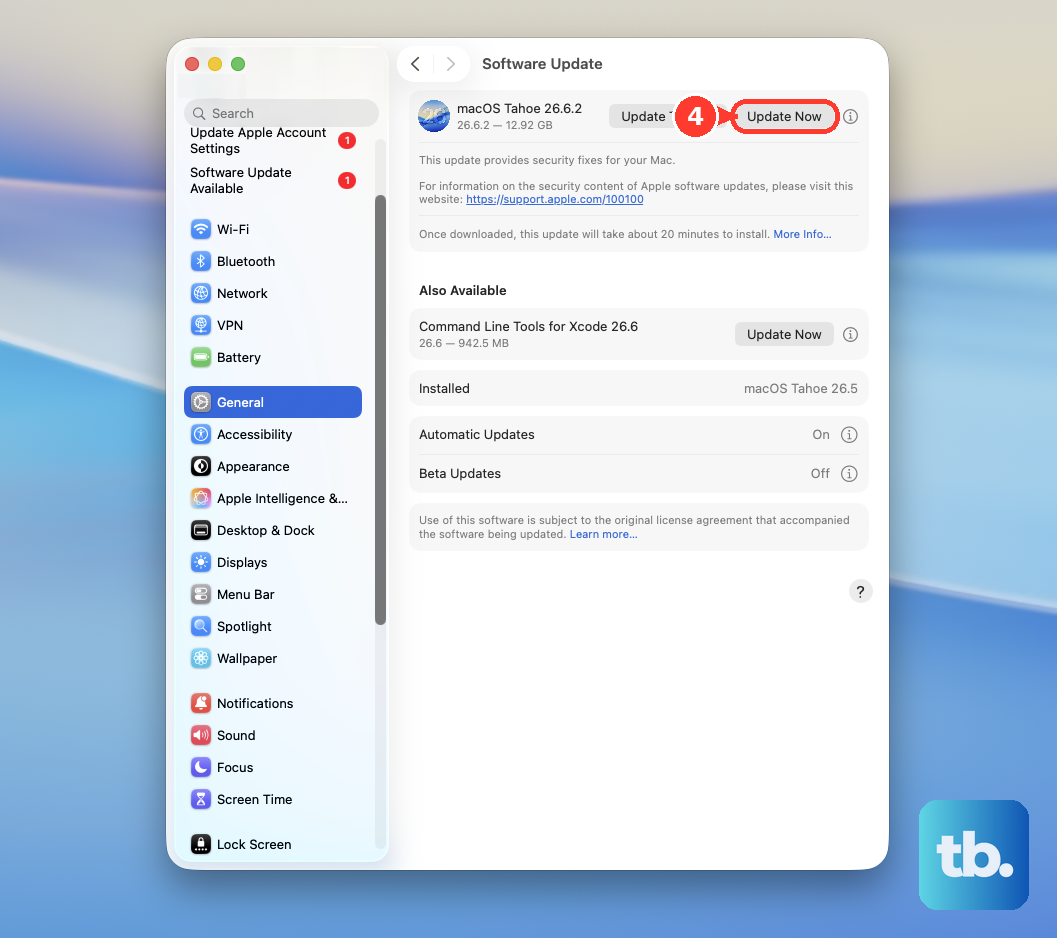
After a major update, like to macOS 26 Tahoe, it's normal for the system to do a lot of background work like re-indexing Spotlight. This can cause higher battery drain for a day or two before things settle down.
Be Strategic with Your Browser
Web browsers, especially those with many extensions or dozens of open tabs, are notorious battery drainers. If you use Chrome or another third-party browser, try switching to Safari for a day to compare. Safari is highly optimized for Apple silicon.
Make a habit of closing tabs you're done with. Each tab, especially ones running video or complex web apps, consumes CPU and memory, which directly impacts battery life.
Run Apple Diagnostics
If you suspect a hardware issue, you can run Apple Diagnostics. Shut down your MacBook Pro, then turn it on and immediately press and hold the Power button. Keep holding until you see the startup options window, then press Command (⌘) + D on your keyboard.
This will test your hardware, including the battery and power system. If it finds an issue, it will show a reference code and instructions. This is a good way to rule out a physical battery problem.
Reset Your Mac's Management Controller
For Apple silicon Macs like your M5 Pro, you don't reset an SMC. Instead, a simple full shutdown and restart can resolve many power management glitches. First, save all your work.
Go to the Apple menu and choose Shut Down. Wait a full 30 seconds, then press the power button to turn it back on. This clears various system caches and resets the power management hardware, which can fix incorrect battery percentage readings and other erratic behavior.