
When your MacBook Neo can't find any networks, refuses to connect, or shows a persistent "No Internet Connection" warning, it can feel like you're cut off. The good news is, a few troubleshooting steps can help you get back online.
Toggle WiFi Off and On
Open System Settings > Wi-Fi and turn Wi-Fi off, then turn it back on. Check whether your Mac reconnects to your network and can access the internet.
I'd start with this one every time. It's the quickest fix and often solves the problem right away, especially if the issue just started.
Restart Your MacBook Neo
Click the Apple menu in the top-left corner and select "Restart." Restarting automatically renews the internet address assigned when your Mac joined the WiFi network. If the lease expired and another device is using that address, your Mac is assigned a new one.
Forget and Rejoin Your Network
Head to System Settings > Wi-Fi. Click "Details" next to your connected network, then click "Forget This Network." Confirm if prompted.
Now, select the same network from the list again and enter the password to rejoin. Rejoining lets you try connecting again with the network password.
Renew Your DHCP Lease
If you're connected to WiFi but have no internet, renewing your IP address may help. Go back to System Settings > Wi-Fi and click "Details" next to your connected network.
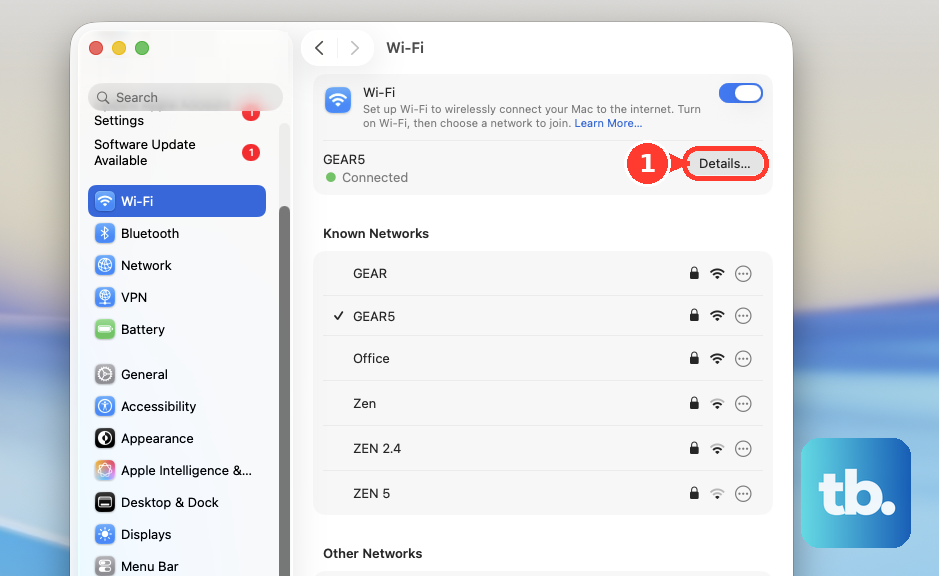
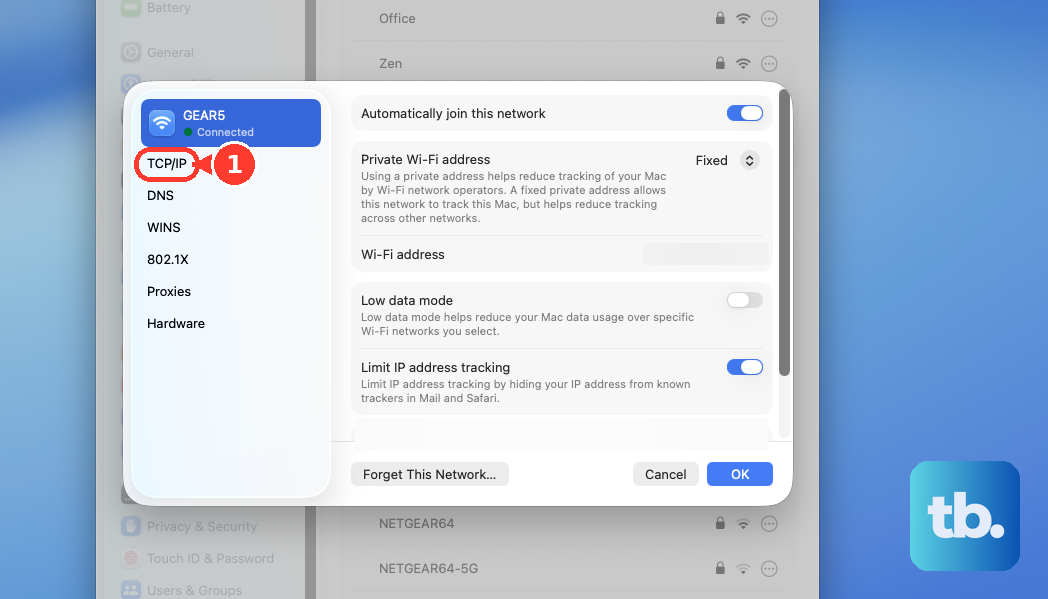
Click on the "TCP/IP" tab. Here, you'll see a button labeled "Renew DHCP Lease." Click it. This renews your IP address, which can resolve connection issues in some cases.
Change Your DNS Servers
Sometimes the WiFi works, but the Domain Name System servers your Mac is using are slow or down. While still in the network Details window, click the "DNS" tab.
Remove any existing servers listed by clicking the minus (-) button. Then, click the plus (+) button to add new ones. Try 8.8.8.8 and 8.8.4.4 for Google DNS, or 1.1.1.1 for Cloudflare's DNS. Changing DNS servers may help if your current servers are causing the browsing problem.
Update macOS to the Latest Version
If you can get online using a different WiFi network, connect to that network first. Go to System Settings > General > Software Update and install any available macOS update. Then reconnect to your usual network and check whether you can get online.
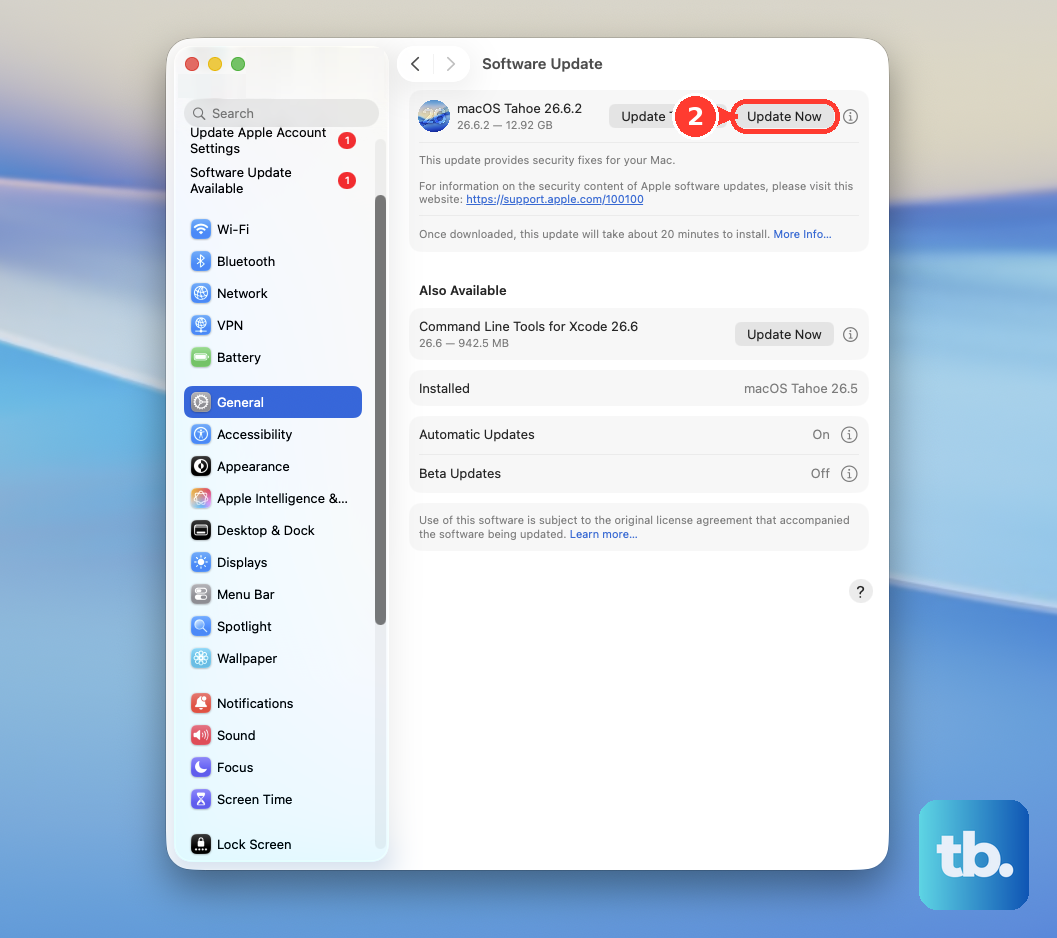
Updating macOS can help when troubleshooting a WiFi connection problem.
Check WiFi Signal Strength
Hold down the Option key on your keyboard and click the WiFi icon in the menu bar. You'll see a dropdown with technical details. Look for the "RSSI" value, which is your signal strength.
A number closer to zero is better. Try moving closer to your router and checking whether the signal improves. Walls and other physical obstructions can weaken a wireless signal, so compare the connection from a spot nearer the router.
Create a New Network Location
This is a more comprehensive reset. Open System Settings > Network. Look for the three-dot menu button (…) near the bottom of the sidebar and click it.
Select "Locations" and then "Edit Locations." Click the plus (+) icon to add a new location, give it a name like "Fresh Start," and click "Done." Finally, switch to this new location from the same menu. This lets you try a separate network configuration.
Run Apple Diagnostics
If you've tried everything else, it's worth checking for hardware issues. Turn on your MacBook Neo and continue to press and hold the power button as it starts up. When you see the startup options window, release the power button, then press and hold the Command (⌘) and D keys.
Keep holding them until you see the Apple Diagnostics screen. Follow the on-screen instructions. If it finds a WiFi-related hardware fault, you'll get a specific reference code to note.