
A MacBook Neo that's running slow can be incredibly frustrating, especially on a device designed to be so portable and versatile. The good news is, there are several straightforward things you can try to get it back up to speed.
Restart Your MacBook Neo
It sounds simple, but it's often the most effective first step. If you've been using your Neo for days or weeks without a full restart, background processes can pile up. Click the Apple menu in the top-left corner and select Restart.
This gives the system a clean slate, clearing out temporary files and freeing up memory. I'd start with this every time things start to feel sluggish.
Check for macOS Updates
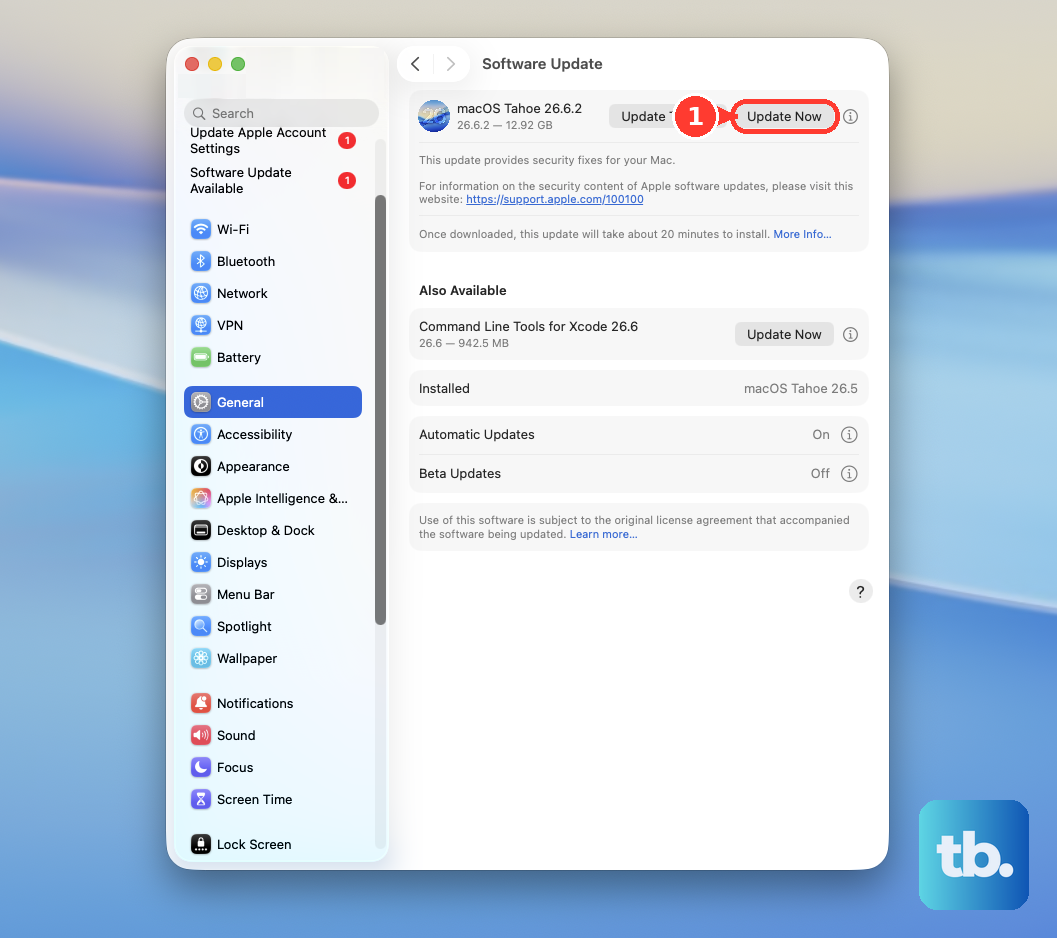
Your MacBook Neo requires macOS 26.3 or later to run optimally. Apple releases updates that include performance tweaks and bug fixes specifically for new hardware like the Neo.
Go to System Settings > General > Software Update. If an update is available, install it. This is especially important early in a product's life cycle, as compatibility improvements are frequent.
Manage Your Startup Apps
Too many apps launching at login can bog down your boot time and sap resources. Open System Settings and go to General > Login Items & Extensions.
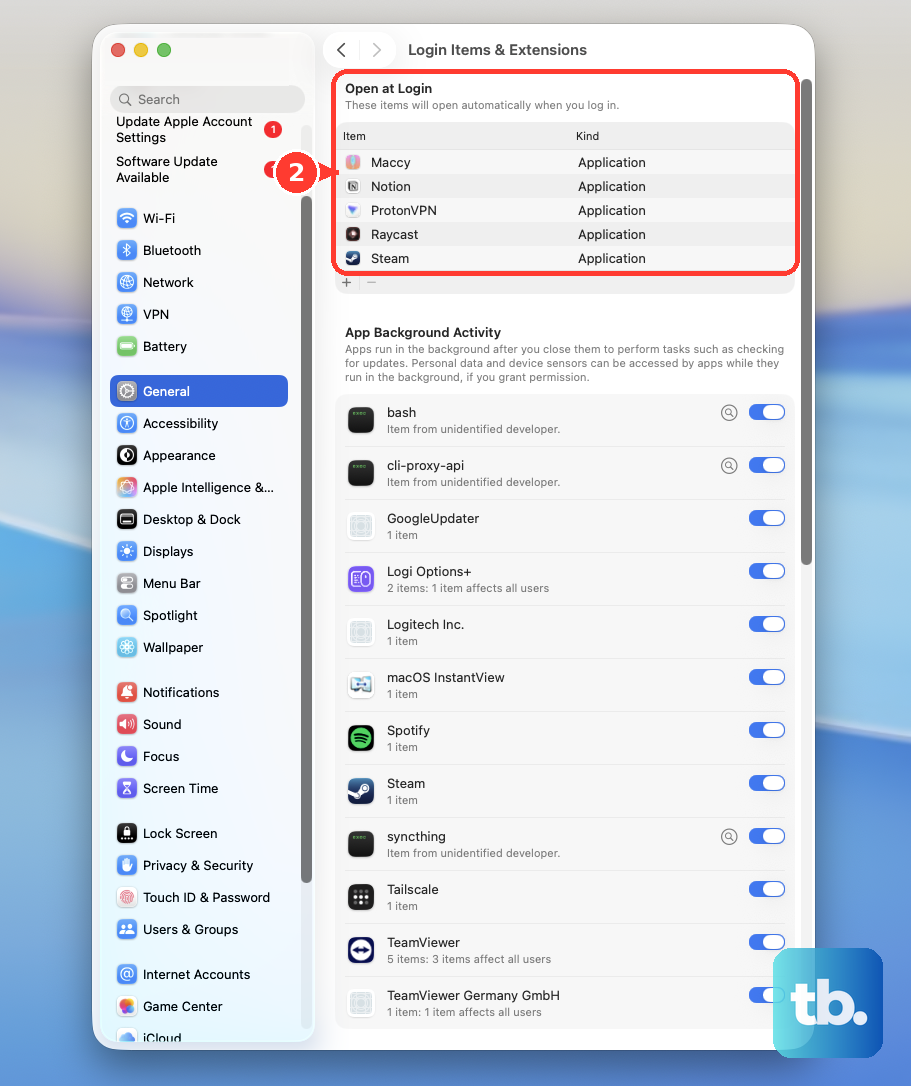
Review the list under "Open at Login." Remove any apps you don't need immediately upon starting your computer. Each one you disable means more RAM and CPU available for your actual work.
Use Activity Monitor to Find Culprits
Open Activity Monitor from your Applications folder or by searching with Spotlight. Click the CPU tab and sort the "% CPU" column to see what's using the most processing power.
If you see an app or process consistently using a huge percentage, that's likely the source of your slowdown. You can select it and click the stop button (a circle with an X) to quit it. Keep an eye out for apps not yet optimized for the A18 Pro chip.
Free Up Storage Space
macOS needs free space to operate smoothly. Click the Apple menu > About This Mac > More Info, then click Storage Settings.
The system will show you a breakdown. If your drive is nearly full, performance will suffer. Use the recommendations here to manage storage, offload files to iCloud, and review large files you may no longer need.
Reset the System Management Controller
If you're experiencing odd power or performance behavior, resetting the SMC can help. On the MacBook Neo, this is done with a simple force restart.
Shut down your Mac. Once it's off, press and hold the power button for a full 10 seconds, then release. Wait a few seconds, then press the power button again normally to turn it back on.
Optimize for the Hybrid App Environment
The Neo's ability to run both iPad and Mac apps is powerful, but it can be a resource drain if you're not mindful. iPad apps, while convenient, may not be as efficiently coded for the desktop environment.
If you notice slowdowns, check if you have many iPad-origin apps running. Try using the native Mac version of an app if one is available, as it will generally be better optimized for sustained performance.
Reduce Visual Effects
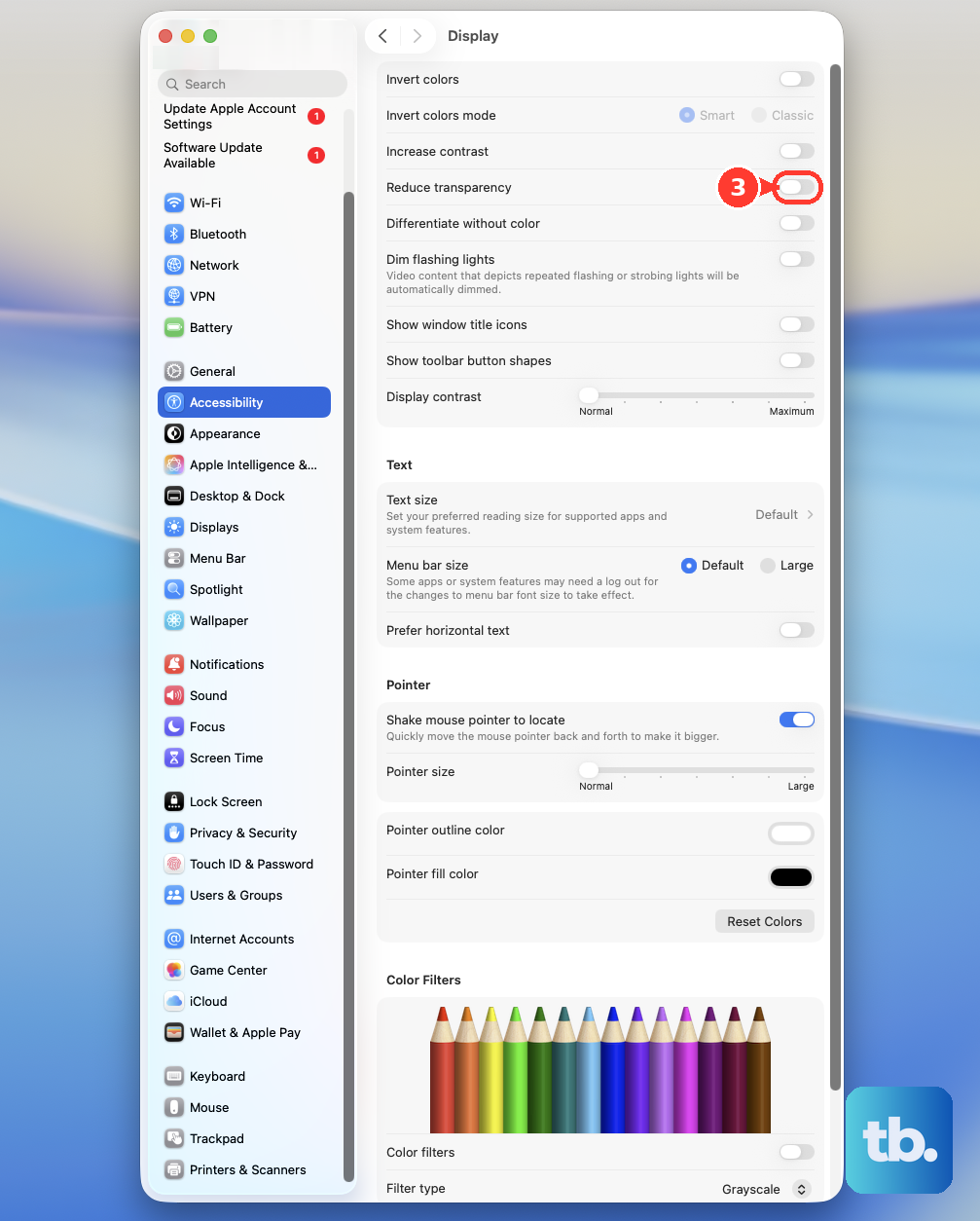
Disabling some of macOS's visual flair can free up GPU resources. Go to System Settings > Accessibility > Display.
Turn on both Reduce motion and Reduce transparency. This minimizes animations and makes menus solid, which can make the entire interface feel snappier.
Manage Browser Tabs and Extensions
Modern browsers are resource-intensive. Having dozens of tabs open, especially with video or complex web apps, can slow any computer down.
Make a habit of closing tabs you're done with. Also, review your browser extensions in Safari or Chrome settings, as a poorly coded extension can be a major hidden drain on performance.
Run Apple Diagnostics
If slowdowns are severe and persistent, it's worth checking for underlying hardware issues. Shut down your MacBook Neo, then turn it on and immediately press and hold the power button.
Keep holding until you see the startup options window. Press and hold Command (⌘) + D on your keyboard to start Apple Diagnostics. This built-in tool will check your Mac's hardware and report any problems it finds.











