
When your MacBook Neo gets too hot, you'll notice the chassis getting warm to the touch, and you might notice the performance starting to stutter. It's the system protecting its own components, but it's not a great experience. Let's get it running cooler.
Find the App Causing the Heat
Open Activity Monitor from your Utilities folder and click the CPU tab. Click the "% CPU" column header to sort by what's using the most power. The culprit is often right at the top. I'd look for any app you're running that wasn't designed for macOS, especially older iPad apps running through the A18 Pro's compatibility layer, as they can sometimes misbehave and peg the processor.
If you see an app using a huge chunk of CPU, select it and click the stop button (the octagon with an X) in the toolbar to force quit it. This usually brings the temperature down within a minute or two.
Manage Your Apps and Workflow
The MacBook Neo is powerful, but its compact design means heat dissipates differently than in a larger MacBook Pro. Running multiple intensive apps at once, like a video editor, a 3D design tool, and a browser with fifty tabs, will push it hard.
Try to stick to one or two heavy apps at a time. If you're done with something, quit it entirely instead of just closing the window. For web browsing, be mindful of tabs running video or complex web apps, as these are constant sources of CPU load.
Update to the Latest macOS
Go to System Settings, then General, and click Software Update. It's critical that your MacBook Neo is running macOS 26.3 or later. Early versions of a new operating system can have background processes or compatibility bugs that cause unnecessary CPU strain and heat.
Installing an update often includes thermal management improvements and bug fixes specifically for the A18 Pro chip. After an update, give your Mac a few hours to settle, as Spotlight reindexing and other maintenance tasks can temporarily increase activity.
Give It Room to Breathe
This is the simplest fix with the biggest impact. Never use your Neo on a soft surface like a couch cushion, blanket, or your lap if you're wearing thick clothing. These materials trap heat against the aluminum body, which the fanless Neo relies on to dissipate heat.
Always place it on a hard, flat desk or table. For even better airflow, consider a simple laptop stand that elevates the back. This creates a larger air gap underneath and helps the aluminum chassis shed heat more efficiently, since the fanless Neo cools passively through its body rather than with fans.
Reset the Thermal Management System
For Apple Silicon Macs like the Neo, a full restart is the equivalent of resetting the older SMC. It clears any temporary glitches in the power and thermal management systems. Click the Apple menu and choose Restart.
If the system is unresponsive, you can force a restart. Press and hold the power button for about 10 seconds until the screen goes black and the device powers off. Wait a few seconds, then press the power button again to turn it back on.
Check for Dust Buildup
Over time, dust and grime can build up on the chassis and reduce how effectively it radiates heat. With the MacBook Neo powered off, wipe the aluminum body down with a soft, lint-free cloth.
Because the MacBook Neo is fanless, it has no vents or air intakes, so there is nothing inside for compressed air to clear. Keeping the outer aluminum surfaces clean is all that is needed to help the chassis radiate heat.
Adjust Display and Keyboard Settings
The display is a major source of heat. Lowering the brightness from maximum to a comfortable level can make a noticeable difference. You can also temporarily turn off features like True Tone or Auto-Brightness from the Display settings in System Settings.
If you're using it in a dim environment, consider enabling Dark Mode. This can reduce the power draw on the display, especially if you use apps with light backgrounds. The backlit keyboard also generates a small amount of heat, so turn its brightness down if you don't need it.
Monitor Your Battery's Health
A battery that's nearing the end of its life can struggle during charging, generating excess heat. Go to System Settings, then Battery, and click Battery Health. The system will report on its maximum capacity and condition.
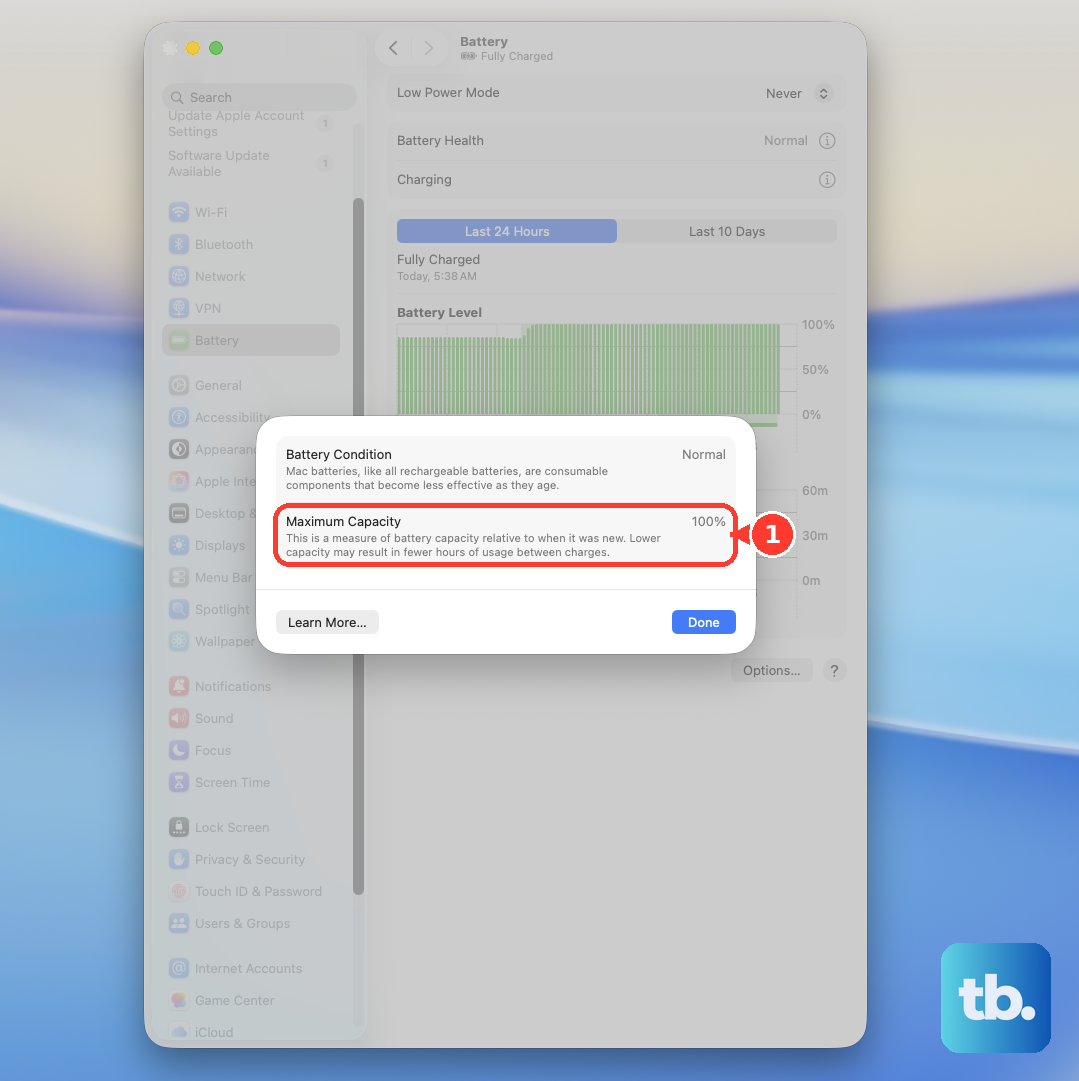
If you see a message indicating service is recommended, the battery itself could be a contributing factor to the thermal issues, especially if the heat is most pronounced when the laptop is plugged in.
Run Apple Diagnostics
If you've tried everything and the MacBook Neo still runs unusually hot, it's worth running Apple Diagnostics to check for hardware issues. Shut down your MacBook, then turn it on and immediately press and hold the power button.
Keep holding until you see the startup options window. Press and hold Command (⌘) + D on your keyboard. This will boot into a diagnostic mode that tests the logic board, memory, and thermal sensors. It takes a few minutes and will report any problems it finds.