
When your MacBook Neo won't charge, the battery icon might show a "Not Charging" status, or you might not see the charging indicator at all. It's a frustrating spot to be in, especially with a new device. Let's get it sorted.
Check Your Charger and Cable
First, take a close look at your USB-C cable and power adapter. Look for any fraying, kinks, or damage to the connectors. If you have access to another compatible USB-C charger, try it with your MacBook Neo.
Make sure you're using a charger with enough power. While the MacBook Neo is efficient, using a very low-wattage phone charger might only slow the battery drain, not actually charge it. I'd recommend using the adapter that came in the box or a certified equivalent.
Try a Different Power Source
The problem might be the outlet itself. Plug your charger into a different wall socket to rule that out. Also, if you're using a power strip or surge protector, try plugging directly into the wall instead.
Since the MacBook Neo is a new product category, some older USB-C hubs or docks might not deliver enough power consistently. Try charging directly with the cable and adapter, bypassing any hubs.
Restart Your MacBook Neo
This simple step can clear up a lot of weird software glitches, including power management issues. Click the Apple menu in the top-left corner and select Restart.
After it boots back up, check if the charging indicator returns. A restart resets the system's power controller, which often resolves a false "Not Charging" alert.
Inspect and Clean the USB-C Port
Grab a flashlight and take a good look at the USB-C port on your MacBook Neo. Lint and pocket debris are common culprits that prevent the cable from seating fully.
To clean it, use a wooden or plastic toothpick to gently scrape out any compacted lint. You can also use a can of compressed air to blow out loose particles. Be very careful not to damage the delicate pins inside the port.
Check Your Battery Health Settings
Go to System Settings > Battery > Battery Health. Here, you'll see if Optimized Battery Charging is enabled. This feature learns your routine and may hold the charge at 80% to prolong battery life.
If you see your battery stuck around 80%, this is likely the cause. You can temporarily turn it off if you need a full charge right away. This menu will also show if there's a "Service Recommended" alert for the battery itself.
Run Apple Diagnostics
Your MacBook Neo has built-in hardware diagnostics. Shut down your computer, then press and hold the power button as you turn it on. Keep holding until you see the startup options window.
Press and hold Command (⌘) + D on your keyboard. This will launch Apple Diagnostics, which can check for issues with the battery, charger, and other components. Follow the on-screen instructions.
Update macOS
Software bugs can sometimes interfere with charging. Make sure you're running the latest version of macOS. Go to System Settings > General > Software Update.
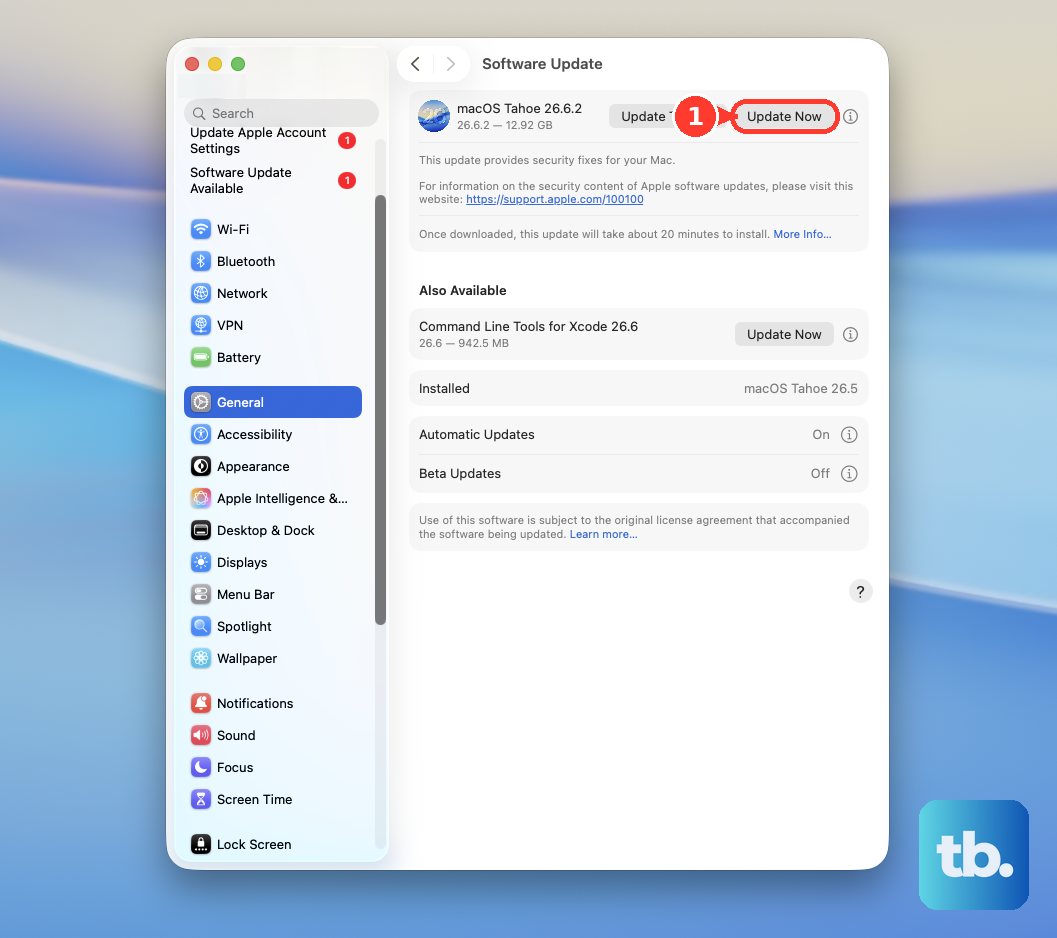
Your MacBook Neo requires macOS 26.3 or later. An update might contain a specific fix for power management. I've seen updates resolve similar issues on other Apple Silicon Macs.
Reset the Power Management Controller
For Macs with Apple Silicon, like the MacBook Neo, you can reset the power management state. Shut down your MacBook completely and unplug the charger.
Wait about 30 seconds, then plug the charger back in. Wait another 10 seconds, then press the power button to turn it on. This gives the system a full reset and can clear charging errors.
If you've tried all these steps and your MacBook Neo still won't charge, there may be a hardware issue. Given it's a new model, contacting Apple Support directly is your best path. They can run remote diagnostics and advise on warranty service if needed.