When your MacBook Neo's battery seems to vanish faster than you'd expect, it can feel like you're tethered to the charger. The good news is, there are several straightforward checks and settings you can adjust to get your battery life back on track.
Check Your Battery Health
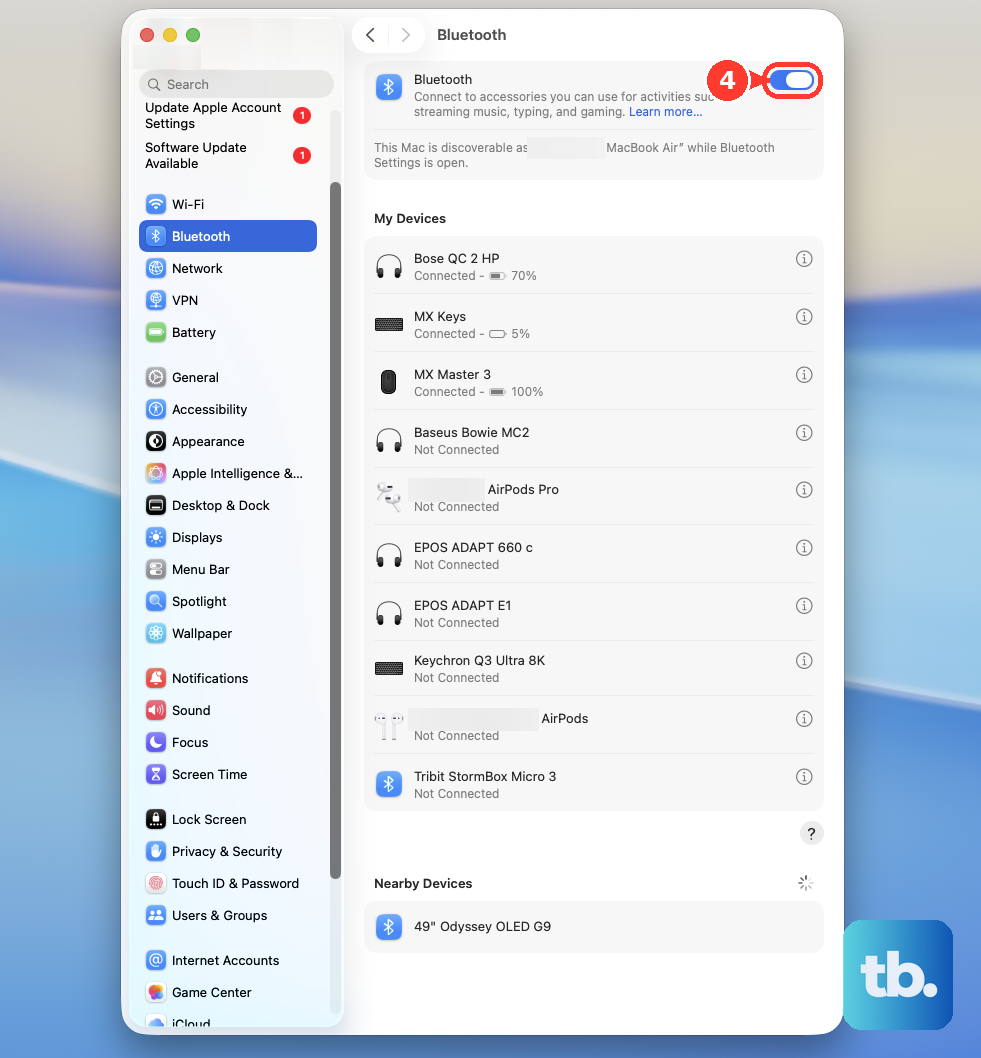
Start by clicking the Apple menu > System Settings > Battery. Look for the Battery Health section. If it says "Service Recommended," the battery has degraded significantly and likely needs to be replaced. You can also find more detailed info, like the cycle count, by going to Apple menu > About This Mac > More Info > System Report > Hardware > Power.
Use Activity Monitor to Find Energy Hogs
Open Activity Monitor from your Applications folder or via Spotlight. Click the Energy tab and sort the list by "Energy Impact." This shows you exactly which apps are using the most power right now. Pay special attention to any app marked "Yes" under "Preventing Sleep," as these are keeping your MacBook Neo awake when it should be resting.
Adjust Your Display Settings
The screen is one of the biggest drains on your battery. Use the keyboard brightness keys to lower it to a comfortable level, or head to System Settings > Displays. I'd recommend enabling "Automatically adjust brightness" so the ambient light sensor can help manage it for you. Also, consider reducing the screen's refresh rate if your model supports ProMotion, as a lower refresh rate uses less power.
Manage Background App Activity
Since the MacBook Neo runs both Mac and iPad apps, some might be refreshing content in the background more aggressively than needed. Go to System Settings > General > Login Items & Extensions. Review the list and remove any apps that don't need to launch or run in the background when you start up. This is a common source of silent battery drain.
Enable Low Power Mode
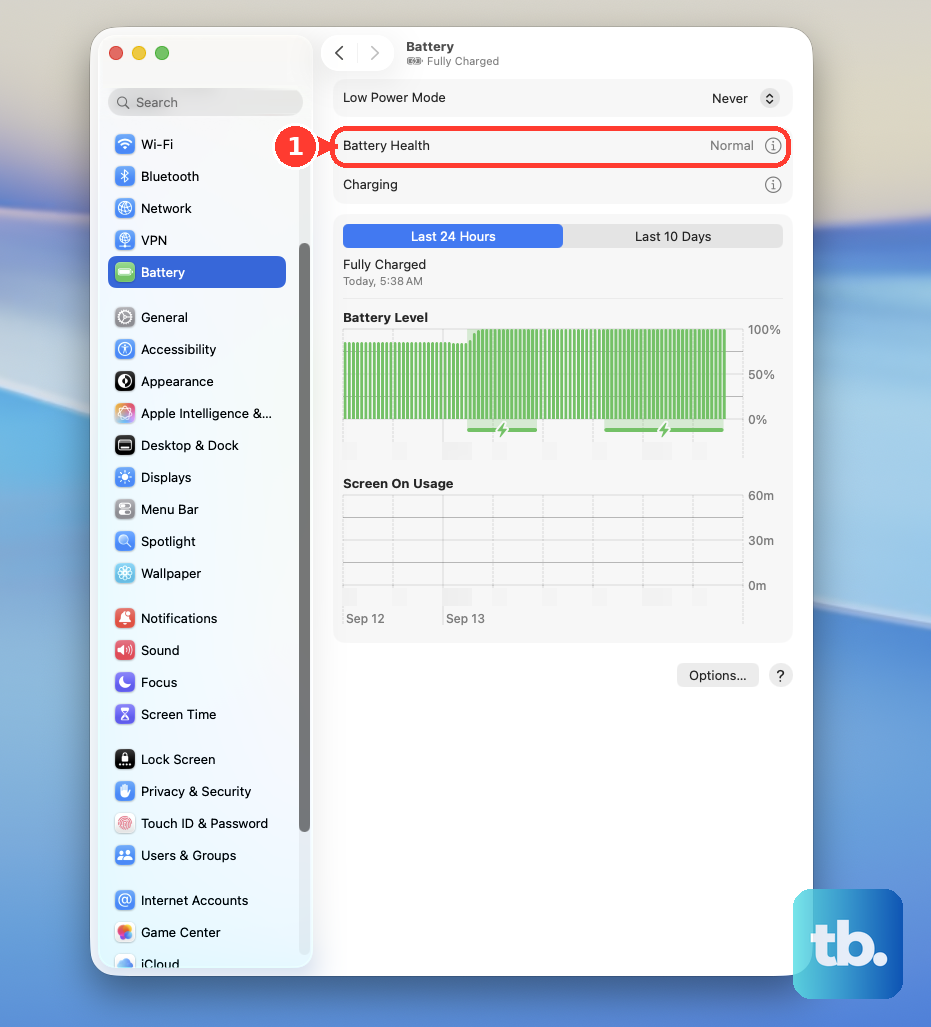
Your MacBook Neo has a dedicated Low Power Mode. You can find it in System Settings > Battery. When enabled, it reduces system performance, lowers display brightness, and minimizes background activity to extend battery life. You can set it to turn on automatically when on battery power, or keep it on all the time if you're not doing intensive work.
Update to the Latest macOS
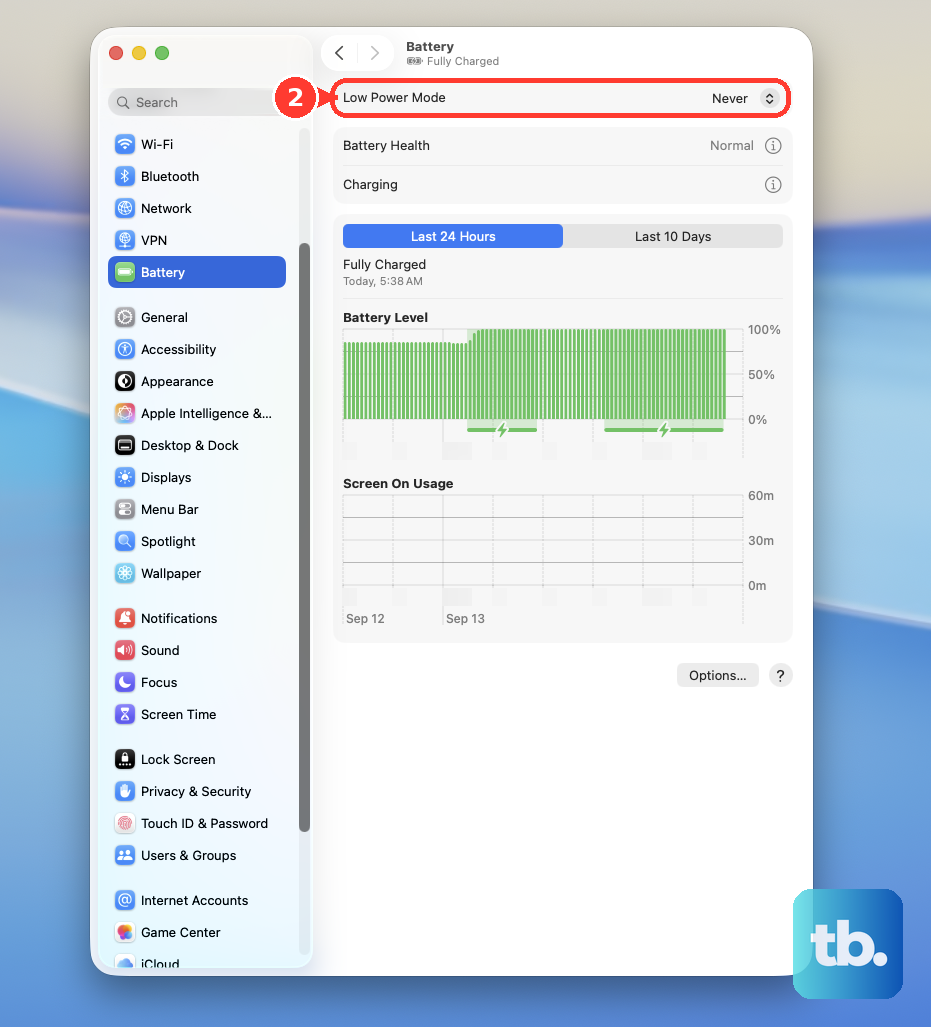
It's critical to ensure you're running macOS 26.3 or later on the MacBook Neo. Apple releases updates that often include important power management fixes. Go to System Settings > General > Software Update to check. After a major update, you might see higher battery drain for a day or so while Spotlight and other systems reindex; this is normal and should settle down.
Check for App Compatibility Issues
The A18 Pro chip is powerful, but some older or poorly optimized apps, especially those ported from iPad, might not manage energy efficiently. If you notice a specific app is always high on the Energy Impact list in Activity Monitor, check for an update from the developer. Sometimes, simply quitting and reopening an app can resolve a temporary glitch causing high CPU usage.
Run Apple Diagnostics
If battery drain is sudden and severe, it's worth running Apple Diagnostics to check for hardware issues. Shut down your MacBook Neo, then turn it on and immediately press and hold the Power button. Keep holding it until you see the startup options window, then release. Press Command (⌘) + D to start diagnostics. This built-in tool can identify if there's a problem with the battery or power system itself.
Reset Your Mac
For general system glitches that might affect power management, a simple reset can help. Press and hold the Power button for about 10 seconds to force a shutdown, then press it again to turn your MacBook Neo back on. For Apple Silicon Macs like the Neo, this process effectively clears various low-level system states, similar to an SMC reset on older Intel models.
Review Your Connected Devices and Services
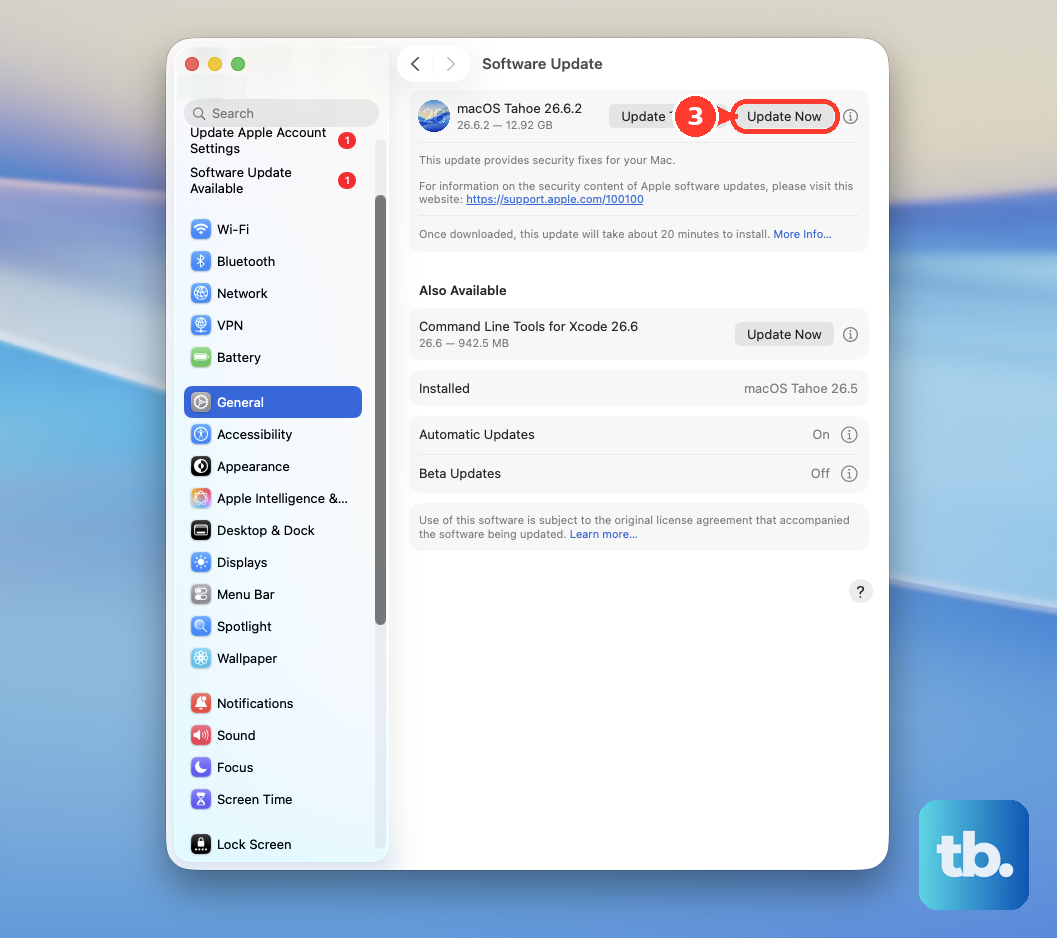
Turn off Bluetooth in System Settings > Bluetooth if you're not using any wireless accessories. Disable AirDrop by opening a Finder window, clicking AirDrop in the sidebar, and setting "Allow me to be discovered by:" to "No One." Also, review Location Services in System Settings > Privacy & Security > Location Services and disable it for apps that don't genuinely need to know where you are.