
A slow MacBook Air M4 is frustrating, especially when you expect that new chip to fly. If apps are lagging, the beach ball is spinning, or everything just feels bogged down, these steps will help you get back to speed.
Restart Your MacBook
It sounds simple, but it's the most effective first step. If you've been closing the lid and using sleep for days or weeks, background processes can pile up. Click the Apple menu > Restart to give your system a clean slate.
Check Activity Monitor
Open Activity Monitor from your Utilities folder. Click the CPU tab and sort by the "% CPU" column. Look for any process that's consistently using a high percentage, like 90% or more.
That's likely your culprit. You can select it and click the stop button (octagon) in the toolbar to quit it. Common resource hogs on the M4 can be runaway tabs in a browser like Chrome or a file indexing service.
Free Up Storage Space
Your Mac needs breathing room on its drive to operate efficiently. Go to Apple menu > About This Mac > Storage. If you're below 10-15% free space, performance can suffer.
Click Manage to review recommendations. You can enable Optimize Mac Storage to automatically offload older files to iCloud and empty the Trash. I'd start by clearing out old downloads and app caches.
Update macOS
Apple is constantly refining performance with software updates. Head to System Settings > General > Software Update and install any available updates for macOS 26 Tahoe.
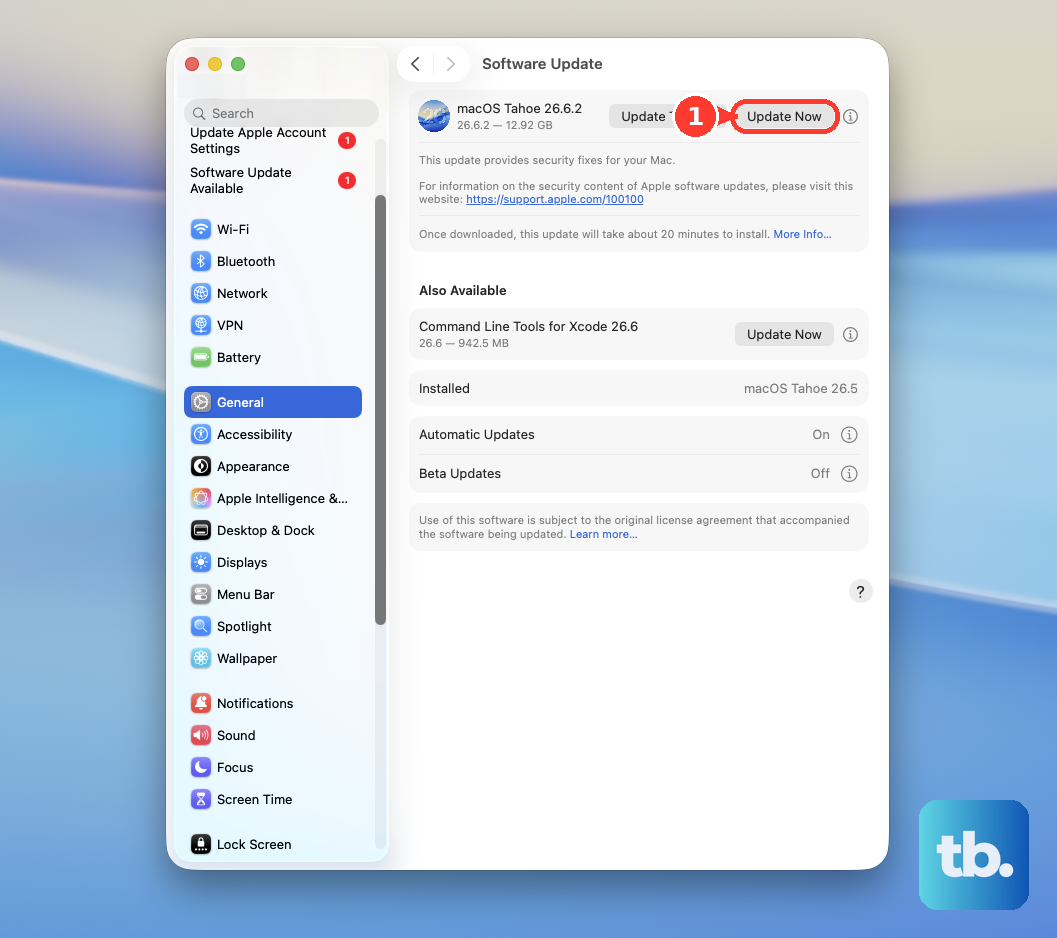
These updates often include specific optimizations for the M4 chip and fixes for bugs that might be causing slowdowns. Keeping your system current is one of the easiest ways to maintain peak performance.
Manage Startup and Login Items
Too many apps launching at login can slow down your boot time and eat up RAM from the get-go. Open System Settings > General > Login Items & Extensions.
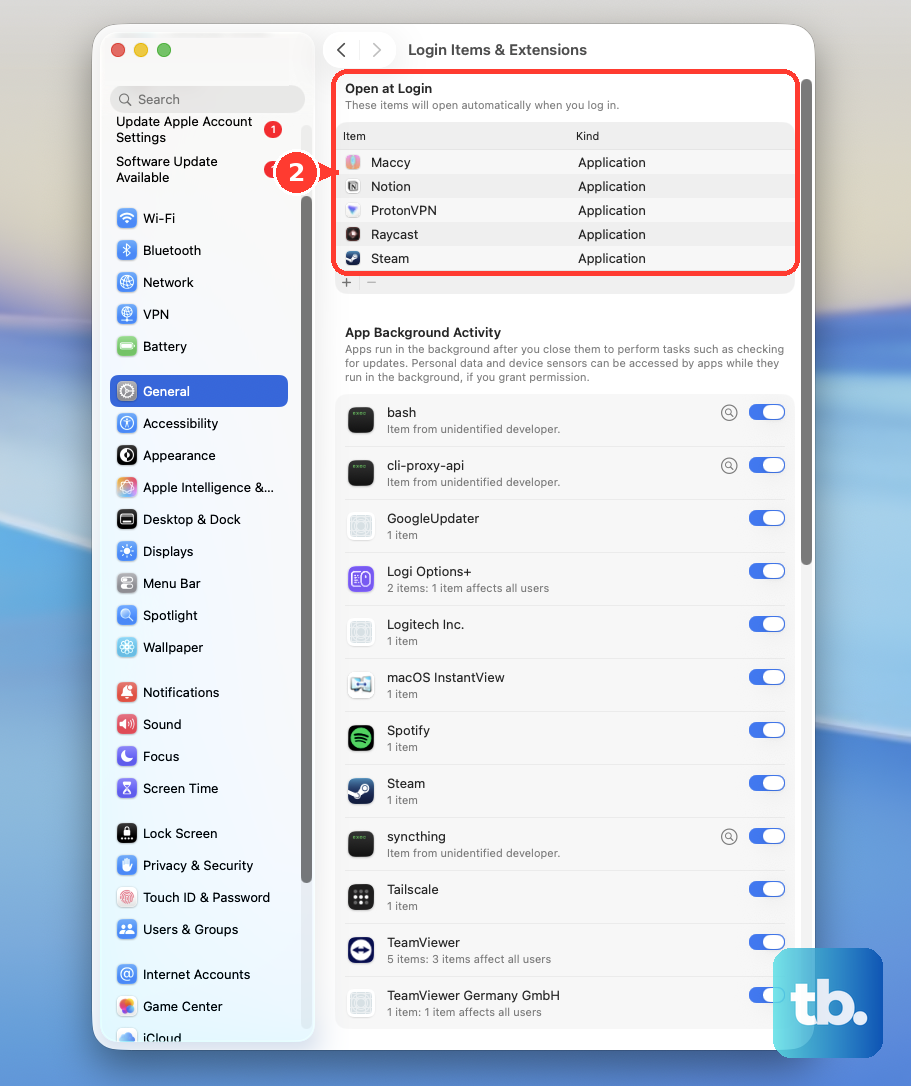
Review the list under "Open at Login." Remove any applications you don't need immediately upon starting your Mac. Each one you disable means more resources are free for what you actually want to do.
Run Apple Diagnostics
If the slowness feels hardware-related, you can run a built-in check. Shut down your MacBook Air M4 completely. Press and hold the power button as you turn it back on.
Continue holding until you see the startup options window. Press and hold the Command (��) + D keys on your keyboard to start Apple Diagnostics. This will check for any underlying hardware issues that could affect performance.
Boot in Safe Mode
Safe Mode loads only the essential macOS components, which helps you see if the problem is with your core system or something you've added. Shut down your Mac, then press and hold the power button until the startup options appear.
Select your startup disk (usually "Macintosh HD"), then press and hold the Shift key and click Continue in Safe Mode. If your Mac runs smoothly in Safe Mode, the issue is likely a third-party app or login item.
Check for Spotlight Indexing
After a major update or restoring from a backup, Spotlight will re-index your files, which is a CPU-intensive task. You might see processes named "mds" or "mdworker" in Activity Monitor.
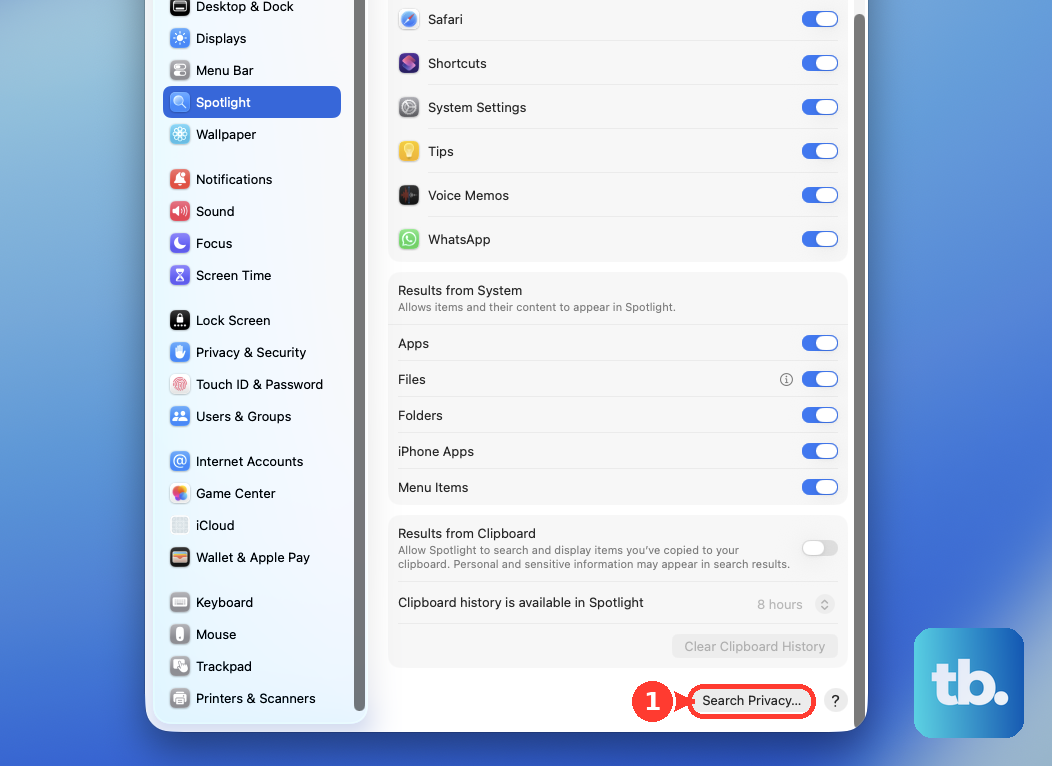
It's best to let this finish, which could take a few hours. You can check its progress by clicking the Spotlight icon in the menu bar. If you need to pause it, you can add a folder to the privacy list in System Settings > Spotlight.
Reset the SMC and NVRAM
For Apple Silicon Macs like the M4, the functions of the SMC (System Management Controller) and NVRAM are handled differently. A full restart, where you shut down and wait about 30 seconds before turning it back on, effectively resets these components.
You can also use the force restart method: press and hold the power button for about 10 seconds until the Mac turns off, then press it again to turn it back on. This can clear out minor glitches affecting performance.
Review Connected Peripherals
Some users have reported Bluetooth drops with certain peripherals on the M4 models, and a misbehaving device can sometimes cause system-wide hiccups. Try disconnecting any non-essential Bluetooth devices, external drives, or hubs.
See if the performance improves with just the MacBook alone. Also, note that the base M4 chip supports only one external display. Pushing it beyond its limit with display adapters or software workarounds can lead to significant slowdowns.