
When your MacBook Air M4 shows "Not Charging" or the battery percentage just won't budge, it's a frustrating roadblock. The fixes are often simpler than you'd think, and I'd start with the basics.
Inspect Your Charger and Cable
Take a close look at your USB-C cable and power adapter. Look for any fraying, kinks, or damage to the connectors. If you have access to another Apple-certified USB-C cable and a compatible power adapter, try that combination.
Make sure you're using a powerful enough adapter. While the base MacBook Air M4 can run on lower wattage, a 30W charger might only maintain the battery under heavy use instead of charging it. Using the original charger or a higher-wattage Apple adapter is your best bet.
Try a Different Power Source
Plug your charger into a different wall outlet to rule out a problem with the socket. If you're using a power strip or surge protector, try plugging directly into the wall instead.
Also, try plugging the cable into the other USB-C port on your MacBook Air. Sometimes one port can have a connection issue while the other works perfectly fine.
Perform a Simple Restart
Click the Apple menu > Restart. This is the quickest software reset and often clears up temporary glitches with the power management system that can cause incorrect charging status readings.
If your Mac is unresponsive, you can force a restart. Press and hold the Power button for about 10 seconds until the Mac turns off, then press it again to turn it back on.
Check Your Battery Health Settings
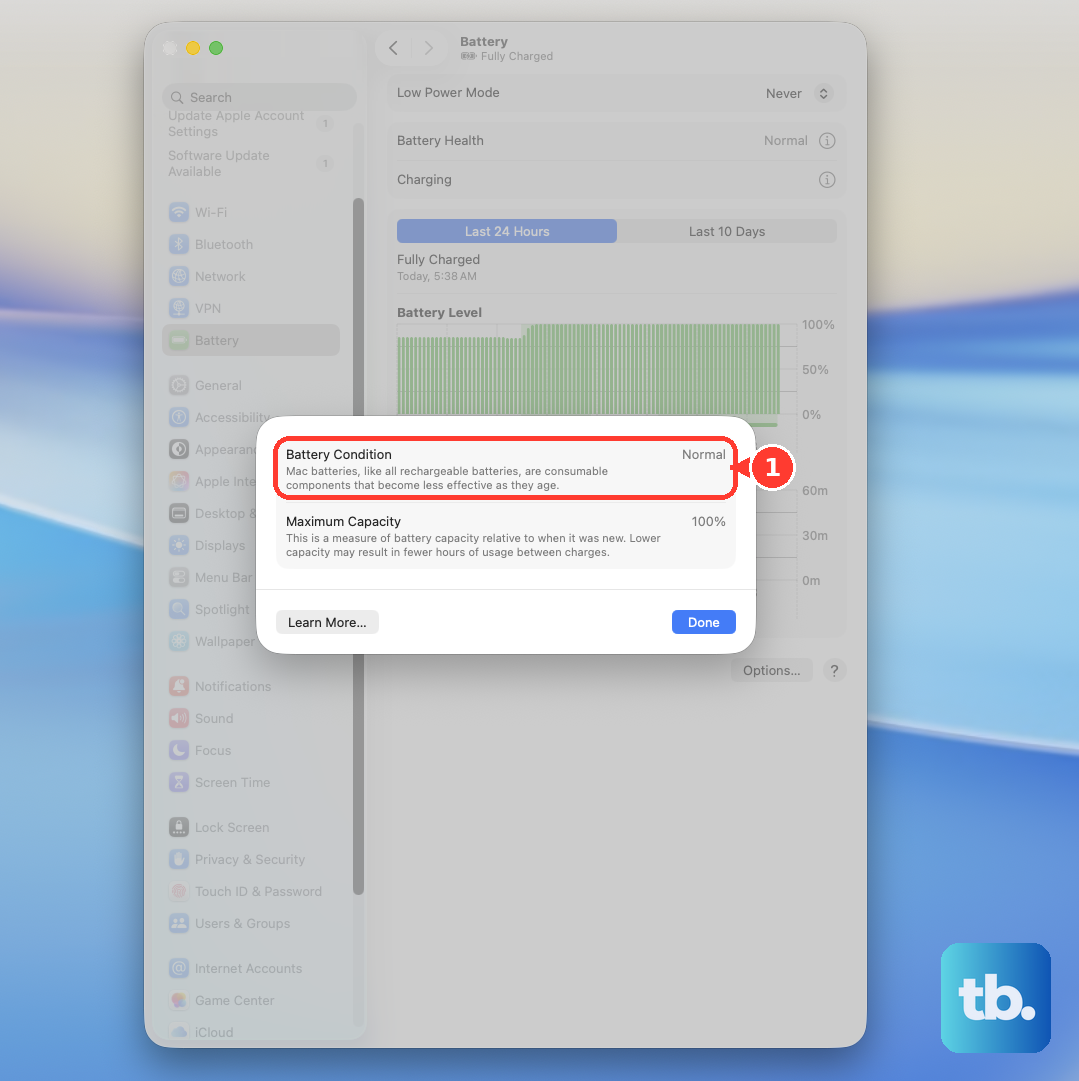
Go to System Settings > Battery > Battery Health. Here, you can see if Optimized Battery Charging is active. This feature learns your routine and may intentionally hold the charge at 80% to extend battery lifespan.
If you see "Service Recommended" here, it indicates the battery's health has degraded significantly and may not charge properly. You can also check the cycle count in System Information under Power for more details.
Clean the USB-C Ports
Lint and pocket debris are common culprits. Shine a light into the USB-C ports on your MacBook Air and look for any packed-in dust.
Use a dry, soft-bristled brush or a wooden toothpick to gently dislodge any debris. Avoid using metal objects that could damage the delicate pins inside the port.
Boot in Safe Mode
Safe Mode loads macOS with only essential software, which can help determine if a third-party app or login item is interfering. Shut down your MacBook Air, then press and hold the Power button until you see the startup options window.
Select your startup disk, then press and hold the Shift key and click Continue in Safe Mode. See if the charging behavior is normal while in this mode.
Run Apple Diagnostics
This built-in tool can check for hardware issues. Shut down your MacBook Air completely. Press and hold the Power button as you turn it on, and continue holding until you see the startup options.
Press Command (⌘) + D on your keyboard to start Apple Diagnostics. It will run a test and let you know if it detects any problems with the battery or power system.
Update macOS
Software bugs can sometimes affect charging. Go to System Settings > General > Software Update to check for and install any available updates.
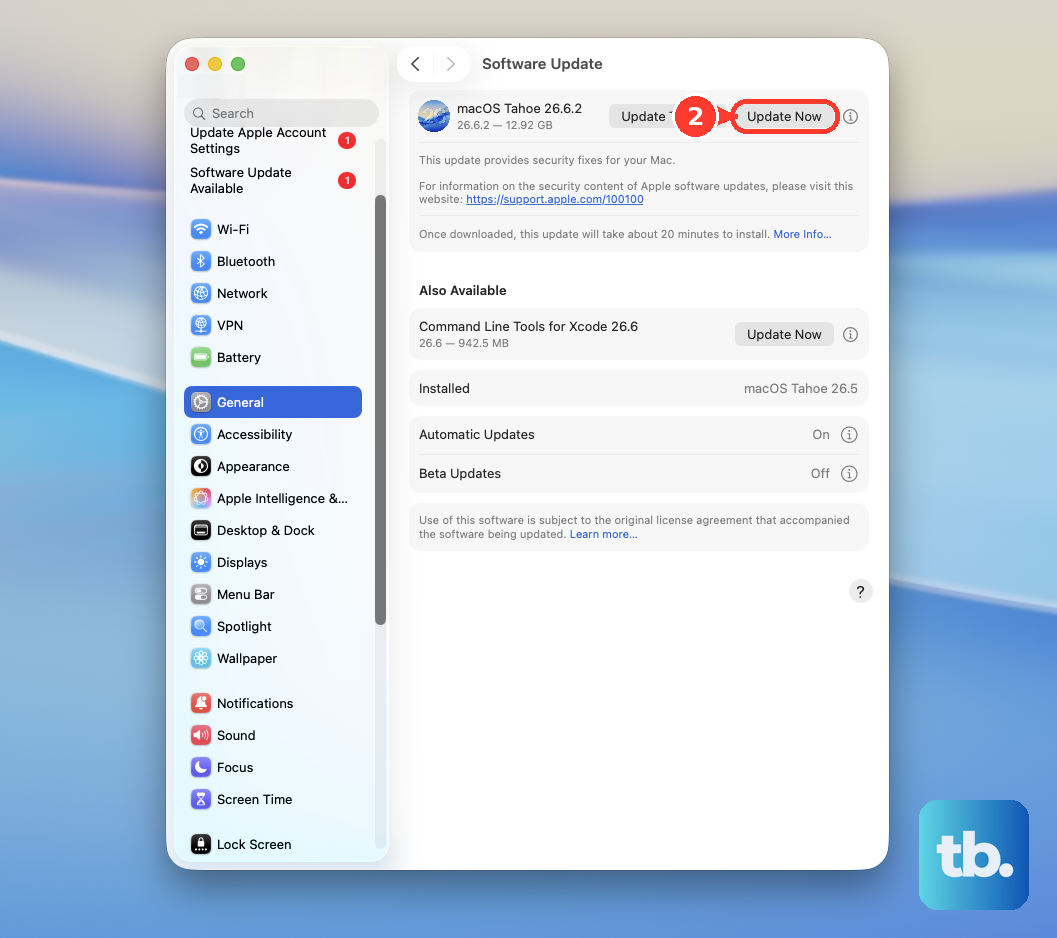
Apple has released specific macOS updates in the past to address power management and battery calibration issues, especially after major OS upgrades like macOS 26 Tahoe.
Reset the NVRAM and SMC (For Relevant Issues)
While Apple Silicon Macs like the M4 don't have a traditional SMC, some power management functions can be reset. A full shutdown can help. Shut down your Mac, unplug all peripherals and the charger, then wait for about 30 seconds.
Plug only the charger back in, wait another 10 seconds, and then turn on your MacBook Air. This gives the system a clean slate to re-recognize the power source.