
When your MacBook Air M4 suddenly loses all audio, it can feel like a major roadblock. The good news is that it's almost always a software or settings hiccup that you can fix yourself. Let's walk through the steps to get your sound back.
If you are not sure whether it is the speakers or the software, run an online left and right speaker test first. Working test tones rule out a hardware fault in seconds.
Check the Volume and Mute
First, press the volume up key on your keyboard a few times. Look at the sound icon in your menu bar. If you see a slash through the speaker icon, your Mac is muted. Click the icon and make sure the volume slider is up and the mute option is unchecked.
Sometimes, a specific app might have its own volume control turned all the way down. Check the volume within the app you're trying to use, like Safari for a YouTube video or the Music app.
Select the Correct Output Device
Head to System Settings > Sound > Output. You'll see a list of available audio devices. Make sure "MacBook Air Speakers" is selected and highlighted.
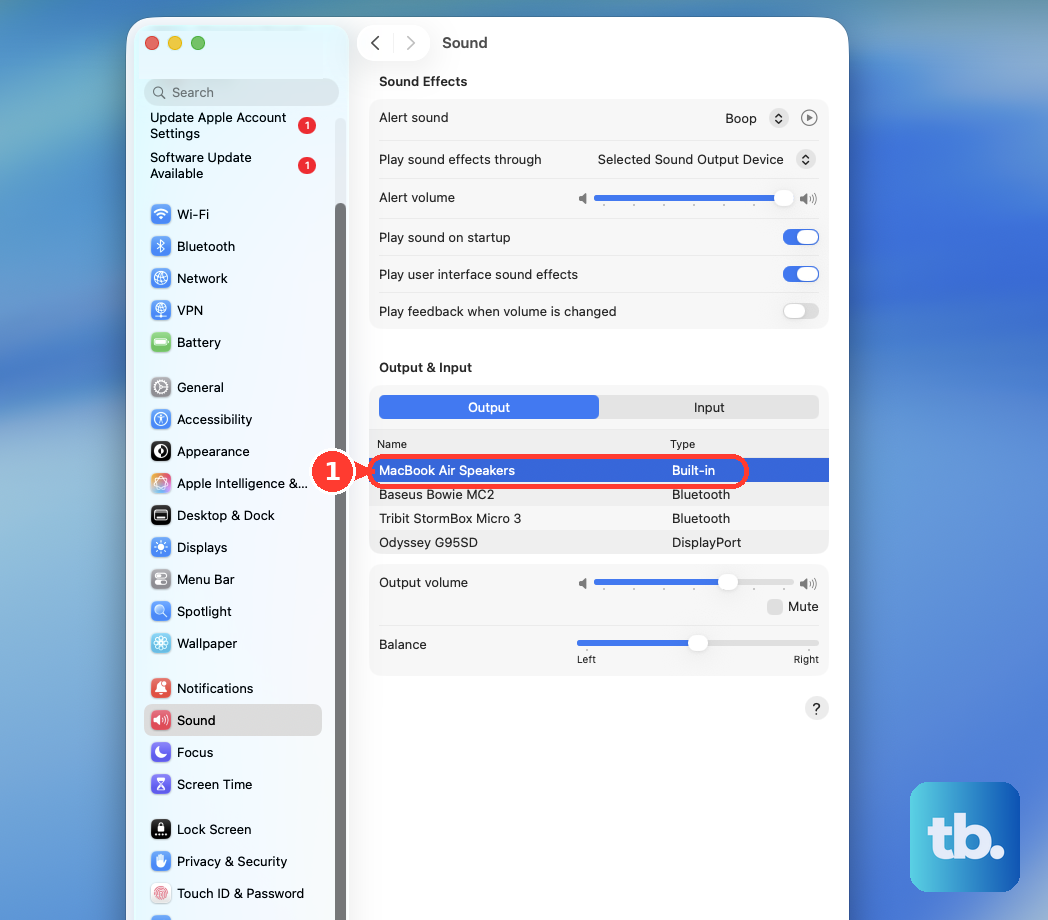
If you recently unplugged headphones or disconnected from a Bluetooth speaker, your Mac might still be trying to send audio there. Selecting the internal speakers manually will reroute the sound back to your laptop.
Restart Your MacBook Air
This is the classic fix for a reason. Click the Apple menu > Restart. A full reboot reloads the Core Audio framework, which is the system service responsible for all sound.
I've found this especially effective if the audio stopped working after the Mac woke from sleep or after connecting to an external display. It clears out any temporary glitches in the audio process.
Reset the Core Audio Daemon
You can restart just the audio system without rebooting your whole computer. Open the Terminal app from your Utilities folder. Type the command sudo killall coreaudiod and press Enter.
You'll be prompted for your administrator password. Type it (you won't see characters as you type) and press Enter again. The audio should cut out and come back within 10-15 seconds.
Run Apple Diagnostics
This built-in tool can check for hardware issues with your speakers. Shut down your MacBook Air M4 completely. Now, press and hold the power button until you see the startup options window.
Press and hold Command (⌘) + D on your keyboard. This will launch Apple Diagnostics. Follow the on-screen instructions; if it finds an issue, it will provide a reference code and next steps.
Boot in Safe Mode
Safe Mode loads macOS with only the essential software, which can help determine if a third-party app or login item is causing the conflict. Shut down your Mac. Press and hold the power button until the startup options appear.
Select your startup disk (usually "Macintosh HD"), then press and hold the Shift key and click "Continue in Safe Mode." Release the Shift key when you see the login window. Test your audio here.
Check for macOS Updates
Audio driver bugs are common and are often patched in system updates. Go to System Settings > General > Software Update. Install any available updates for macOS 26 Tahoe.
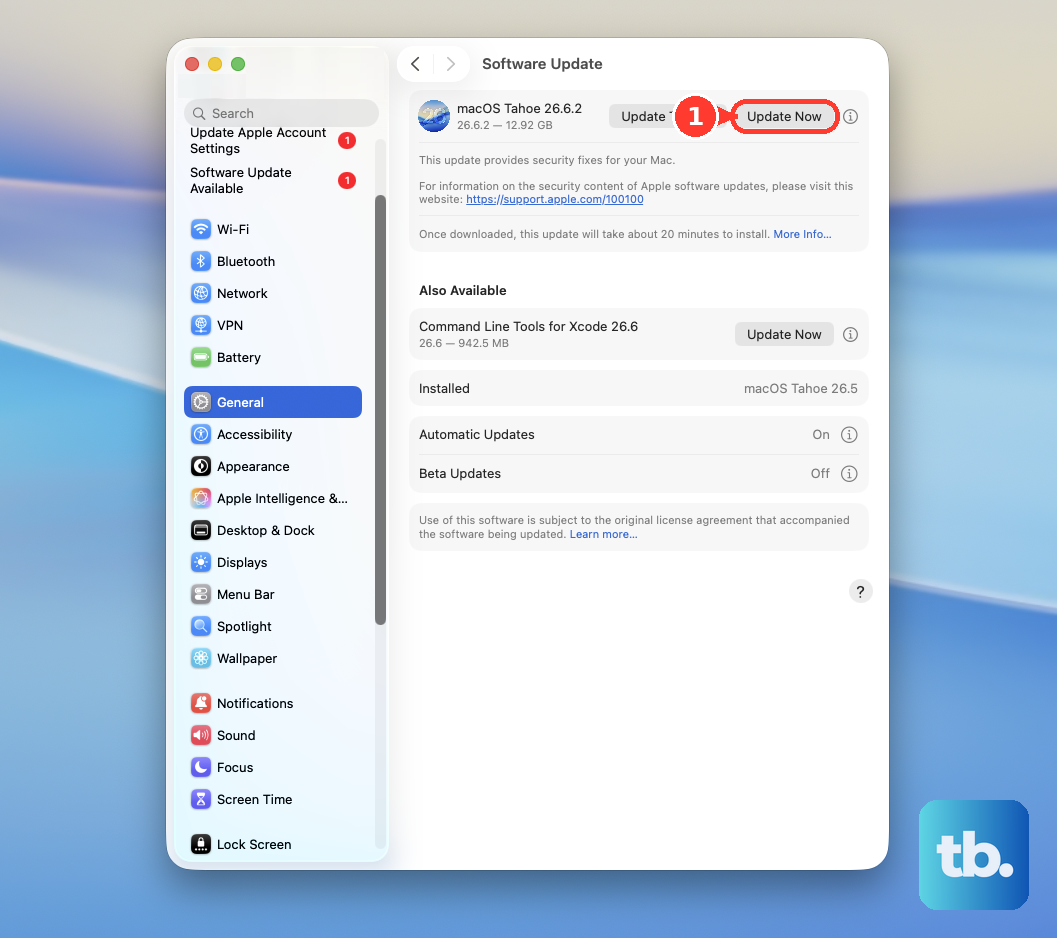
After the update completes, your Mac will restart. This process can resolve underlying compatibility issues that might be interfering with sound output.
Review Bluetooth Connections
The M4 chip can sometimes have unstable connections with certain Bluetooth peripherals. If your audio is silently routing to a paired headset or speaker you aren't using, it will seem like there's no sound.
Go to System Settings > Bluetooth. Hover over any connected audio devices and click the "Disconnect" button. Then, try playing sound again from your MacBook's speakers.
Reset the SMC and NVRAM Equivalent
On Apple Silicon Macs like the M4, the functions of the SMC and NVRAM are handled differently. A full shutdown and restart often clears these settings. First, shut down your Mac via the Apple menu.
Wait about 30 seconds, then press and hold the power button for a full 10 seconds to ensure it's fully off. Release the button, wait another few seconds, then press it normally to turn your MacBook Air back on. This can reset low-level hardware management states that affect audio.











