
When your MacBook Air M4's battery seems to vanish in a few hours, it can feel like you're constantly tethered to the charger. The good news is that a few specific settings and checks can usually get you back to a full day of work.
Run Apple Diagnostics First
Before you dive into settings, it's worth a quick hardware check. Shut down your MacBook Air M4 completely. Now, press and hold the power button and keep holding it until you see the startup options window appear. Select "Options," then click "Continue." From there, you can choose to run Apple Diagnostics. It only takes a minute and will tell you if there's a known issue with the battery itself.
Check Battery Health and Cycle Count
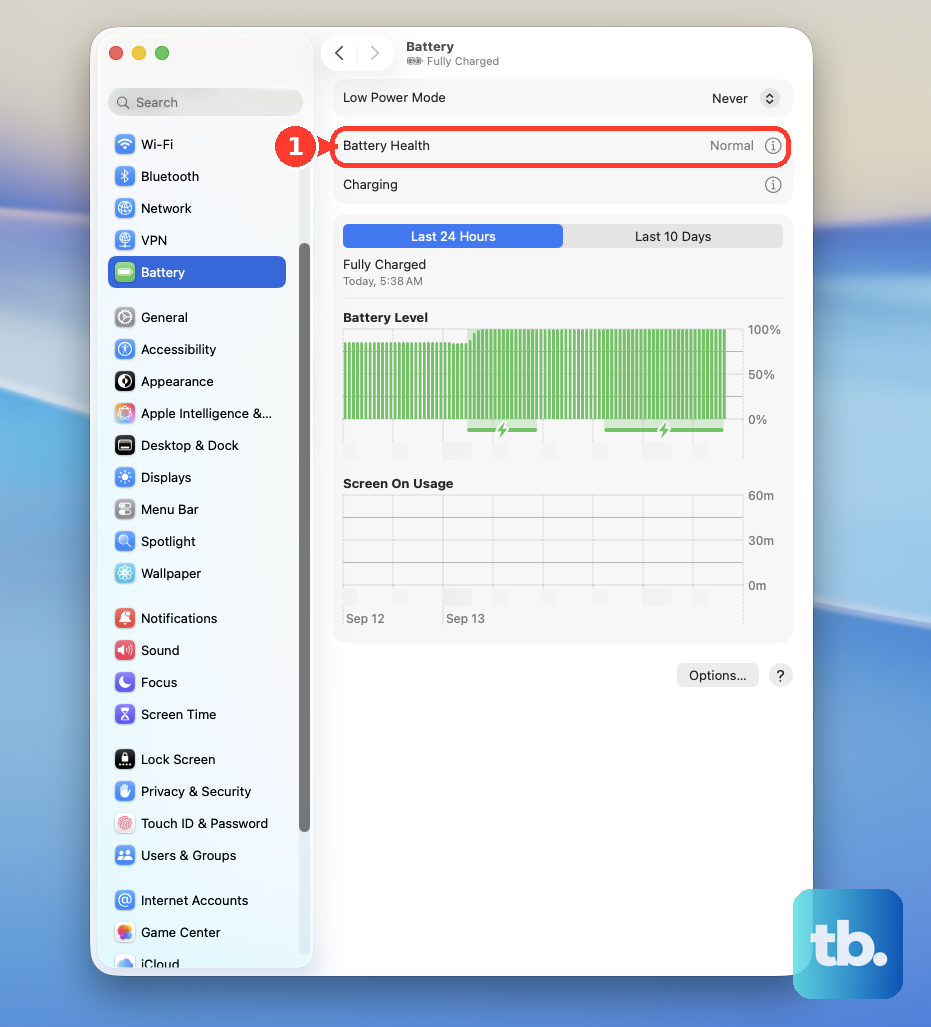
Head to System Settings > Battery. Look for the Battery Health section. If it says "Service Recommended," the physical battery has degraded and likely needs replacement. For more detail, click the Apple menu > About This Mac > More Info. In the sidebar, go to System Report > Hardware > Power. Here you can see your cycle count. The M4 Air battery is rated for 1,000 cycles, so if you're well below that, the issue is probably software-related.
Use Activity Monitor's Energy Tab
This is your best tool for finding the culprit. Open Activity Monitor from your Utilities folder and click the Energy tab. Sort the list by "Energy Impact" to see which apps are using the most power right now. Also, look at the "Preventing Sleep" column. Any app with a "Yes" here is stopping your Mac from going to sleep, which is a huge battery drain. I'd start by quitting anything with a high energy impact that you don't actively need.
Adjust Display and Keyboard Settings
The screen is always the biggest power draw. Lower the brightness to the lowest comfortable level using the F1 key. In System Settings > Displays, make sure "Automatically adjust brightness" is on so it can dim itself in darker rooms. Also, consider shortening the time before the display sleeps in System Settings > Lock Screen. If you're not using it, turn off the keyboard backlight with the F5 key.
Manage Bluetooth and Wi-Fi
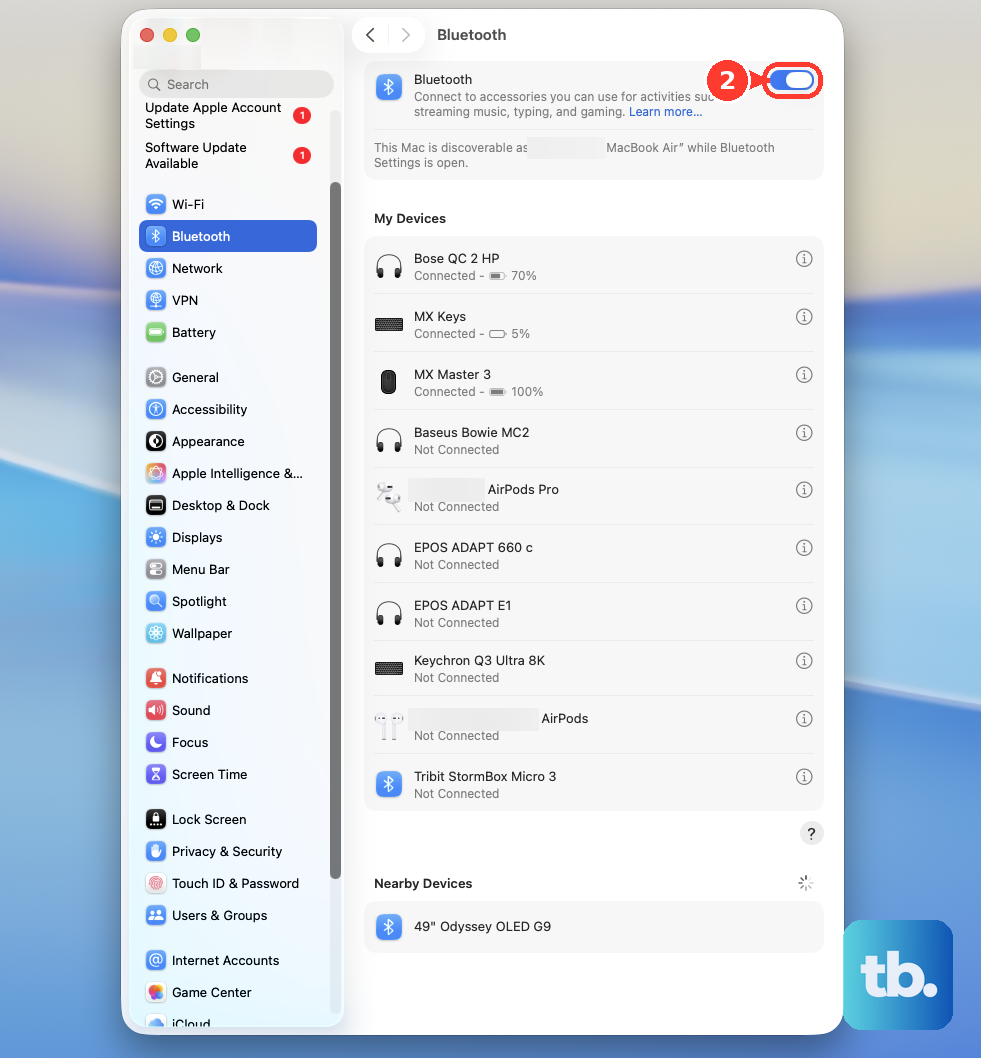
There's a known issue where the M4 Air's Bluetooth can have intermittent drops with certain peripherals, which can cause it to constantly search and drain power. If you're not using a Magic Mouse, AirPods, or a keyboard, turn Bluetooth off entirely in System Settings > Bluetooth. Similarly, if you're working offline, turning off Wi-Fi can save a noticeable amount of battery.
Review Login Items and Background Apps
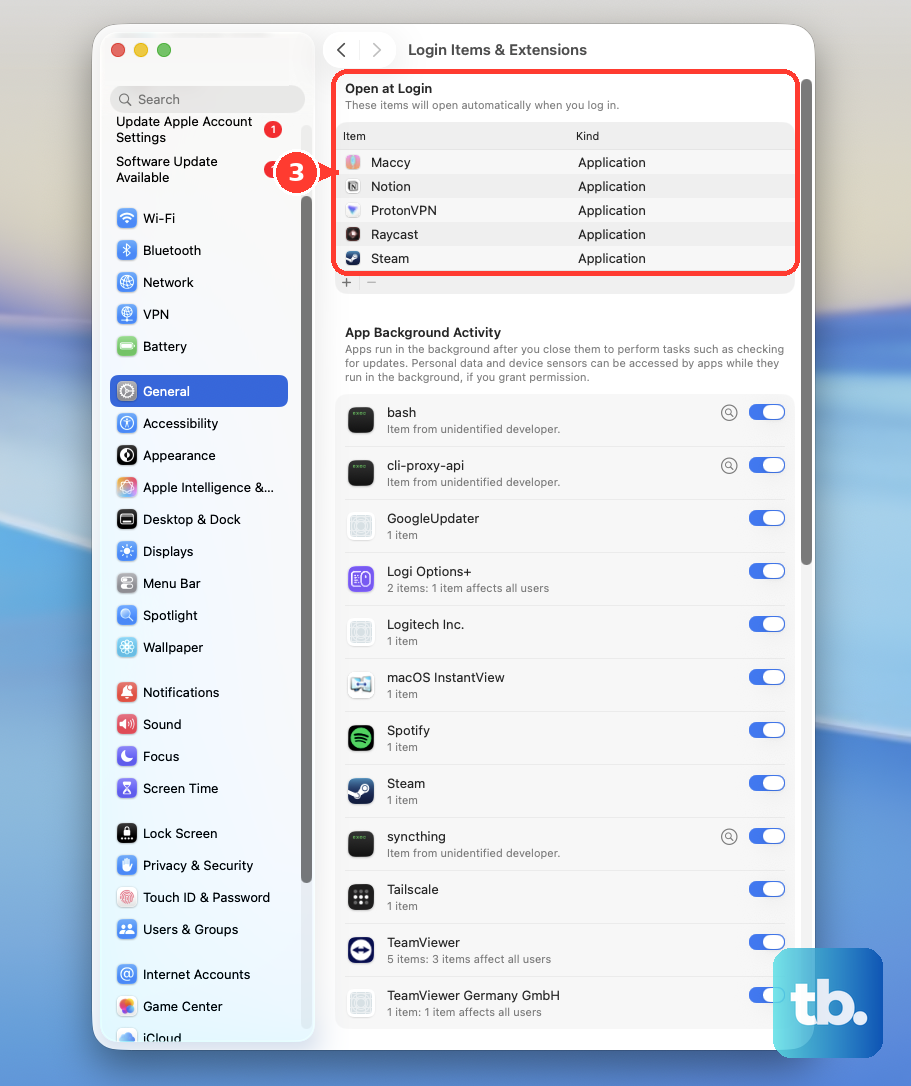
Go to System Settings > General > Login Items & Extensions. Apps listed here launch automatically when you start your Mac and often run in the background. Remove any you don't need starting up every time. Also, check for menu bar apps you might have forgotten about. Cloud storage syncs, messaging apps, and updaters can all sip power continuously.
Enable Low Power Mode
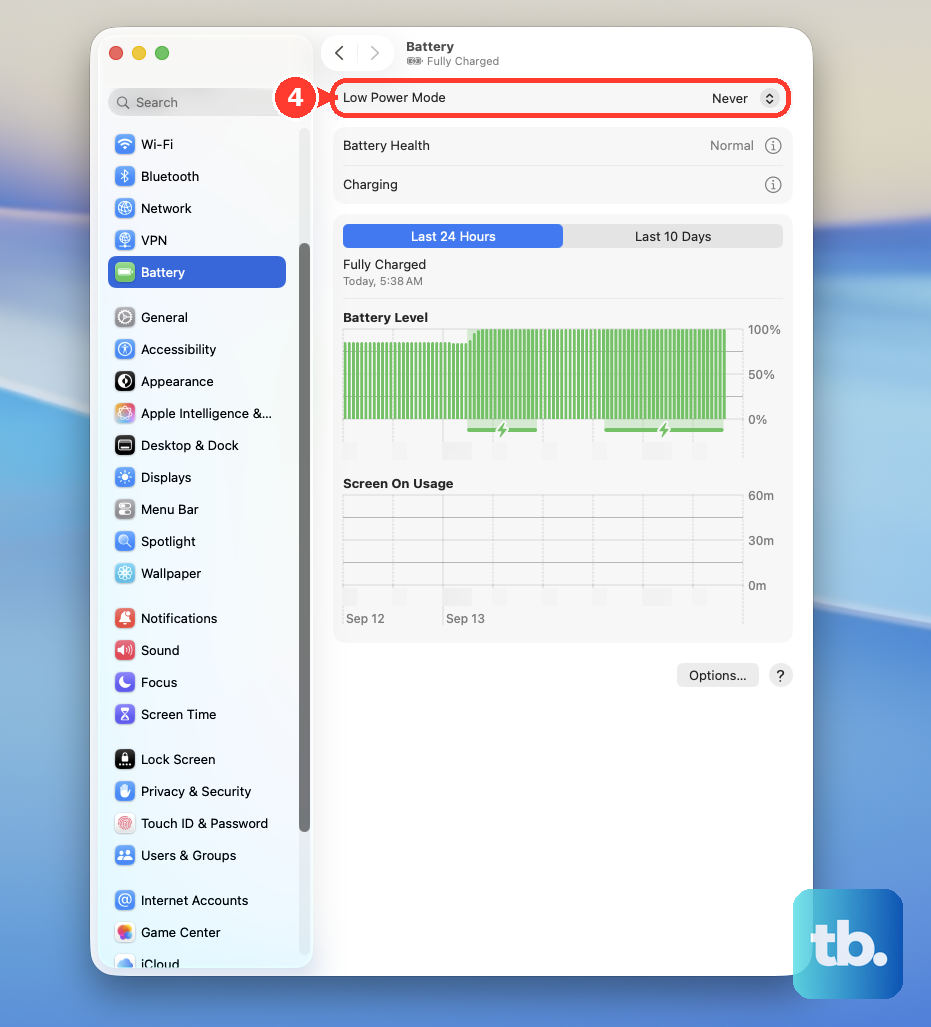
Your M4 Air has a built-in Low Power Mode. Go to System Settings > Battery and turn it on. You can set it to activate only when on battery or always. This slightly reduces CPU performance, lowers screen brightness, and pauses non-essential background tasks, which can add hours of runtime for tasks like writing or browsing.
Update to the Latest macOS
Apple is constantly tweaking power management. Go to System Settings > General > Software Update to install any available updates. After a major update to macOS 26 Tahoe, it's common to see higher battery drain for a day or two as Spotlight reindexes files and the system settles. Give it 48 hours before you worry.
Reset Your Mac in Safe Mode
If the drain started suddenly, a software glitch might be to blame. Shut down your Mac. Press and hold the power button until you see the startup options window. Select your startup disk, then press and hold the Shift key and click "Continue in Safe Mode." This loads macOS with only essential drivers. Use it for a bit to see if the battery life improves. If it does, the issue is caused by a third-party app or login item.
Be Mindful of External Displays
The base M4 chip in the Air supports only one external display. Driving that display, especially a high-resolution one, uses significant power. If you're running on battery with an external monitor plugged in, expect your runtime to be cut substantially. For the best battery life, stick to the built-in retina display when you're away from your desk.