
When your MacBook Air M3 won't connect to WiFi, drops the connection frequently, or shows "No Internet Connection" despite being connected, it can be a real roadblock. Let's get you back online.
Toggle WiFi Off and On
Click the WiFi icon in the top-right menu bar and choose "Turn Wi-Fi Off." Wait about 10 seconds, then click the icon again and select "Turn Wi-Fi On." This simple refresh of the wireless adapter clears out most temporary glitches and is the first thing I'd try.
Restart Your MacBook Air
Click the Apple logo in the menu bar and select "Restart." A full reboot reloads the WiFi driver and clears any cached network states that might be causing the problem. It's a surprisingly effective fix for intermittent drops on the M3 model.
Forget and Rejoin Your Network
Head to System Settings and click on "Wi-Fi." Click the "i" information button next to the network giving you trouble, then click "Forget This Network." Confirm the action. Now, reselect the network from the list and enter the password to create a brand new, clean connection profile.
Renew Your DHCP Lease
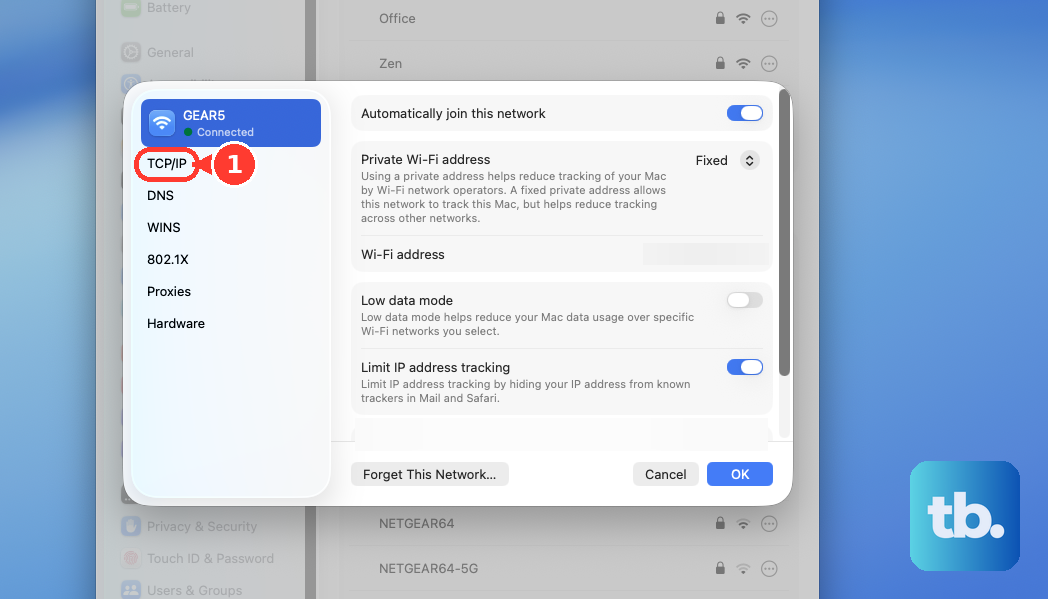
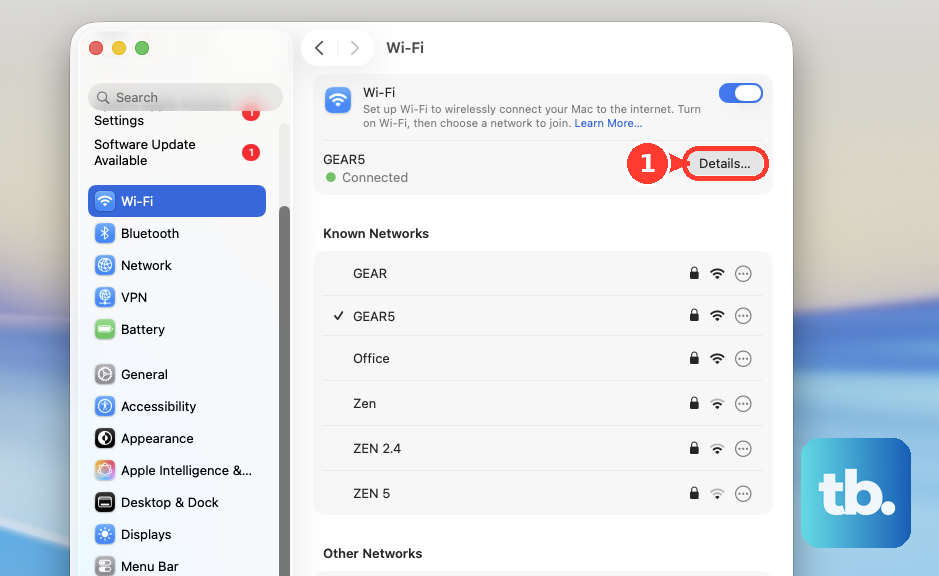
In System Settings > Wi-Fi, click the "Details" button next to your connected network. Go to the "TCP/IP" tab and click the "Renew DHCP Lease" button. This asks your router for a fresh IP address, which can resolve that frustrating "connected but no internet" status you might be seeing.
Change Your DNS Servers
Staying in the network Details window, go to the "DNS" tab. Remove any existing DNS server addresses listed. Click the plus (+) button to add new ones: try 8.8.8.8 and 8.8.4.4 for Google DNS, or 1.1.1.1 for Cloudflare. Sometimes the problem isn't the connection itself, but a slow or unresponsive DNS server provided by your ISP.
Delete Network Configuration Files
Open a new Finder window, press Command+Shift+G, and type this path: /Library/Preferences/SystemConfiguration/. Look for and move these three files to your Trash: com.apple.network.identification.plist, com.apple.wifi.message-tracer.plist, and NetworkInterfaces.plist. Restart your MacBook Air, and macOS will generate fresh, default versions of these files.
Check for macOS Updates
Go to System Settings, then "General," and select "Software Update." Apple frequently includes fixes for wireless connectivity in macOS updates. Ensuring you're on the latest version of macOS Tahoe is a key step, as it can patch bugs specific to the M3's networking hardware.
Inspect Your WiFi Signal
Hold down the Option key on your keyboard and click the WiFi icon in the menu bar. You'll see a detailed dropdown. Look for the "RSSI" value, which is your signal strength. If it's -70 dBm or lower (more negative), your signal is weak. Try moving closer to your router or removing physical obstructions.
Create a New Network Location
Open System Settings and go to "Network." Click the three-dot menu button next to your active network service and hover over "Locations," then select "Edit Locations." Click the plus (+) icon to add a new location, give it a name like "Fresh," and click "Done." Finally, select this new location from the menu to activate it. This resets all network settings to a clean slate.