
When your MacBook Air M3 gets too hot, you might notice the bottom getting uncomfortably warm, the fan spinning up loudly, or even a performance slowdown as the system throttles to protect itself. It's a common issue, but usually one you can resolve with a few checks.
Check Activity Monitor First
Open Activity Monitor from your Utilities folder and click the CPU tab. Sort the list by "% CPU" to see what's using the most processor power. A runaway app, a browser tab with a heavy website, or a background process stuck in a loop can be the sole cause of the heat.
If you see a process consistently using a high percentage, you can select it and click the stop (X) button in the toolbar to force quit it. I'd start here, as it often points directly to the problem.
Manage Your Apps and Browser Tabs
The M3 chip is powerful, but sustained workloads like video editing, 3D software, or gaming will generate heat. Close applications you're not actively using. Pay special attention to your web browser.
Having dozens of tabs open, especially ones playing video or running complex web apps, is a major source of CPU load. Try using tab groups or bookmarking pages to close them and reduce the strain.
Install Any macOS Updates
Head to System Settings > General > Software Update. Apple frequently releases updates that include performance optimizations and thermal management improvements for the M3 chip. Ensuring you're on the latest version of macOS is a simple but effective step.
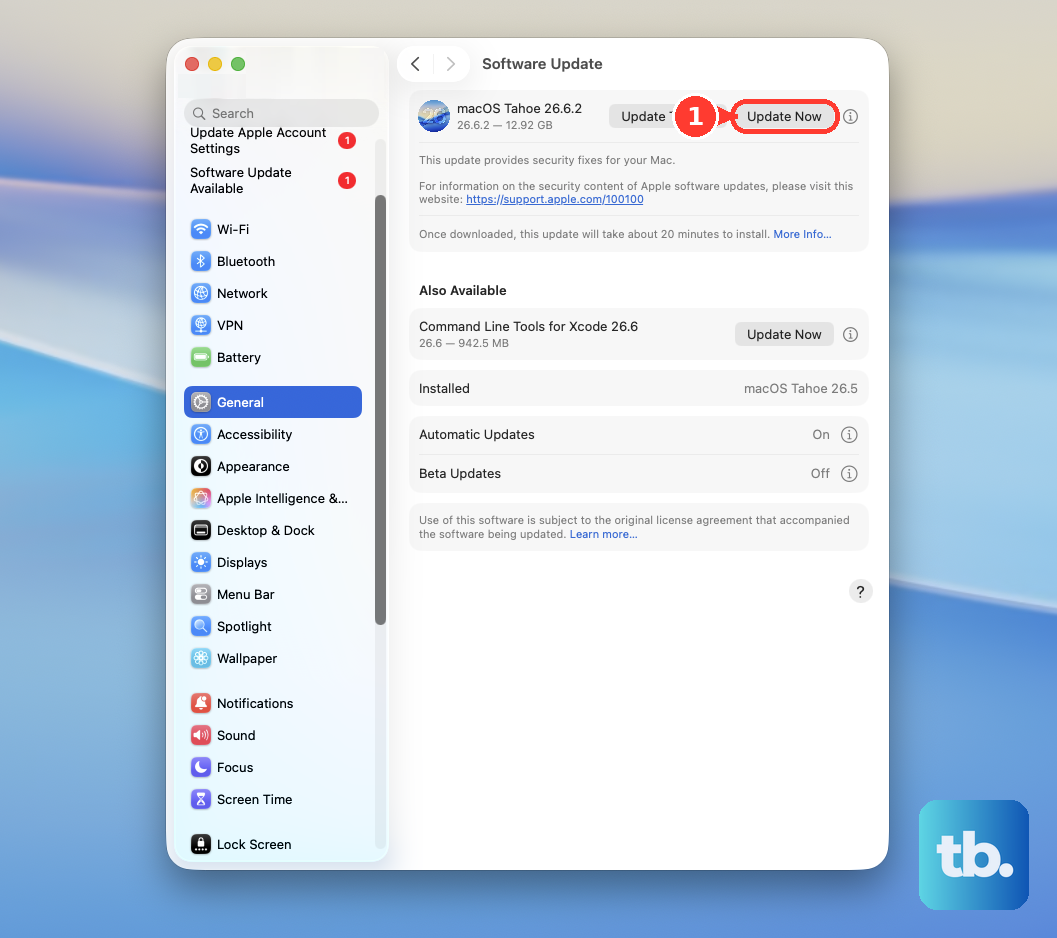
Right after a major update, your Mac might run warm as Spotlight reindexes your files. This process can take a few hours, but it should complete on its own.
Let Your MacBook Breathe
The MacBook Air's fanless design relies on passive cooling through its aluminum chassis. Using it on a soft surface like a blanket, pillow, or your lap can trap heat. Always place it on a hard, flat desk or table.
For even better airflow, you can slightly elevate the back of the laptop. A simple stand or even a book can make a noticeable difference by allowing air to circulate underneath.
Reset the Thermal Management System
For Apple Silicon Macs like the M3 Air, a full shutdown and restart can clear out any temporary glitches in the thermal management. It's the modern equivalent of the old SMC reset for Intel Macs.
Save your work, choose Apple menu > Shut Down, wait 30 seconds, then press the power button to turn it back on. This quick reset often resolves odd heating behavior.
Adjust Your Display Settings
The display is one of the biggest power draws on any laptop. Turning down the screen brightness is one of the fastest ways to reduce heat and extend battery life. Find a comfortable level that's not at maximum.
You can also try temporarily disabling features like True Tone or Night Shift from the Display settings to see if that helps while you're troubleshooting the heat issue.
Check Your Battery Health
A battery that is failing or has significantly degraded can sometimes cause unusual heating, especially during charging. Go to System Settings > Battery > Battery Health.
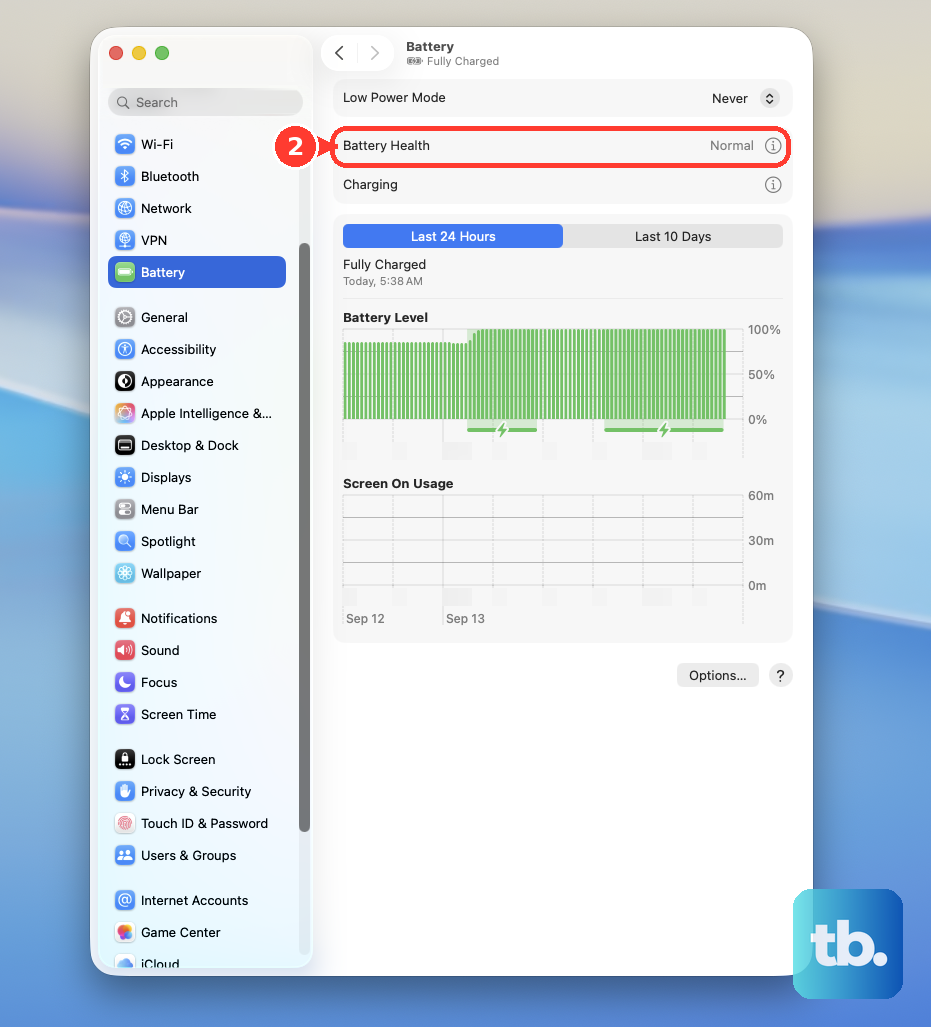
If the status here says "Service Recommended," it's a good indication that the battery itself may be contributing to the thermal problems and needs to be looked at.
Try Safari for Everyday Browsing
If you're a Chrome user, consider that it's known for higher CPU and energy usage on Macs compared to Safari. Safari is deeply optimized for Apple's hardware and typically runs much cooler.
Switching to Safari for your general browsing can lead to a cooler laptop and longer battery life. It's a simple swap that many users find makes a big difference on the M3 Air.
Run Apple Diagnostics
If you've tried everything and the overheating persists, it's worth running Apple Diagnostics to check for hardware issues. Shut down your MacBook Air, then press and hold the power button as you turn it on.
Keep holding until you see the startup options window, then press and hold Command (⌘) + D. This will test the system, including the thermal sensors and logic board, for any faults.