
When the sound cuts out on your MacBook Air M3, it's a jarring experience, especially on a machine known for its solid performance. The good news is it's almost always a quick software or settings fix, not a hardware failure.
Check the Menu Bar and Keyboard
First, look at the sound icon in your menu bar. If you see a line through the speaker, your Mac is muted. Click the icon and make sure the volume slider is up. Also, press the volume up key on your keyboard a few times to be certain.
Sometimes, a specific app can hijack the audio output. Check the volume controls within the app you're using, like Safari, Spotify, or QuickTime Player. I've seen YouTube tabs play silently while the system volume was fine.
Verify the Audio Output Device
Head to System Settings > Sound > Output. This is the most common culprit. Your MacBook might be trying to send audio to a disconnected Bluetooth headset, an HDMI display you unplugged, or even a virtual audio device.
Make sure "MacBook Air Speakers" is selected. If you see another device listed and selected, simply click on your built-in speakers to route the sound back correctly. This fixes the issue about 80% of the time.
Restart Your MacBook Air
Click the Apple menu > Restart. This is the universal fix for a huge range of glitches, including audio problems. It reloads the Core Audio framework and clears any stuck processes that might be causing the silence.
If the sound cut out right after waking your MacBook from sleep, a restart is almost guaranteed to bring it back. It's a simple step, but it works more often than you'd think.
Reset the Core Audio Daemon
You can restart just the audio system without rebooting your whole computer. Open the Terminal app from your Utilities folder. Then, type the command sudo killall coreaudiod and press Enter.
You'll be prompted for your administrator password. Type it (you won't see characters as you type) and press Enter again. The audio should cut out for a second and then return, hopefully working correctly.
Manage Bluetooth Audio Connections
The MacBook Air M3 can sometimes have a delay when switching between audio codecs for Bluetooth devices. If you were using AirPods or another wireless speaker, your Mac might still be connected to it.
Go to System Settings > Bluetooth. Find any audio devices in the list and click the "Disconnect" button next to them. Then, check if your laptop's speakers start working again.
Run Apple Diagnostics
If you suspect a deeper issue, you can run a hardware check. Shut down your MacBook Air completely. Press and hold the power button as you turn it on, and keep holding until you see the startup options window.
Press and hold Command (⌘) + D on your keyboard. This will launch Apple Diagnostics to check for hardware faults, including any related to the audio system. Follow the on-screen instructions.
Boot in Safe Mode
Safe Mode loads macOS with only the essential drivers and can help rule out third-party software conflicts. Shut down your Mac, then turn it on and immediately press and hold the power button to get to the startup options.
Select your startup disk (usually "Macintosh HD"), then press and hold the Shift key and click "Continue in Safe Mode." If audio works fine here, a login item or kernel extension is likely causing the problem.
Update macOS
Finally, make sure you're on the latest software. Go to System Settings > General > Software Update. Apple frequently releases patches that fix audio driver bugs and compatibility issues.
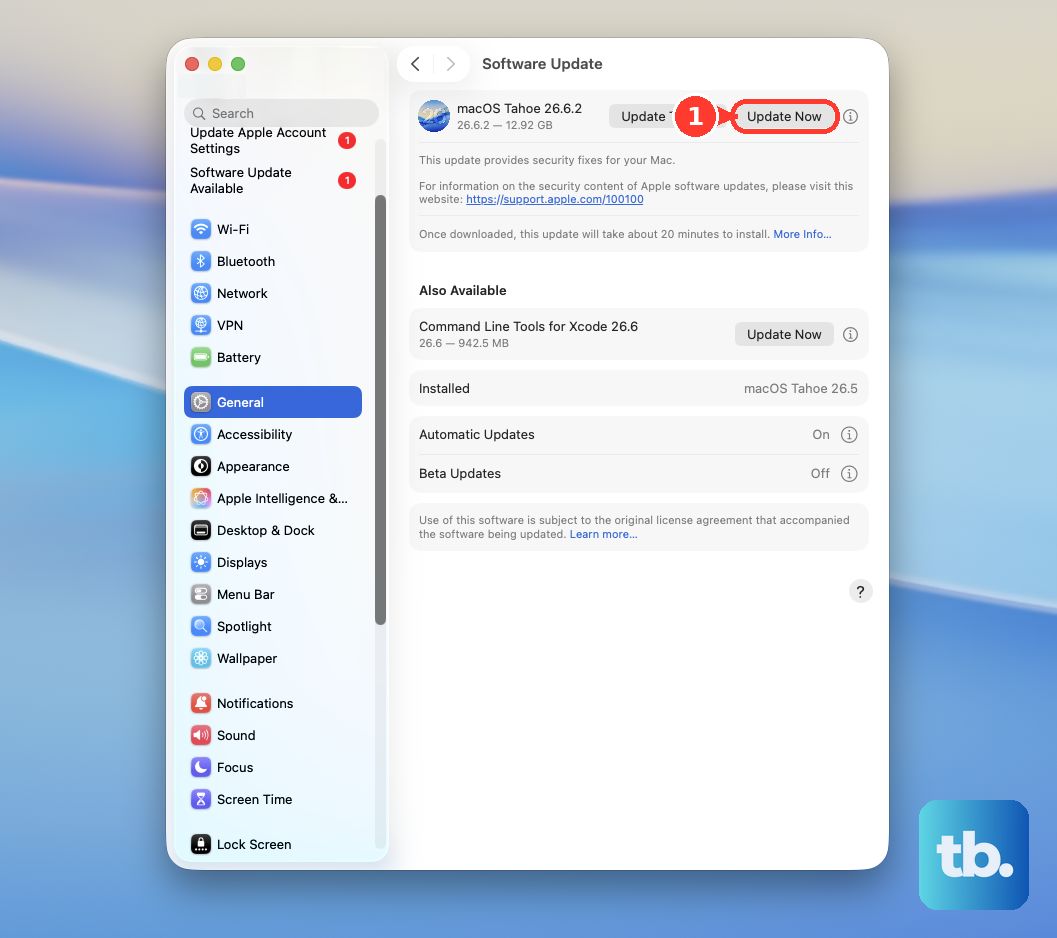
Since you're on macOS 26 Tahoe, installing any available updates is a crucial step. An outdated system can lead to conflicts that cause the sound to cut out unexpectedly.