
When Bluetooth acts up on your MacBook Air M3, it can leave your Magic Mouse, AirPods, or wireless keyboard stranded. The connection might drop, a device refuses to pair, or the menu bar icon just disappears. Let's get it working again.
Start with the simplest step. Click the Bluetooth icon in your menu bar and choose "Turn Bluetooth Off." Wait about ten seconds, then turn it back on. If you don't see the icon, you can find the toggle in System Settings > Bluetooth.
Restart Your MacBook Air
Go to the Apple menu > Restart. This is often the most effective quick fix, as it completely reloads the Bluetooth software stack and clears out any temporary glitches. I'd try this before moving on to more involved steps.
Forget and Re-Pair the Problem Device
Head to System Settings > Bluetooth. Find the troublesome device in your list and click the info i button next to it. Select Forget This Device and confirm. Then, put your accessory back into pairing mode and reconnect it fresh.
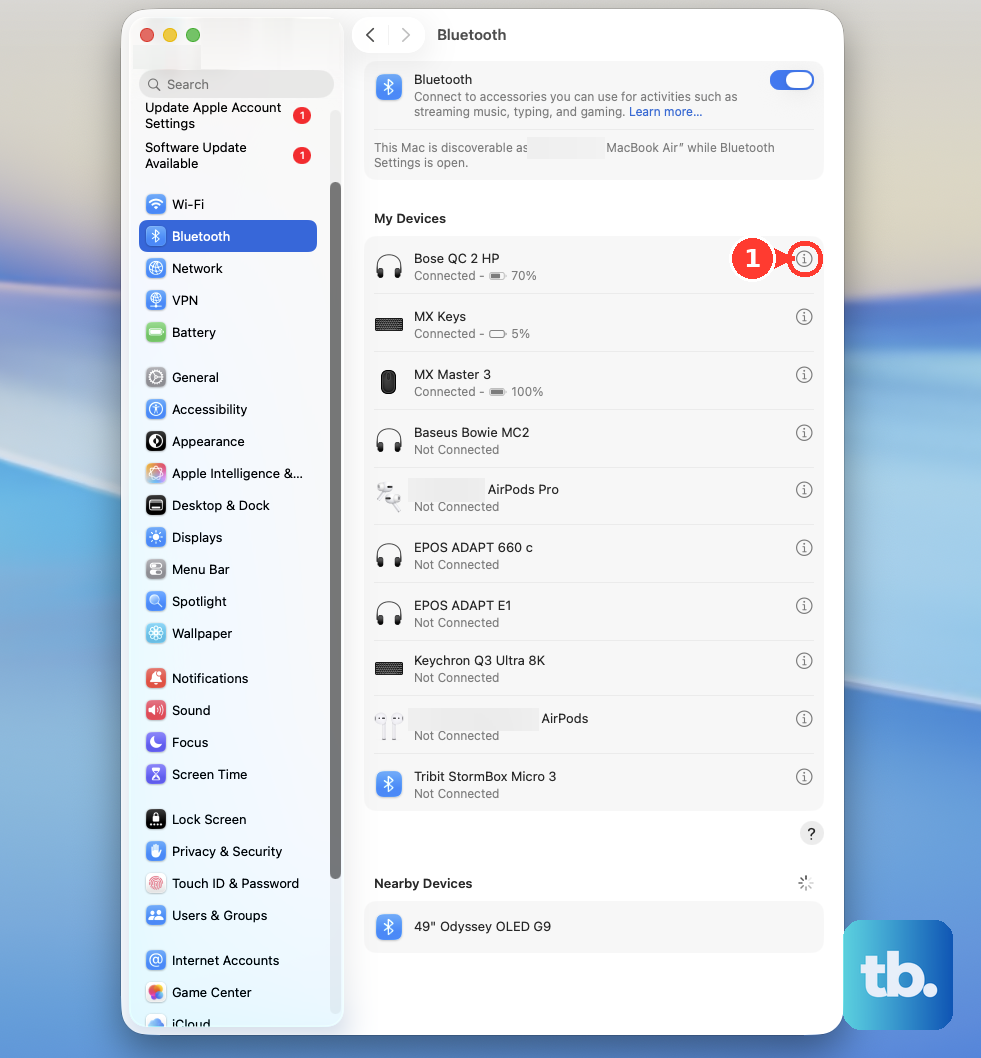
A corrupted pairing profile is a very common culprit for persistent connection issues. Starting over with a clean slate fixes it most of the time.
Reset the Bluetooth Module
Hold down the Shift and Option keys on your keyboard, then click the Bluetooth icon in the menu bar. A hidden debug menu will appear. From there, choose Reset the Bluetooth module.
This performs a deeper reset of the Bluetooth hardware itself. Your Mac will restart automatically after this action. You won't lose your paired devices, but it often resolves deeper software conflicts.
Update macOS to the Latest Version
Apple frequently releases updates that include fixes for wireless connectivity. Go to System Settings > General > Software Update and install any available updates.
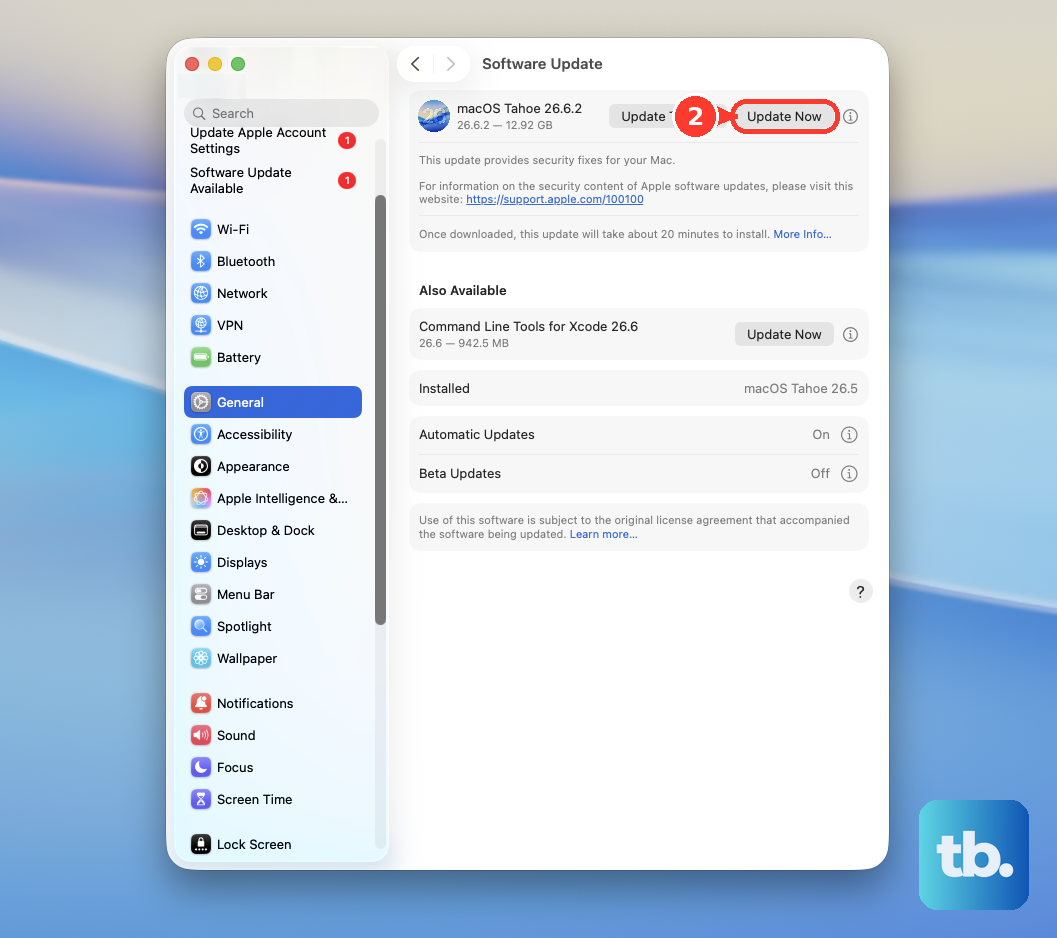
Since you're on macOS 26 Tahoe, make sure you have the very latest version. Updates for Apple Silicon Macs, like your M3, often contain specific Bluetooth driver improvements and can solve codec switching delays with audio devices.
Check for Wireless Interference
Your MacBook Air's Bluetooth operates on the crowded 2.4GHz band. Other devices can cause interference. Try moving away from wireless routers, cordless phones, or microwave ovens.
Also, some USB 3.0 hubs and devices are known to emit radio noise that disrupts Bluetooth. If you have any plugged in, try unplugging them temporarily to see if your connection stabilizes.
Delete Bluetooth Preference Files
If the problem persists, the system files that store your Bluetooth settings might be corrupted. Open a Finder window, press Command + Shift + G, and type /Library/Preferences/ into the box that appears.
Look for a file named com.apple.Bluetooth.plist and move it to the Trash. You will need to enter your administrator password. Restart your MacBook Air afterward.
macOS will create a brand new, clean preferences file when it boots up. Be aware that you will need to re-pair all of your Bluetooth devices after doing this.
Boot Into Safe Mode
Safe Mode loads macOS with only the essential software, which helps determine if a third-party app is causing the conflict. Shut down your MacBook Air completely.
Press and hold the power button until you see "Loading startup options." Select your main drive, then press and hold the Shift key on your keyboard. Click Continue in Safe Mode.
Test your Bluetooth connection in this mode. If it works perfectly here, then an app or system extension you've installed is likely the problem. You'll need to identify it by process of elimination after restarting normally.
Run Apple Diagnostics
This built-in tool can check your MacBook Air M3's hardware, including the Bluetooth components. Shut down your computer, then press and hold the power button as it starts up.
Keep holding it until you see the startup options window. From there, press Command + D to launch Apple Diagnostics. Follow the on-screen instructions. If any Bluetooth-related hardware faults are found, it will report them here.